
When your Acer Nitro V 15's webcam shows a black screen or isn't detected by apps like Zoom or Discord, it can stop your gaming streams or video calls cold. The fixes are usually straightforward, starting with a quick check of the most common culprit.
Check for a Physical Camera Shutter
First, look closely at the bezel above your display. Many modern laptops, including some Acer models, have a tiny physical slider that acts as a privacy shutter. If this slider is closed, it physically blocks the camera lens, resulting in a perfect black screen. Gently slide it to the side to uncover the lens.
Verify Camera Privacy Settings in Windows
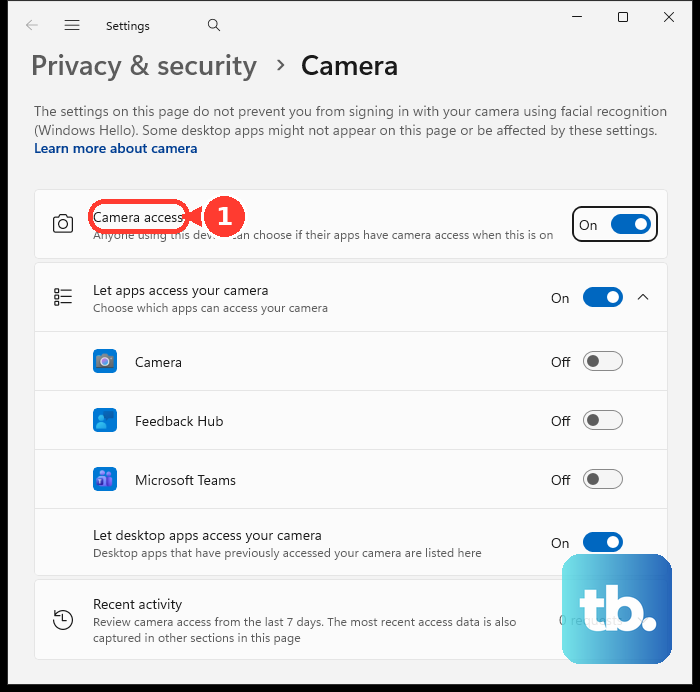
Windows has a system-level privacy toggle that can disable all camera access. Press the Windows key and type "camera privacy" to open the settings. Make sure "Camera access" is turned On. Then, scroll down to "Let apps access your camera" and ensure the toggle is on for the specific app you're trying to use, like your browser or Discord.
Close Other Apps Using the Camera
Your laptop's camera can only be used by one application at a time. If you have another program running in the background, like the Xbox Game Bar, the Camera app itself, or even a forgotten browser tab with video chat, it will lock the camera. Use Task Manager (Ctrl+Shift+Esc) to close any potential camera-using apps before launching the one you need.
Test with the Windows Camera App
Open the built-in Camera app from your Start Menu. This is a great diagnostic tool. If the camera works perfectly here but fails in another app like Chrome or OBS, then the problem is isolated to that app's settings. You'll need to dig into that program's video or device settings to select the correct camera.
Update or Reinstall the Camera Driver
Outdated or corrupted drivers are a frequent cause. Right-click the Start button and select Device Manager. Expand the "Cameras" or "Imaging devices" section, right-click on your "Integrated Webcam" or similar, and choose "Update driver." Let Windows search automatically. If that doesn't work, choose "Uninstall device," restart your laptop, and Windows will attempt a clean reinstall of the default driver.
Get the Latest Drivers from Acer
For the best compatibility, I'd recommend getting the driver directly from Acer's support site. Visit the Acer driver page for the Nitro V 15, enter your serial number, and look for camera, chipset, or Intel Management Engine drivers. Installing the official package can resolve issues that the generic Windows driver doesn't fix.
Run a System Update
Head to Settings > Windows Update and click "Check for updates." Install any available feature or quality updates. Microsoft often includes hardware compatibility fixes. Don't forget to also click "Advanced options" and then "Optional updates" to see if any driver updates, potentially for the camera, are listed there.
Check Your Antivirus or Security Software
Sometimes, overzealous security software can block hardware access. Temporarily disable your third-party antivirus or firewall (Windows Security is usually fine) and test the camera again. If it starts working, you'll need to add an exception for your camera or the specific app in your security software's settings.
Reset the Camera App
If only the Windows Camera app is malfunctioning, you can reset it. Go to Settings > Apps > Installed apps, find "Camera," click the three-dot menu, and select "Advanced options." Click the "Reset" button. This clears the app's data and cache without affecting your other programs or drivers.