When your Acer Aspire 5 15 won't connect to WiFi, it feels like you're cut off from the world. Whether you see no networks at all, you're stuck with a "No Internet" status, or the connection keeps dropping, these steps will get you back online.
Run the Windows Network Troubleshooter
This is the quickest way to start. Right-click the WiFi icon in your taskbar and select Troubleshoot network problems. Windows will automatically scan for and try to fix common issues like IP address conflicts or adapter problems. It's a good first move that often resolves simple glitches.
Toggle Your WiFi Adapter Off and On
Click the network icon in the taskbar and turn the WiFi toggle off. Wait about ten seconds, then turn it back on. This forces your laptop's wireless card to reinitialize, which can clear up temporary connection states. You can also toggle Airplane mode on and off for a more comprehensive reset.
Forget and Re-add Your Network
Sometimes the saved connection profile gets corrupted. Go to Settings > Network & Internet > Wi-Fi > Manage known networks. Find your home network, click it, and select Forget. Then, scan for networks again, select yours, and re-enter the password. This creates a fresh, clean connection.
Restart Your Acer Aspire 5
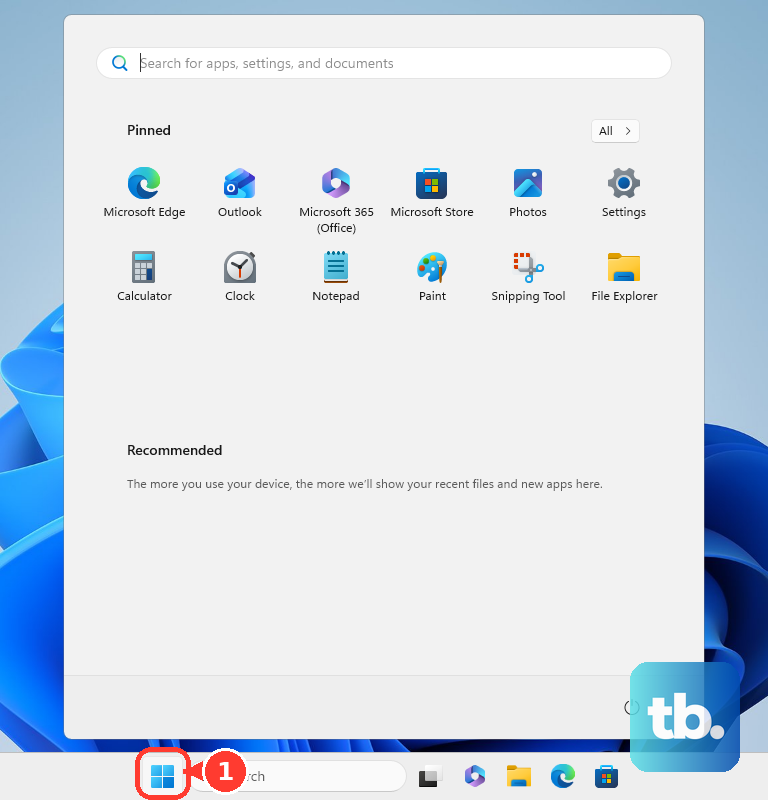
A full restart is different from just closing the lid. Click Start > Power > Restart. This clears out the network stack in Windows and reloads all your drivers from scratch. I'd start with this if the troubleshooter didn't work, as it's a reliable way to clear temporary software hiccups.
Update Your WiFi Driver
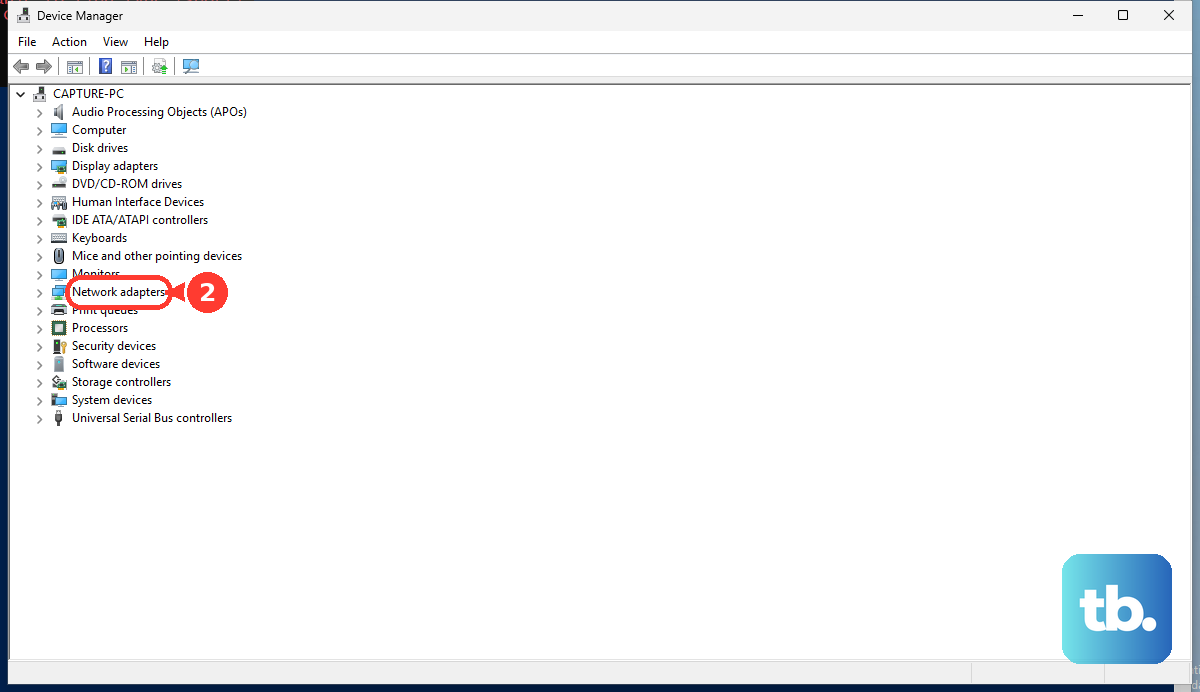
Outdated or buggy drivers are a frequent culprit. Press Windows + X and choose Device Manager. Expand Network adapters, right-click your wireless adapter (it might be named Intel, Realtek, or MediaTek), and select Update driver > Search automatically for drivers.
If that doesn't find anything, you should visit the official Acer support site. Enter your Aspire 5's exact model number (like A515-56) to find and manually download the latest wireless driver. This is especially important if you've recently updated Windows.
Use Acer Care Center for Diagnostics
Your Acer laptop comes with a useful tool pre-installed. Search for "Acer Care Center" in the Start menu and open it. Look for a section like Checkup or Diagnostics. Running the network diagnostic here can sometimes identify issues that Windows misses, and it can also check for Acer-specific driver updates.
Disable and Re-enable the Network Adapter
This is a more direct refresh than just toggling WiFi. Go back to Device Manager > Network adapters. Right-click your WiFi adapter and select Disable device. Wait a moment, then right-click it again and choose Enable device. This forces the hardware to restart without needing a full system reboot.
Reset Your Network Settings
This is a more comprehensive fix. Navigate to Settings > Network & Internet > Advanced network settings > Network reset. Click Reset now. This will remove and reinstall all network adapters and set every networking component back to its default state.
Be aware, you will need to re-enter all your WiFi passwords afterward. Use this if you're facing persistent, unexplained issues across different networks.
Check for Windows Updates
Microsoft regularly releases patches that fix compatibility issues with wireless hardware. Go to Settings > Windows Update and click Check for updates. Install any available feature or quality updates. There have been instances where specific Windows builds introduced WiFi problems that were later resolved in an update.
Check Your Router and Environment
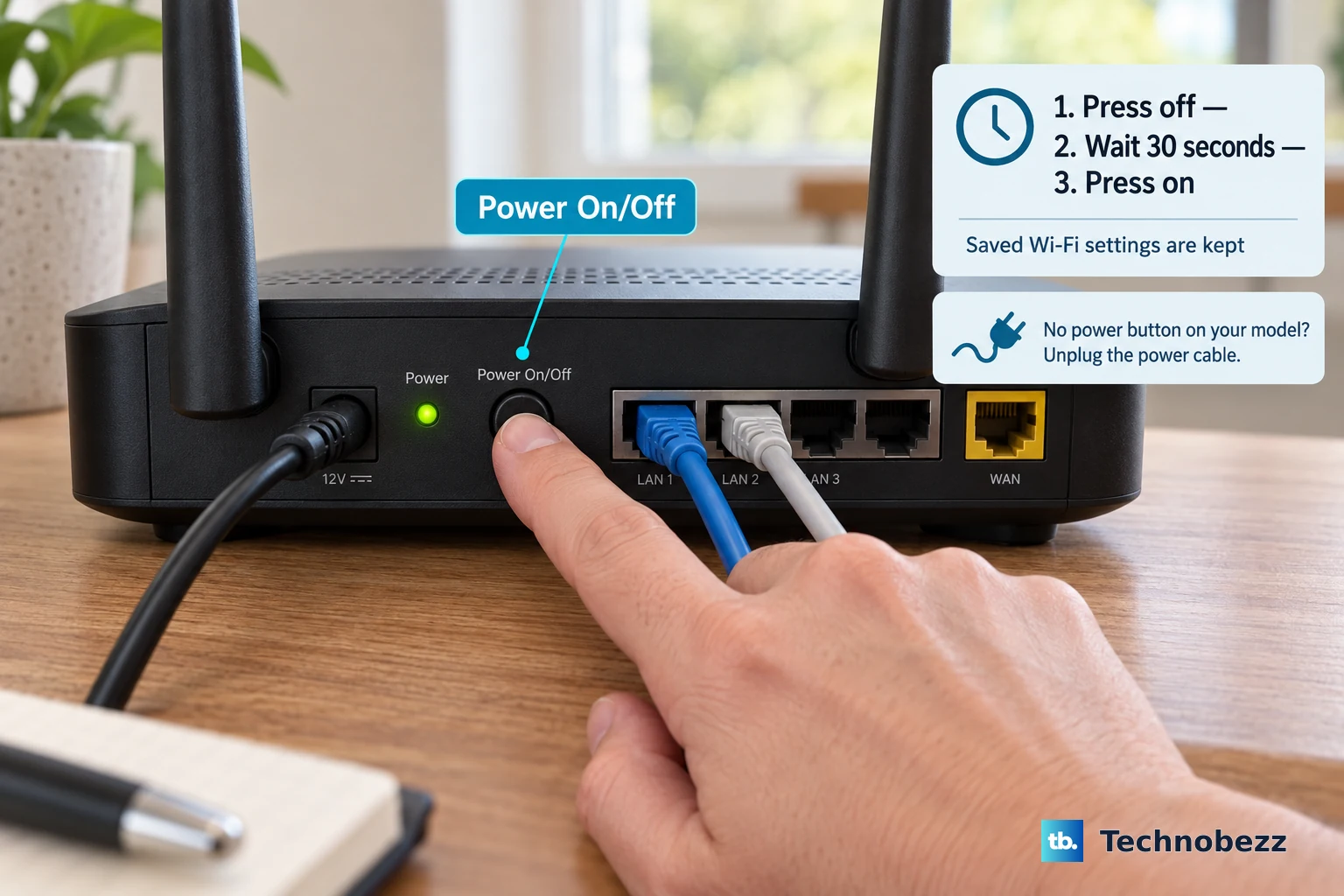
If other devices in your home also can't connect, the problem is likely your router. Try restarting it by unplugging the power for 30 seconds. Also, consider your laptop's location. The WiFi adapters in some base model Aspire 5 laptops can be slower or have less range.
Try moving closer to the router. As a final test, try connecting to a different network, like your phone's mobile hotspot. If that works, you know your laptop's WiFi hardware is functional and the issue is with your home network setup.