Something feels off. Maybe contacts are replying to spam you never sent, your inbox stopped receiving mail, or you spotted a login from a city you have never visited. These are the classic fingerprints of a compromised Yahoo Mail account, and the faster you act, the less damage an intruder does.
Make the new password count. A free password generator produces a long random string or a memorable passphrase locally in your browser, which beats any reused or predictable choice.
This guide shows you how to confirm whether your account was actually hacked, then walks you through Yahoo's official, ordered recovery sequence. The same steps apply to AOL Mail, since both run on the same platform. Work top to bottom; the quickest, highest-impact actions come first. One reassurance: a strange location in your activity log is not always a breach, because mobile devices sometimes report the wrong location.
Confirm the Signs of a Hacked Account
Yahoo lists a short set of symptoms that point to a compromised account.
You are not receiving any emails.
Your Yahoo Mail is sending spam to your contacts.
You see logins from unexpected locations on your security page.
Your account info or mail settings were changed without your knowledge.
On the same platform, AOL's help pages spell out a few more warning signs worth checking:
You keep getting bumped offline when you are signed in.
Your inbox is full of MAILER-DAEMON bounce notices for messages you did not send.
Your contacts have been erased, or new contacts appear that you did not add.
If one or more of these match, treat the account as compromised and move through the steps below in order.
Change Your Password Immediately
This is Yahoo's first step and the one that locks an intruder out. If you can still sign in, change it from the Account Security page.
- 1.Sign in to the Yahoo Account Security page (login.yahoo.com/account/security).
- 2.Under "Ways of signing in," click "Password."
- 3.Enter a new password.
- 4.Click "Continue."
On the Yahoo Mail app, tap the profile icon, tap "Manage Accounts," tap "Account," tap "Security," then scroll to the bottom and tap "Change password." Enter the new password and tap "Continue."
If those steps do not work in the app, change your password using your mobile web browser instead.
If no password-change option appears at all, Account Key may be enabled; disable it first, then change the password.
Reset Your Password If You Are Locked Out
If the attacker already changed your password, use the Sign-in Helper to recover.
Go to the Sign-in Helper (login.yahoo.com/forgot).
Enter your recovery email, or click "Use recovery phone number."
Click "Next."
Follow the instructions the Sign-in Helper provides.
If too many failed attempts locked the account, it unlocks automatically after 12 hours, but the Sign-in Helper restores access immediately.
Once back in, change your password and review your settings to undo any changes you did not make.
Delete App Passwords You Do Not Recognize
This is the step most people miss, and it is critical. App passwords let third-party mail clients connect to Yahoo, and they stay active even after you change your main password. To shut out an intruder who created one, you must delete it.
Go to the Yahoo Account Security page (login.yahoo.com/account/security).
Under "External connections," click "App passwords."
Select "Delete" next to any password you do not recognize.
Click "Delete" again to confirm.
Delete every entry you cannot account for.
If you later need to reconnect your own mail client, generate a fresh app password from the same "External connections" section by selecting "Create app password."
Review Your Sign-in History and Connected Devices
Next, see who else is signed in and force them out. The Account Security page has three sections that tell the story.
Open the "Current sign-ins" section to see every device currently signed in to your account.
Then open the "External connections" section to see which third-party apps are connected.
After that, open the "Recent account activity" section to see recent changes, such as a phone number being added or an email removed.
To remove a device, click the device you want to sign out, then click "Sign out." On the Yahoo Mail app, review the same connected devices and apps through Profile icon > "Settings" > "Manage account privacy" > "Your privacy controls" > "Security."
If anything looks suspicious, change your password again right away.
Revert Any Mail Settings the Hacker Changed
An intruder often plants quiet persistence: rules that hide, delete, or forward your mail so they keep reading it after you lock them out. Check all three settings below in New Yahoo Mail.
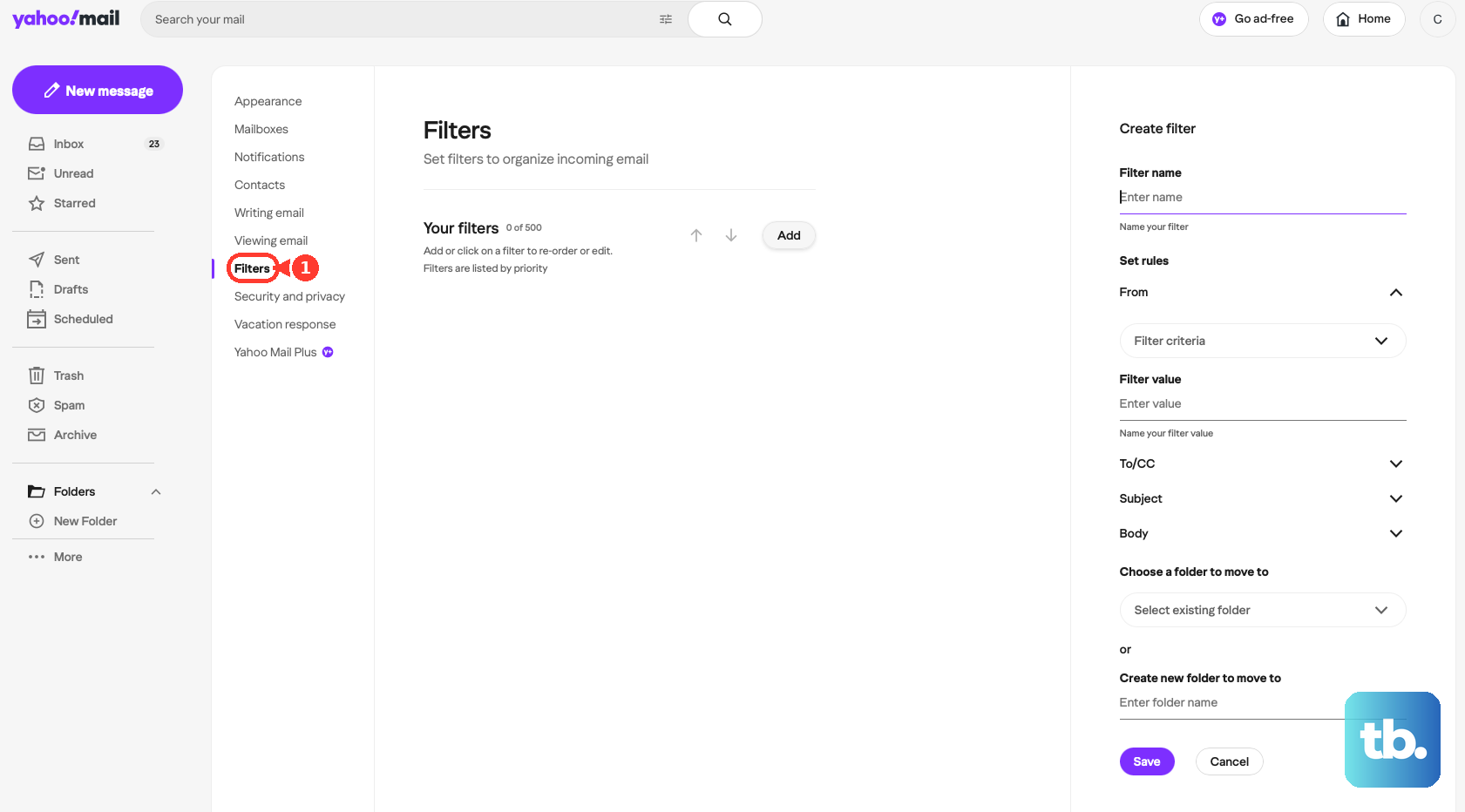
Filters. Click the "More options" icon (three dots), select "Settings," then click "Filters." Review every filter, and if one auto-deletes or redirects mail and you did not create it, select it and click the Delete (trash) icon.
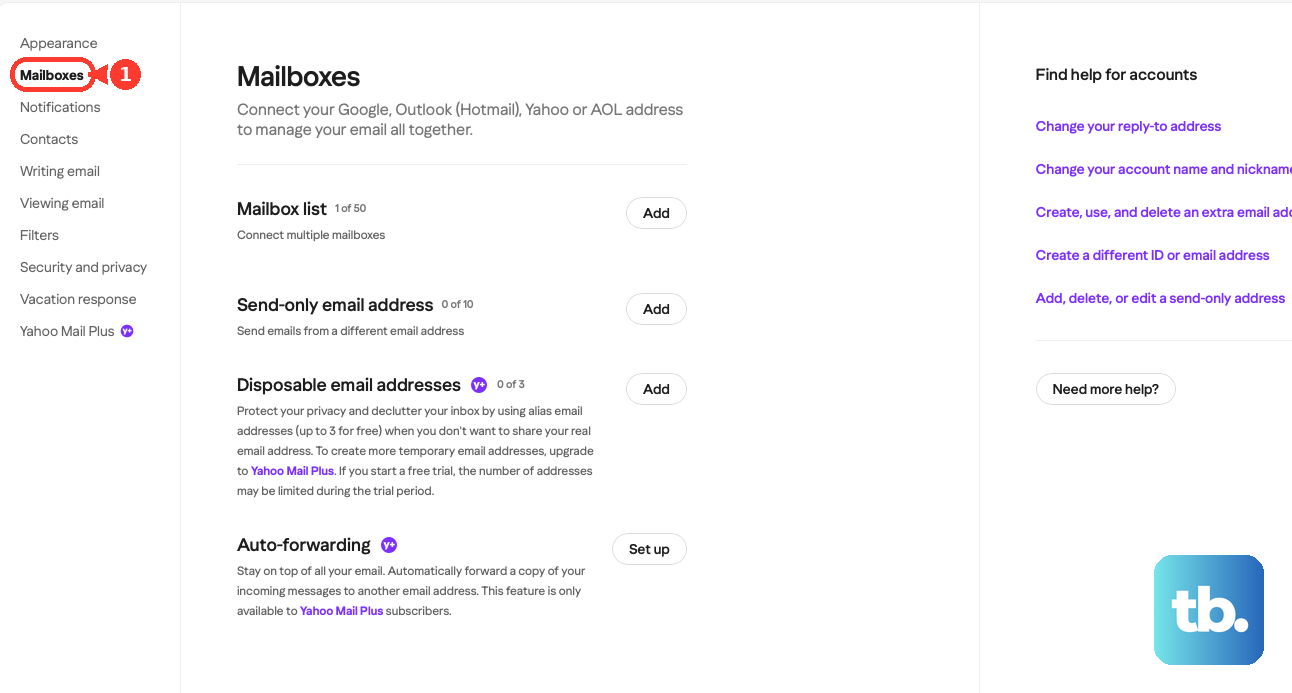
Auto-forwarding. Click the three-dot icon, select "Settings," click "Mailboxes," then under "Mailbox list" click your primary mailbox. Find the "Auto-forwarding" section and clear any forwarding address you did not set. This requires Yahoo Mail Plus and is not available in all regions, so the option may be absent on a free account.
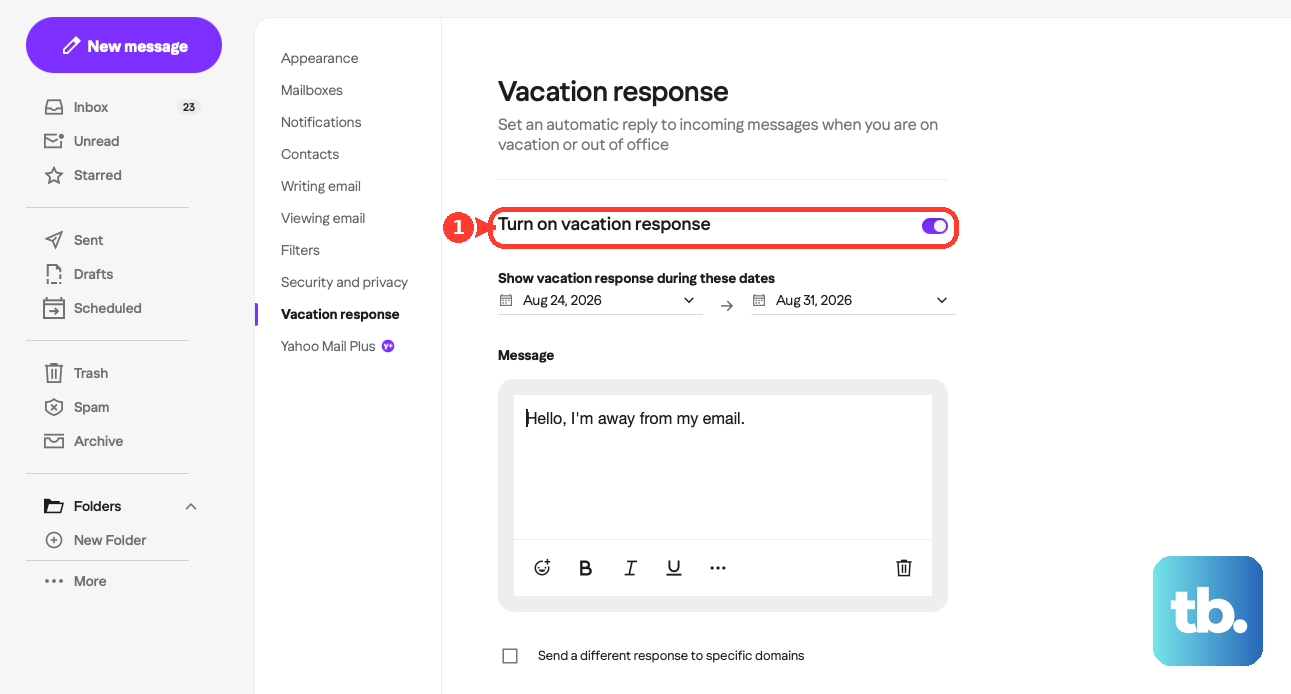
Vacation response. Click the three-dot icon, select "Settings," then click "Vacation response." Toggle off the switch next to "Enable vacation response." To remove it entirely, scroll to the bottom, click "Remove vacation response," and confirm by clicking "Remove."
Check That Your Recovery Options Are Up to Date
Attackers add their own recovery phone or email so they can reclaim the account later. Remove anything you do not recognize and confirm your own details are current.
On desktop, go to the Account Security page.
To remove an unwanted entry, click "Phone numbers" or "Additional emails," click the Trash icon beside it, then click "Remove email" or "Remove phone" and confirm.
To add your own, under "Ways of signing in" select "Add email" or "Add phone number," enter the info, click "Next," and follow the verification prompts.
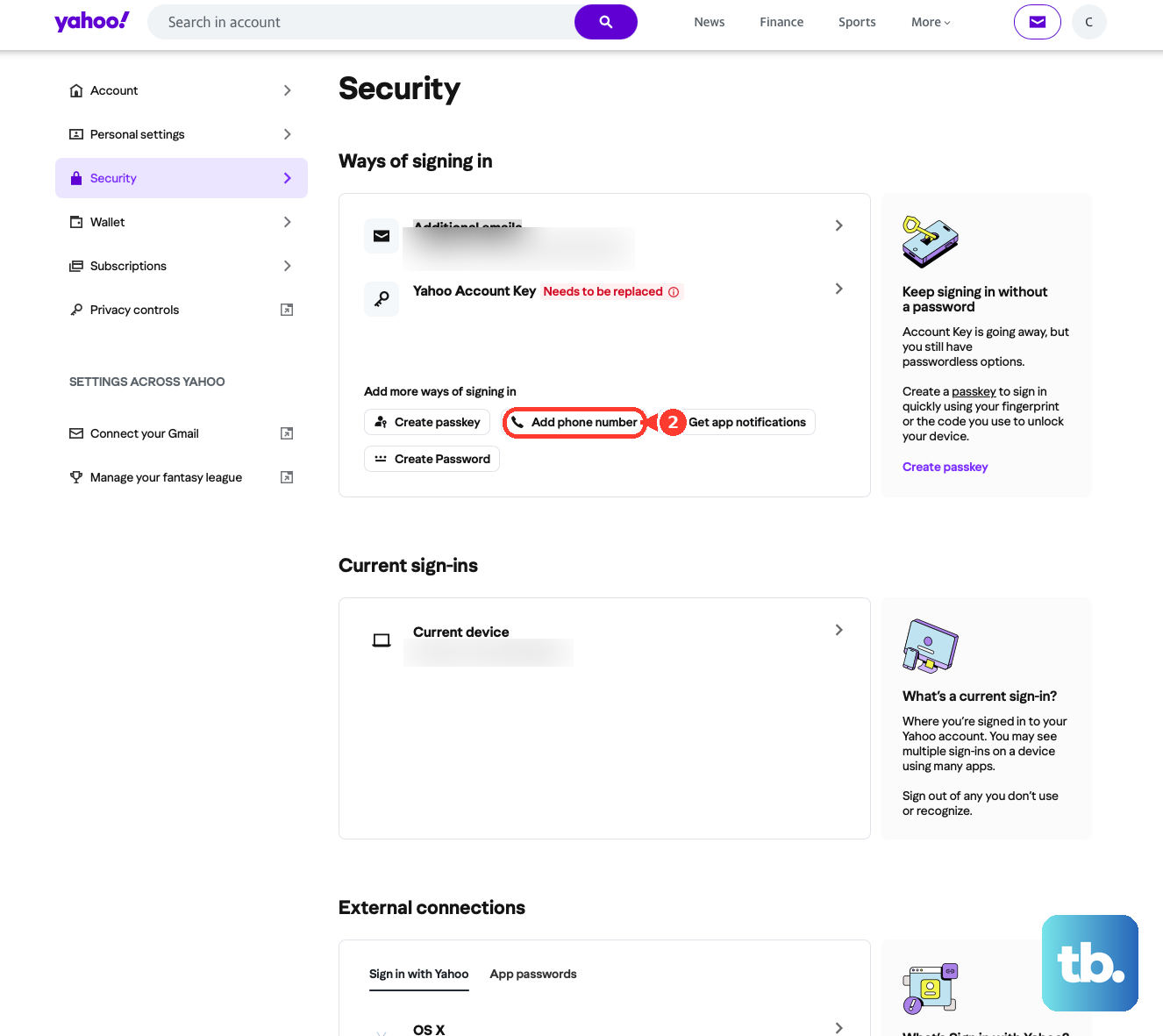
On the Yahoo app, reach the same controls through Profile icon > "Manage account privacy" > "Your privacy controls" > "Security."
Be careful: if you unlink a recovery option this way, you will not be able to add that same option back again. An account allows a maximum of 10 email addresses, including ones you recently removed.
Run Updated Antivirus Software
If malware or a keylogger captured your password, changing it will not help until the device is clean. Ensure your antivirus software is installed and updated, then run a scan before you trust the account again.
Turn On Two-Step Verification
Two-step verification adds a code on top of your password, so a stolen password alone is no longer enough. Enable it once the account is secured.
Sign in to your Account Security page.
Under "Ways of signing in," click "2-step verification."
Choose a method: "Push notification," "Your phone number," "Authenticator app," or "Security key."
You must have a password set first. The Authenticator app option also requires at least two recovery methods already on the account.
If the setup screen shows an emergency recovery code, print it or write it down and keep it somewhere safe but accessible.
If 2-step verification will not turn on, check whether Account Key is enabled, since it blocks the option until disabled.
Reconnect Your Email Apps After the Password Change
Changing your Yahoo password breaks every connected mail client until you re-enter the new one. Expect authentication errors on your phone, Outlook, and Mac Mail until you reauthenticate.
iPhone or iPad (iOS 17). Go to Settings > Mail > Accounts, tap the Yahoo account, tap "Re-enter password," enter your Yahoo username and password, then, if prompted, choose how to receive a verification code and enter it.
iPhone or iPad (iOS 18). Go to Settings, scroll to the bottom, tap "Apps," tap "Mail," tap "Mail Accounts," tap the Yahoo account, tap "Re-enter Password," then enter your details. If re-entering is not offered, remove and re-add the account entirely, tapping "Save" in the top right when done.
Microsoft Outlook. Open Outlook, click the settings icon, click "Accounts," click "Sign in" next to your email account, and click "Continue." Enter your Yahoo email and click "Next," enter your password and click "Next," select a verification-code method and enter the code, then click "Next," "Agree," and "Open Outlook." Outlook uses your regular Yahoo password here, not an app password.
Mail on Mac. Go to Mail > Settings, select the Yahoo account, open the "Server Settings" tab, then delete and re-enter the password in both the Incoming and Outgoing Mail Server sections and click "Save." If you use an app password, generate a new one from Yahoo's security page first.
Keep the Account Secure Going Forward
Once you have regained control, a few habits keep it that way. Use a strong password and change it regularly, always sign out on public or shared computers, and do not click links you are unsure about, even from friends. Check recent activity periodically for unusual logins, keep a current email address and mobile number on the account, and remove any old security questions if you have not already.
One rule protects you from most phishing: Yahoo never asks for your password in emails or phone calls, so any message that does is fraudulent.
Frequently Asked Questions
I changed my password, so why is the hacker still getting my email?
A password change does not invalidate app passwords, forwarding rules, or filters. An intruder who created an app password or set up forwarding keeps access until you delete those specifically. Review your app passwords under "External connections" and check your filters, auto-forwarding, and vacation response settings.
Is a login from an unfamiliar location always a hack?
No. Your history can show unfamiliar locations for legitimate reasons, such as your mobile device detecting the wrong location. Treat a single odd location as a prompt to look closer, not as proof. Paired with spam being sent or settings you did not change, it is far more telling.
I am locked out and my recovery info is outdated. What now?
Try the Sign-in Helper at login.yahoo.com/forgot first. If your recovery email and phone are no longer accessible, you may not be able to regain access, and creating a new account could be the only path. That is why you should update recovery details before you are ever locked out.
Why did my iPhone and Outlook stop getting Yahoo mail after I secured the account?
Changing your Yahoo password breaks every IMAP and POP client until it gets the new credentials. Re-enter your password in each app, or remove and re-add the account where re-entry is not offered. This is expected behavior, not a second hack.
My account keeps locking after failed sign-ins. How long until it reopens?
An account locked by too many failed attempts unlocks automatically after 12 hours, but you do not have to wait; the Sign-in Helper can restore access immediately. Repeated lockouts can also be triggered by detected password risk or rapid sign-ins from multiple locations.