You open Settings on your Xiaomi 15, tap to look for a new build, and the phone simply will not move forward. Maybe the search spins without end, the download freezes at a stubborn percentage, or HyperOS keeps insisting you are already up to date when you are sure a newer version exists. A stalled system update is frustrating on a flagship you paid a premium for, but most causes trace back to your connection, your available storage, or a temporary software hiccup you can clear yourself.
Work through the fixes below in order, starting with the quickest and safest, and leave the data-erasing steps for the very end.
Start with a clean update check on stable Wi-Fi
Before assuming anything is broken, give the updater the conditions it actually needs. A system update on the Xiaomi 15 wants a steady connection and enough power to finish without dropping out partway through, so set those up first and the check often goes through on its own.
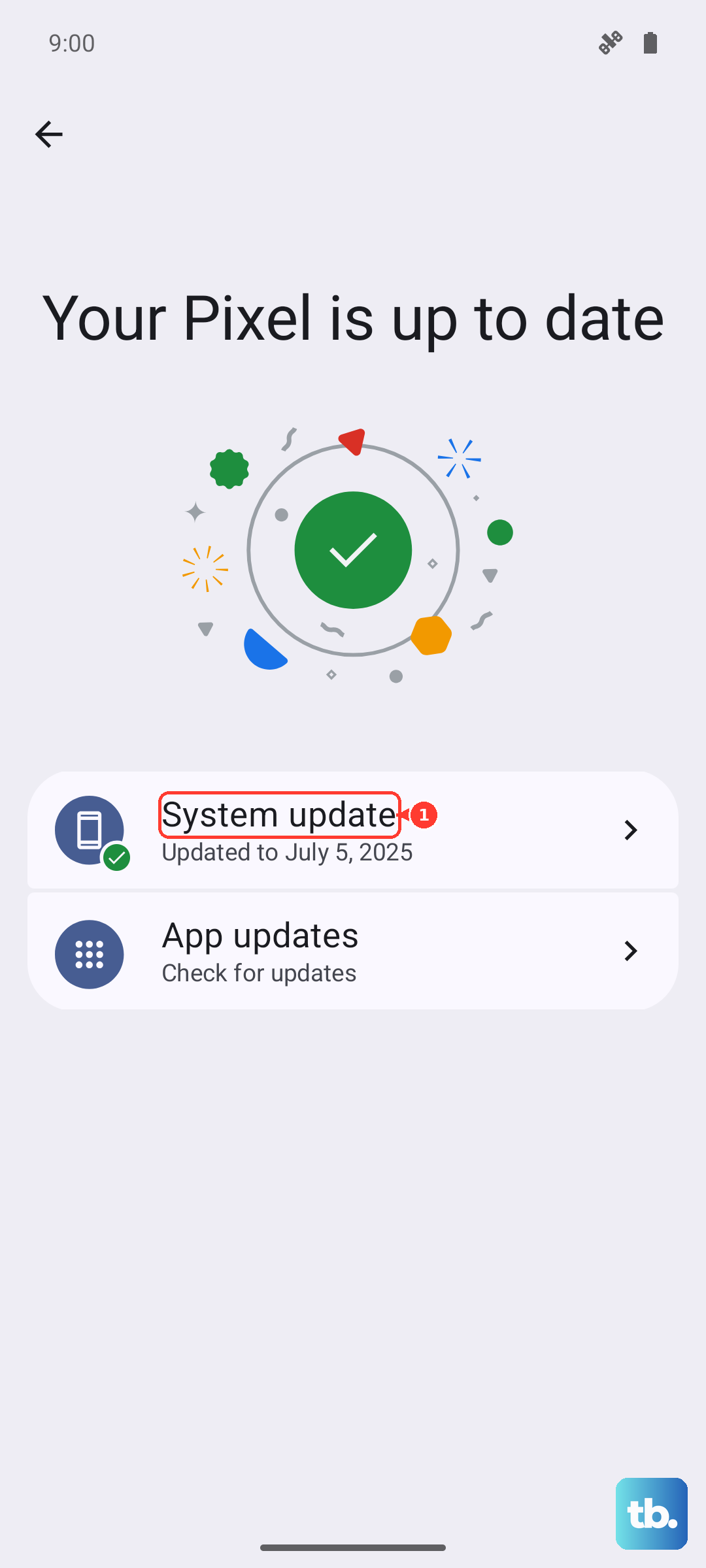
Connect to a stable Wi-Fi network, make sure the battery has plenty of charge or keep the phone plugged in, and do not interrupt the process once it begins. Then run the check from the official path.
- 1.Open Settings.
- 2.Tap About phone.
- 3.Tap Xiaomi HyperOS.
- 4.Tap Check for updates and let the phone search for the latest version.
If an update appears, download and install it, then leave the phone alone until it reboots on its own. Interrupting the download or pulling power mid-install is one of the most common reasons an update fails to complete.
Make room before the update can install
A system update needs free storage to download the package and unpack it on the device. If space is tight, the install can fail outright or refuse to start, so clearing room is often all it takes to get things moving again.
If the install fails or the phone reports low storage, free up space with the built-in tools before trying again. Go to Settings > About phone > Storage > Clear to remove what the system flags as clearable.
You can also open Security > Cleaner > Clean up, or use Security > Deep clean to delete unnecessary videos, apps, and photos. For extra breathing room, clear individual third-party app caches from each app's own settings, then return to the update screen and try once more.
Let the phone update itself overnight
If you keep missing updates or forgetting to check, hand the job to the phone so it installs in the background. Automatic updates take the timing out of your hands and quietly apply new versions while you sleep.
Open the Settings app and tap About phone. Tap Xiaomi HyperOS. Tap the three-dot icon at the upper right corner. Tap Update settings.
Turn on Download automatically and Update automatically. With both switched on, the phone checks for and installs new system versions at night when it is not in use. Keep it on Wi-Fi and charging overnight so the install has everything it needs to finish.
Open the additional update controls
HyperOS keeps more update options tucked behind the same menu, and reviewing them can surface a setting that is quietly holding things back. It only takes a moment to look.
Go to Settings > About phone, tap the Xiaomi HyperOS icon, then tap the three dots icon in the upper right corner to check more settings. Read through the options listed there to confirm nothing is restricting how the phone downloads or installs system versions, and turn anything back on that looks like it should be enabled.
Force a restart when the install freezes
Sometimes the phone locks up mid-update, or the progress bar simply stops moving and never recovers. A forced restart clears that frozen state without touching any of your data.
Press and hold the Power button for more than 10 seconds to force the phone to restart. Once it boots back up, return to Settings > About phone > Xiaomi HyperOS > Check for updates and try the update again from the top.
Escape a stuck Fastboot screen
If your Xiaomi 15 lands on a Fastboot screen after an update attempt, the Volume Down button is usually the culprit. Pressing and holding Power and Volume Down together is exactly what enters Fastboot mode, so check that you did not press Volume Down during power-on and that the button is not physically stuck.
If you are already on the Fastboot screen, leave the phone alone for a while and it will turn on automatically. If it still does not respond, press the Power button for more than 10 seconds to force a restart, then try the update once the phone is back at the home screen.
Check where you bought it and how long it gets updates
A phone that truly has no update waiting is not always broken. First, verify the device was bought through an official Xiaomi channel in your region; if it came from somewhere else, contact the seller about its software support.
Then confirm whether a version is actually available through Settings > About phone > Xiaomi HyperOS > Check for updates. Keep in mind that Xiaomi eventually winds down system updates for older models, so once a device reaches the end of its update window, a "no update available" message can simply mean there is nothing new left to install.
Back up everything, then reset from inside Settings
If updates keep failing and the phone still boots normally, a factory reset is the strongest fix you can run from within the system. This erases all data, settings, apps, and personal information on the phone, so back everything up first. Note that a reset does not change the operating system version.
Go to Settings and tap About phone. Tap Factory reset. Tap Erase all data.
Choose Back up or not, as you prefer. Perform the Factory reset. After the phone restarts and you sign back in, run the update check one more time to see whether the new version installs cleanly.
Wipe through Recovery mode or hand it to Xiaomi
If the phone will not boot far enough to update or to reset normally, you can wipe it from Recovery mode. This also erases all data, so back it up in advance whenever you still can.
Press and hold the Power button and slide to Power off. Press and hold the Volume up button and the Power button at the same time for a while. Press Volume down to select Wipe Data, then press Power to confirm.
Press Volume down to select Wipe All Data, then press Power to confirm. If the phone still cannot power on or update after that, take it, along with the original charger and cable, to an authorized Xiaomi after-sales center for inspection.
Frequently Asked Questions
How do I manually check for a Xiaomi 15 update?
Open Settings > About phone > Xiaomi HyperOS > Check for updates, and the phone searches for the latest version. Make sure you are on stable Wi-Fi with plenty of charge before you begin.
Why does my Xiaomi 15 say no update is available?
It can simply mean no new version has been released for your model yet, or that the phone has reached the end of its update window. It is also worth confirming the phone was purchased through an official Xiaomi channel in your region.
How do I free up space for a Xiaomi 15 update?
Go to Settings > About phone > Storage > Clear, or open Security > Cleaner > Clean up, or use Security > Deep clean to remove unneeded videos, apps, and photos. Then return to the update screen and try again.
Does a factory reset change the HyperOS version?
No. A factory reset erases all data, settings, apps, and personal information, but it does not change the operating system version, so always back up before you start.
What is the force restart for a frozen Xiaomi 15?
Press and hold the Power button for more than 10 seconds. This forces the phone to restart without erasing any of your data.