
If your Xiaomi 15 videos are stuttering, freezing, or dropping frames, it can really ruin the experience on such a powerful phone. The good news is that most playback issues are caused by simple software glitches or settings that you can fix yourself.
Start with a free refresh rate test to confirm what the screen actually outputs. If the measured value is lower than expected, the fixes below show where to change it.
Restart Your Phone First
This is always the best place to start. A simple restart clears out temporary system caches and stops any background processes that might be interfering with video playback. Just press and hold the power button for about 15 seconds until you see the Xiaomi logo appear and the phone reboots.
I've found this resolves a surprising number of minor playback hiccups, especially if you haven't restarted your phone in a while.
Check Your Internet Connection for Streaming
If you're watching videos on YouTube, Netflix, or other streaming apps, a weak or unstable connection is the most likely culprit. The video will buffer and stutter as it tries to load.
Try switching between Wi-Fi and your mobile data to see if the problem goes away. If you're on Wi-Fi, consider restarting your router. For the best streaming performance on the Xiaomi 15, make sure you're connected to a 5GHz Wi-Fi network if your router supports it.
Free Up Storage Space
Android and HyperOS need free space to operate smoothly. When your storage is nearly full, the system struggles to cache video data properly, which can lead to choppy playback. Go to Settings > Storage to see how much space you have left.
If you're below 5-10GB of free space, it's time for a cleanup. Delete old downloads, clear app caches, and offload videos or photos to cloud storage or your computer.
Update Your Software and Apps
Running outdated software is a common cause of performance bugs. Xiaomi frequently releases HyperOS updates that fix issues just like this. Head to Settings > About phone > HyperOS version and tap "Check for updates."
Also, open the Google Play Store, tap your profile icon, and go to "Manage apps & device" to update all your apps, especially the video player or streaming app you're having trouble with.
Disable MIUI Optimization (Temporarily)
This is a more advanced fix specific to Xiaomi's software. MIUI/HyperOS optimization can sometimes conflict with apps. To check if this is the issue, you need to enable developer options first.
Go to Settings > About phone and tap "HyperOS version" 7 times until you see a message that you're a developer. Then, go back to the main Settings menu, find "Additional settings," and enter "Developer options."
Scroll down and look for "Turn on MIUI optimization." Try turning it off, restart your phone, and test your video. Remember to turn it back on later, as some system features may behave differently with it disabled.
Clear the App's Cache and Data
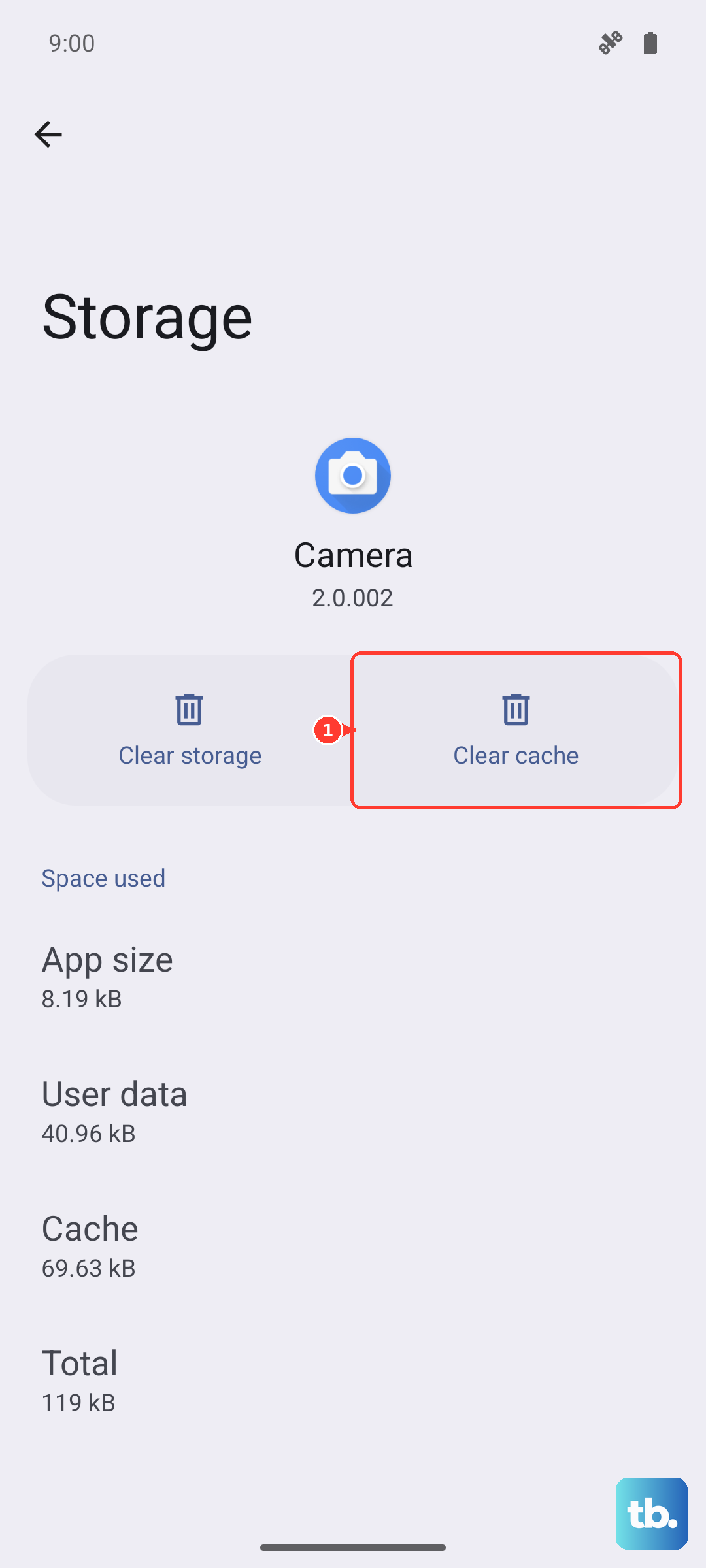
If the problem is only happening in one specific app, like YouTube or VLC, its local data might be corrupted. Go to Settings > Apps > Manage apps and find the problematic app.
Tap on it, then select "Clear cache." This won't delete your login or saved data. If the stuttering continues, you can try "Clear data," but be aware this will reset the app to its default state and you'll need to log in again.
Check for Overheating
The Snapdragon 8 Elite chip is powerful but can get warm under sustained load. If your phone is hot to the touch, it may be thermally throttling its performance to cool down, which can affect video decoding.
Take off any thick case, avoid using the phone while it's charging with the fast 90W adapter, and close any other demanding apps running in the background. Let it cool down for a few minutes before trying again.
Try a Different Video Player
This helps you figure out if the issue is with a specific app or with the phone's system-wide video playback. If a video file stutters in the default Gallery app, try opening it with a third-party player like VLC or MX Player from the Play Store.
If the video plays smoothly in the other app, the problem is likely with the default player's software. You can either wait for an update or make the third-party app your default for video files.
Adjust Video Playback Settings
Some streaming apps have settings that can affect performance. In apps like YouTube, try changing the playback quality manually. If you're set to a high resolution like 4K, try dropping it to 1080p to see if the stuttering stops.
Also, check if the app has a "Stats for nerds" or similar option that shows dropped frames. This can confirm whether the issue is with the video stream or your device's processing.
Perform a Factory Reset
This is your last resort if nothing else works. A factory reset will wipe your phone back to its original out-of-the-box state, eliminating any deep-seated software corruption. You must back up everything important first.
Go to Settings > About phone > Factory reset. Follow the prompts to erase all data. After the reset, set up the phone as new (don't restore a backup immediately) and test video playback with a freshly installed app to see if the problem is gone.