Your Xiaomi 15 keeps flashing a low storage warning, photos refuse to save, apps stall when you switch between them, and the latest HyperOS update will not install because there is no room to unpack it. On a phone with fixed internal UFS 4.0 storage (12GB RAM with either 256GB or 512GB), that pressure builds quietly as cache, duplicate media, and leftover app data pile up.
One thing to settle first. The Xiaomi 15 has no microSD card slot, so the old "move files to an SD card" trick does not apply here. Freeing space comes down to cleaning the internal drive properly and offloading what you can to the cloud. The fixes below run from the quickest and safest to the most drastic, so start at the top and only move down if the warning keeps coming back.
Restart the Phone So HyperOS Can Drop Its Temporary Files
A simple restart clears temporary files and frees memory before you dig into any deeper cleanup, which sometimes clears a stubborn low storage prompt on its own. Power the phone off and on again the normal way, then check whether the warning returns.
If the screen is frozen and will not respond to a normal restart, force it to reboot instead. Press and hold the power button for more than 10 seconds until the phone restarts. Do this before deleting anything, since a clean reboot can release space that a stuck system process was holding onto.
Clear Unnecessary Files Straight From Storage Settings
This is the first method to reach for when a low storage warning appears, and it is built into HyperOS 2. It scans for junk the system already knows is safe to remove and clears it in one tap.
- 1.Open Settings.
- 2.Tap About phone.
- 3.Tap Storage.
- 4.Tap Clear, and the unnecessary files will be cleaned.
Repeat this whenever the warning reappears. It is non-destructive and targets cached and temporary data rather than your personal files.
Sweep Cache and Junk With the Security Cleaner
The phone ships with a Security app that includes a dedicated Cleaner for cache and junk files. It often finds clutter that the Storage settings sweep leaves behind, so run it as your second pass.
- 1.Open the Security app.
- 2.Tap Cleaner.
- 3.Tap Clean up, and the unnecessary files will be cleaned.
This is safe to run often. The Cleaner focuses on cache and junk, not the photos, messages, or documents you want to keep.
Hunt Down Big Videos and Apps With Deep Clean
When the quick sweeps are not enough, Deep clean lets you go after the heaviest items by hand. It surfaces the large videos, apps, and photos that are eating the most space so you can decide what stays.
- 1.Open the Security app.
- 2.Tap Deep clean.
- 3.Review the suggested videos, apps, and photos, and delete the ones you no longer need.
Because you are choosing what to remove here, work through the list slowly. Old screen recordings, finished video downloads, and apps you stopped using are usually the biggest, safest wins.
Empty the Cache Inside Individual Apps
Some apps, especially messaging, streaming, and social apps, hoard cache that the general cleaners do not always clear. Each app can release that space from inside its own settings.
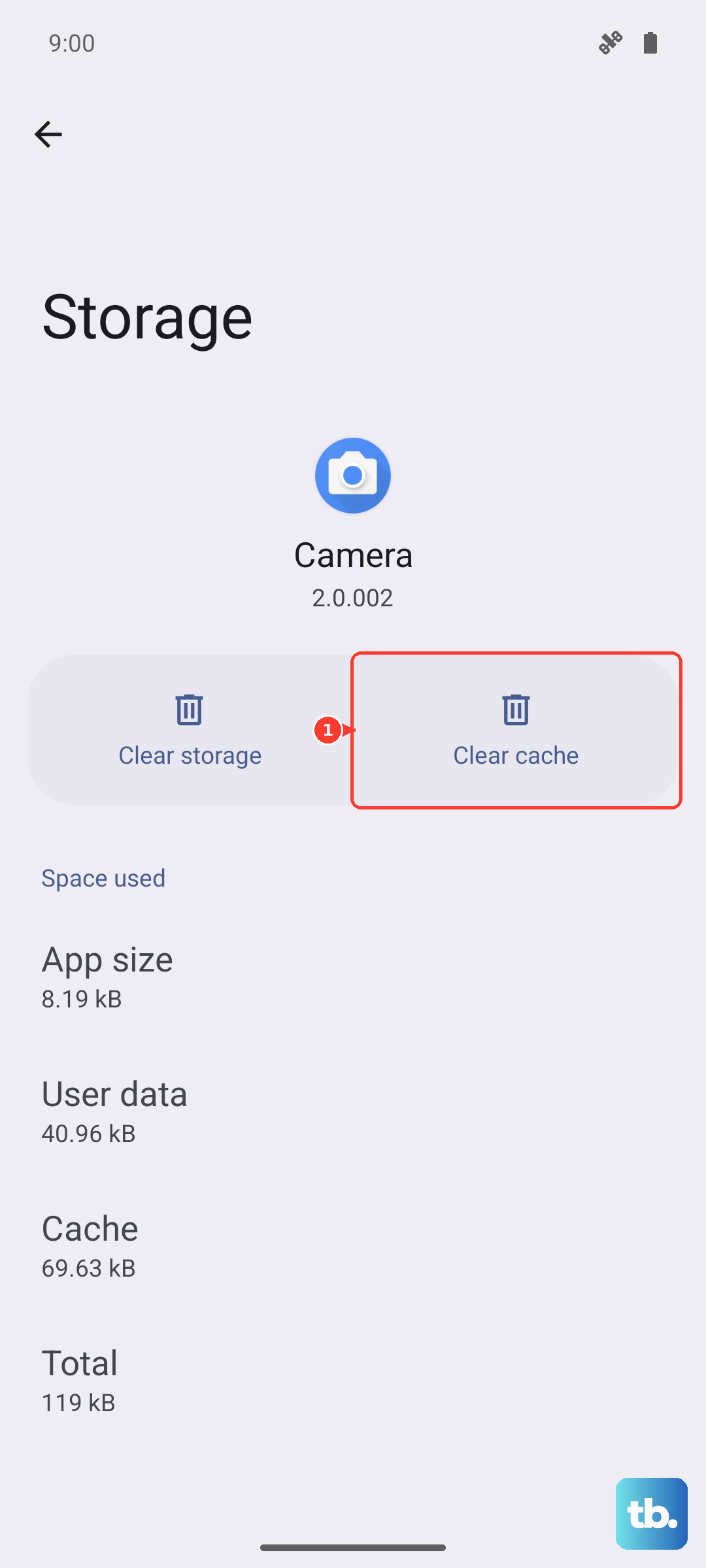
Open a third-party app's own settings interface and use its option to clear cache or stored data. Doing this for two or three of your most-used apps frequently recovers a surprising amount of room without removing the app or signing you out.
Move Your Photos to Mi Cloud and Keep Lighter Copies on the Phone
Photos and videos are usually the single largest drain on a phone with no expandable storage, and Mi Cloud (also called Xiaomi Cloud) is built to take the load off the device. With album sync enabled, the cloud keeps the original image while your phone keeps a slimmed high-definition copy, which saves device memory while your pictures still look right in the gallery.
Mi Cloud can also keep other data in sync across your Xiaomi devices, and you can manage everything from the phone or on the web at i.mi.com. Turning on album sync is one of the most effective long-term ways to keep storage from filling up again.
Let Storage Refresh Defragment the Phone While You Are Not Using It
The Xiaomi 15 supports Storage refresh, an automatic feature that optimizes the internal drive in the background while you are not using the phone. By defragmenting and tidying storage as the drive fills up, it helps keep performance steady so updates and app launches do not bog down over time.
- 1.Open Settings.
- 2.Tap About phone.
- 3.Tap Storage.
- 4.Swipe down to find and tap Storage refresh to check the refresh records.
You do not have to trigger this manually for it to help, but the refresh records let you confirm it has been running. Leaving the phone idle and charging overnight gives it the best chance to work.
Keep HyperOS Updated and Leave Room for the Download
System updates often fix the very storage-handling and performance issues you are chasing, so keeping HyperOS current is worth doing as part of your cleanup routine. The catch is that an update downloads first and then unpacks on the device, so it needs free space beyond the download size itself. If you cannot make room, clear unused apps, cached files, or large media first, and let Storage refresh run.
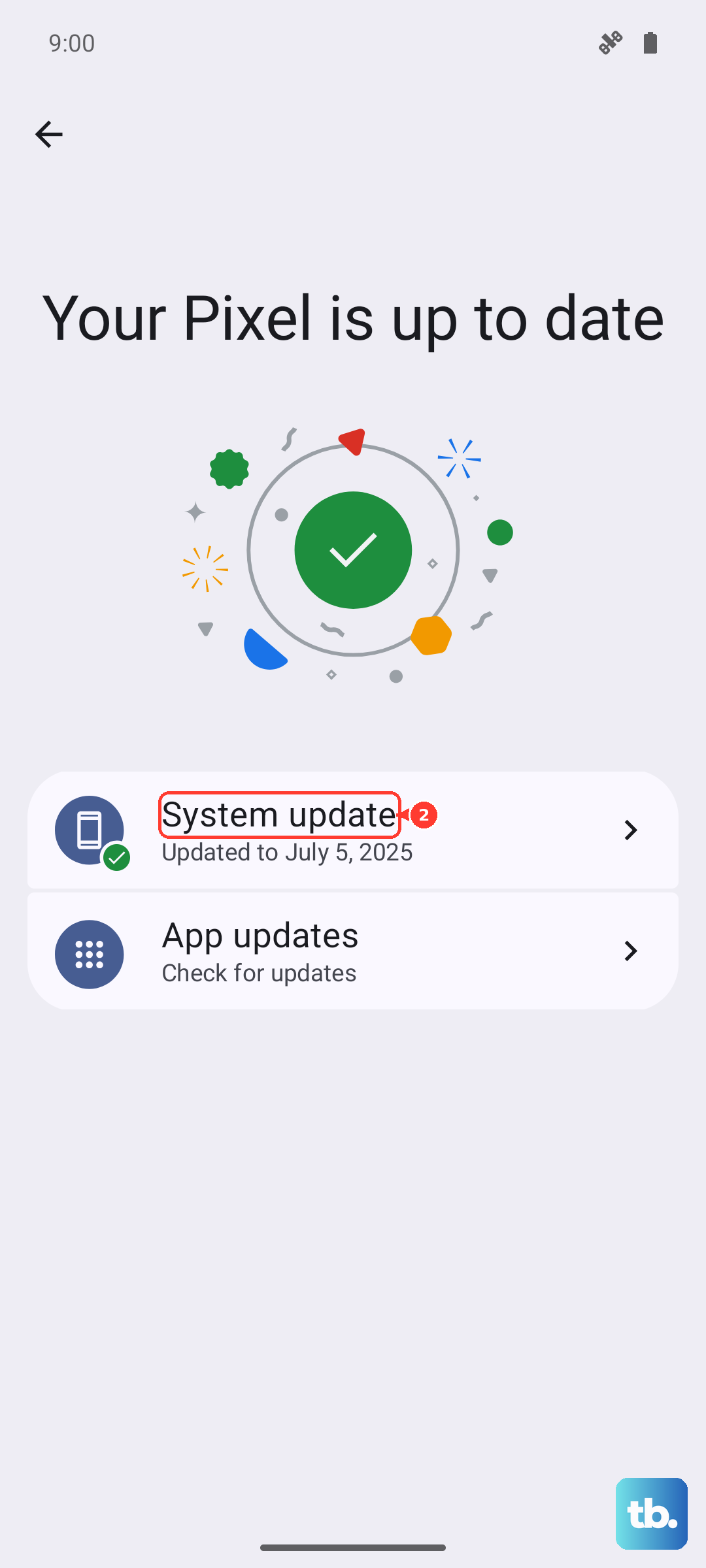
To check for updates, go to Settings, tap About phone, then tap the Xiaomi HyperOS icon to open the updater. The three dots icon in the upper right corner opens more update settings. For the smoothest install, use a stable Wi-Fi connection and make sure the battery is well charged before you start.
Back Up Your Data and Factory Reset as a Last Resort
If the storage problems persist after every cleanup above, a factory reset is the final step before professional help. Back up your data first, because this wipes the phone.
- 1.Open Settings.
- 2.Tap About phone.
- 3.Tap Factory reset.
- 4.Tap Erase all data.
- 5.Select Back up or not, as you prefer, then perform Factory reset.
Be aware of what this does. A factory reset erases all data, settings, applications, and personal information on the phone, so make sure your photos and accounts are saved to Mi Cloud or another backup before you confirm. It does not change the OS version of the phone. If the storage issues still continue after a reset, take the device to an authorized Xiaomi after-sales center for support.
Frequently Asked Questions
Can I add a microSD card to expand the Xiaomi 15's storage?
No. The Xiaomi 15 uses fixed internal UFS 4.0 storage (256GB or 512GB) and its official specs list no microSD or expandable-storage option. To free space, rely on the built-in cleanup tools and offload media to Mi Cloud rather than adding a card.
How much free space does the Xiaomi 15 need for a HyperOS update?
There is no single fixed number, but an update downloads and then unpacks on the device, so you need free space beyond the download size itself. Free up cache, unused apps, or large media before updating, and let Storage refresh run so the install has room to complete.
Will Storage refresh delete my files?
No. Storage refresh optimizes and defragments the internal drive automatically while you are not using the phone, which helps keep performance steady without touching your personal files. You can review what it has done at Settings, About phone, Storage, then swipe down and tap Storage refresh to view the refresh records.
Does a factory reset change the phone's OS version?
No. A factory reset erases all data, settings, applications, and personal information on the phone, but it does not change the OS version. Always back up your data before performing one.
How do I force restart a frozen Xiaomi 15?
Press and hold the power button for more than 10 seconds until the phone restarts. This is the official force-restart method and is useful when the screen is unresponsive and a normal restart will not work.