
When your Xiaomi 15 keeps closing apps, it's usually a quick software hiccup you can fix yourself. I'd start with a simple restart, as it clears out temporary glitches in HyperOS 2 that can cause apps to misbehave.
Force Stop and Restart the App
If a single app is crashing, force stopping it gives it a clean slate. Head to Settings > Apps and find the troublesome app in the list.
Tap on it and select Force stop. Wait a moment, then open the app again from your home screen. This is often all it takes for an app that's gotten stuck.
Update Everything
Outdated software is a common culprit. First, check for app updates in the Google Play Store. Open the Play Store, tap your profile icon, and go to Manage apps & device.
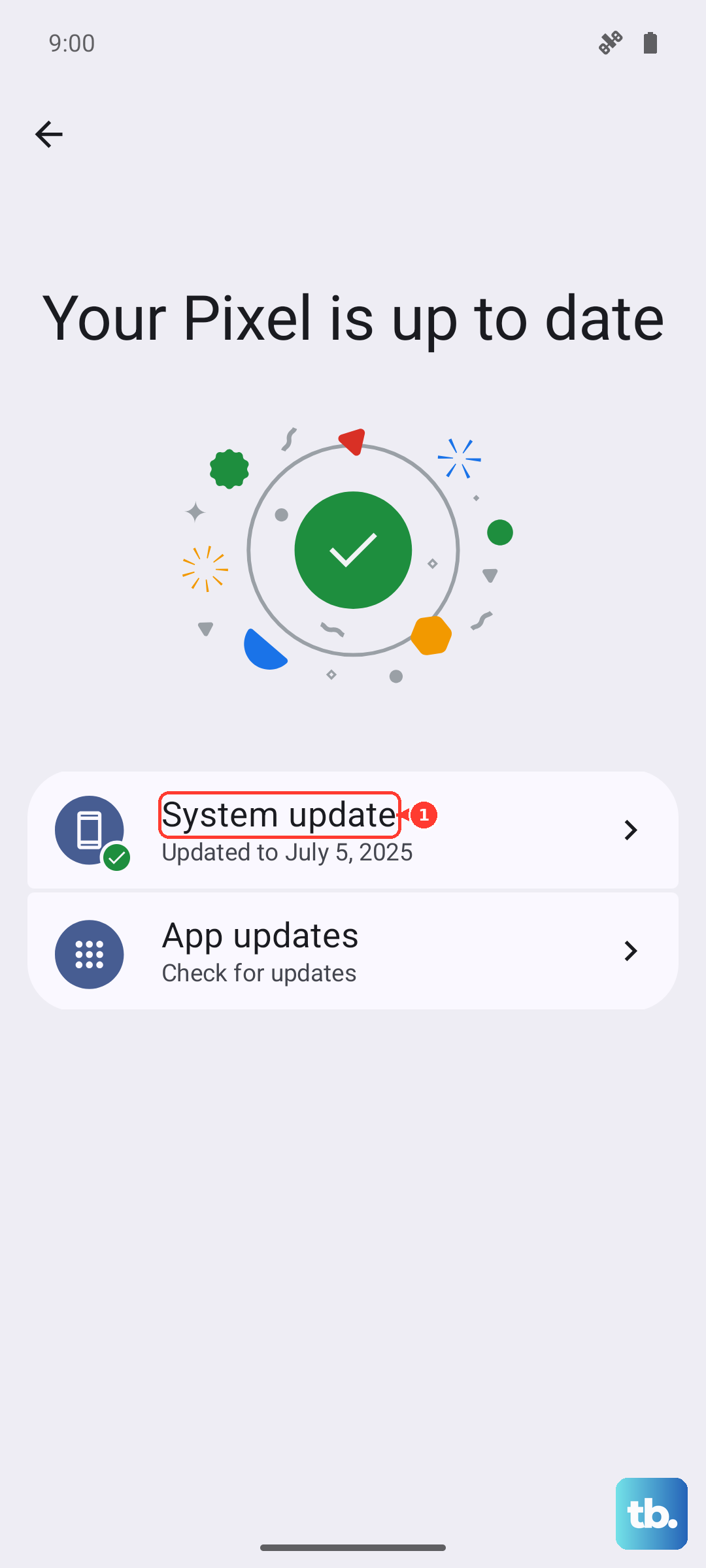
If updates are available, install them. Next, check for a system update. Go to Settings > About phone > HyperOS version and tap "Check for updates." Installing the latest HyperOS 2 update can fix bugs causing instability.
Clear the App's Cache and Data
Corrupted temporary files can make apps crash. Clearing the cache is safe and won't delete your login info or personal data within the app.
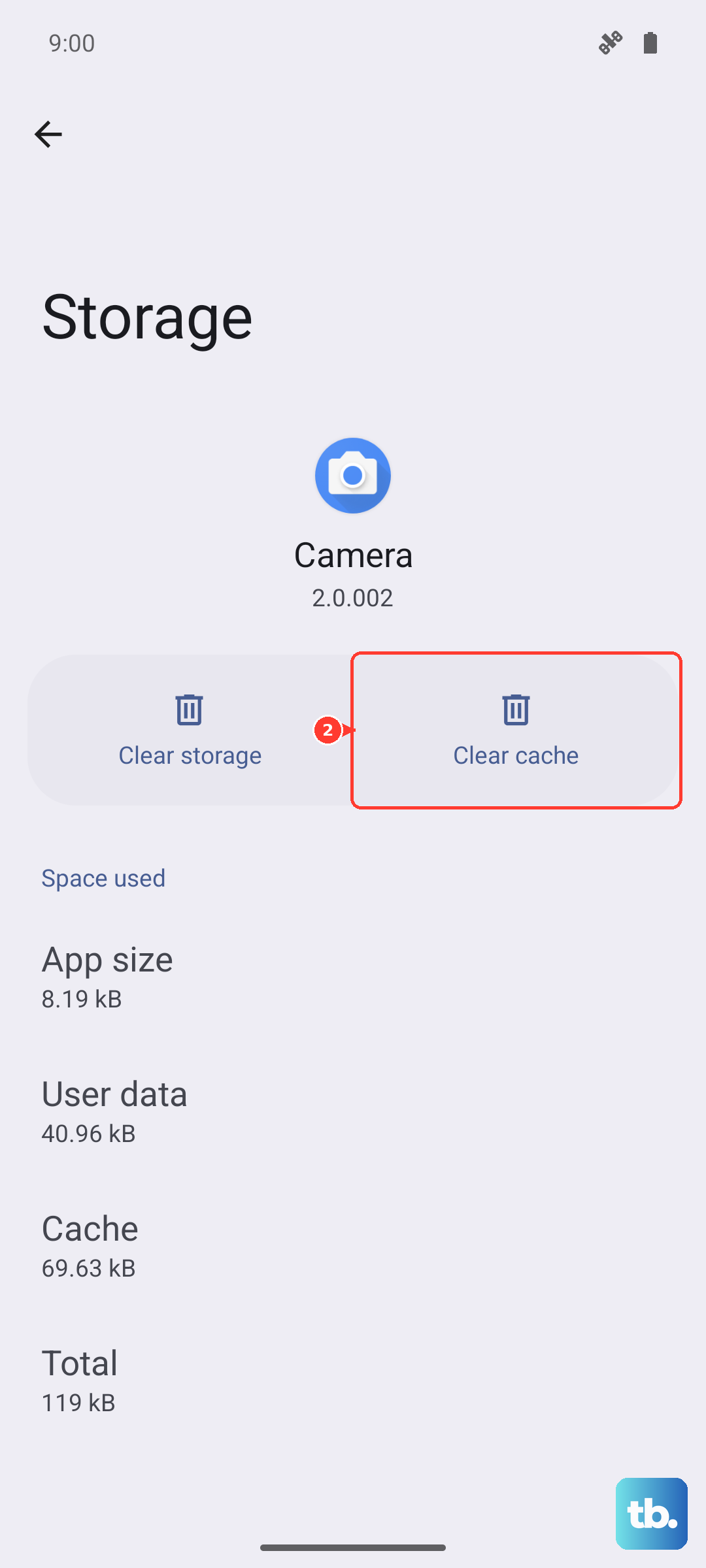
Go back to Settings > Apps, select the app, and tap Storage usage. Tap Clear cache. If the problem persists, you can try Clear data, but be aware this will reset the app to its freshly installed state, so you'll need to log in again.
Check Your Storage Space
Android and your apps need free space to operate smoothly. If your storage is nearly full, apps can start closing unexpectedly.
Open Settings > Storage to see how much space you have left. If it's getting low, consider offloading photos to the cloud, deleting old downloads, or uninstalling apps you no longer use.
Look for Overheating Issues
The Snapdragon 8 Elite chip is powerful but can run hot during long gaming sessions or heavy use. If the phone gets too hot, it may throttle performance or close apps to cool down.
If you notice the phone is warm and apps are closing, give it a break to cool down. For gaming, try enabling Game Turbo mode from the sidebar, as it can help optimize performance and thermals.
Reinstall the Problem App
A fresh install can fix deeper corruption that clearing cache doesn't resolve. Press and hold the app icon on your home screen and tap Uninstall.
Then, head to the Google Play Store to download and install it again. This gives you a completely clean version of the app.
Review App Permissions and Battery Settings
Sometimes, an app crashing is related to restricted permissions or aggressive battery saving. Go to Settings > Apps and select the app.
Tap Permissions and ensure it has the access it needs. Then, go to Battery and set the battery saver mode to No restrictions to prevent the system from limiting its background activity.
Perform a Hard Reset
If a standard restart doesn't help, try a force restart. This is different and can clear more stubborn system hangs. Simply press and hold the power button for about 15 seconds until you feel the phone vibrate and see the Xiaomi logo appear.
Check for Conflicting System Modifications
If you've used any theme stores or third-party launchers that heavily modify HyperOS, they can sometimes cause instability. Try switching back to the default system theme and launcher temporarily to see if the app crashes stop.
Also, consider disabling system ad recommendations, which can occasionally interfere. You can find this in Settings > Passwords & security > Privacy.