
When your Xiaomi 14T Pro stops listening to "Hey Google" or your chosen wake word, it defeats the purpose of having a powerful voice assistant on a powerful phone. The issue can pop up after an update, a new app install, or seemingly out of nowhere. Here are the steps to get your assistant responding again.
I'd start with the simplest check. Open the Google app on your phone and tap your profile picture in the top right corner. Go to Settings > Voice and make sure "Hey Google" is toggled on. While you're there, tap "Voice Match" and ensure the "Hey Google" and "Unlock with Voice Match" options are enabled. It's a quick 30-second check that solves the problem more often than you'd think.
Retrain Your Voice Model
If your assistant activates but doesn't understand you well, or if you've changed your voice tone, retraining it can make a big difference. In the Google app, go to Settings > Voice > Voice Match. You'll see an option to retrain the voice model.
Tap it and follow the prompts, clearly saying "Ok Google" and "Hey Google" a few times. The system on the Xiaomi 14T Pro, running HyperOS on top of Android 14, uses this model for on-device processing, so a fresh training session can clear up any recognition glitches.
Check for Microphone Blockages
The 14T Pro has multiple microphones for noise cancellation and clear audio. If they're blocked, your assistant can't hear you. Check the small pinhole microphone ports, especially the one at the bottom next to the USB-C port and the one near the top of the frame.
Gently brush away any lint or dust with a soft, dry toothbrush. Also, check if your phone case is covering any of these ports. Some thicker cases, while protecting the Gorilla Glass 5, can inadvertently muffle the mics.
Review Your Battery and Performance Settings
HyperOS includes aggressive battery optimization features that can sometimes put apps, including the Google app, to sleep in the background. This can prevent the "Hey Google" detection from working when the screen is off.
Go to Settings > Apps > Manage apps. Find the "Google" app in the list and tap on it. Select "Battery saver" and set it to "No restrictions". This tells the system to never put the Google app to sleep, ensuring the voice detection service is always running.
Disable Other Listening Features
Conflicting voice services can interfere. Xiaomi's own XiaoAi voice assistant might be pre-installed on some regional variants. If you're not using it, it's best to disable it to avoid conflicts.
Go to Settings and search for "Voice wake-up". If you find a setting for XiaoAi or another voice service, turn it off. Also, check in Settings > Additional settings > Accessibility for any "Sound Recognition" features that might be enabled, as these typically disable other "Hey Google" functionalities.
Clear the Google App Cache and Data
Corrupted temporary files can cause the voice service to malfunction. Clearing the cache is safe and won't delete your personal data. Go to Settings > Apps > Manage apps, find the Google app, and tap "Clear cache".
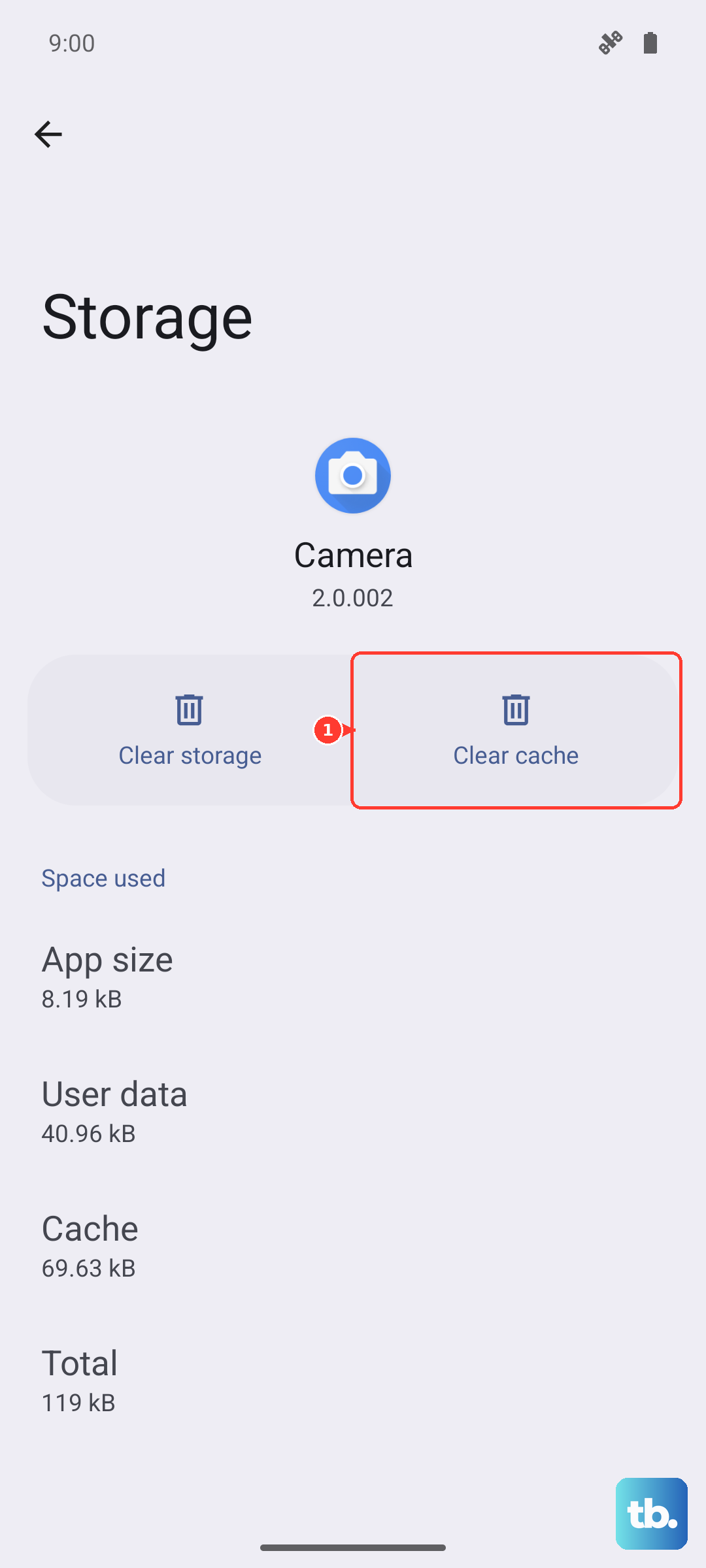
If the problem persists, you can tap "Clear data". Be aware this will reset the app to its default state, so you'll need to sign back in and reconfigure some preferences, but it often resolves stubborn bugs related to voice activation.
Check Your Network Connection
While basic "Hey Google" detection happens on the device, many commands require an internet connection to process. If you're on a slow or unstable Wi-Fi or mobile data connection, the assistant might seem unresponsive after it wakes up.
Try toggling Airplane mode on and off to reset your connections, or switch between Wi-Fi and mobile data to test if the issue is network-related. The Dimensity 9300+ chipset is plenty capable, but it still needs a data pipeline for most queries.
Force Restart Your Phone
A simple reboot can clear out temporary software glitches that affect system services. For the Xiaomi 14T Pro, press and hold the power button for about 15 seconds. Keep holding it until you see the phone's screen go black and the Xiaomi logo reappear, then release.
This force restart is different from a normal shutdown and can resolve deeper system hiccups without affecting your data. Give it a minute to fully boot up, then try "Hey Google" again.
Update Your Software and Apps
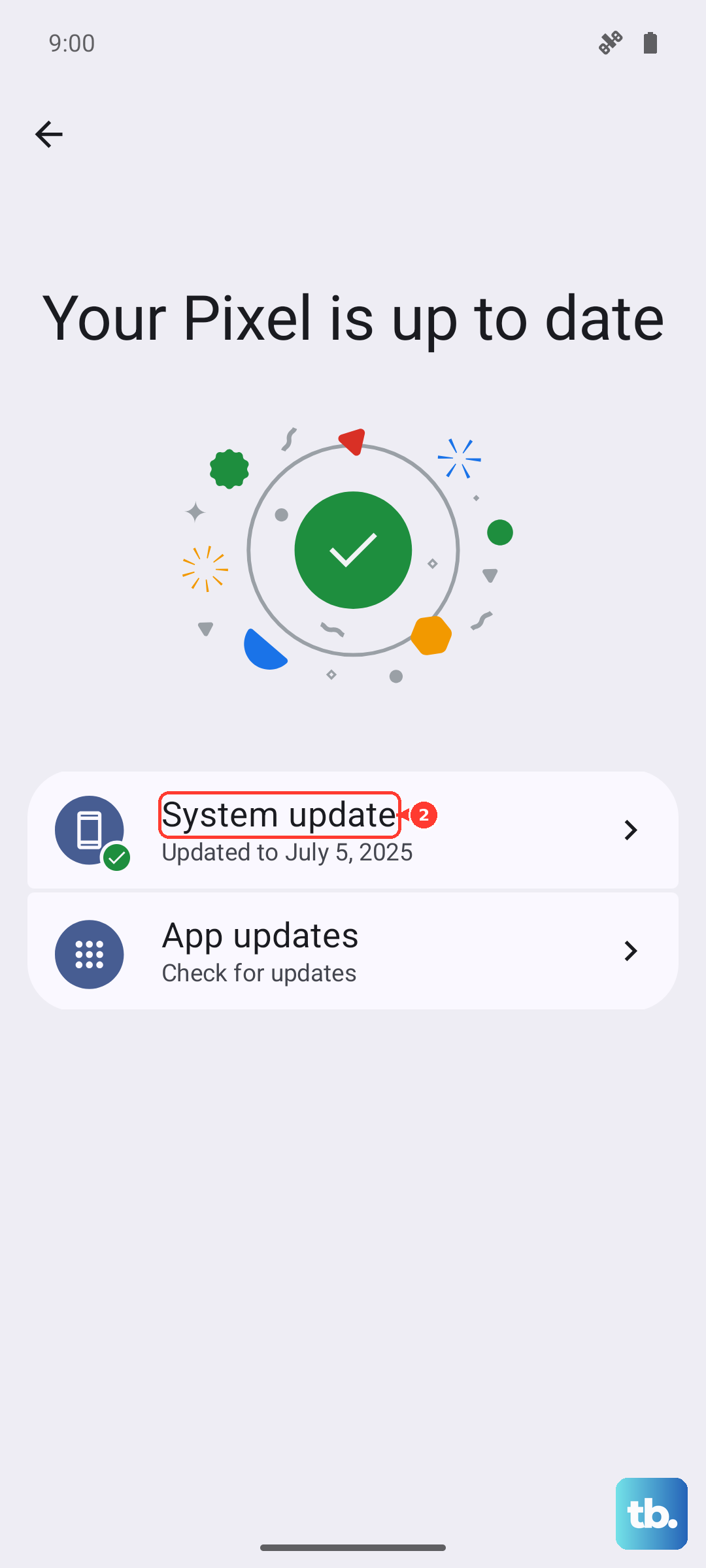
Make sure both your system and the Google app are running the latest versions. Google frequently updates the assistant's backend through the app. Open the Play Store, tap your profile icon, and go to "Manage apps & device" to check for updates, specifically for the Google app.
For system updates, go to Settings > About phone > HyperOS version and tap "Check for updates". Installing the latest HyperOS update can patch known bugs that might be interfering with microphone permissions or background services.
Reset App Preferences (A Last Resort Before Factory Reset)
This resets all your app permissions, notifications, and default app assignments without deleting any personal app data. It's useful if a permission setting for the microphone or background activity got messed up somewhere.
Go to Settings > Apps > Manage apps. Tap the three-dot menu in the top right and select "Reset app preferences". You'll need to re-grant microphone permission to the Google app and others when you use them next, but it can untangle complex permission conflicts.