

You open Settings, click Check for updates, and the spinner just keeps turning. Minutes pass, the status never changes, and you start to wonder whether anything is happening at all.
A stuck "Checking for updates" screen is one of the more frustrating Windows problems because it gives you nothing to act on, no error, no progress, just an endless wait. The good news is that this state almost always comes down to a small set of fixable causes: a confused update service, a corrupted cache, the wrong clock, or too little disk space.
Work through the fixes below in order, starting with the safest and easiest, and re-check for updates after each one. These steps apply to both Windows 11 and Windows 10.
Microsoft notes that support for Windows 10 ended on October 14, 2025, but the repair procedures still work on it, and the System File Checker and image-repair steps officially apply back through Windows 7, 8, 8.1, and Vista as well.
Start With the Official Windows Update Troubleshooter
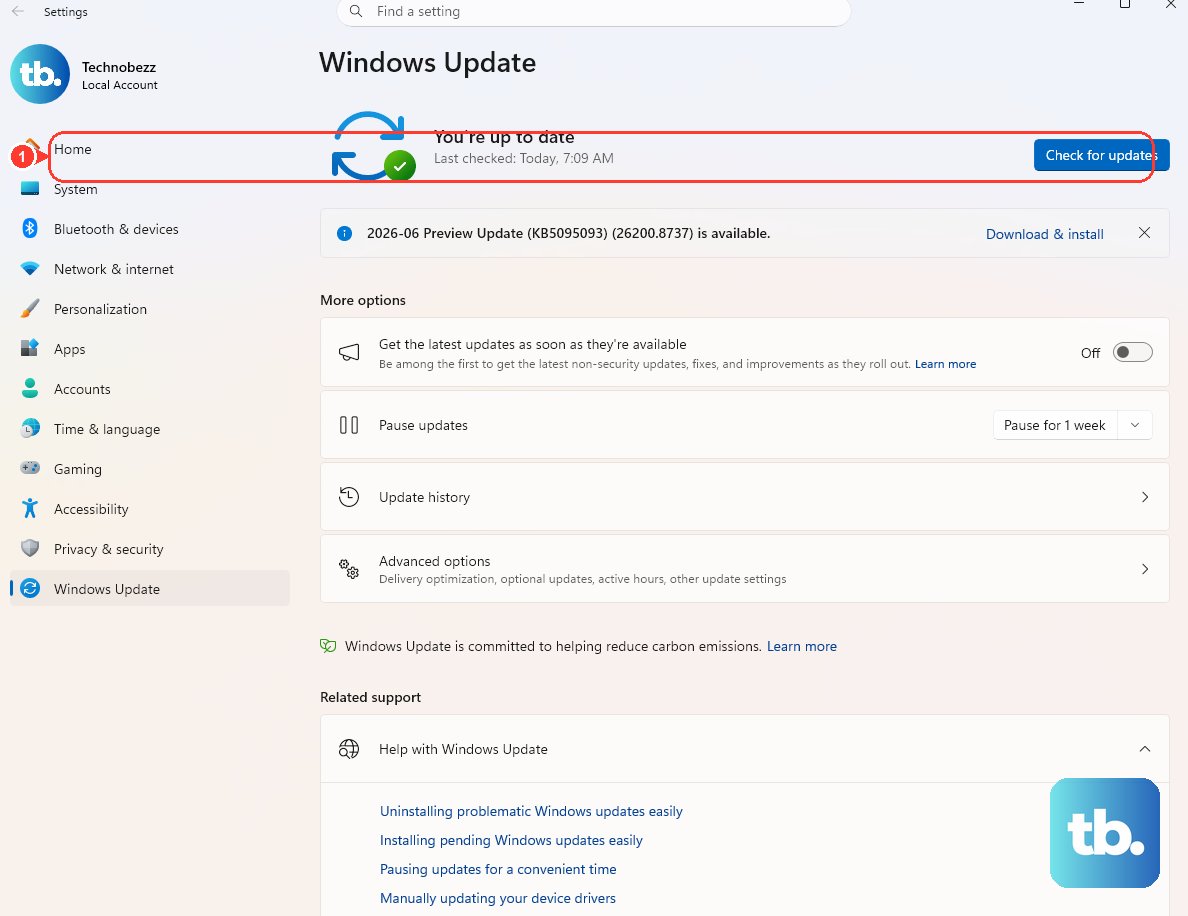
Microsoft's recommended first move is the automated Windows Update troubleshooter, which runs diagnostics and tries to fix most update problems for you. The recommended way to launch it is the "Run the troubleshooter in Get Help" option inside the Get Help app, which walks through the automated checks.
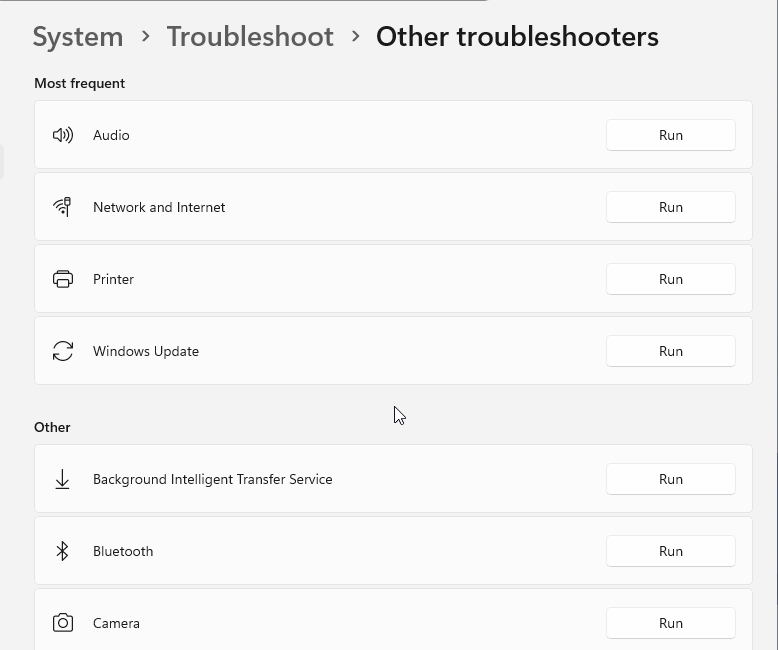
You can also run the built-in troubleshooter manually. The path differs slightly between versions:
- 1.On Windows 11, select Start > Settings > System > Troubleshoot > Other troubleshooters, then select Run next to Windows Update.
- 2.On Windows 10, select Start > Settings > Update & Security > Troubleshoot > Additional troubleshooters, then select Windows Update > Run the troubleshooter.
- 3.Let it finish, then restart your device.
- 4.Go to Settings > Windows Update and select Check for updates again.
Restart the PC and Try the Check Again
It sounds basic, but Microsoft lists restarting your device as a recommended action multiple times in its update troubleshooting guidance, and for good reason. Many updates require a restart to finish, and a fresh boot clears the temporary states that can leave a check hanging.
Save any open work first, then restart. Once Windows is back, return to Settings > Windows Update and check for updates one more time before moving on.
Wake Up a Frozen Scan by Confirming the Update Services
If the check is frozen mid-scan, with the Settings app sitting on "Checking for updates" and never progressing, the issue is often that a service driving the scan has stopped. When that happens, the scan can appear stuck even though nothing is actually moving.
Close the Settings app, then reopen it. Open the Services console by typing services.msc and starting it. Confirm that Windows Update is running.
With the service running again, head back to Settings > Windows Update and try the check once more.
Check That Your Date, Time, and Time Zone Are Right
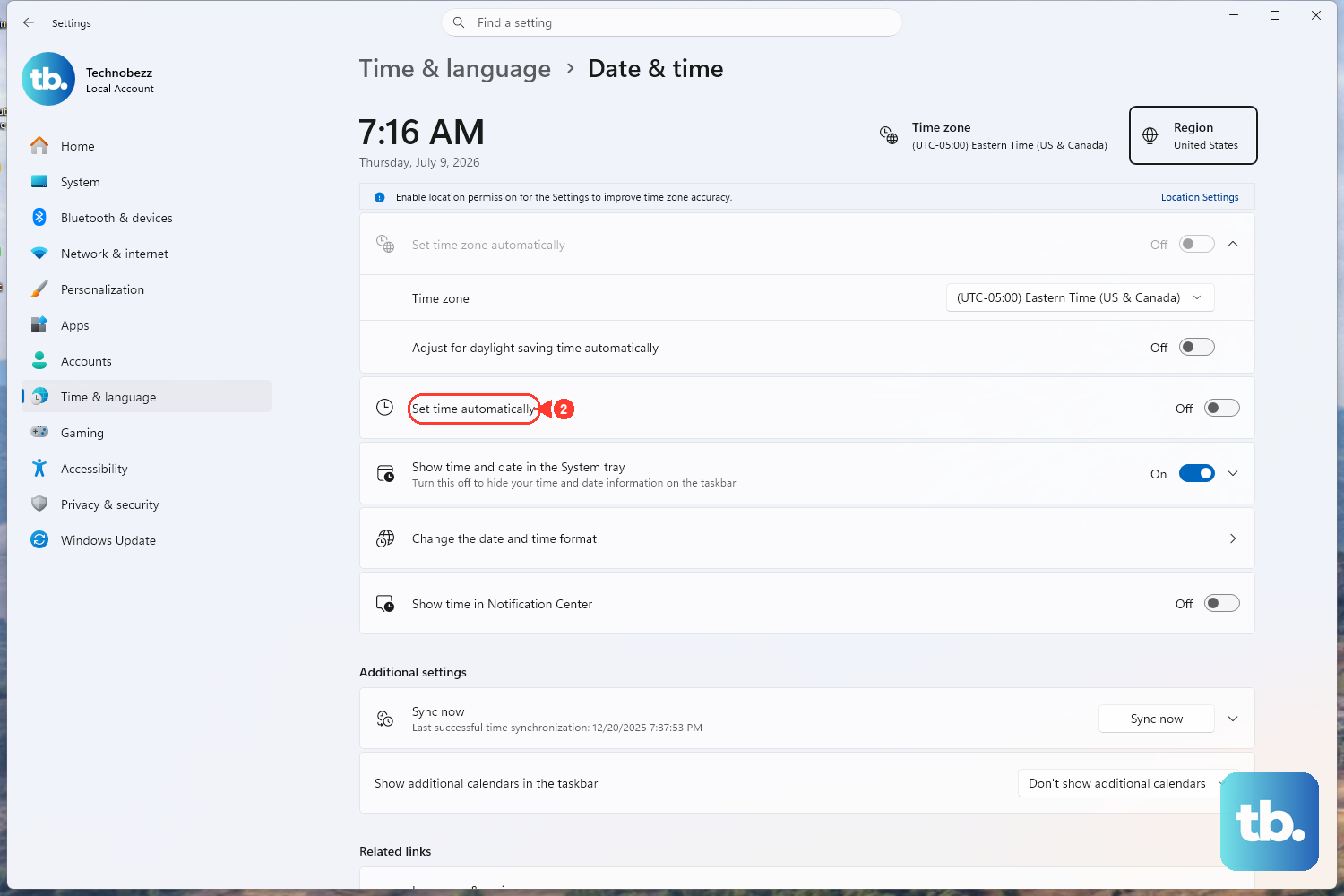
An incorrect clock can quietly block the secure connections Windows Update needs, leaving the check spinning. Letting Windows set the time automatically is the cleanest way to rule this out.
Select Start > Settings > Time & language, then select Date & time. Turn on Set time automatically, then turn on Set time zone automatically.
Once the date, time, and zone read correctly, check for updates again.
Make Room on the Drive
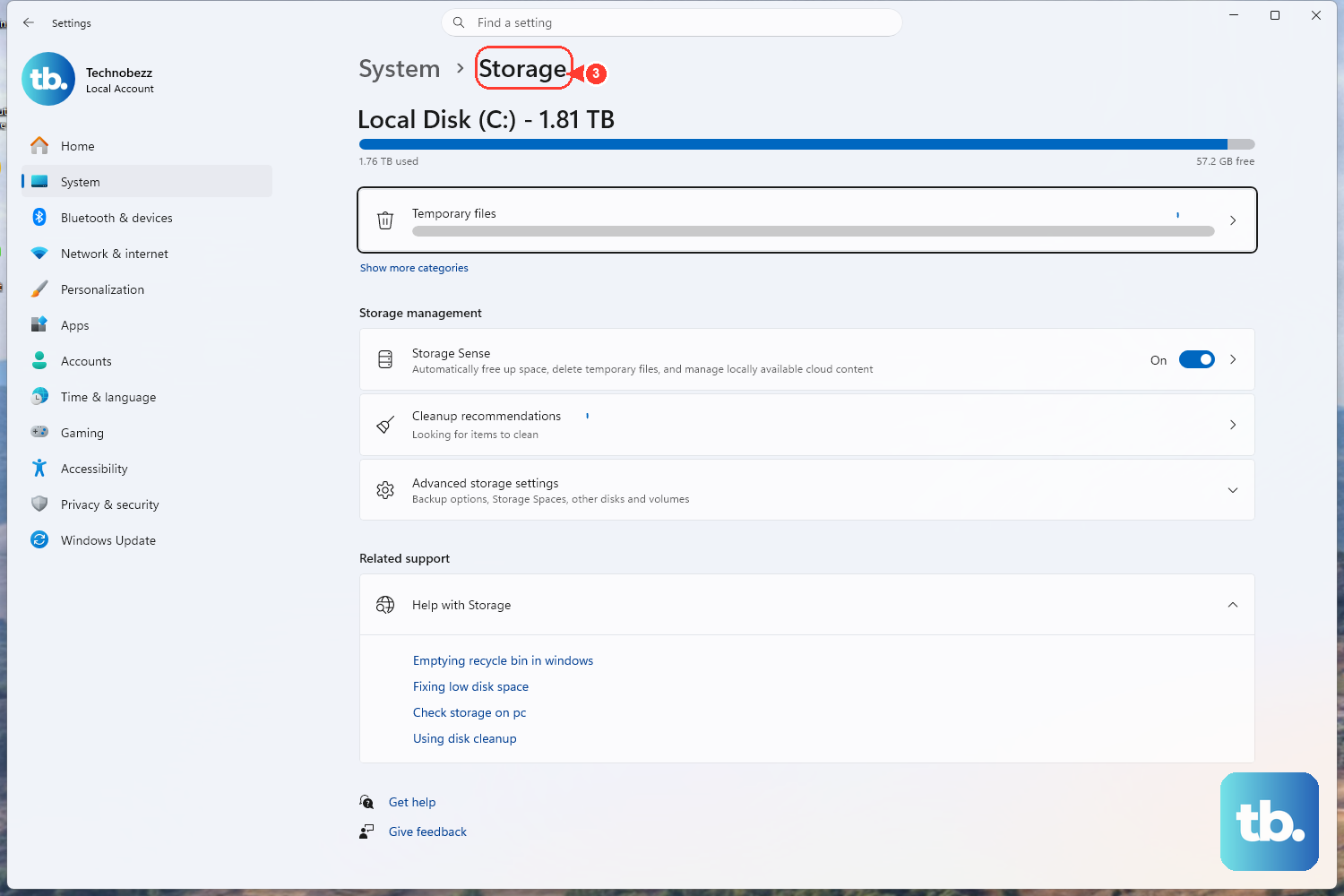
Updates need free space to download and install, and a drive that is nearly full can stall the process. Freeing up space gives Windows the room it needs to stage and apply an update.
Free up space using a tool like Storage Sense or Disk Cleanup, clearing out temporary files and anything you no longer need. After you have reclaimed enough room, retry the update.
Unplug Hardware You Do Not Need
Extra peripherals can interfere with how an update installs, so Microsoft recommends temporarily stripping your PC down to the essentials. Remove any external storage devices and drives, docks, and other hardware plugged into your device that are not needed for the update itself.
With the extra hardware disconnected, restart the PC and try the update again. You can reconnect everything once the update is in place.
Repair System Files With DISM, Then SFC
Corrupted system files can quietly block updates, and Windows includes two tools to repair them. The order matters: DISM restores the underlying Windows image that the System File Checker relies on, so you run DISM first and SFC afterward.
Type cmd in Search, right-click Command Prompt, and select Run as administrator. Run the image repair first: DISM.exe /Online /Cleanup-image /Restorehealth (note the space before each /).
Wait for it to report that the operation completed successfully. Then run the file check: sfc /scannow (note the space after sfc). When both finish, restart and check for updates again.
Do a Quick Reset of the Update Cache
A lighter reset of the Windows Update Agent clears its download and datastore cache, which often resolves a check that refuses to complete. Microsoft documents these commands, run from an elevated Command Prompt, in this exact order:
Run net stop wuauserv. Run rd /s /q %systemroot%\SoftwareDistribution. Run net start wuauserv.
This stops the Windows Update service, deletes its cache folder, then restarts the service. Once it is back up, return to Windows Update and try the check.
Reset the Windows Update Components Manually
If the quick reset and the troubleshooter both come up short, Microsoft documents a more thorough manual reset of the update components. Run all of these from an elevated Command Prompt.
First, stop the relevant services: Run net stop bits. Run net stop wuauserv. Run net stop cryptsvc.
Next, delete the BITS queue files: Run Del "%ALLUSERSPROFILE%\Application Data\Microsoft\Network\Downloader\qmgr*.dat".
Only if the issue still persists, rename the cache folders to .bak so Windows rebuilds them. Microsoft is clear that this folder-rename step should be done only after the earlier steps have failed to resolve the problem:
Run Ren %Systemroot%\SoftwareDistribution\DataStore DataStore.bak. Run Ren %Systemroot%\SoftwareDistribution\Download Download.bak. Run Ren %Systemroot%\System32\catroot2 catroot2.bak.
Finally, restart the services you stopped: Run net start bits. Run net start wuauserv. Run net start cryptsvc.
With the components rebuilt, check for updates one more time.
When a Recovery Environment Update Will Not Install
One specific update, the Windows Recovery Environment update KB5034441, has its own space requirement. Microsoft documents that your PC needs 250 MB of free space in the recovery partition to apply this update, and the update will not install if the recovery partition lacks enough room.
The documented resolution is to follow Microsoft's instructions to manually increase the size of the WinRE recovery partition, then check Windows Update again. Resizing partitions is a sensitive operation, so follow Microsoft's official steps exactly and back up important data first.
Frequently Asked Questions
What is the very first thing I should try when updates are stuck?
Start with the official Windows Update troubleshooter, which Microsoft recommends running first. The automated version lives in the Get Help app, and there is also a built-in version you can launch manually from Settings. It runs diagnostics and attempts to fix most update problems on its own.
Why do I have to run DISM before SFC?
Microsoft specifies running DISM first because it repairs the Windows component store and image that the System File Checker depends on. If that underlying image is damaged, SFC may not be able to replace corrupted files correctly, so DISM restores the image and then sfc /scannow can do its job.
Is it safe to delete the SoftwareDistribution folder?
Yes, when done the documented way. Microsoft's quick reset has you stop the Windows Update service with net stop wuauserv, run rd /s /q %systemroot%\SoftwareDistribution, then restart the service with net start wuauserv. Windows rebuilds the cache the next time it checks for updates.
Do I need to free up disk space before updating?
Often, yes. Updates need free space to download and install, and a nearly full drive can stall the process. If your drive is short on room, clear space with a tool like Storage Sense or Disk Cleanup and then retry the update.
Could my clock really cause a stuck update check?
It can. An incorrect date, time, or time zone can block the connections Windows Update relies on. Go to Settings > Time & language > Date & time and turn on both Set time automatically and Set time zone automatically, then check for updates again.