

You opened Settings, clicked Check for updates, and got slapped with 0x80070643 next to a Windows update that just will not install. It is one of the more frustrating error codes because it can mean almost anything, and in a lot of cases it is not even a real problem.
The good news is that most people clear it with a restart or a single cumulative update, and the rest of the fixes are quick and safe. Work through them in order, starting with the easiest, and you will almost certainly land on the one that works for your PC.
What 0x80070643 Actually Means on Your PC
The code 0x80070643 translates to ERROR_INSTALL_FAILURE, which is a generic Windows Update install failure. It is not tied to one specific component, so it can show up for different updates for different reasons.
On a lot of Windows 10 machines, though, it appears against one very specific thing: a Windows Recovery Environment (WinRE) update, such as KB5034441 from January 2024 or KB5057589 from April 2025. That distinction matters because the WinRE version of this error is frequently a false alarm.
For the April 2025 WinRE update, Microsoft stated that you might see "0x80070643 - ERROR_INSTALL_FAILURE" on the Windows Update settings page, and that this message "is not accurate and does not impact the update or device functionality." The WinRE update is typically applied successfully after the device restarts, and Windows Update may keep showing it as failed until the next daily scan, at which point the update is no longer offered and the failure message clears automatically.
Before you do anything heavy, restart the PC and wait for the next daily Windows Update scan. If yours is the harmless WinRE case, the false failure often disappears on its own.
Install the Latest Cumulative Update First
If the message keeps coming back, the single most effective move is to install the newest cumulative update available for your device, because Microsoft already fixed the WinRE form of this error in a later release.
Per the Windows 10, version 22H2 release-health information, the ERROR_INSTALL_FAILURE previously seen with KB5057589 "has been resolved with the Windows update released July 8, 2025 (KB5063523)." Microsoft recommends installing the latest update for your device because it contains important improvements and issue resolutions.
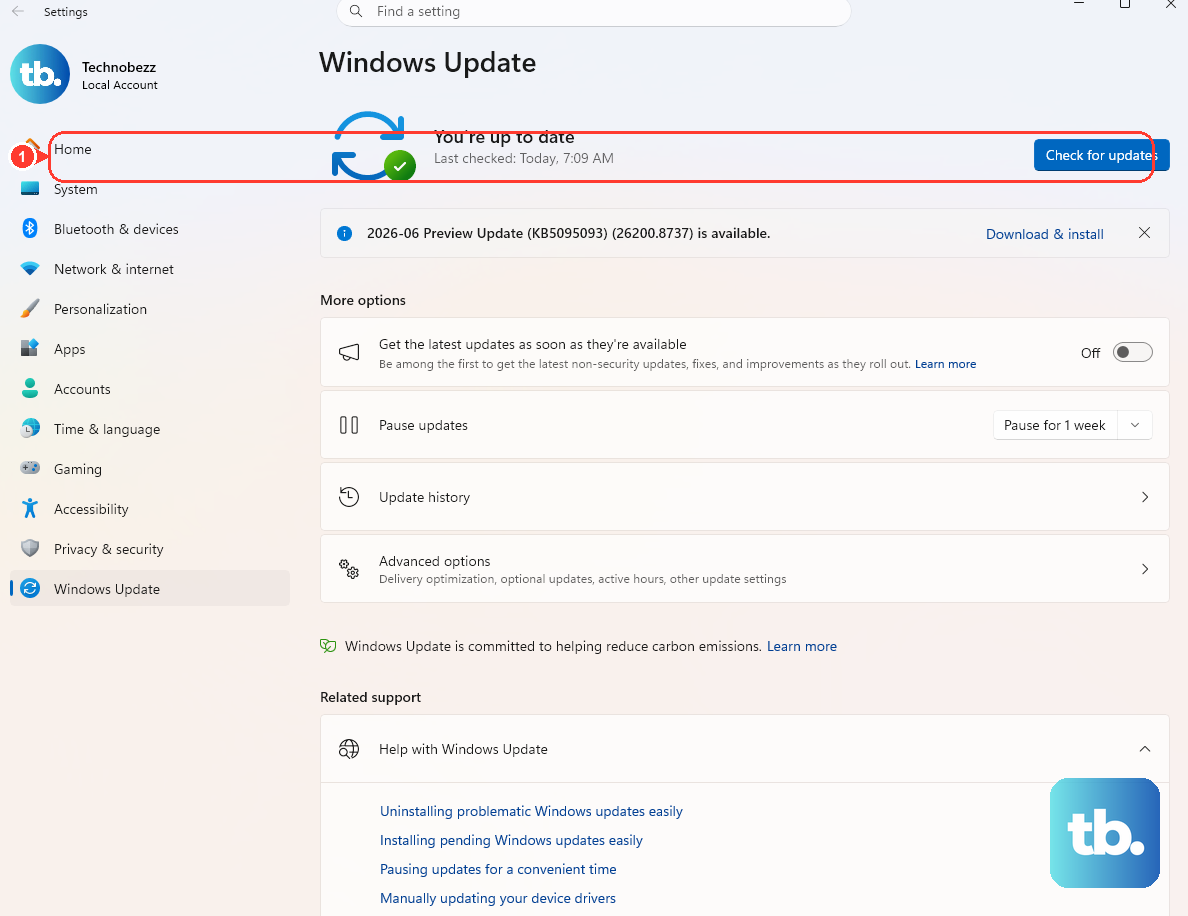
- 1.Open Start > Settings > Windows Update.
- 2.Select Check for updates.
- 3.Install everything that is offered.
- 4.Restart the PC when prompted.
Once the latest cumulative update is on, the persistent 0x80070643 tied to WinRE generally stops reappearing.
Let the Built-In Update Troubleshooter Reset Things
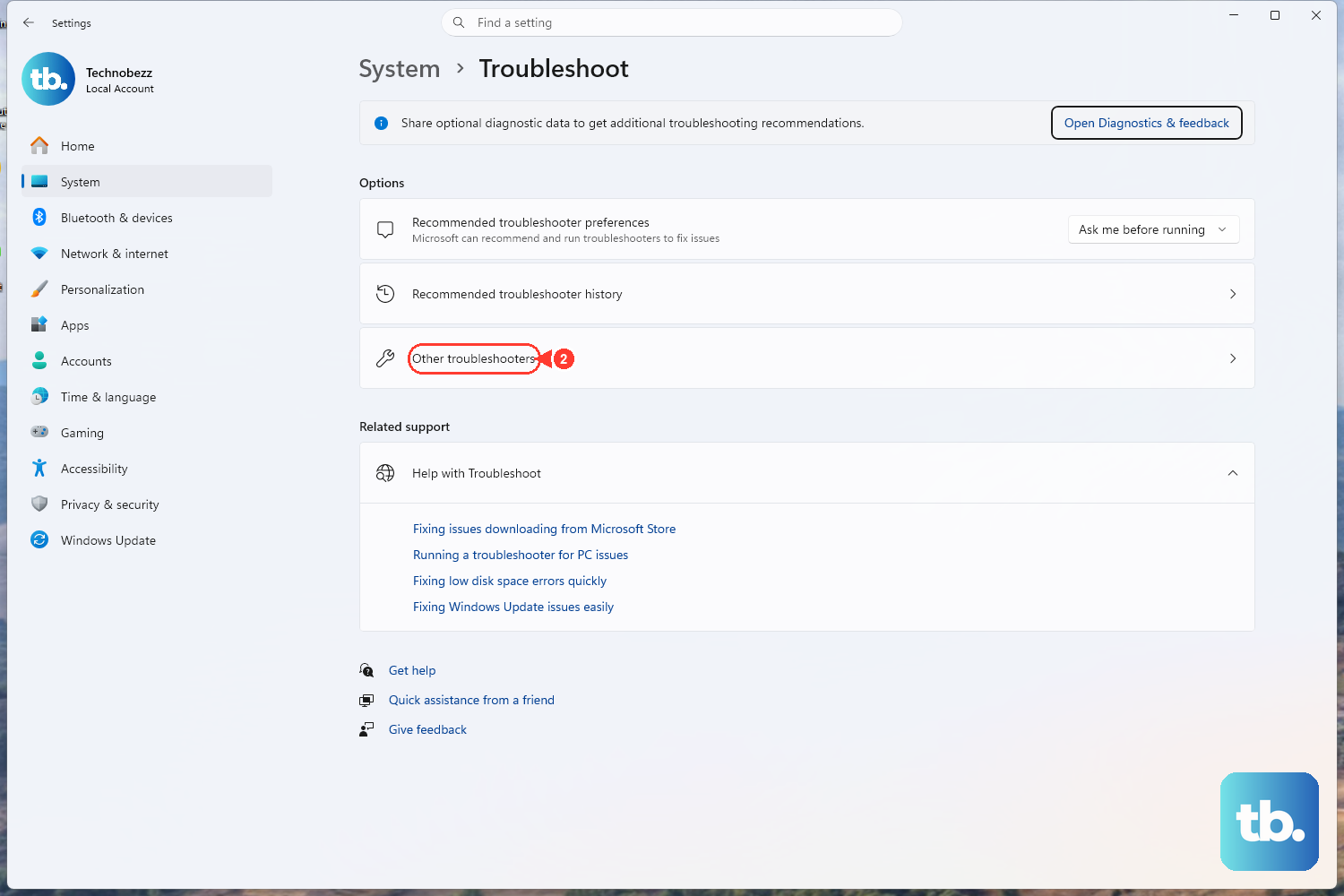
Windows ships with a dedicated Windows Update troubleshooter that analyzes the situation and resets the update components that need it. It is automated and safe, so it is worth running before you touch the command line.
On Windows 11: go to Start > Settings > System > Troubleshoot > Other troubleshooters, then under Most frequent select Run next to Windows Update. On Windows 10: go to Start > Settings > Update & Security > Troubleshoot > Additional troubleshooters, then under Get up and running select Windows Update and choose Run the troubleshooter.
On either version you can also launch the troubleshooter through the Get Help app. When it finishes, restart your PC and check for updates again to see if the error is gone.
Clear Space and Unplug Extra Hardware Before Retrying
Updates fail more often when the drive is tight or when extra devices confuse the installer. Microsoft's general guidance for update and installation errors is to make sure there is enough free drive space, then remove external storage devices, drives, docks, and any other hardware that is not needed for basic functionality, and run the update again.
The WinRE form of this error has a more specific requirement: the recovery partition needs 250 MB of free space for the update to install successfully. You can check the status of the recovery environment by opening an elevated Command Prompt and running reagentc /info, which shows whether WinRE is enabled and configured.
After freeing up space and disconnecting nonessential peripherals, head back to Windows Update and try again.
Repair System Files With DISM and SFC
If the update still fails, the cause is often corruption in the Windows component store. Two built-in tools, DISM (Deployment Image Servicing and Management) and SFC (System File Checker), can repair that, and you run them from an elevated Command Prompt.
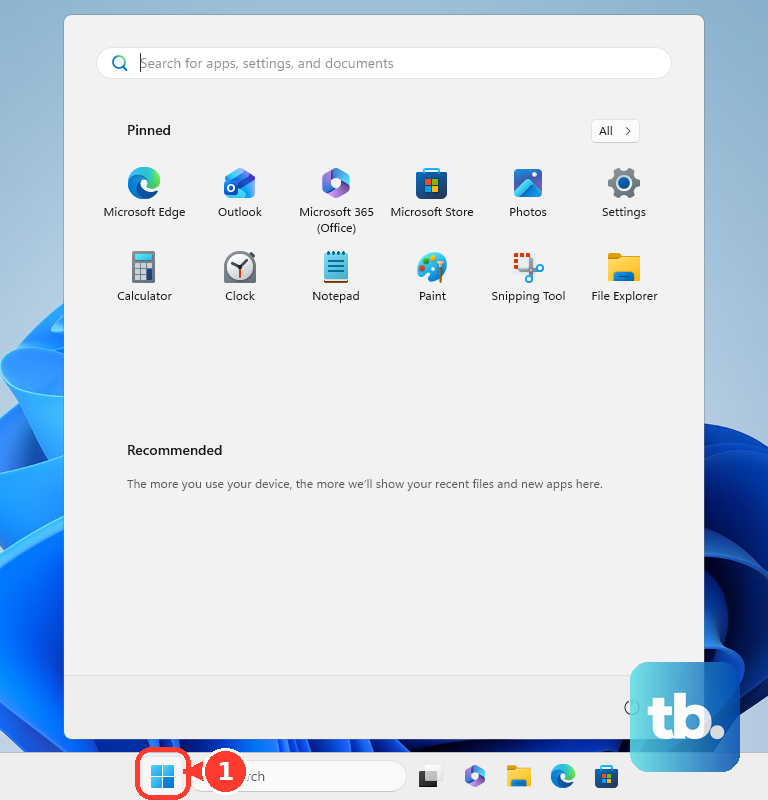
Select Start, type Command Prompt, right-click it, and choose Run as administrator. Next, run DISM.exe /Online /Cleanup-image /Restorehealth; this can take several minutes and downloads fix files from Windows Update.
When it reports success, run sfc /scannow to scan and repair protected system files. After that, close the window and run Windows Update again.
Reproduce both commands exactly as shown; the syntax matters.
Reset Windows Update by Clearing the Update Cache
When the simpler fixes have not worked, you can reset Windows Update by stopping its services, clearing the cached folders so Windows rebuilds them, and starting the services again. Microsoft notes the folder-rename step should only be done if the earlier, simpler steps did not fix the problem, so treat this as a later option rather than a first move.
Open an elevated Command Prompt (Start, type Command Prompt, right-click, Run as administrator), then stop the three services. Run net stop bits to stop the Background Intelligent Transfer Service, run net stop wuauserv to stop the Windows Update service, and run net stop cryptsvc to stop the Cryptographic service.
Next, rename the cache folders so Windows recreates them. Renaming (rather than deleting) the folders is the safe approach, because Windows simply builds fresh copies.
Run Ren %Systemroot%\SoftwareDistribution\DataStore DataStore.bak. Then run Ren %Systemroot%\SoftwareDistribution\Download Download.bak. After that, run Ren %Systemroot%\System32\catroot2 catroot2.bak.
Finally, restart the services. Run net start bits, run net start wuauserv, and run net start cryptsvc.
Once all three services are running again, return to Windows Update and check for updates.
When the WinRE Message Is Safe to Leave Alone
It helps to know that the WinRE version of 0x80070643 does not affect whether your PC works or boots. The recovery environment is a repair tool, not part of normal day-to-day operation, so a failed WinRE update does not break anything you actually use.
Microsoft notes the failed status clears automatically after the update applies on restart and the next daily scan. If it keeps reappearing, the durable fix is the same one from earlier: install the latest cumulative update (which resolved this issue) and make sure there is 250 MB of free space in the recovery partition.
If you ever want to confirm the state of the recovery environment, run reagentc /info from an elevated Command Prompt. You can also verify whether the WinRE update package actually installed despite the error message by running Dism /Online /Get-Packages, which lists the packages present on the system.
Frequently Asked Questions
Is 0x80070643 a serious error?
Not always. The code is ERROR_INSTALL_FAILURE, a generic Windows Update install failure, and on many Windows 10 PCs it appears against a WinRE recovery update where Microsoft has confirmed the message is "not accurate and does not impact the update or device functionality." Restart first and wait for the next daily scan; it often clears on its own.
How do I permanently fix 0x80070643 for the WinRE update?
Install the latest cumulative update for your device. For Windows 10, version 22H2, Microsoft states the ERROR_INSTALL_FAILURE seen with KB5057589 was resolved with the update released July 8, 2025 (KB5063523). Also make sure the recovery partition has 250 MB of free space.
Does the WinRE 0x80070643 error stop my computer from booting?
No. The Windows Recovery Environment is a repair tool, not part of normal operation, so a failed WinRE update does not affect whether your PC works or boots. The failed status typically clears automatically after the update applies on restart and the next daily scan.
Which commands repair the files behind this error?
From an elevated Command Prompt, run DISM.exe /Online /Cleanup-image /Restorehealth to repair the Windows component store, then sfc /scannow to scan and repair protected system files. Run Windows Update again afterward.
How do I check whether the WinRE update actually installed?
Open an elevated Command Prompt and run reagentc /info to see whether the recovery environment is enabled and configured, and run Dism /Online /Get-Packages to verify whether the WinRE update package is present even though Windows Update displayed an error.