You tap the Start button, start typing the name of a file or an app, and nothing happens. The search box may be empty, frozen, or returning no results at all, leaving you stuck hunting through folders manually.
Windows Search problems hit both Windows 11 and Windows 10, and the good news is that there is a clear set of fixes to try. The solutions below are ordered from the quickest and safest to the more involved, so start at the top and stop as soon as your search comes back to life.
Start With a Restart and a Round of Updates
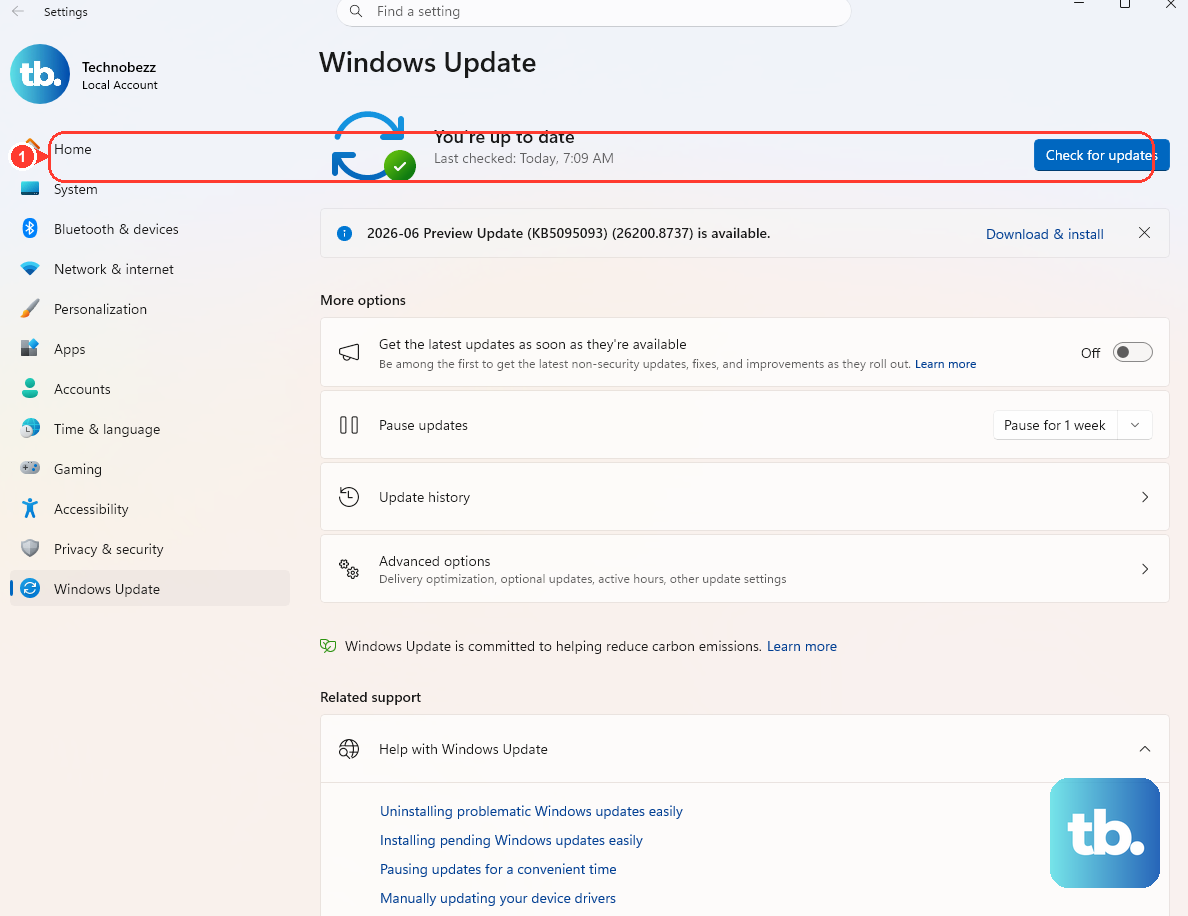
Before you dig into anything technical, restart your PC. A restart does double duty: it clears the temporary state that can break Search and it installs any pending updates that might resolve the issue on their own. If you want the troubleshooting steps handy after the reboot, bookmark this page first.
Once you are back at the desktop, check for updates. Many Search bugs are fixed by a Windows update you simply have not installed yet.
On Windows 11, go to Start > Settings > Windows Update. On Windows 10, go to Start > Settings > Update & Security > Windows Update.
Select Check for updates.
Install anything that is available.
Restart your PC if you are prompted to.
Windows 10's free support ended on October 14, 2025, including free software updates and security fixes. If Search still misbehaves after installing any available updates, move on to the next fix.
Restart the Search Process From Task Manager
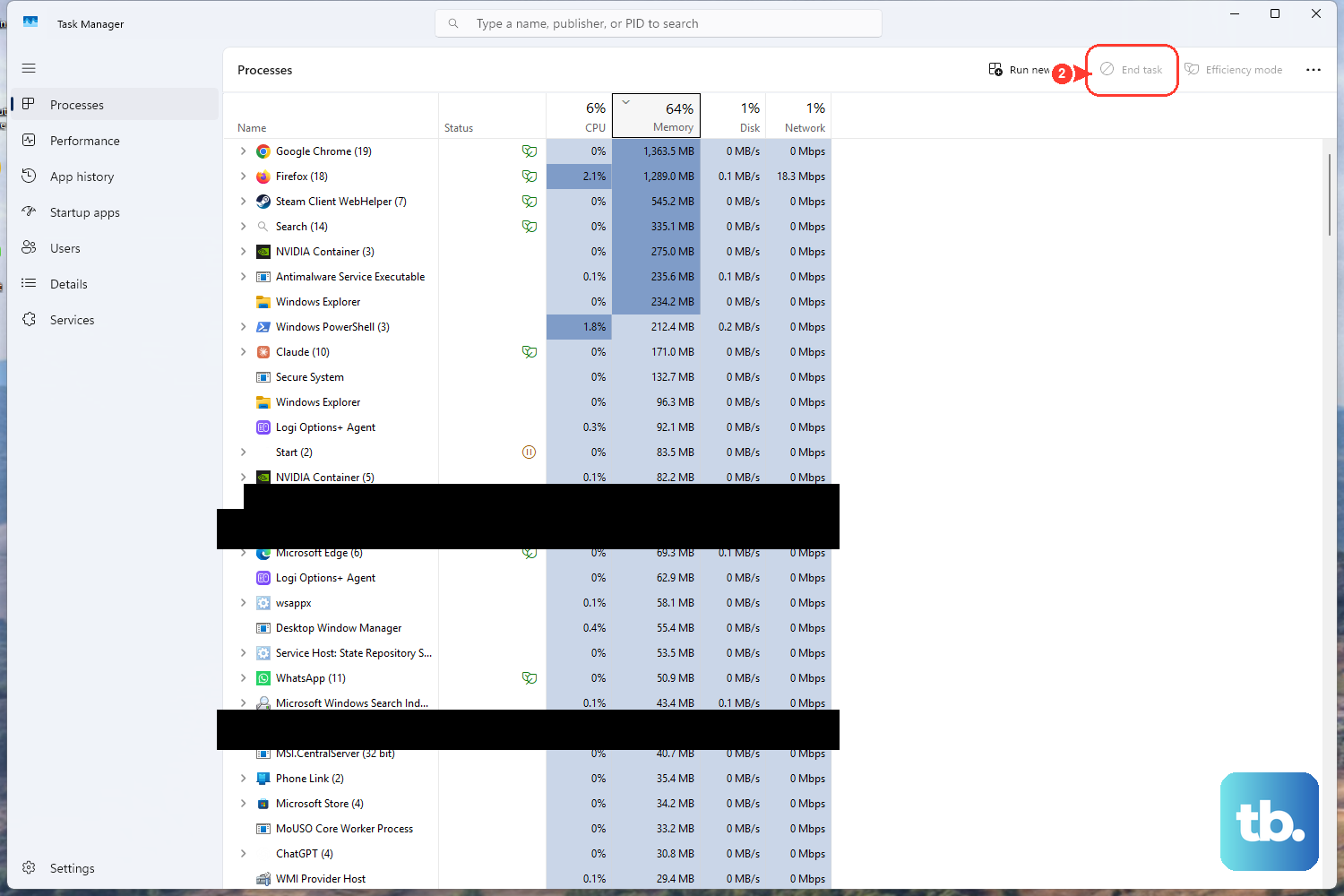
The part of Windows that powers your searches runs as its own background process, and ending it forces Windows to start it again cleanly. The process has a different name depending on your version: it is SearchHost.exe on Windows 11 and SearchUI.exe on Windows 10.
Press Ctrl+Alt+Delete and choose Task Manager.
Select Details.
In the Name column, right-click SearchHost.exe (Windows 11) or SearchUI.exe (Windows 10) and choose End task.
When prompted, choose End process.
You do not need to relaunch anything. Windows Search starts again automatically the next time you search.
Stop and Start the Windows Font Cache Service
It sounds unrelated, but a stuck Windows Font Cache Service can interfere with Search. Cycling it off and on clears some of these issues on both Windows 11 and Windows 10.
In the taskbar search box, type services.msc to open the Services console.
In the right pane, right-click Windows Font Cache Service and select Stop.
Try searching again.
After testing Search, right-click Windows Font Cache Service again and select Start.
Let the Search and Indexing Troubleshooter Take a Look
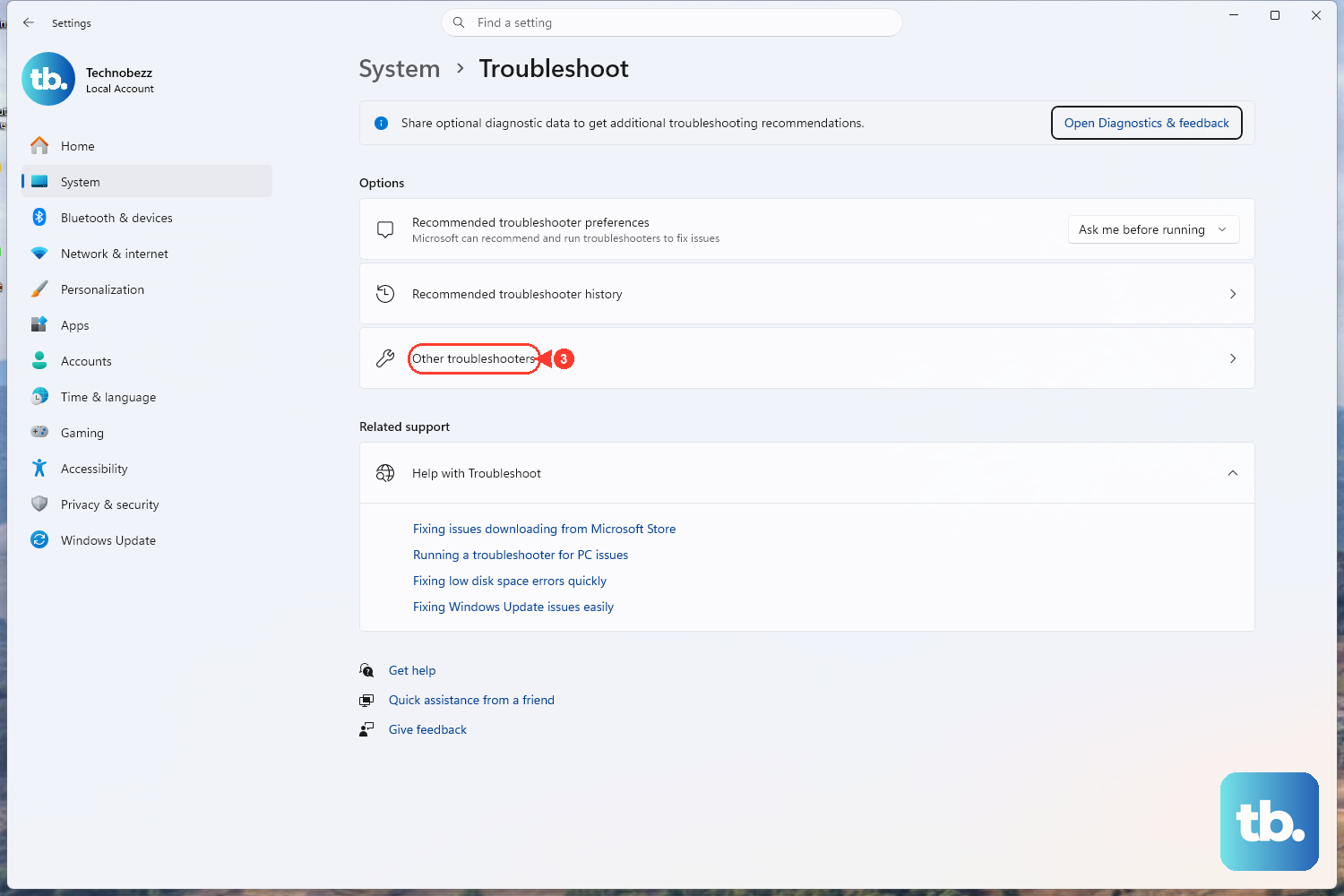
The Other troubleshooters screen shown above lists available troubleshooters. Search and Indexing is retired on newer Windows 11 versions. On Windows 10 or older Windows 11 versions where the troubleshooter remains available, you can launch it with the following command:
Open a Command Prompt window.
Run msdt.exe -ep WindowsHelp id SearchDiagnostic.
Work through the troubleshooter and select any problems that apply to you.
Windows will then try to detect and fix what it finds. If you are on Windows 10 version 1903 (the May 2019 Update) or later, Windows can also run this Search troubleshooter on its own when it detects a problem. You can review what it found at Start > Settings > Update & Security > Troubleshoot > View troubleshooting history.
Reset Windows Search With Microsoft's Official Script
If the troubleshooter cannot fix it, the next step is a full reset of Windows Search using a script that Microsoft provides for download. This works on Windows 11 and on Windows 10 May 2019 Update (version 1903) or later, and it requires administrator permissions. Resetting Search does not affect your files, though it may temporarily affect how relevant your results are while things settle.
First, open an elevated PowerShell window and check your current execution policy.
- 1.Run
Get-ExecutionPolicyand note the value it returns. - 2.If it is not Unrestricted, run
Set-ExecutionPolicy -Scope CurrentUser -ExecutionPolicy Unrestricted, then press Y and Enter. Close the PowerShell window before continuing. - 3.Download
ResetWindowsSearchBox.ps1from the official Microsoft download page (Microsoft Download Center, id 100295) and save it to a local folder. - 4.Right-click the downloaded file and choose Run with PowerShell.
- 5.Select Yes if you are prompted.
- 6.When Done appears, the reset is finished. If you changed the execution policy, keep the PowerShell window open and press any key to continue before restoring it below. Otherwise, close the window.
If you changed the execution policy, restore the original setting you noted earlier. Run Set-ExecutionPolicy -Scope CurrentUser -ExecutionPolicy <PreviousValue>, replacing <PreviousValue> with the value Get-ExecutionPolicy returned at the start, then press Y and Enter. If you are running Windows 10 version 1809 or earlier, you reset Search a different way: open Start, right-click Cortana, select More > App settings, then select Reset.
Rebuild the Search Index
When Search returns incomplete or outdated results, the underlying index may be corrupt, and rebuilding it from scratch often fixes that. The path differs slightly between the two versions.
On Windows 10, go to Settings > Search > Searching Windows > Advanced Search Indexer Settings > Advanced > Rebuild. On Windows 11, go to Settings > Privacy & security > Searching Windows > Advanced indexing options > Advanced > Rebuild.
Give the indexer time to finish; a full rebuild can take up to 24 hours, and results will be limited until it completes. If indexing appears to be paused, you can restart the Windows Search service (short name wsearch) from the Services tab of Task Manager or from services.msc to get it moving again.
Repair Damaged System Files With DISM and SFC
If Search problems persist through everything above, corrupted Windows system files may be the root cause. Two built-in tools handle this, and the order matters: run DISM first to repair the component store, then run System File Checker. Both apply to Windows 10 and Windows 11.
Type cmd in Search, right-click Command Prompt, and choose Run as administrator.
Run DISM.exe /Online /Cleanup-image /Restorehealth and wait for the message The operation completed successfully before continuing.
Then run sfc /scannow.
Do not close the window until the SFC verification reaches 100 percent, even if it seems to pause partway. Interrupting it can leave the repair incomplete.
Test for a Corrupted User Profile
A damaged user profile can break Search even when the rest of Windows is healthy. Start by confirming whether Search works in a freshly created account. If it does, you have found your culprit.
Go to Settings > Accounts > Other users > Add account.
Choose I don't have this person's sign-in information.
Choose Add a user without a Microsoft account and follow the prompts. Configure the new account as an administrator before using it as a replacement profile.
Sign in to the new account and try searching. If Search works there but not in your original account, the original profile was the problem, and you can migrate your work over to the new one. This applies to both Windows 11 and Windows 10.
If You Get Locked Out During These Steps
Switching accounts or rebooting can occasionally leave you facing a sign-in screen you cannot get past, and the recovery path depends on the type of account. For a Microsoft account, use Microsoft's official account recovery process from another device or the web to verify your identity and set a new password.
Once you can sign in to a local account whose password you already know, you can update it from Settings > Accounts > Sign-in options > Password > Change. If you have forgotten a local-account password, use the recovery option your sign-in screen offers for that account.
Frequently Asked Questions
Will resetting Windows Search delete my files?
No. Resetting Search does not affect your files. It may temporarily affect how relevant your results are while Windows rebuilds its view of your content, but your documents, photos, and other data are left untouched.
Why does the search process have a different name on my PC?
The process that runs Windows Search is named SearchHost.exe on Windows 11 and SearchUI.exe on Windows 10. When you restart it in Task Manager under Details, look for the name that matches your version.
How long does rebuilding the search index take?
A full rebuild can take up to 24 hours to complete. Search results will be incomplete until indexing finishes, so it is best to start the rebuild when you do not urgently need the feature and let it run.
Do I have to run DISM and SFC in a specific order?
Yes. Run DISM.exe /Online /Cleanup-image /Restorehealth first to repair the component store, then run sfc /scannow. Both require an elevated Command Prompt, and you should not close the SFC window until verification reaches 100 percent.
Can I report a Search problem that none of these fixes solve?
Yes. Report unresolved Search issues in the Feedback Hub, under the Desktop Environment category and the Search subcategory. Submitting a report there helps Microsoft track and address the problem.