Your PC finishes installing an update, restarts, and then days later the very same update shows up again, asking to be installed all over. It can feel like the loop will never end, and on a busy machine it eats time, bandwidth, and patience.
The good news is that a repeating Windows update almost always points to one of a handful of fixable causes: a stuck restart, a corrupt update cache, low disk space, or a recovery-partition quirk. Work through the fixes below in order, starting with the safest, and you will usually break the cycle without touching anything risky.
Start With the Built-In Windows Update Troubleshooter
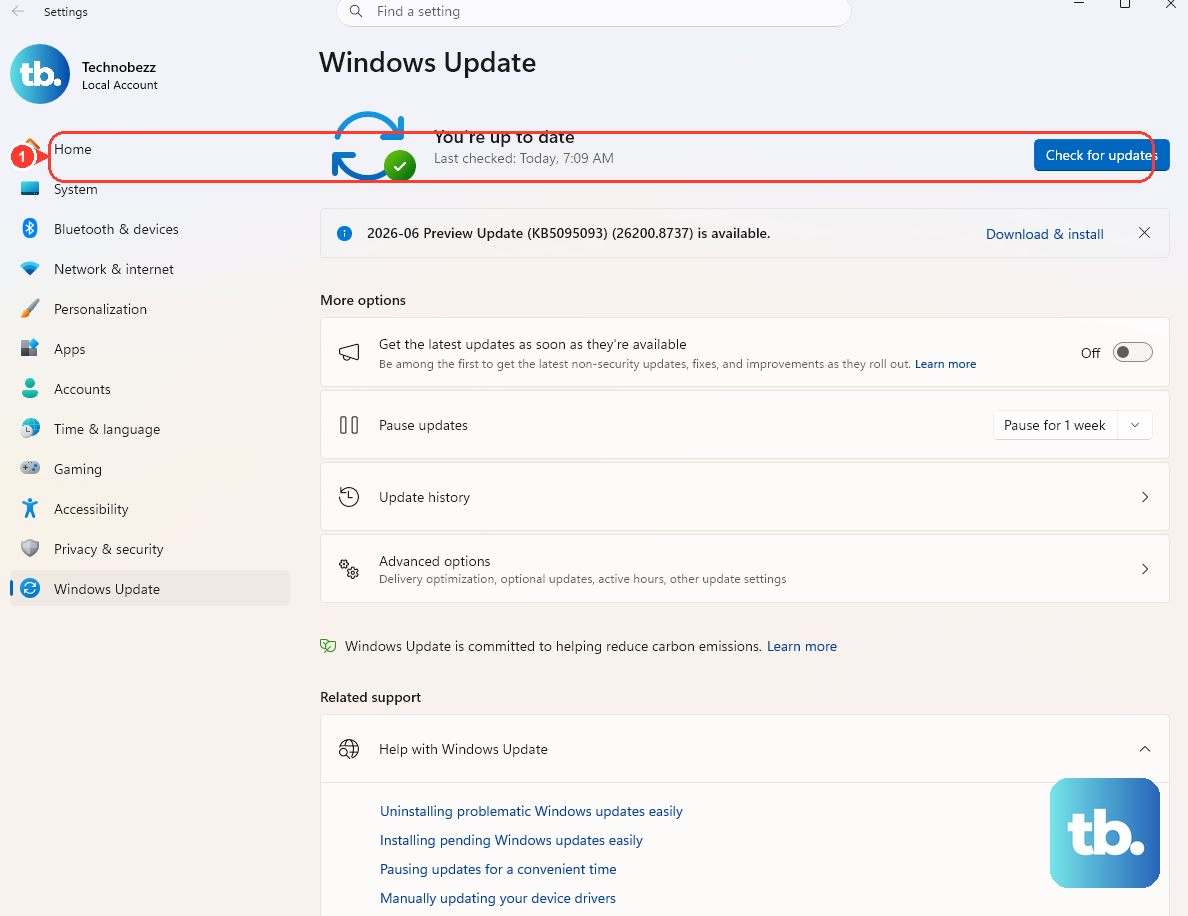
This is the step to try first because it is the safest. It analyzes the situation and resets any Windows Update components that need it, automatically, so you do not have to touch services or commands by hand.
On Windows 11, start with the automated Windows Update troubleshooter in the Get Help app. If it cannot resolve the issue, go to Start > Settings > System > Troubleshoot > Other troubleshooters, then under Most frequent select Run next to Windows Update.
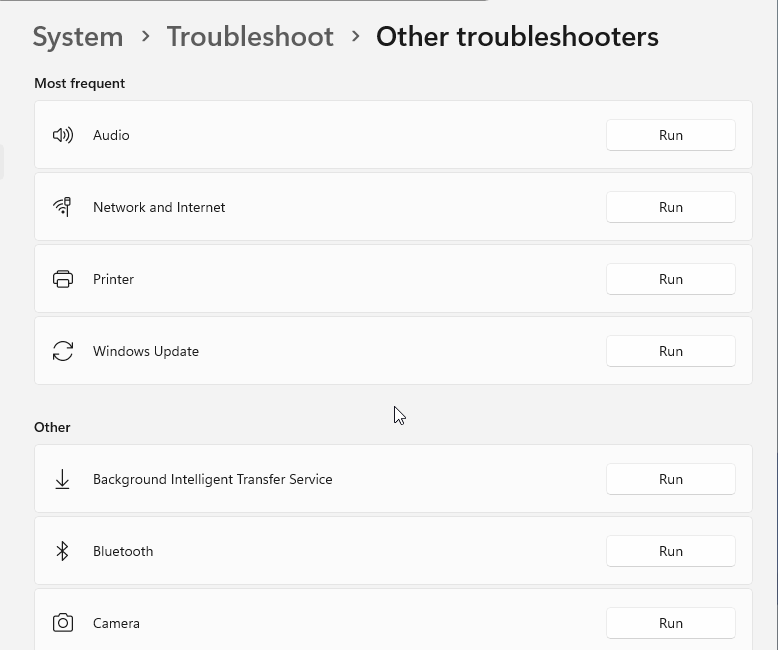
On Windows 10, start with the automated Windows Update troubleshooter in the Get Help app. If it cannot resolve the issue, go to Start > Settings > Update & Security > Troubleshoot > Additional troubleshooters, then under Get up and running select Windows Update and choose Run the troubleshooter. When it finishes, restart the device and check for updates again to see if the loop is gone.
Let the Update Finish, Then Restart Fully
An update can appear to keep coming back simply because a required restart never completed. Before assuming something is broken, give the update a clean run from start to finish.
Make sure the device is plugged in and connected to the internet, and that you are signed in with administrator access. On Windows 11, go to Start > Settings > Windows Update > Check for updates. On Windows 10, go to Start > Settings > Update & Security > Windows Update > Check for updates.
Install any available updates, then restart the device so installation actually finishes. If the same update was only re-offering itself because a pending reboot was outstanding, this alone can settle it.
Make Sure There Is Enough Free Disk Space
If the drive is short on space, the same update can fail partway and then re-offer itself, which is exactly what a repeating-update loop looks like. Clearing room often quietly fixes it.
A system needs at least 16 GB of free space to upgrade a 32-bit OS, or 20 GB for a 64-bit OS. Check your available space, delete or move what you can to comfortably clear that threshold, then try the update again.
Clear the Windows Update Cache
Corrupt files inside the update cache (the SoftwareDistribution folder) can make the same update fail and reinstall over and over. Wiping that cache forces Windows to download a fresh copy of what it needs.
Here is how to clear the cache manually:
- 1.Press
Win + R, typeservices.mscand press Enter. - 2.Right-click the Windows Update service and select Stop.
- 3.Open
C:\Windows\SoftwareDistributionand delete all the files and folders inside it. - 4.Return to Services, right-click Windows Update and select Start.
After the service is running again, check for updates. Windows will rebuild the cache from scratch, which removes the corrupt files that were causing the repeat.
Reset Windows Update Components From an Elevated Command Prompt
If clearing the cache through Services did not do it, the next step is a manual reset of the update components. Open Command Prompt as administrator and run these commands in order to stop the relevant services first:
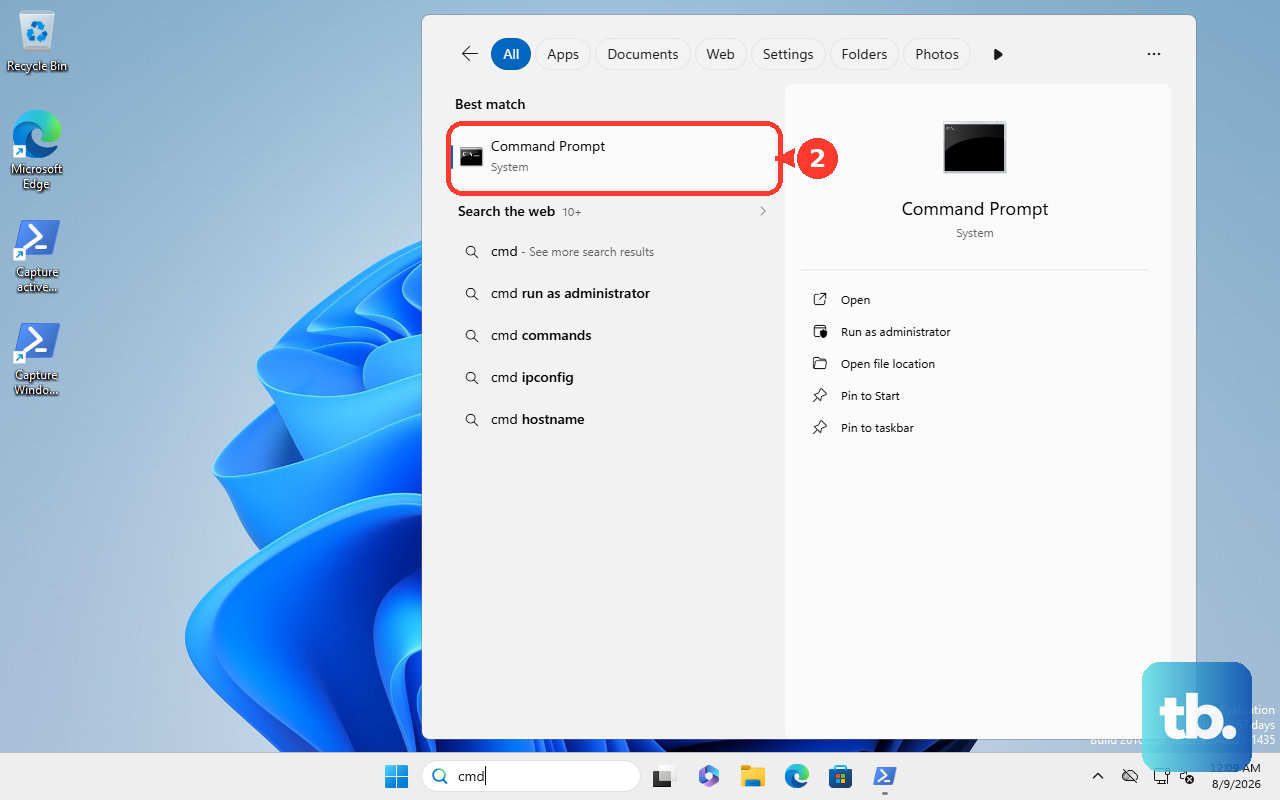
- 1.
net stop bits - 2.
net stop wuauserv - 3.
net stop cryptsvc
Here bits is the Background Intelligent Transfer Service, wuauserv is the Windows Update service, and cryptsvc is Cryptographic Services. Next, delete the BITS queue files:
- 1.
Del "%ALLUSERSPROFILE%\Application Data\Microsoft\Network\Downloader\qmgr*.dat"
Rename the update folders only if the earlier steps did not fix the problem. If you have reached that point, run:
- 1.
Ren %Systemroot%\SoftwareDistribution\DataStore DataStore.bak - 2.
Ren %Systemroot%\SoftwareDistribution\Download Download.bak - 3.
Ren %Systemroot%\System32\catroot2 catroot2.bak
Finally, restart the services you stopped:
- 1.
net start bits - 2.
net start wuauserv - 3.
net start cryptsvc
There is also a quicker "if all else fails" variant of the Windows Update Agent reset. From an elevated Command Prompt, run net stop wuauserv, then rd /s /q %systemroot%\SoftwareDistribution, then net start wuauserv. This clears the same cache folder in one pass.
Repair System Files With SFC and DISM
Corrupted system files or a damaged component store can block an update from completing, which then leaves it to be re-offered next time. Two built-in repair tools cover both.
Open Command Prompt as administrator and run DISM.exe /Online /Cleanup-image /Restorehealth to repair the component store. After you see "The operation completed successfully," run sfc /scannow to have System File Checker repair corrupted system files.
Let each command finish before moving on, then check for updates and install again. If the loop was caused by underlying file damage, repairing it removes the reason the update kept failing.
When a Recovery Environment Update Keeps Failing
Some repeating updates are tied to the Windows Recovery Environment (WinRE) rather than the main system, and they fail with error 0x80070643. The most-seen example is KB5034441, which installs into the recovery partition.
WinRE updates need free space in that recovery partition. KB5034441 requires 250 MB of free space in the recovery partition to install successfully; without it, the update fails and is re-offered. Follow Microsoft's official KB5034441 guidance for manually resizing the partition, including its sample script, rather than resizing without those instructions. After you have made the space, go to Start > Settings > Windows Update > Check for updates and install the update.
There is an important exception. For the later WinRE update KB5057589 from April 2025, the 0x80070643 message "is not accurate and does not impact the update or device functionality," and the WinRE update is typically applied successfully after the device restarts. That case was resolved by KB5063523 or later, so the repeated error there can be safely ignored.
Pause Updates to Break the Loop While You Work
If an update keeps re-offering itself and you need breathing room, you can pause updates so it stops downloading and installing temporarily. This is a holding measure, not a permanent fix. Resume updates before checking for updates or retrying installation in the steps above.
On Windows 11, go to Start > Settings > Windows Update, then on the Pause updates control select Pick a date. On Windows 10, go to Start > Settings > Update & Security > Windows Update, then choose Pause updates for 7 days or use Advanced options to set a date.
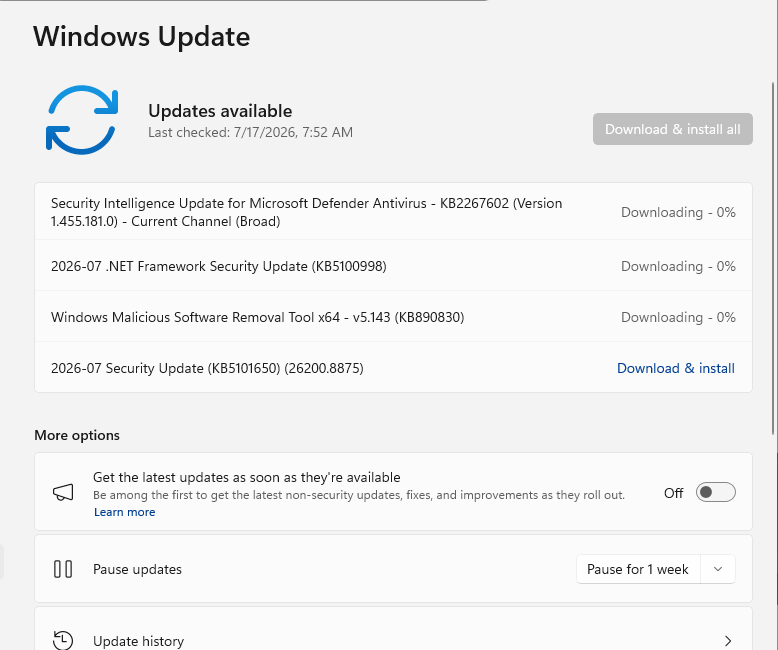
You can pause for up to 35 days from the current date, and updates resume automatically on the date you chose. If you need more time, you can extend the pause by picking a new end date up to 35 days from today.
Frequently Asked Questions
Why does the same Windows update keep coming back after I install it?
It can mean the update did not install correctly, or Windows Update cannot detect that it is installed. A pending restart that did not complete, a corrupt update cache, low disk space, or a recovery-partition update that lacks room can all cause Windows to fail the install and re-offer the same update. Working through a full restart, the troubleshooter, and a cache clear resolves most cases.
Is it safe to delete everything in the SoftwareDistribution folder?
Yes. Stop the Windows Update service first (through services.msc or by running net stop wuauserv), then delete the contents of C:\Windows\SoftwareDistribution and start the service again. Windows simply rebuilds the cache and re-downloads what it needs, which is the point of the step.
What does error 0x80070643 mean for a WinRE update?
For KB5034441 it points to not enough free space in the recovery partition; the update requires 250 MB free there, and resizing the partition lets the update install. For the later KB5057589, the same error message is not accurate and does not affect the update or device, and it was resolved by KB5063523 or later, so in that case it can be ignored.
Should I run the troubleshooter or the command-line reset first?
Run the Windows Update troubleshooter first. It is the safest first step, because it analyzes the situation and resets any Windows Update components that need it automatically. Only move to the manual cache clear and the elevated Command Prompt reset if the troubleshooter does not break the loop.
How long can I pause Windows updates?
You can pause updates for up to 35 days from the current date. Updates resume automatically on the date you set, and if you need more time you can extend the pause by choosing a new end date up to 35 days from today.