You went to use your PC and Windows greeted you with activation error 0x803F7001, blocking you from confirming your copy is genuine. The good news is this is a licensing message, not a sign that anything is broken with your hardware or your files. The code simply means Windows could not find a valid license to activate your PC, and there is a clear, official path to sort it out.
Below, you will work through the fixes in order, starting with the quickest and safest checks before moving to account linking and, if it comes to that, getting a valid product key. This applies to Windows 11 and Windows 10 (Windows 10 version 1607 or later).
What 0x803F7001 Actually Means
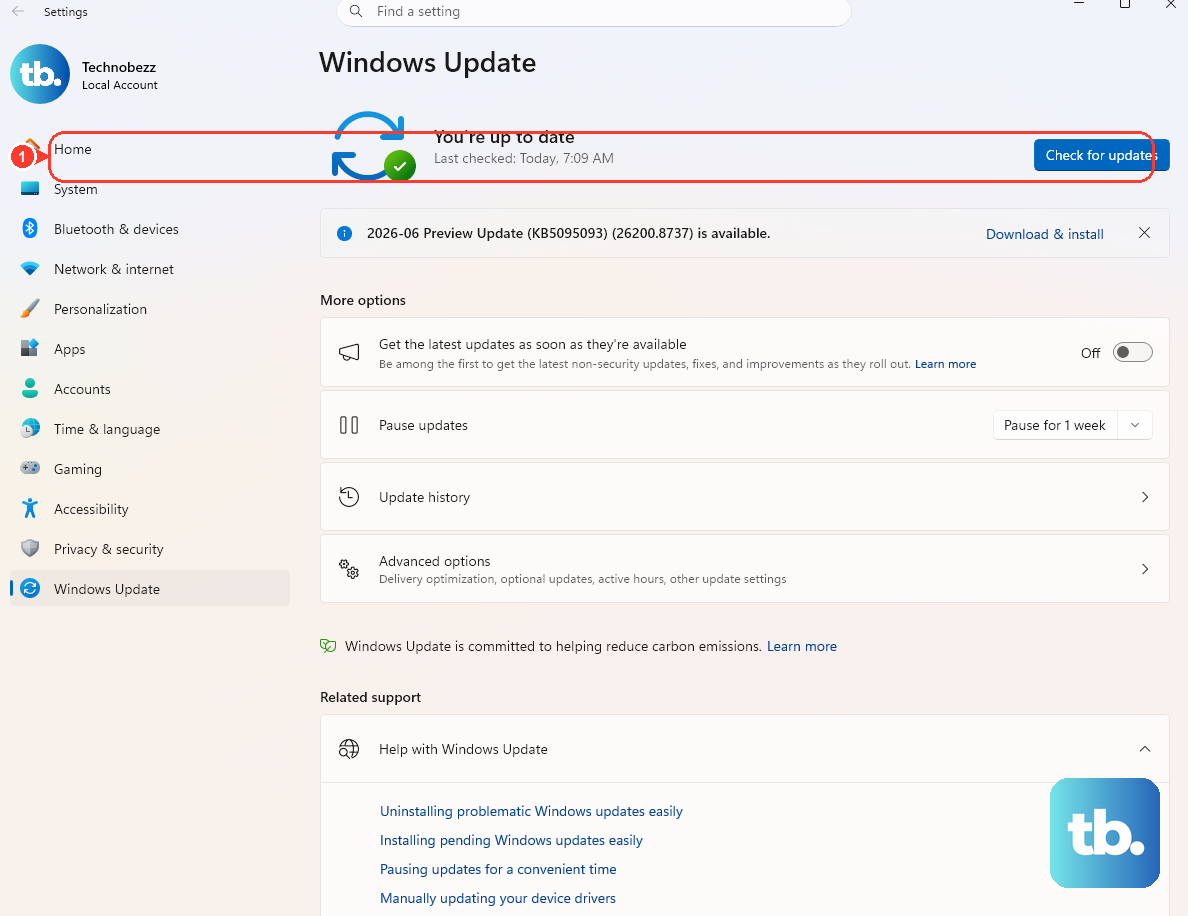
Error code 0x803F7001 means a valid license could not be found to activate Windows on your PC. It is an activation error, not a Windows Update error, so the fix lives entirely in your activation settings rather than in update tools.
There are a few common causes for this. Windows may have been installed for the first time without a valid product key or digital license, you may have made a significant hardware change (such as replacing the motherboard), or you may have reinstalled the wrong Windows edition. Knowing which of these applies to you will point you to the right fix further down.
Get Online Before You Try Anything Else
Activation requires contacting Microsoft's servers, so the very first thing to confirm is that your PC has a working internet connection. If you are offline or your connection is flaky, activation cannot complete and the error will keep returning no matter what else you do.
Connect to your network, confirm you can load a webpage, then try activating again. A surprising number of 0x803F7001 reports clear up the moment the PC can actually reach the activation servers.
Check Your Current Activation Status
Before changing anything, it helps to see exactly where you stand. Your activation page tells you whether Windows is unactivated, activated with a digital license, or activated with a digital license linked to your Microsoft account.
On Windows 11, select Start > Settings > System > Activation.
On Windows 10, select Start > Settings > Update & Security > Activation.
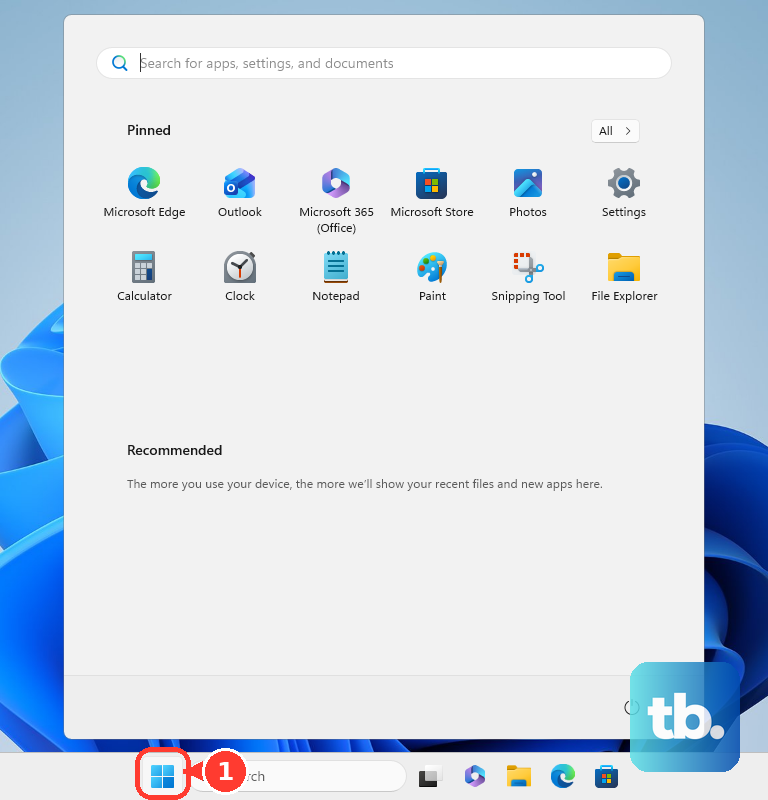
Read the status shown at the top of the page so you know what you are working with.
If the page shows Windows is already activated with a digital license, you may simply need to reconnect or reactivate. If it shows the PC is not activated, the troubleshooter in the next step is your best starting point.
Run the Built-in Activation Troubleshooter
Windows includes a dedicated Activation Troubleshooter that can detect common problems such as an unactivated license or having installed an edition you are not licensed for. It then tells you how to fix what it finds, which makes it the right tool to reach for before you do anything manual.
On Windows 11, select Start > Settings > System > Activation, then select Troubleshoot.
On Windows 10, select Start > Settings > Update & Security > Activation, then select Troubleshoot.
Follow the on-screen guidance the troubleshooter provides for whatever it detects.
One important note: the Troubleshoot link appears only when Windows is not activated. If you do not see it, your PC may already be activated, or you may need to recheck your status using the previous step.
Reactivate After a Hardware Change
A digital license is tied to your PC hardware, so a major change like a new motherboard can trigger 0x803F7001. If your error followed a hardware upgrade, this is almost certainly the cause, and the fix is to link your Microsoft account to the digital license and reactivate through the troubleshooter.
Reactivation through the troubleshooter only works if your Microsoft account is linked to the digital license, so link it first. Open Activation settings signed in as an administrator with a Microsoft account: on Windows 11 go to Settings > System > Activation, and on Windows 10 go to Settings > Update & Security > Activation.
- 1.On the Activation page, select Add an account and sign in with your Microsoft account.
- 2.Confirm the page now reads "Windows is activated with a digital license linked to your Microsoft account."
- 3.Run the Activation Troubleshooter and select "I changed hardware on this device recently."
- 4.Sign in with that same connected Microsoft account and select Sign in.
- 5.Check the box next to "This is the device I'm using right now," then select Activate.
Once the device is recognized and the license is matched, Windows should activate and the error will clear. The key detail is that the account you sign in with must be the same one tied to the digital license.
When Your Device Is Missing From the List
During reactivation, the troubleshooter shows a list of devices associated with your account. If you do not see the PC you are using in that list, the most likely reason is that you signed in with the wrong account.
Make sure you signed in with the same Microsoft account that you associated with the Windows digital license on that device. Only the connected Microsoft account will work, so a different personal or work account, even one you use regularly, will not surface the device you need.
Enter a Valid Product Key for the Right Edition
If 0x803F7001 was caused by reinstalling the wrong edition, or by not having a key in the first place, you can supply a valid product key. Entering the correct key for the edition you are licensed to run resolves the mismatch.
On Windows 10, select Start > Settings > Update & Security > Activation, then select Change product key.
Enter your valid product key when prompted.
On Windows 11, you will find activation settings at Settings > System > Activation. Use the product key that matches the edition of Windows you are entitled to, since a key for a different edition will not activate your install.
When You Genuinely Need a License
Sometimes a valid license cannot be found simply because you never had one, which is common on a first-time install. In that case, the proper route is to buy a genuine digital license rather than chasing workarounds that will not stick.
On Windows 10, select Start > Settings > Update & Security > Activation, then select Go to Microsoft Store to purchase a digital license. After purchase, Windows can activate against that license and the error will no longer appear.
If reactivation still fails after working through all of the steps above, Microsoft directs you to contact Microsoft Support so they can locate the digital license on your account. That is the right final step when you believe you own a valid license but the standard tools cannot match it.
Frequently Asked Questions
Is 0x803F7001 a serious problem for my PC?
No, it is an activation error, meaning a valid license could not be found to activate Windows on your PC. It does not indicate damaged hardware or lost files; it only affects activation status, and it is resolved through your activation settings.
Why did this error appear right after I upgraded my hardware?
A digital license is tied to your PC hardware, so a major change such as replacing the motherboard can trigger 0x803F7001. Linking your Microsoft account to the digital license and reactivating through the Activation Troubleshooter, using the option "I changed hardware on this device recently," is the documented way to recover.
Why can't I see the Troubleshoot link on my Activation page?
The Troubleshoot link appears only when Windows is not activated. If your PC is already activated, the link will not be shown, so recheck your activation status to confirm where things stand.
My device is not in the troubleshooter's list. What now?
Make sure you signed in with the same Microsoft account that you associated with the Windows digital license on that device. Only the connected Microsoft account will display the device, so signing in with a different account will leave the list empty.
What should I do if nothing works?
If reactivation still fails after running the troubleshooter, linking your account, and entering or buying a valid key, Microsoft directs you to contact Microsoft Support so they can locate the digital license on your account.