

You plug your printer into a USB port, expect it to show up, and Windows acts like nothing happened. No new device, no print queue, nothing in the printer list. A USB printer that refuses to be detected is almost always a connection, service, or driver hiccup rather than dead hardware.
The fixes below move from quick physical checks to deeper software repairs. Work through them in order on your Windows 11 PC and stop as soon as your printer reappears. Windows 10 menu paths are included too, but Windows 10 support ended on October 14, 2025, so it no longer gets free updates or security fixes.
Start With the Cable, Port, and Power
Before touching any settings, confirm the basics, because a loose plug or a tired port is the most common cause of an "undetected" printer. Make sure the printer is turned on and that the USB cable is firmly connected at both ends, the printer and the PC.
Next, rule out the port itself by plugging the cable into a different USB port on the computer. Connect the printer directly to the PC rather than through a USB hub or dock, since hubs can starve the printer of the power it needs to be recognized. If you have several USB devices attached, disconnect the others so the port has enough power to detect the printer.
Power-Cycle the Printer and Restart Windows
A full power cycle clears temporary connection glitches that can stop Windows from seeing a printer that is physically fine. Turn off your printer and unplug it, wait 30 seconds, plug it back in, and then turn it back on.
Once the printer has fully restarted, restart your computer before you try to print again. Bringing both devices up fresh forces Windows to detect the USB connection again, which is often all it takes for the printer to register.
Run the Official Windows Printer Troubleshooter
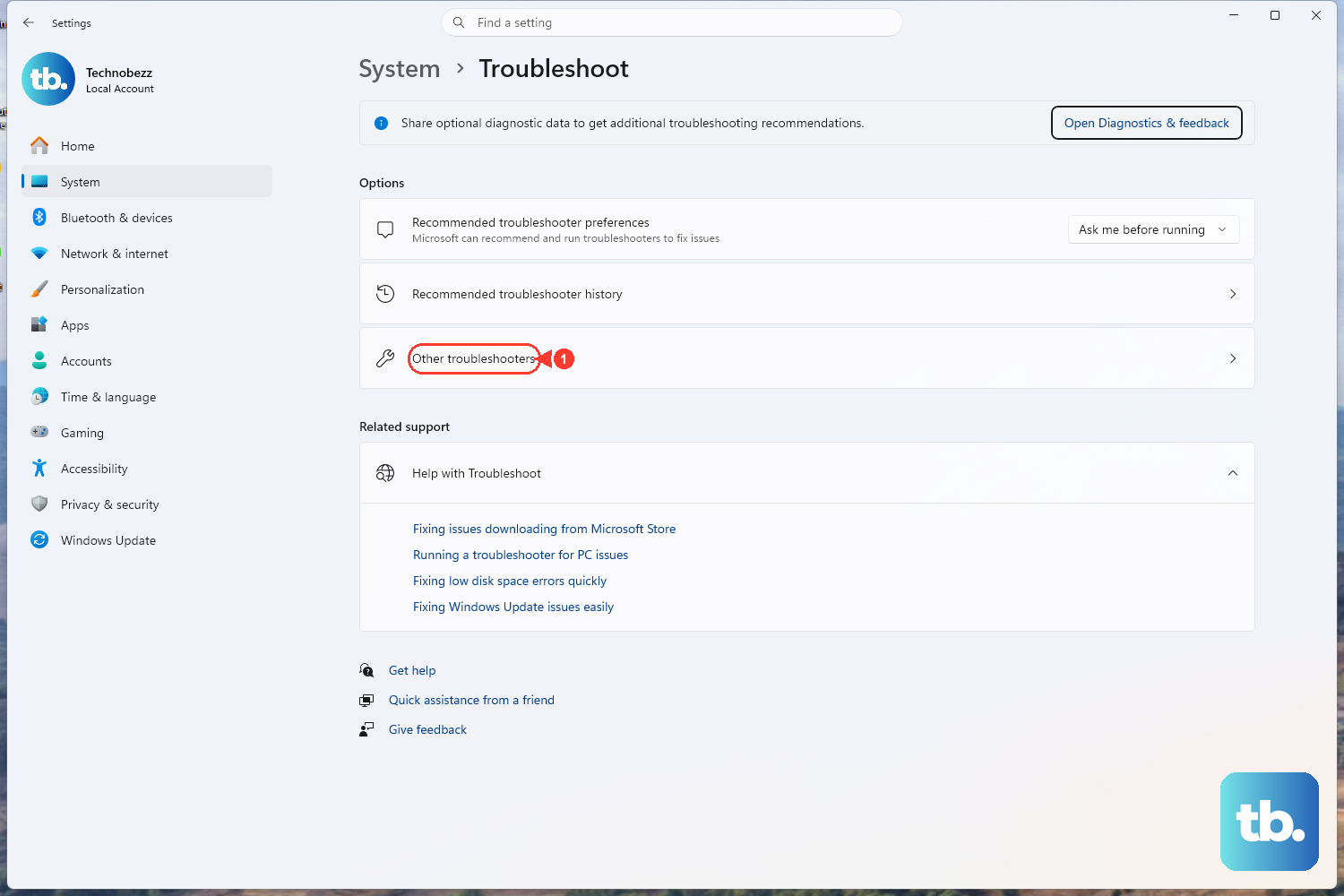
Windows includes an automated diagnostic that checks the printer connection and tries to repair common problems for you. On Windows 11 it runs inside the Get Help app. Open the Get Help printer troubleshooter and follow the prompts.
The troubleshooter runs its diagnostics and attempts to fix the problem automatically, so let it finish before moving on. If it finds nothing, continue with the manual steps below.
Clear a Paused, Offline, or Stuck Print Queue
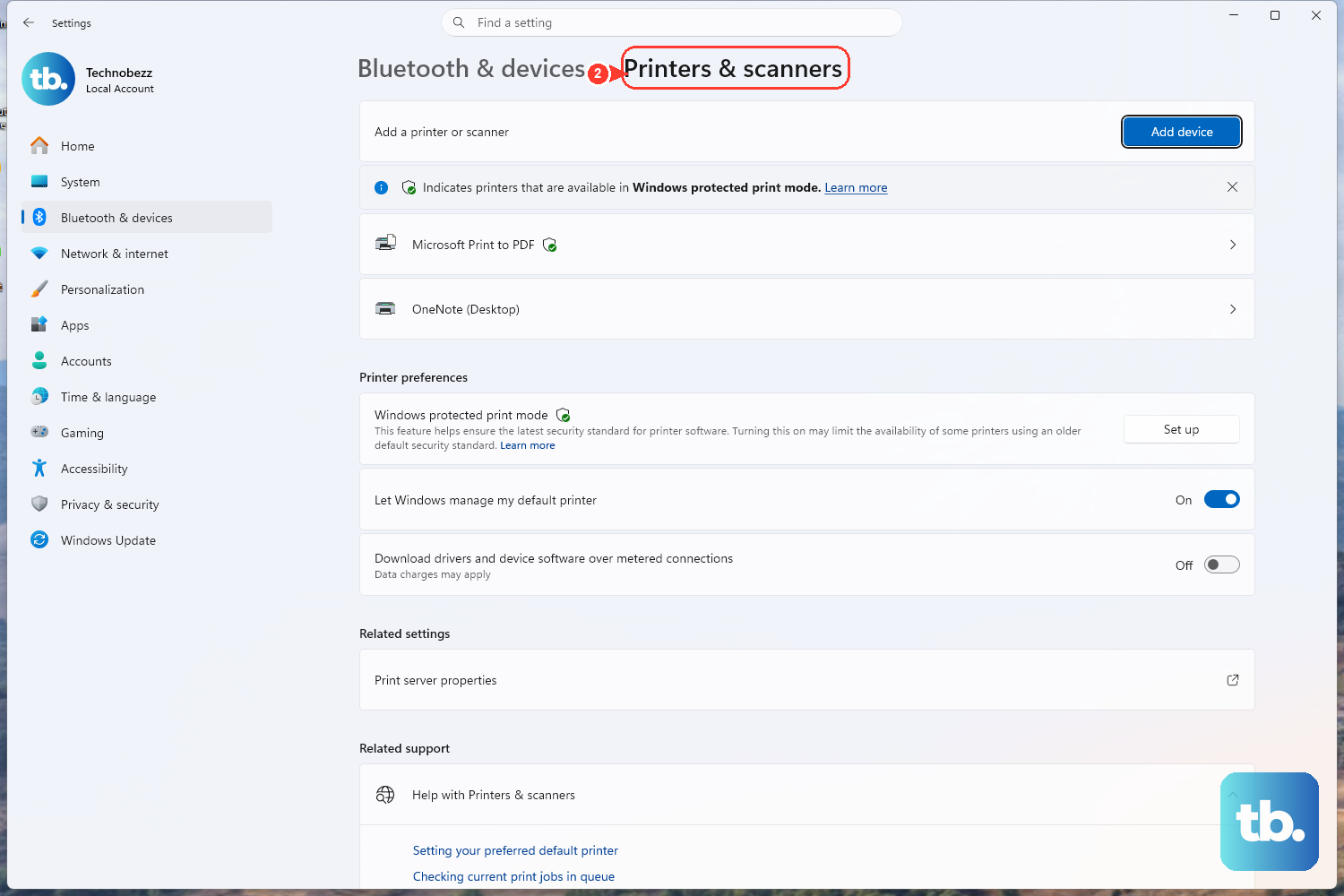
Sometimes the printer is detected but seems dead because the queue is paused, stuck, or offline. On Windows 11, go to Start > Settings > Bluetooth & devices > Printers & scanners, select your printer, then select Open print queue. Use the ... (more options) menu in the queue to manage or cancel jobs.
On Windows 10, go to Start > Settings > Devices > Printers & scanners, select your printer, and select Open queue. Open the Printer menu and clear Pause Printing and Use Printer Offline if either is checked. On either version, right-click a stuck job and select Cancel. Clearing a single jammed job is often enough to get the printer responding again.
Restart the Print Spooler Service and Clear the Spool Folder
The Print Spooler is the background service that manages printers and print jobs. Restarting it clears temporary issues that can stop Windows from recognizing the printer or processing jobs.
- 1.Press Windows key + R, type
services.msc, and press Enter. (You can also search for Services from the taskbar.) - 2.Scroll down and locate Print Spooler in the list.
- 3.Right-click Print Spooler and select Restart.
Give Windows a moment after the service restarts, then check whether your printer reappears in Settings or the print queue.
When jobs simply will not clear, empty the spool folder by hand. In Services, right-click Print Spooler and select Stop. Then delete all files in C:\Windows\System32\spool\PRINTERS. This folder only holds queued jobs, so clearing it removes pending print data, not your printer setup. Delete only the files inside, not the folder itself.
Finally, return to Services, right-click Print Spooler, and select Start. While you are there, double-click the service and make sure Startup type is set to Automatic so it runs after every restart.
Update or Reinstall the Printer Driver
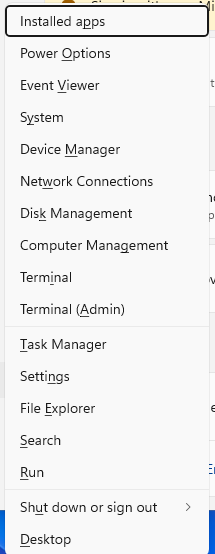
A missing, corrupted, or outdated driver is a common reason a connected USB printer stays invisible. Start in Device Manager: right-click Start, select Device Manager, find your printer, right-click it, and select Update driver.
If that does not help, right-click the printer, select Uninstall device, and restart the PC so Windows reinstalls it. Also run Windows Update (Settings > Windows Update > Check for updates), since Windows can deliver printer drivers through it.
For the full-featured driver, download the latest version for your exact model from the printer maker's support site. HP owners, for example, can get current HP software and drivers from 123.hp.com after uninstalling the old HP software and restarting the PC.
If It Still Will Not Appear: Add It Manually and Set It as Default
When Windows refuses to pick up the printer on its own, add it by hand. On Windows 11, go to Start > Settings > Bluetooth & devices > Printers & scanners and select Add device. If the printer is not listed, select Add manually and follow the prompts.
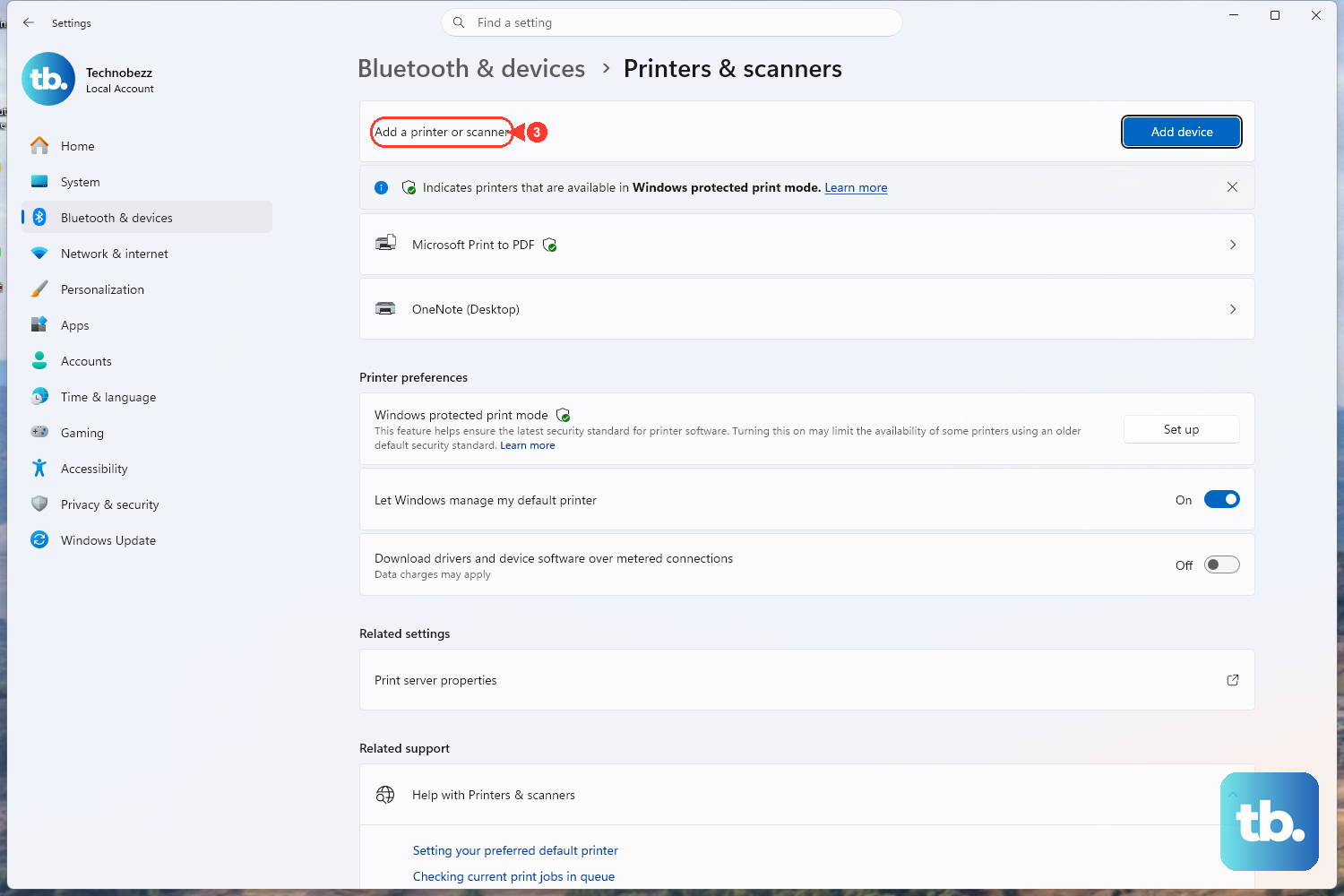
On Windows 10, go to Start > Settings > Devices > Printers & scanners, select Add a printer or scanner, and if needed select The printer that I want isn't listed.
Once the printer is installed, set it as the default so your apps target the right device. On Windows 11, under Printer preferences, turn off Let Windows manage my default printer, select your printer, then select Set as default. On Windows 10, make sure Let Windows manage my default printer is not selected, select your printer, choose Manage, and under Printer status select Set as default.
Frequently Asked Questions
Why does my USB printer work in another USB port but not the original one?
That usually points to a weak or failing port rather than a printer problem. Connect the printer directly to the PC instead of through a hub, and if you have many USB devices attached, disconnect the others so the working port has enough power to detect the printer.
Is it safe to delete the files in the PRINTERS spool folder?
Yes. The C:\Windows\System32\spool\PRINTERS folder holds only queued print jobs, so deleting its contents clears stuck jobs without removing your printer. Stop the Print Spooler service first, delete only the files inside the folder, then start the service again.
What should I do if Windows says the USB device is not recognized?
Try a different USB port and cable, connect directly to the PC instead of through a hub, and power-cycle both devices. Then run the printer troubleshooter in the Get Help app and reinstall the printer driver from Device Manager or the manufacturer's site. Microsoft's old downloadable USB troubleshooter is no longer offered.
How do I update my printer driver if Windows is not detecting the printer?
Open Device Manager by right-clicking Start, find your printer, right-click it, and select Update driver. If that does not help, select Uninstall device, restart the PC so Windows reinstalls it, run Windows Update, or install the latest driver from the printer maker's website.
How do I make sure my computer prints to the right printer?
Turn off "Let Windows manage my default printer," then select your printer and choose "Set as default." On Windows 11 this is under Settings > Bluetooth & devices > Printers & scanners. On Windows 10 it is under Settings > Devices > Printers & scanners, using the Manage option.