Apps stutter when you switch between them, programs take longer to respond, and Task Manager keeps flashing alarming memory numbers even though you only have a browser and a couple of programs open. High memory usage on Windows 11 is frustrating because it is rarely one obvious cause; it can be a runaway background process, a stubborn indexing job, or simply too many apps fighting over the same RAM. The good news is that most of it is fixable without touching anything risky.
The fixes below are ordered from safest and simplest to more advanced. Start at the top, work down, and stop as soon as your memory settles back to normal.
Start by Finding What Is Eating Your RAM
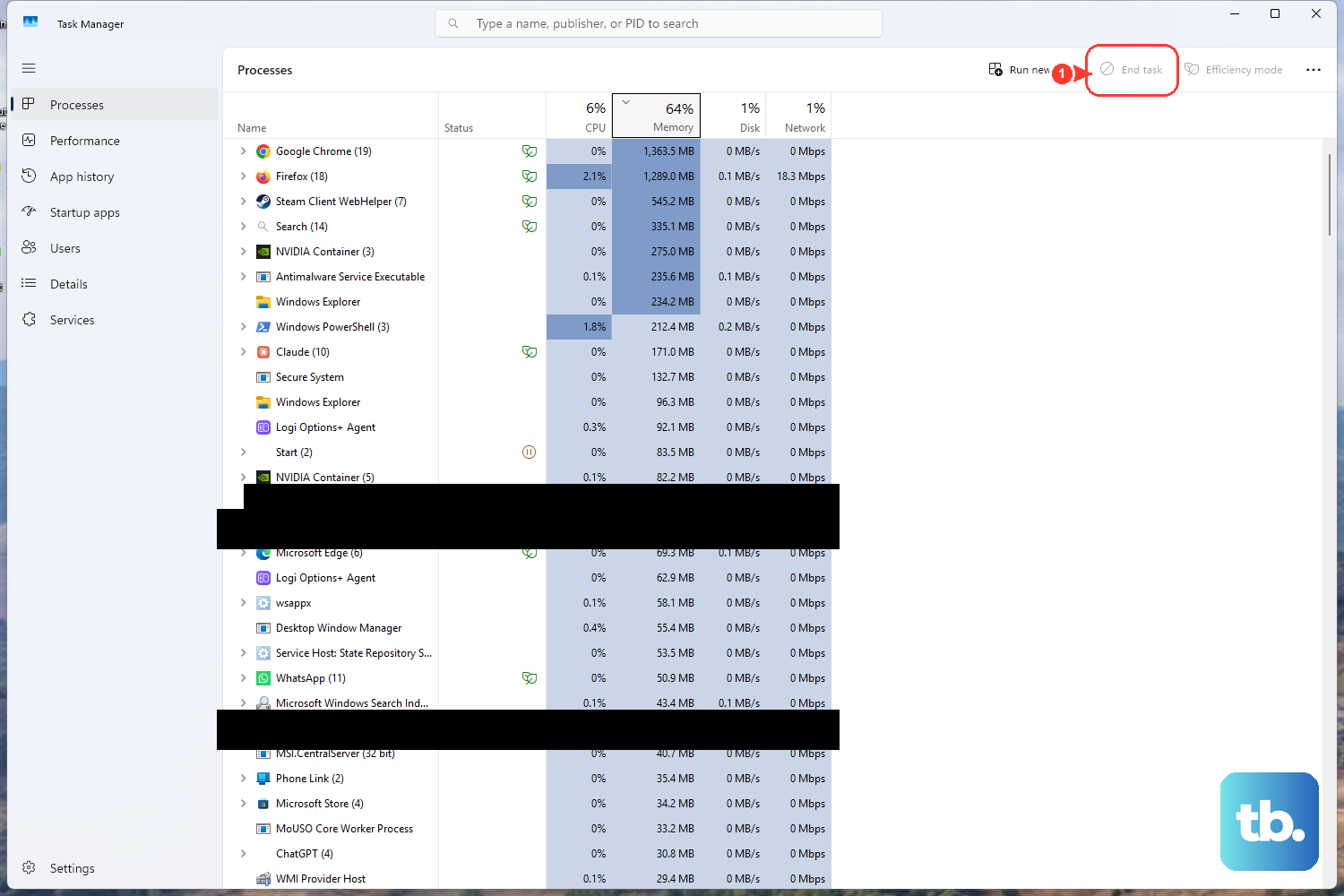
Before you change a single setting, find out what is actually using your memory. Task Manager shows you this in seconds and turns guesswork into a targeted fix.
Press Ctrl + Shift + Esc to open Task Manager.
Open the Processes tab and click the Memory column header to sort by usage. You can also sort by the CPU or Disk column to see those resources.
Review the Performance and Startup apps tabs to spot components using high resources.
Right-click any app you are not using and close it.
This is the safe diagnostic step that tells you which of the later fixes will help most. If one specific process dominates the list, note its name; some of the fixes below target particular culprits.
Close the Clutter, Then Restart Fresh
Having many apps or browser tabs open at once is one of the most common reasons memory creeps high. Each open tab and program holds onto RAM, and the total adds up quickly. Close anything you do not currently need.
If performance still does not improve, a clean restart clears memory that lingering processes refuse to release. Select Start > Power > Restart, then open only the apps you actually need and close them again when you are done. A restart is often all it takes to recover memory that a misbehaving app was hoarding.
Install the Latest Windows Updates
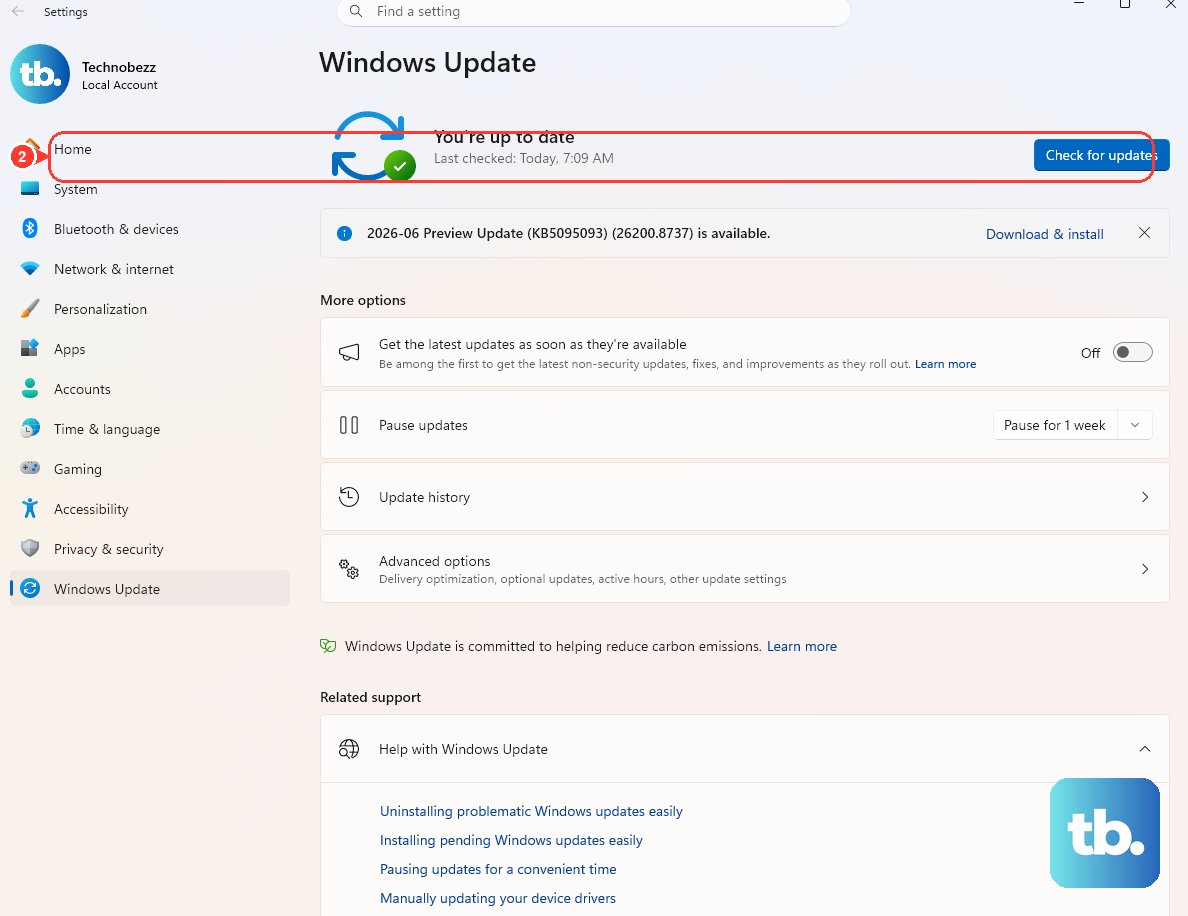
Updates frequently include fixes for memory leaks and performance regressions, so keeping Windows current is one of the easiest wins. Go to Start > Settings > Windows Update > Check for updates, and if any updates are available, select Download & install.
One thing to expect: Windows Update can temporarily raise CPU and disk usage while it downloads and installs in the background. That spike is normal, so let it finish before you judge whether memory has improved.
Rule Out Malware With a Security Scan
Malicious software often hides by consuming memory and CPU in the background, so a clean scan removes an entire category of causes. Windows has this built in.
Go to Start > Settings > Privacy & security > Windows Security > Virus & threat protection.
Select Quick scan for a fast check of the most likely locations.
For a deeper look, select Scan options and choose Full scan, which scans every file and program on your PC.
If you suspect something persistent that keeps coming back, choose Microsoft Defender Antivirus (offline scan). It restarts your PC and scans before Windows fully loads, which gives stubborn malware a much harder time hiding from the scanner.
Stop Programs From Launching at Startup
Plenty of apps quietly add themselves to your startup routine, and each one claims memory the moment you log in even if you never open it. Trimming this list lightens the load right from boot.
Press Ctrl + Shift + Esc to open Task Manager.
Select Startup apps from the left-hand menu.
Right-click any app you do not want launching automatically and select Disable.
Disabling a startup app does not uninstall it; you can still open it manually whenever you need it. Focus on apps you rarely use but that load every time you turn on the PC.
Dial Back Visual Effects for Best Performance
Windows animations, shadows, and transparency look nice, but they all draw on system resources. If your PC is short on memory, turning these down can free some up and improve responsiveness.
Select Start, type Adjust the appearance and performance of Windows, and open it.
On the Visual Effects tab, select Adjust for best performance.
This strips the interface back to a plainer look in exchange for lower resource use. If you miss certain effects later, you can return to the same tab and re-enable individual ones.
Rein In Runtime Broker if It Is the Hog
Runtime Broker is a Windows process that manages permissions for apps from the Microsoft Store, and under normal conditions it only uses a few megabytes. When an app misbehaves, though, Runtime Broker can balloon and become the thing dragging your memory down.
Check it in the Processes tab of Task Manager.
If Runtime Broker is using more than 15% of your memory, that is your sign that an app is acting up.
Select Runtime Broker, choose End task, then restart your device so it can start cleanly.
Only end the task when it is genuinely over that threshold; under normal use it should be left alone.
Tame Windows Search Indexing
The Windows Search Indexer keeps your files instantly searchable, but it can become a heavy user of CPU, memory, or disk when it has too much to track. If searching feels sluggish or the indexer keeps spiking your resources, you have a few levers to pull.
The first lever is to index less.
Exclude folders you do not need searched.
Windows 11: Settings > Privacy & security > Searching Windows > Add an excluded folder
Windows 10: Settings > Search > Searching Windows > Add an excluded folder
If the index itself is misbehaving, rebuild it.
On Windows 11, go to Searching Windows > Advanced indexing options > Advanced > Rebuild; on Windows 10, use Advanced Search Indexer Settings > Advanced > Rebuild.
The rebuild can take a while, so let it run up to 24 hours before expecting normal behavior.
Defragment the Search Database (Advanced)
If indexing is still heavy after a rebuild, you can defragment the underlying search database. This is more advanced, so follow the steps in exactly this order. Open an administrative Command Prompt and run:
- 1.
Sc config wsearch start=disabled - 2.
Net stop wsearch - 3.
EsentUtl.exe /d %AllUsersProfile%\Microsoft\Search\Data\Applications\Windows\Windows.edb - 4.
Sc config wsearch start=delayed-auto - 5.
Net start wsearch
The final two commands re-enable and restart the service, so run all five in order rather than stopping partway. You can also restart the Windows Search service from the Services tab of Task Manager or from services.msc (right-click Windows Search > Properties). Its normal configuration is Status: Running, Startup type: Automatic (Delayed Start); leave it set that way rather than disabling it.
Limit Apps Running in the Background (Windows 11)
Some apps keep working even when you are not looking at them, syncing or updating in the background and quietly using memory. Windows 11 lets you cap that per app.
Go to Start > Settings > System > Power & battery > Battery usage.
Find the app you want to limit.
Choose More options > Manage background activity.
Set Let this app run in the background to Power optimized (recommended) or Never.
Setting it to Never fully stops the app from consuming resources in the background; Power optimized is a gentler middle ground. Apply this to apps you do not need running constantly.
Leave Virtual Memory Alone
It is tempting to shrink the page file to save space when memory feels tight, but that usually makes things worse. By default Windows manages the page file (virtual memory) automatically, growing it as needed when the system commit charge gets high, and this system-managed sizing applies to both Windows 10 and Windows 11.
If the system commit charge reaches the commit limit, you can run into freezing, crashing, and out-of-memory errors. The guidance is to keep enough committed-memory headroom rather than reduce the page file. You can watch the committed memory and commit limit yourself on the Performance tab in Task Manager, which helps you see whether you are approaching that limit.
Frequently Asked Questions
How do I see exactly which program is using my memory?
Press Ctrl + Shift + Esc to open Task Manager, open the Processes tab, and click the Memory column header to sort by usage. The process at the top is consuming the most RAM. You can also sort by the CPU or Disk column and review the Performance and Startup apps tabs.
Is it safe to end Runtime Broker in Task Manager?
Runtime Broker normally uses only a few megabytes, so leave it alone under normal conditions. Only end its task if it is using more than 15% of your memory, which signals a misbehaving app; after ending it, restart your device so it starts cleanly.
Should I disable the Windows Search service to fix high disk and memory use?
No. The recommended approach is to exclude folders you do not need indexed, rebuild the index, or defragment the search database. The service's normal state is Running with Startup type Automatic (Delayed Start), so keep it configured that way rather than disabling it.
Will shrinking the page file free up memory?
No, and it can cause problems. Windows manages the page file automatically and grows it as the commit charge rises. If the commit charge hits the commit limit, you can see freezing, crashing, and out-of-memory errors, so keep the page file system-managed and watch committed memory on the Performance tab in Task Manager.
Why does my CPU and disk usage spike right after I check for updates?
Windows Update can temporarily raise CPU and disk usage while it downloads and installs. This is expected behavior, so let the update finish before deciding whether your performance issue is resolved.











