Your fan is roaring, the cursor stutters, and a quick glance at Task Manager shows CPU usage pinned near 100 percent while nothing demanding is even open. High CPU load on Windows 11 (and Windows 10) is rarely one single villain; it is usually a stack of background apps, pending updates, a cluttered drive, or a misbehaving process all competing for the same resources. The good news is that almost every cause has a built-in fix, and you do not need third-party software to track it down. Work through the steps below in order, starting with the safest and easiest, and your PC should feel responsive again.
Restart, Then Install Every Pending Windows Update
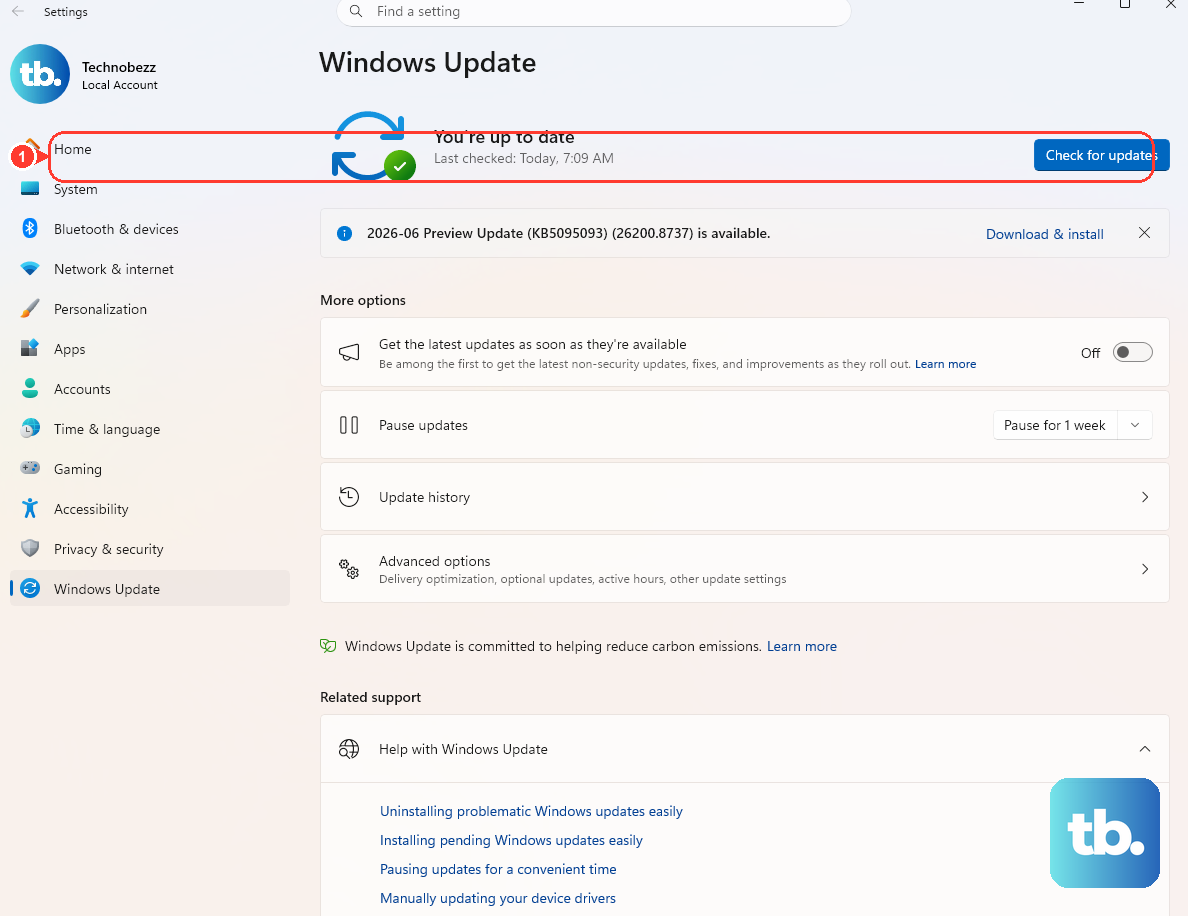
It sounds obvious, but a full restart closes lingering background apps and clears memory, which alone can drop a stuck CPU back to normal. Save your work and reboot before you change anything else, since plenty of slowdowns never survive a clean restart.
Once you are back at the desktop, check for updates. On Windows 11 go to Start > Settings > Windows Update > Check for updates; on Windows 10 go to Start > Settings > Update & Security > Windows Update > Check for updates. Select Download & install and let the device restart if it asks.
Do not stop at the main updates. Open Advanced options > Optional updates on Windows 11 (or View optional updates on Windows 10) and install any driver updates listed there. These cumulative and driver updates frequently carry the exact performance and reliability fixes that resolve mysterious CPU spikes.
Find and End the Process Hogging Your CPU
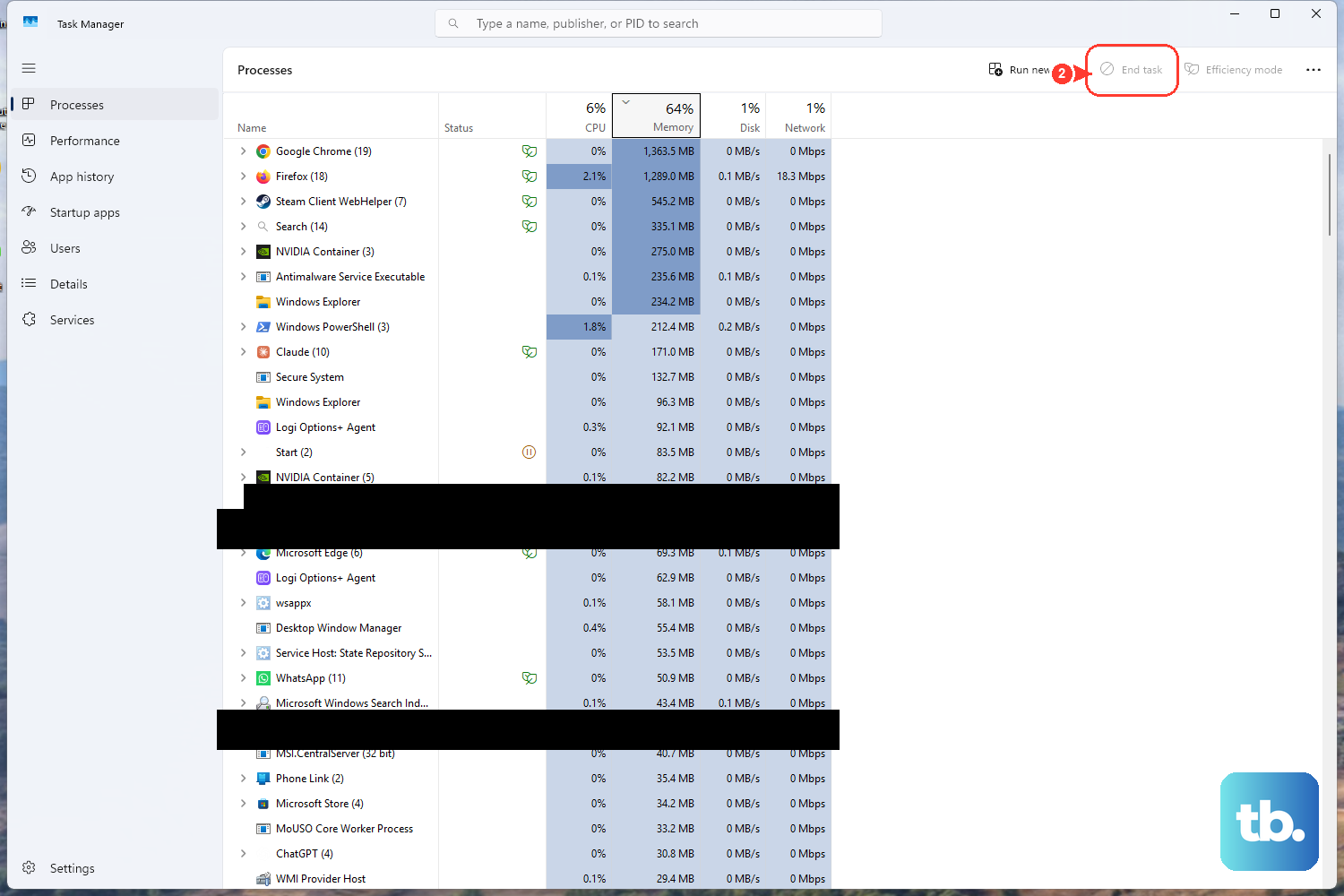
When something is clearly eating resources, Task Manager will name it for you. Press Ctrl+Shift+Esc to open it (or right-click the taskbar and choose Task Manager).
On the Processes tab, click the CPU column header so the arrow points down, which sorts every process from highest usage to lowest. You can do the same with the Memory or Disk columns if those are the bottleneck. Select the heavy app at the top and choose End task to close it.
If the offender is not obvious, dig deeper. On the Performance tab choose Open Resource Monitor, or type resmon in Start to launch it directly, then open its CPU tab to see exactly which process is responsible for the load.
Scan for Malware That May Be Working in the Background
Malicious software often runs quietly, burning CPU and disk while you wonder why the machine feels sluggish. A scan rules this out fast and uses only the protection already built into Windows.
On Windows 11 go to Start > Settings > Privacy & security > Windows Security > Virus & threat protection; on Windows 10 go to Start > Settings > Update & security > Windows Security > Virus & threat protection. Run a Quick scan to start, and if you want to be thorough, open Scan options and choose a full scan.
Trim the Apps That Launch at Startup or Run in the Background
Programs that open automatically at boot or keep ticking away in the background slow startup and quietly drain resources all day. Disabling the ones you do not actually need is one of the most effective lasting fixes.
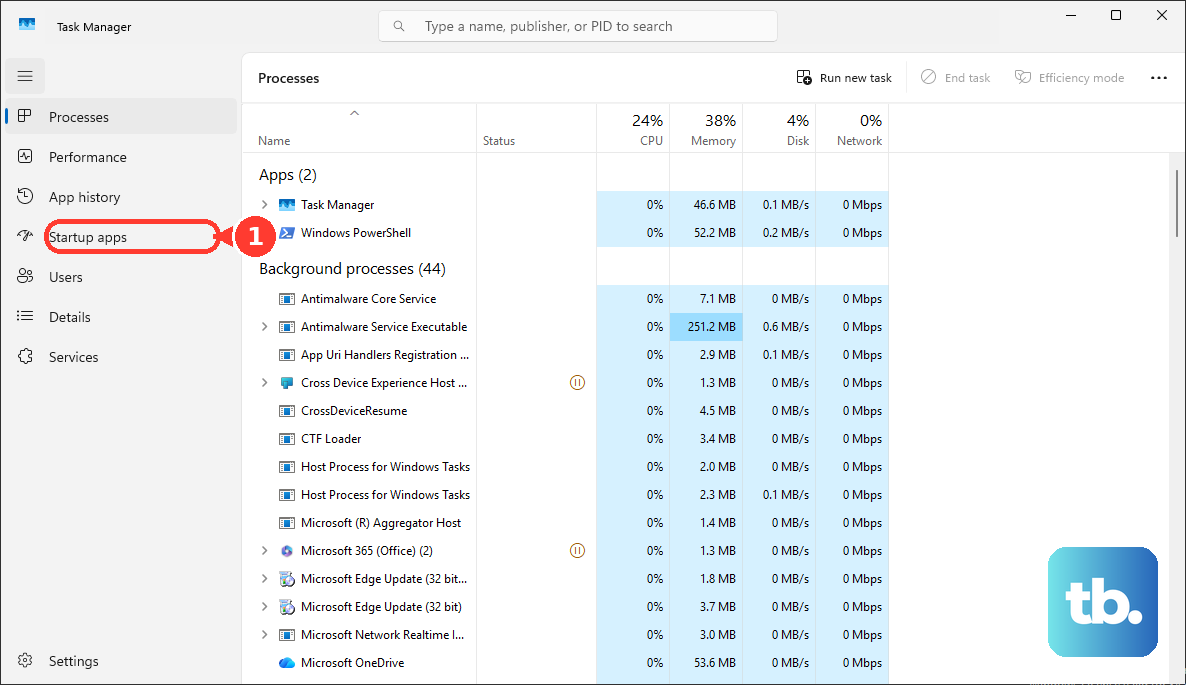
Open Task Manager with Ctrl+Shift+Esc and go to the Startup apps section. Right-click any app you do not need launching at boot and choose Disable; this stops it from starting with Windows without uninstalling it.
To stop an app from running in the background on Windows 11, go to Start > Settings > Apps > Installed apps, open the app's three-dot menu, choose Advanced options, and under "Let this app run in the background" select Never. On Windows 10, manage the same thing under Start > Settings > Privacy > Background apps.
Clear Out a Nearly Full Drive
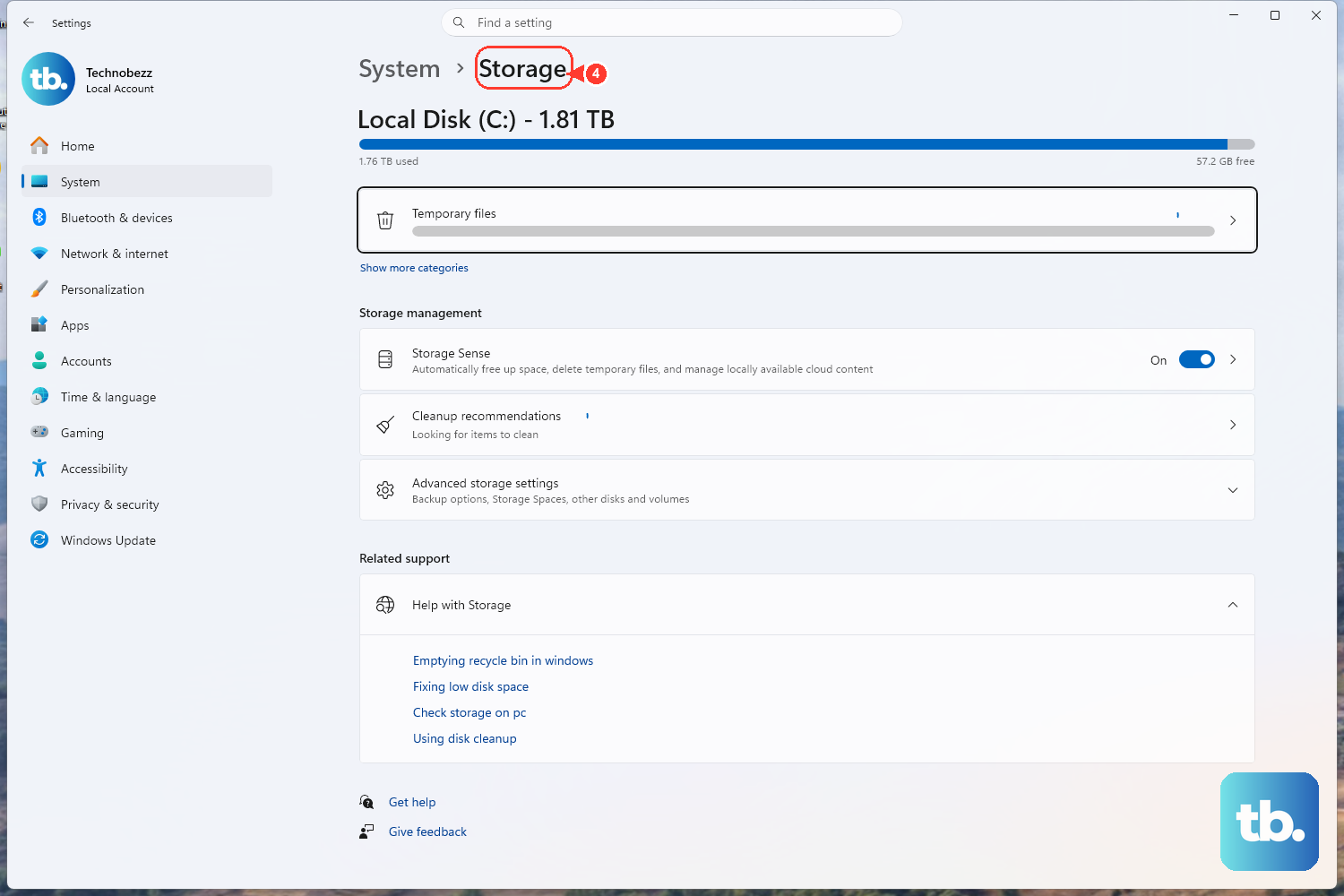
A drive that is almost out of space forces Windows to work harder and feel slower, so reclaiming room is a genuine performance fix. Storage Sense can handle this for you automatically.
Turn it on at Start > Settings > System > Storage, or select Run Storage sense now for an immediate cleanup of temporary files. To clear them by hand, go to Start > Settings > System > Storage > Temporary files > Remove files, and look over the Cleanup recommendations while you are there.
For a deeper sweep, type "disk cleanup" in the taskbar search to open Disk Cleanup, pick your drive, and select the file types to delete. Choose Clean up system files to free even more space, including leftover update and system files.
Let Windows Update Finish, or Run Its Troubleshooter
Sustained heavy disk or CPU activity is very often Windows Update doing its work in the background. If the timing lines up, the simplest move is to let it finish; the load usually subsides on its own once installation completes.
If it seems genuinely stuck, run the dedicated troubleshooter. Go to Start > Settings > System > Troubleshoot > Other troubleshooters and select Run next to Windows Update, then restart your PC when it is done.
After the restart, return to Start > Settings > Windows Update > Check for updates and install anything still waiting. Clearing a broken or pending update often removes the background process that was pinning your CPU.
Set Power Mode to Best Performance and Tame Visual Effects
Windows balances speed against power draw, and nudging that balance toward performance can sharpen responsiveness. On Windows 11 go to Start > Settings > System > Power & battery and set Power mode to Best performance. On Windows 10 go to Start > Settings > System > Power & sleep > Additional power settings and choose High performance.
Be aware this increases power use and will drain a laptop battery noticeably faster, so it suits a plugged-in machine best. Switch back to a balanced mode if battery life matters more to you in the moment.
Animations and other visual effects also consume resources. Type "Adjust the appearance and performance of Windows" in Start, open it, and on the Visual Effects tab choose Adjust for best performance to strip them back and free up overhead.
Review Device Performance and Health, and Leave Virtual Memory to Windows
Windows includes a built-in health summary that flags trouble spots in plain language. Open the Windows Security app and select Device performance & health, or run the shortcut windowsdefender://perfhealth/ to jump straight there.
The Health report covers Storage capacity, Apps and software, Battery life, and the Windows Time service, and it surfaces recommendations whenever any of those show a warning. Acting on those flags addresses the underlying issue rather than just the symptom.
You may be tempted to hand-tune virtual memory, but resist it. The official guidance is to leave the page file set to system-managed, which lets Windows size it automatically based on your RAM and usage. Manually changing it is not a routine speed fix and can do more harm than good, so keep it on the default.
Frequently Asked Questions
How do I know which program is causing high CPU usage?
Press Ctrl+Shift+Esc to open Task Manager, then click the CPU column header on the Processes tab so the arrow points down and the list sorts from highest usage to lowest. For a closer look, open Resource Monitor (type resmon in Start) and check its CPU tab to confirm which process is responsible.
Is it safe to End task on a process using a lot of CPU?
Ending a regular app you recognize is safe and simply closes it, though you should save your work first since unsaved changes will be lost. If you are unsure what a process is, check it in Resource Monitor before forcing it to close, rather than ending something Windows itself depends on.
Should I disable startup apps to speed up my PC?
Yes. Disabling apps you do not need at boot through Task Manager's Startup apps section reduces how many programs launch and consume resources from the moment you turn on the PC. Disabling only stops the app from starting automatically; it does not uninstall the app.
Does a full hard drive really slow Windows down?
It can. When a drive is nearly full, Windows has less room to work and the system feels slower, which is why turning on Storage Sense or running Disk Cleanup to free space is a legitimate fix. Removing temporary files and using Clean up system files reclaims the most room.
Should I change the page file or virtual memory settings to fix high CPU?
No. The recommended approach is to leave the page file set to system-managed so Windows sizes it automatically based on your RAM and usage. Manually adjusting virtual memory is not a routine performance fix, so it is best left at the default.