You glance at the taskbar and the Wi-Fi icon is wearing a small yellow badge, and suddenly pages will not load even though the network looks connected. That little warning marker usually means your PC has reached the router but cannot pass real traffic through to the internet, and it is one of the most common headaches on a Windows laptop or desktop. The good news is that almost every cause behind it is fixable from settings and a few built-in commands, without any special software.
The fixes below are ordered from the easiest and safest to the most thorough. Work through them in order and stop as soon as your connection comes back, because the early steps undo nothing on their own while the final one resets your networking entirely. Everything here applies to both Windows 10 and Windows 11, with small differences in where the tools live.
Start With the Built-In Network Troubleshooter
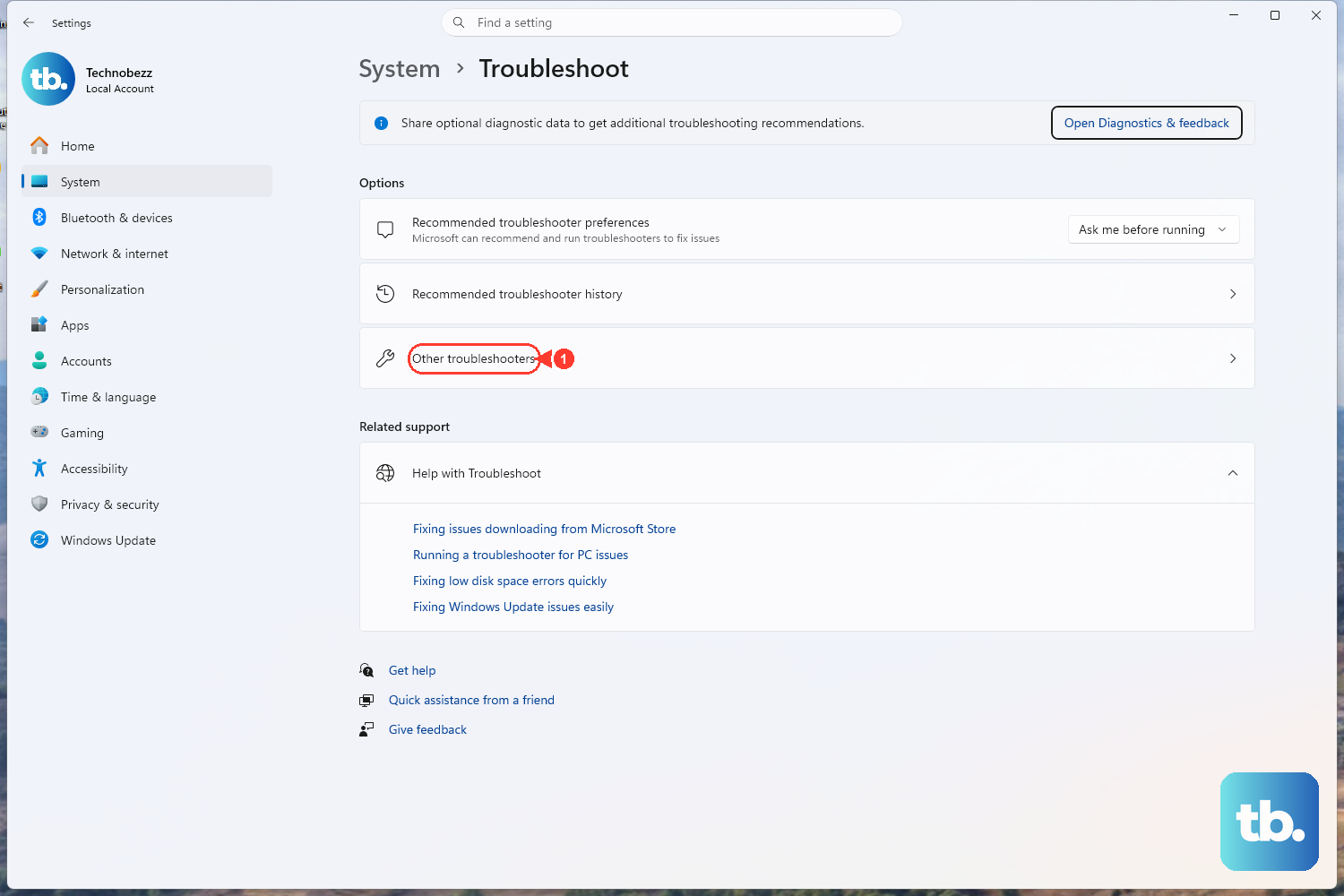
Windows ships with an automated tool that checks your adapter, IP configuration, and connection in one pass, and it will quietly repair the most common problems for you. This is the safest possible first move because it runs diagnostics and attempts a fix without changing anything you have to undo yourself.
On Windows 11, start by running the automated Network and Internet troubleshooter in the Get Help app.
On Windows 10, open the Settings app and go to Settings > Network & Internet > Status > Network troubleshooter.
Either way, the tool runs its diagnostics automatically and tries to clear most issues before you touch anything else.
Give it a moment to finish and then check the Wi-Fi icon. If the yellow marker is gone and pages load, you are done; if it persists, move on to confirm what the adapter is actually doing.
Check Whether Your Adapter Has a Valid Address
Before changing any settings, it helps to see whether Windows even handed your connection a usable network address. A quick look at your IP configuration tells you if the adapter is set up correctly or if something is missing further down the line.
Select Search on the taskbar, type command prompt, and open it.
Type ipconfig and press Enter.
Find your Wi-Fi connection in the results.
Check the IP address listed and the value next to Default gateway.
The Default gateway is normally your router, and seeing a sensible address there confirms the basics are in place. If the address looks wrong or blank, the next step rebuilds the connection from the ground up.
Release, Renew, and Flush the Network Stack
A short sequence of commands can reset the underlying networking components, hand your PC a fresh IP address, and clear out a stale name-lookup cache. This clears up a large share of connected-but-no-internet situations and is still very safe to run.
First, open an elevated Command Prompt: select Search on the taskbar, type command prompt, then to the right of the Command Prompt result select Run as administrator, then Yes. With that window open, run the following commands in order, pressing Enter after each one.
- 1.Type
netsh winsock resetand press Enter. - 2.Type
netsh int ip resetand press Enter. - 3.Type
ipconfig /releaseand press Enter. - 4.Type
ipconfig /renewand press Enter. - 5.Type
ipconfig /flushdnsand press Enter.
Together these reset the Winsock catalog, reset the TCP/IP stack, release and renew the IP address, and flush the DNS resolver cache. Once they have all run, watch the Wi-Fi icon and try loading a page again.
Reset TCP/IP With NetShell and Restart
If the standard reset above did not stick, there is a fuller form of the TCP/IP reset that writes a log of its actions and then requires a restart to take hold. This is a deeper repair, so you should be logged on as an administrator to use it, and you will need to restart the computer once it finishes.
Open an elevated Command Prompt again, then run netsh int ip reset c:\resetlog.txt to reset the stack while writing actions to a named log file.
If you do not want to specify a directory path for the log file, run netsh int ip reset resetlog.txt instead.
After the command completes, restart the computer so the change takes effect.
Because this step rewrites core networking settings, treat it as a deeper repair than the previous one. Run it only when the lighter reset has not solved the problem, and confirm your connection after the PC comes back up.
Switch Your DNS Server Addresses
Sometimes the connection itself is fine but the service that turns website names into addresses is failing, which can leave you online yet unable to reach pages. Pointing Windows at different DNS servers can route around that without affecting the rest of your network setup.
Go to Settings > Network & internet.
Select Wi-Fi (or Ethernet) and then select your network.
Next to IP assignment, select Edit.
Choose Manual and turn on IPv4.
Type the primary and secondary addresses in the Preferred DNS and Alternate DNS boxes.
Select Save.
You can use the DNS addresses given to you by your internet provider or another resolver you trust. Once you save your changes, test the connection again before going further.
Reinstall the Network Adapter Driver
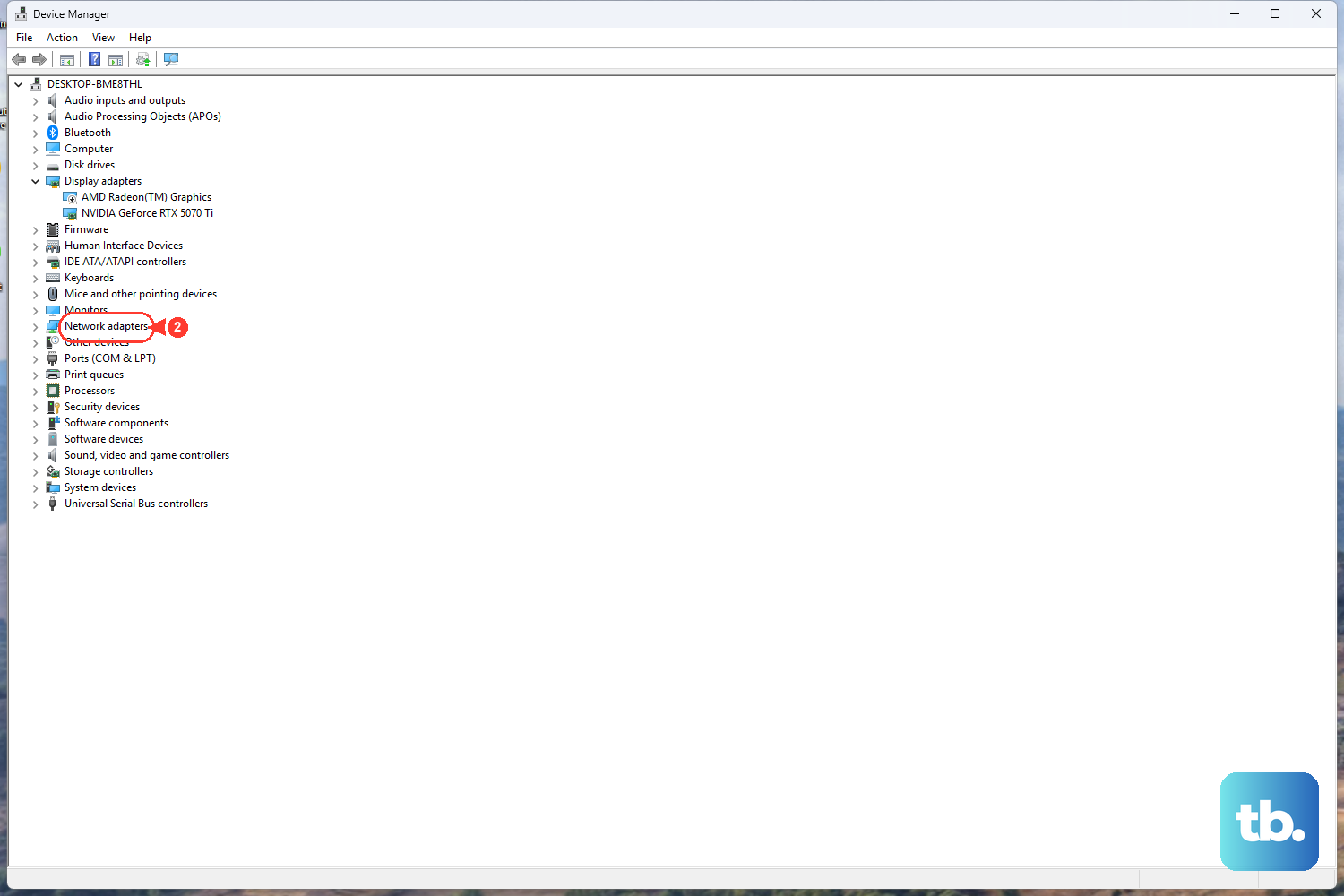
A corrupted or misbehaving adapter driver can produce the yellow warning even when everything else is in order. Removing the driver and letting Windows put it back in place gives you a clean copy without hunting for downloads.
Select Search on the taskbar, type device manager, and open Device Manager.
Expand Network adapters and locate your network adapter.
Right-click (or press and hold) the adapter and select Uninstall device.
Check the Attempt to remove the driver for this device check box, then select Uninstall.
Restart your PC so Windows automatically reinstalls the driver.
After the restart, Windows reinstalls the adapter on its own and your connection should reappear. If the yellow marker is still there, one final option resets your networking completely.
Use Network Reset as a Last Resort
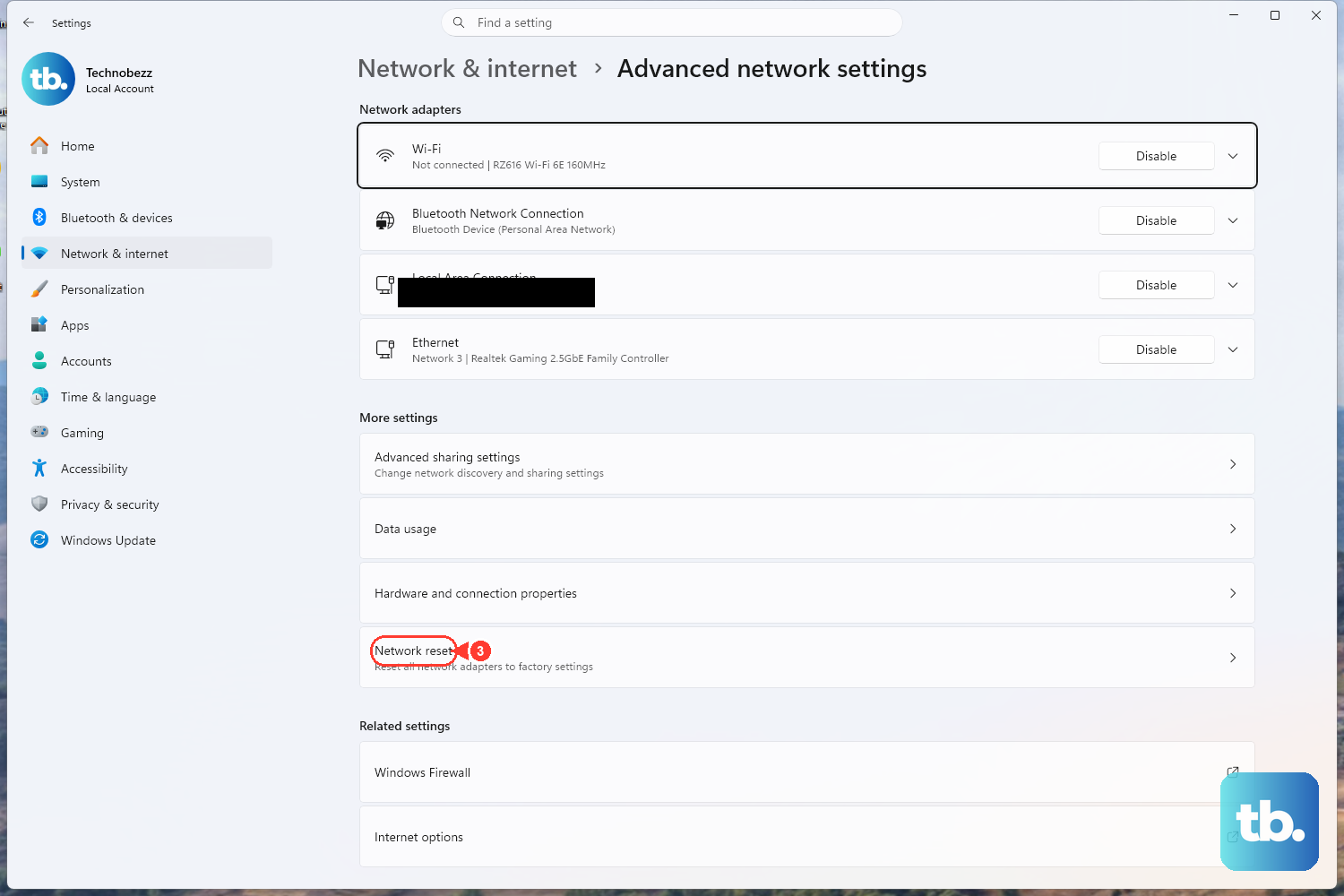
When nothing above clears the warning, a full Network reset removes and reinstalls your network adapters and returns their settings to defaults. This is meant to be the last step because it wipes your existing network configuration, so reach for it only after the earlier fixes have failed.
On Windows 11, go to Settings > Network & internet > Advanced network settings > Network reset, then select Reset now, then Yes.
On Windows 10, go to Settings > Network & Internet > Status > Network reset.
Be aware that after a network reset you may need to reinstall networking software such as VPN clients or virtual switches, since the reset returns adapters to their factory state. Once it finishes, reconnect to your Wi-Fi and confirm the icon has returned to normal.
Frequently Asked Questions
What does the yellow exclamation mark on the Wi-Fi icon mean?
It is the network icon showing that the connection has a problem, typically that your PC is attached to the network but is not passing internet traffic through it. The fixes above work through the usual causes, from a stale IP address to a misbehaving adapter driver.
Which fix should I try first?
Start with the built-in troubleshooter, since it runs diagnostics and attempts a repair without undoing anything on its own. On Windows 11 that is the Network and Internet troubleshooter in the Get Help app, and on Windows 10 it is the Network troubleshooter under Settings > Network & Internet > Status.
Do I need to restart after running the netsh and ipconfig commands?
The standard command sequence (netsh winsock reset, netsh int ip reset, ipconfig /release, ipconfig /renew, ipconfig /flushdns) takes effect as you run it. The fuller NetShell form, netsh int ip reset c:\resetlog.txt, does require you to restart the computer afterward.
Will a Network reset delete my files or other settings?
A Network reset removes and reinstalls your network adapters and returns their settings to defaults, so it affects networking rather than your personal files. Afterward you may need to reinstall networking software such as VPN clients or virtual switches, which is why it should be the last step you try.
Do these steps work on both Windows 10 and Windows 11?
Yes, the commands and most settings apply to both, with small differences in where the tools live. The troubleshooter location and the Network reset path differ between the two versions, so follow the path that matches your edition.