You sit down to send one email or join a video call, and your Windows 11 PC drops the Wi-Fi again. The signal bars vanish for a few seconds, then crawl back, only to cut out the moment you start doing anything. Constant disconnects almost always trace back to a handful of fixable causes: a power-saving setting switching the adapter off, a stale saved network profile, an outdated driver, or a confused network stack. The fixes below are ordered from the safest, fastest checks to the more involved resets, so start at the top and stop as soon as your connection holds.
Start With the Two Checks That Solve Most Drops
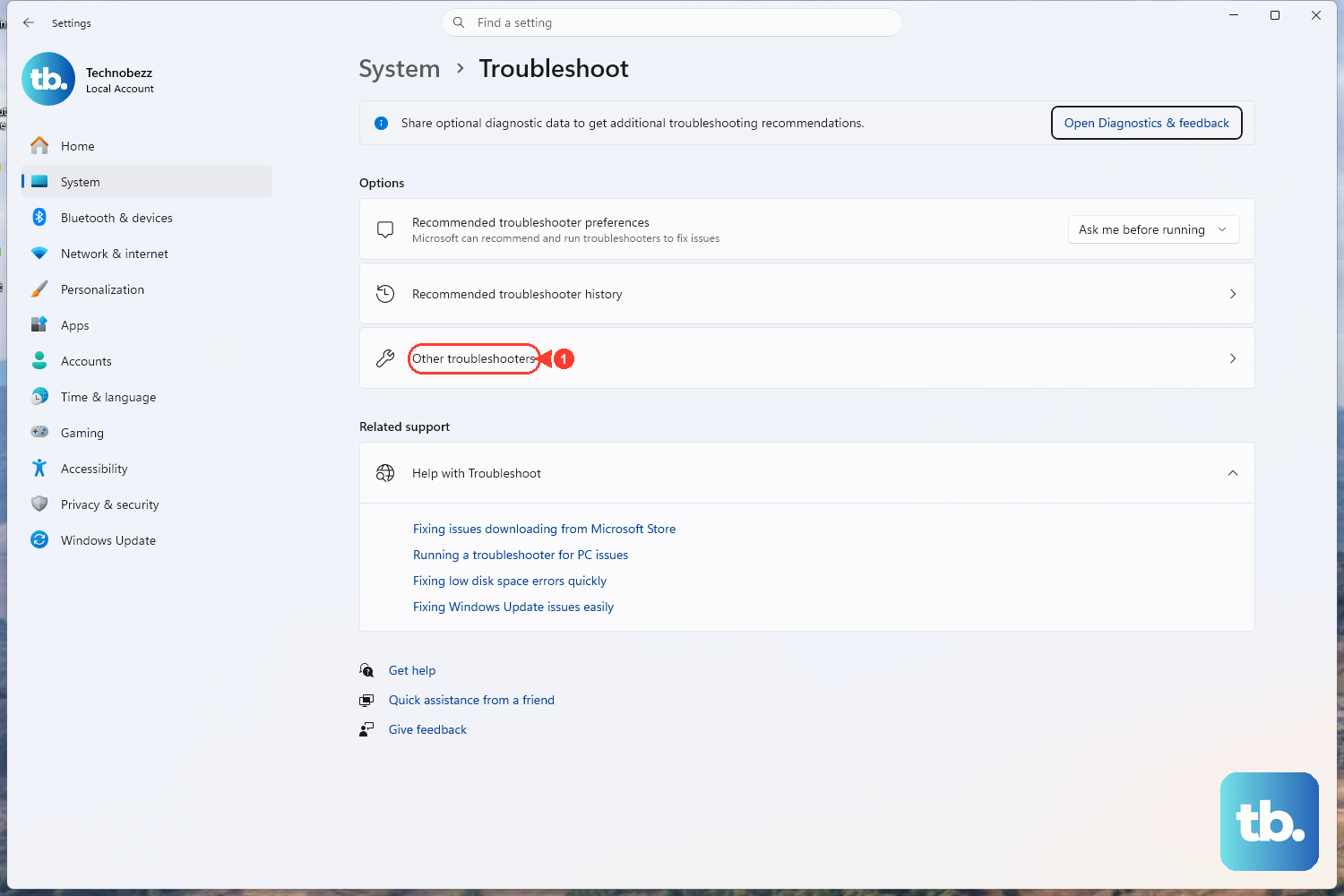
Before changing any settings, confirm Wi-Fi is actually turned on and that Airplane mode is off.
Select the network icon on the taskbar and make sure Wi-Fi is enabled, then verify Airplane mode is turned off. This is the safest first check, and it undoes the single most common accidental cause of a dropped connection.
If both look correct and the drops continue, let Windows diagnose the adapter for you.
On Windows 11, run the automated Network and Internet troubleshooter in the Get Help app.
On Windows 10, select Start > Settings > Network & Internet > Status, then scroll down and select Network troubleshooter.
The Network Adapter troubleshooter disables and re-enables the adapter and tries other common repairs automatically. It often clears a temporary glitch without you touching another setting, which is why it belongs near the top of the list.
Clear a Stale Saved Network Profile
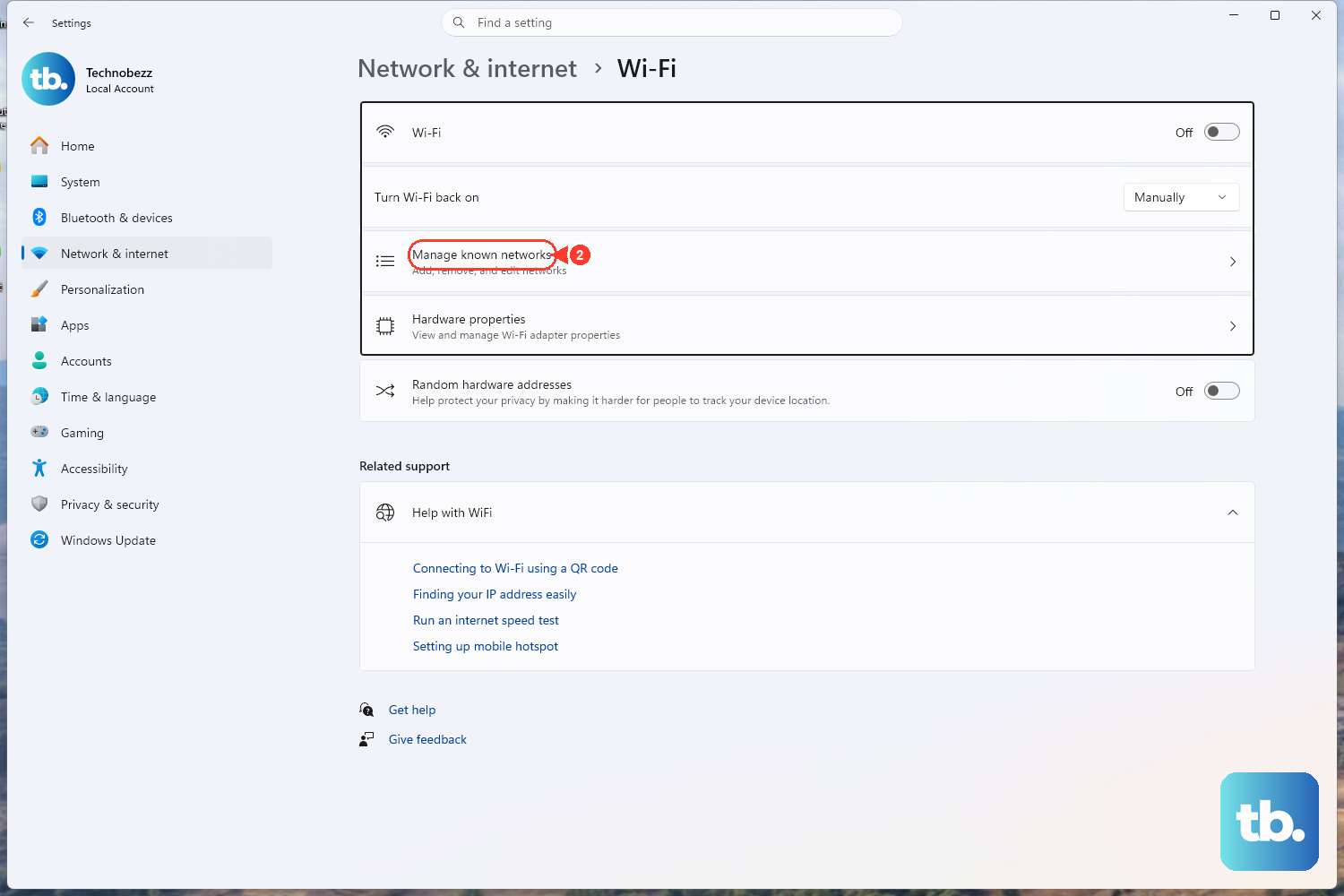
Repeated drops on one specific network frequently come from a saved profile that has gone bad. Forgetting and re-adding the network rebuilds that profile from scratch, which clears the corruption.
Open the Settings app and select Network & internet > Wi-Fi.
Next, select Manage known networks.
Select your Wi-Fi network and choose Forget.
After that, reconnect by selecting the network again and re-entering the password.
Once you reconnect, watch the connection for a few minutes. A fresh profile commonly resolves drops that only happen on a particular access point.
Stop Windows From Powering Down the Adapter
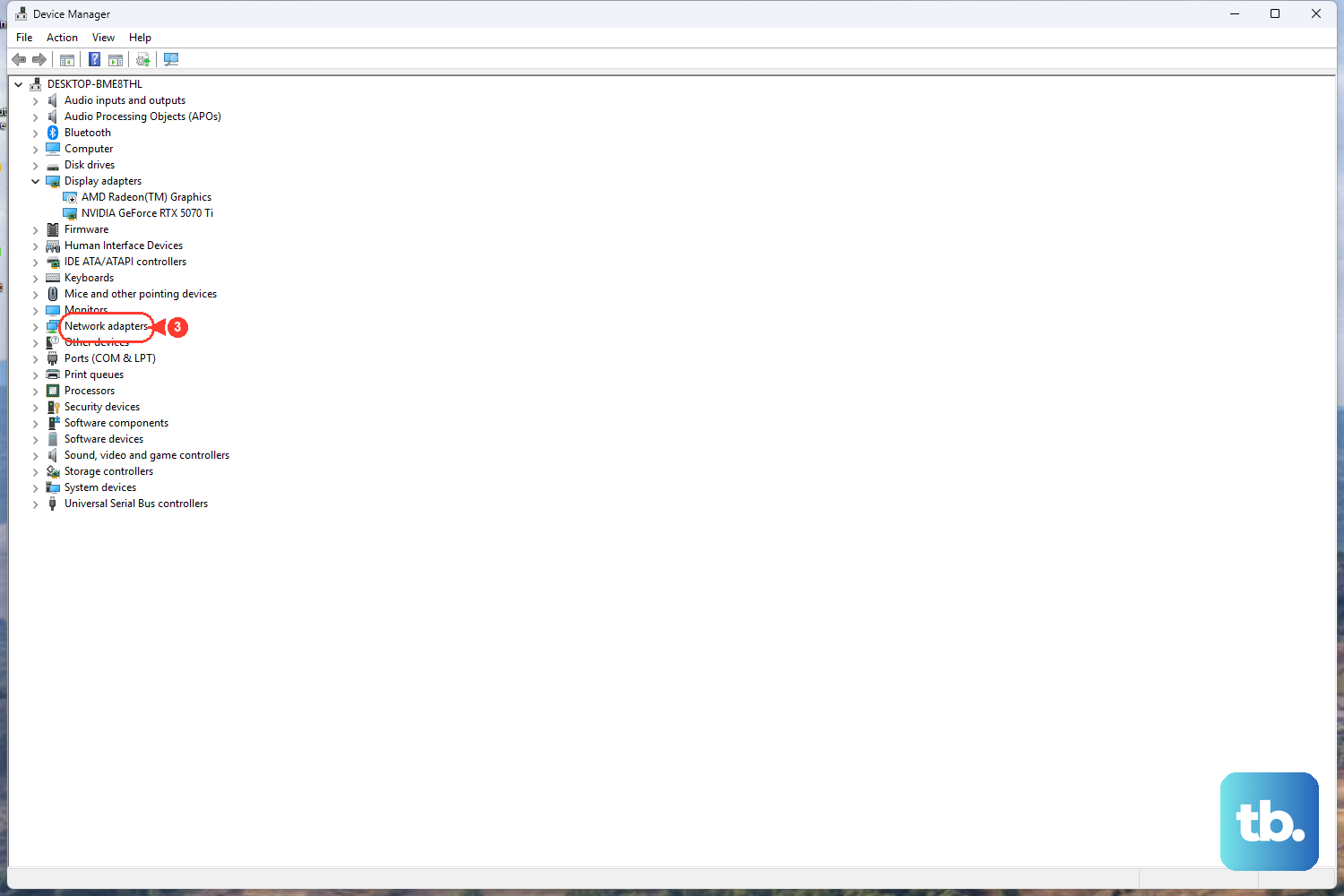
On laptops especially, Windows can switch the Wi-Fi adapter off to save power, and that shows up as the connection dropping at seemingly random moments. Turning off that power-saving permission keeps the adapter awake.
Open Device Manager and expand Network adapters.
Right-click your Wi-Fi adapter and choose Properties.
Go to the Power Management tab.
Uncheck Allow the computer to turn off this device to save power.
Select OK to save the change.
This prevents the adapter from being switched off to save power, a frequent cause of the connection dropping. If your disconnects tend to happen after the PC has been idle, this is often the fix.
Refresh the Network Adapter Driver
An outdated or misbehaving driver can make a perfectly good adapter unstable. Updating it through Device Manager pulls in a newer version if one is available.
Open Device Manager (right-click Start and select Device Manager, or use Search on the taskbar and type device manager).
Select the arrow next to Network adapters to expand the category.
Right-click your network adapter and select Update driver.
Choose Search automatically for updated driver software.
Windows installs an updated driver if one is found; select Close to finish.
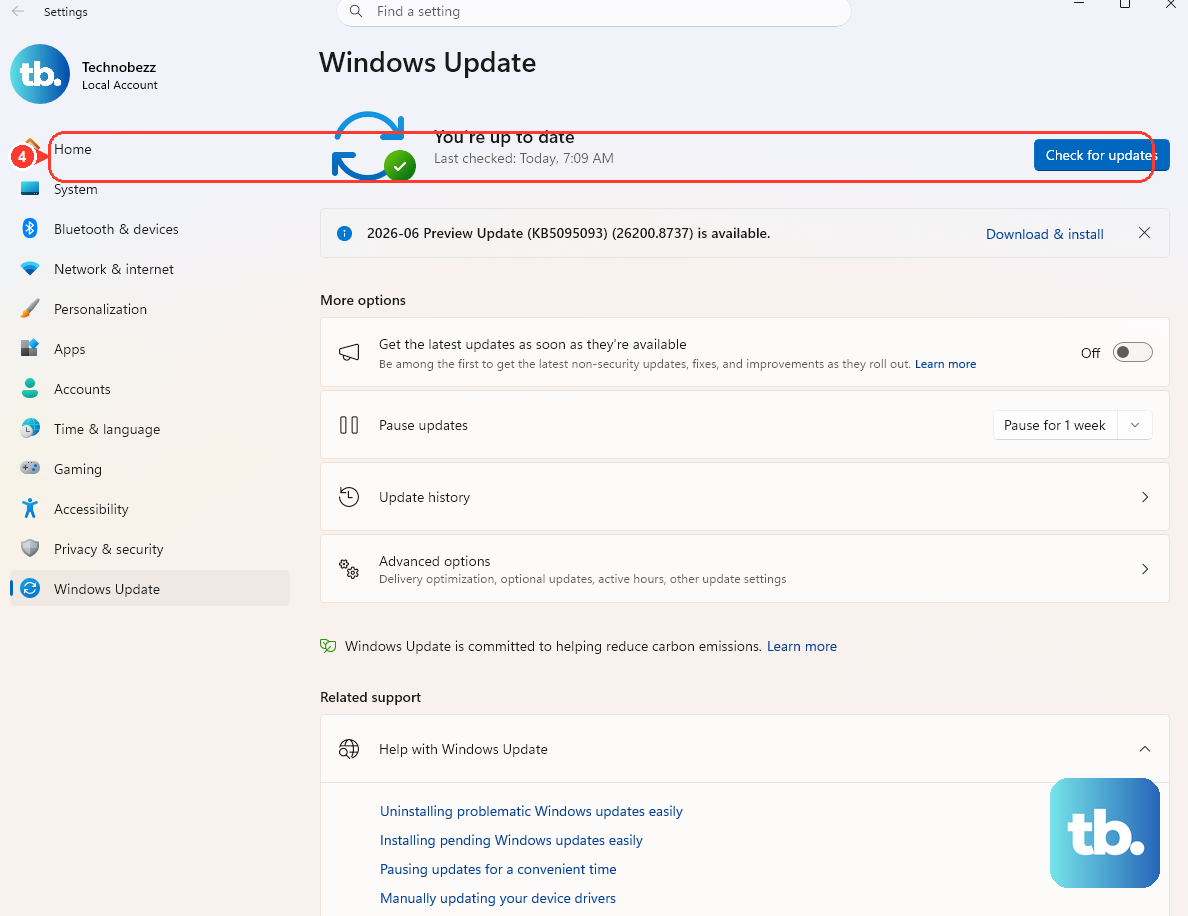
The best way to get driver updates is automatically via Windows Update, so it is worth checking for pending updates there as well. Keeping the driver current resolves a large share of recurring connection problems.
Reinstall the Driver When an Update Is Not Enough
If updating did not help, reinstalling the driver gives Windows a clean copy to work from. Uninstalling the device and restarting lets Windows reinstall it automatically.
In Device Manager, right-click the network adapter and select Uninstall device, then confirm.
Restart the PC. Windows attempts to reinstall the driver automatically on startup.
If you prefer a manual install, download the driver from the manufacturer's website first.
Then choose Update driver > Browse my computer for drivers and point Windows to the downloaded file.
A clean reinstall often fixes drops that a simple update could not.
Reset the Network Stack From Command Prompt
When the trouble lives deeper in Windows networking, a set of command-line resets can clear it.
Open Command Prompt as administrator by selecting Search on the taskbar, typing Command prompt, then selecting Run as administrator > Yes.
Run these commands in order, pressing Enter after each one:
- 1.
netsh winsock reset - 2.
netsh int ip reset - 3.
ipconfig /release - 4.
ipconfig /renew - 5.
ipconfig /flushdns
These reset the Winsock catalog and the TCP/IP stack, release and renew the IP address, and clear the DNS resolver cache.
Restart the PC afterward so the changes take full effect.
After the restart, test the connection again.
Reset TCP/IP With the NetShell Utility
As an alternative way to reset TCP/IP, you can use the NetShell utility, which can write a log file while it works.
You must be logged on as an administrator to run it.
Open Command Prompt as administrator and run netsh int ip reset c:\resetlog.txt, which writes a log to your C: drive.
If you do not want to specify a directory path, run netsh int ip reset resetlog.txt instead.
Restart the computer afterward.
This has the same effect as removing and reinstalling TCP/IP, so it is a thorough option when the earlier reset commands did not hold.
Change Your DNS Server
If pages stall or fail to load even when the Wi-Fi icon shows connected, switching the DNS server can steady things. You can set this manually per network.
Go to Settings > Network & internet and select Wi-Fi (or Ethernet).
Choose your network, then select Edit next to IP assignment.
Under Edit IP settings choose Manual and turn on IPv4.
Enter addresses in the Preferred DNS and Alternate DNS boxes.
Select Save.
On Windows 11 you can also set DNS over HTTPS to Off, On (automatic template), or On (manual template), and toggle Fallback to plaintext. The DNS over HTTPS setting is not available in Windows 10.
Use Network Reset Only as a Last Resort
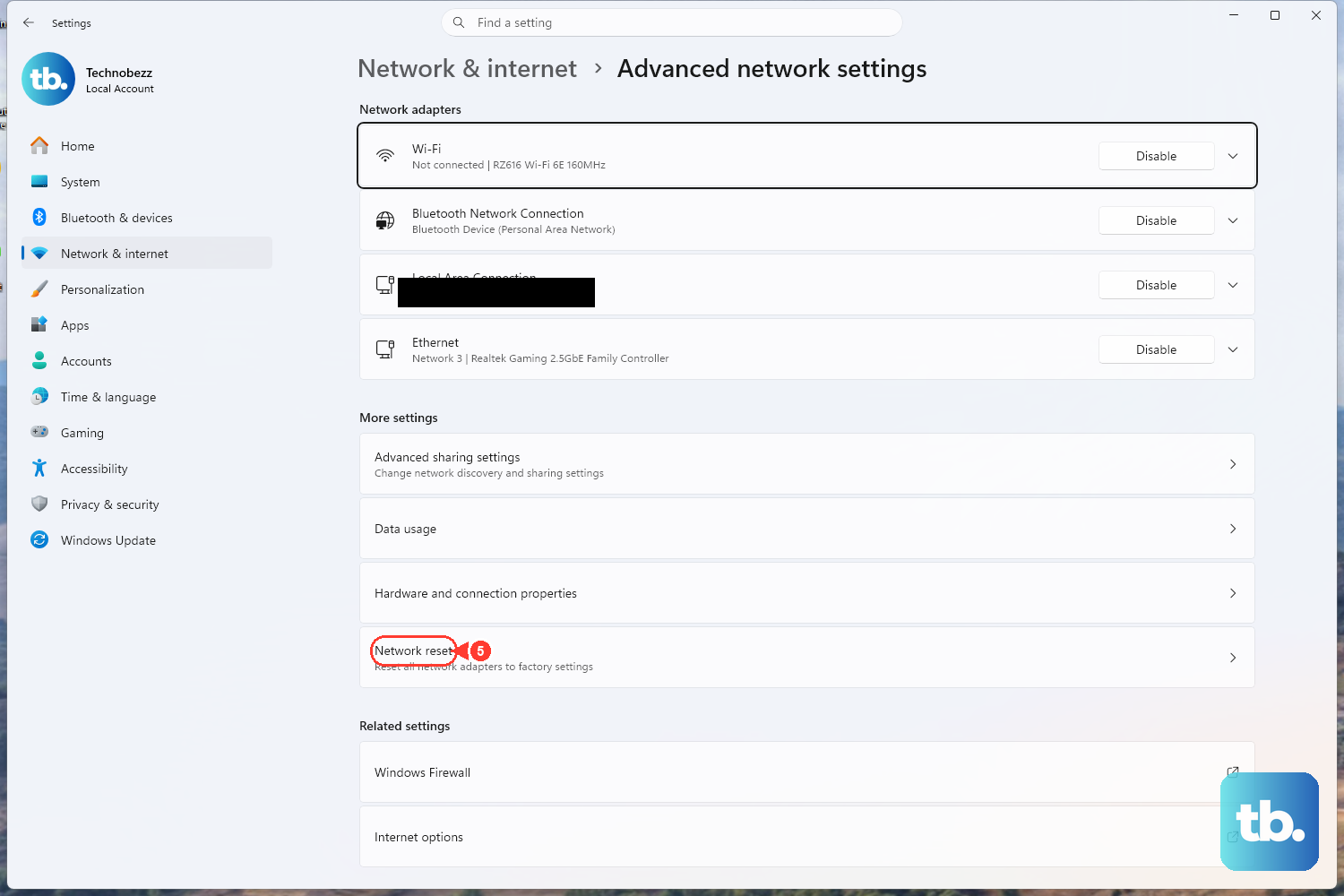
Network reset should be the last step you try, because it removes and reinstalls your network adapters and resets their settings to defaults.
Warning: after the reset, you may need to reinstall other networking software such as VPN clients, so be ready to set those up again.
On Windows 11: Start > Settings > Network & internet > Advanced network settings > Network reset. On Windows 10: Start > Settings > Network & internet > Status > Network reset.
On the Network reset screen, select Reset now > Yes to confirm.
Your PC will restart and rebuild its networking from a clean slate. By this point, the vast majority of disconnect problems will be gone.
Frequently Asked Questions
Why does my laptop Wi-Fi keep dropping when it has been idle?
A common cause is the power-saving setting that lets Windows turn the adapter off. Open Device Manager, go to your Wi-Fi adapter's Power Management tab, and uncheck Allow the computer to turn off this device to save power to stop those idle drops.
Which fix should I try first?
Start with the safest checks: confirm Wi-Fi is on and Airplane mode is off, then run the Network Adapter troubleshooter (the Network and Internet troubleshooter in the Get Help app on Windows 11). These solve the most common causes without changing deeper settings.
Will Network reset delete my files or programs?
Network reset removes and reinstalls your network adapters and resets their settings to defaults; it does not touch your personal files. You may, however, need to reinstall other networking software such as VPN clients afterward, which is why it is the last resort.
Do I need to restart after running the netsh and ipconfig commands?
Yes. After running netsh winsock reset, netsh int ip reset, and the related ipconfig commands, restart your PC so the reset of the Winsock catalog and TCP/IP stack takes full effect, then test the connection again.
Where do I change my DNS server on Windows 11?
Go to Settings > Network & internet, select your Wi-Fi or Ethernet connection, choose your network, and select Edit next to IP assignment. Choose Manual, turn on IPv4, enter your Preferred and Alternate DNS addresses, and select Save.











