

The Wi-Fi icon says you are connected, the signal bars look full, and yet every page times out and apps refuse to load. That "connected but no internet" state on Windows 11 is one of the most frustrating networking problems because everything looks fine on the surface while nothing actually works. The good news is that the cause is almost always something you can fix yourself, and you do not need to start with anything drastic.
The fixes below are ordered from the safest and quickest checks to the more involved repairs, so work through them in order and stop as soon as your connection returns. Most of these steps apply to both Windows 11 and Windows 10, with a few path differences noted where they matter.
Start With the Two-Minute Checks
Before you touch any command or driver setting, rule out the simple stuff. These first two fixes resolve a surprising share of "no internet" complaints with zero risk to your system.
Fix 1: Confirm Wi-Fi Is On and Airplane Mode Is Off
It sounds obvious, but a stray keyboard shortcut or a leftover Airplane mode toggle can leave your radio half-disabled. Make sure Wi-Fi is turned on, then open Quick Settings from the taskbar and confirm that Airplane mode is turned off.
This is the safest first check before anything else, and it applies to both Windows 11 and Windows 10. If Airplane mode was on, toggling it off may restore your connection immediately.
Fix 2: Restart Your Modem and Router
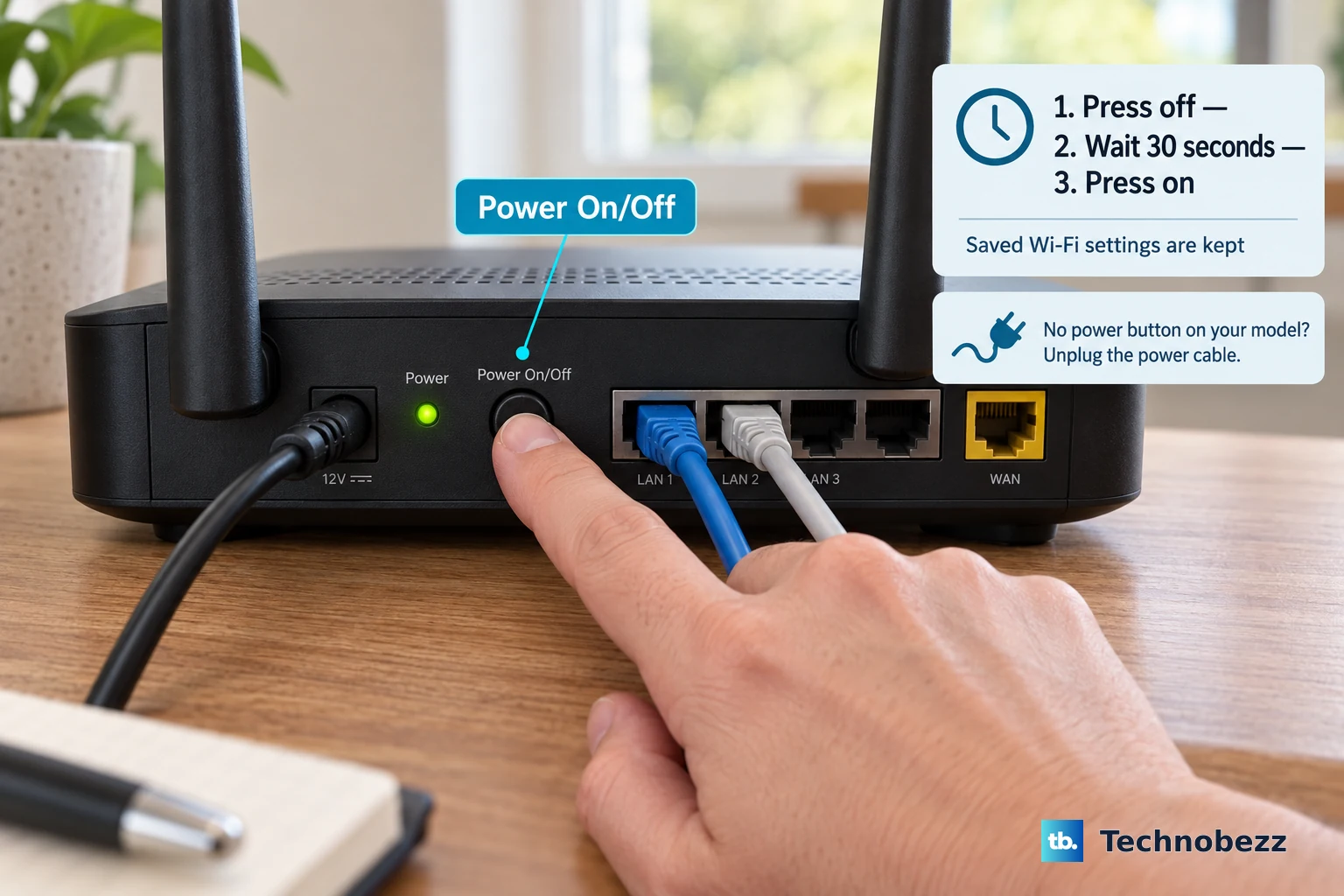
When the PC shows connected but the internet is dead, the problem often lives in the router or modem rather than the computer. A full power cycle clears that up more reliably than a quick reboot.
- 1.Unplug the power cable for the router from the power source.
- 2.Unplug the power cable for the modem. If it has a backup battery and the lights stay on, remove the battery.
- 3.Wait at least 30 seconds.
- 4.Put the battery back in if you removed it, then plug the modem back in. Wait for its lights to stop blinking before plugging the router back in.
- 5.Plug the router back in.
Give the devices a few minutes to fully come back online, checking their status lights, then check whether pages load again. This often restores a working connection on both Windows 11 and Windows 10.
Let Windows Diagnose the Problem
If the basics did not help, hand the job to the built-in troubleshooters. They can spot and repair common adapter and configuration faults automatically.
Fix 3: Run the Automated Network and Internet Troubleshooter
On Windows 11, open the Get Help app, enter connect to network and internet in the Search bar, then select Run network diagnostics and complete the suggested steps. On Windows 10, the equivalent lives at Start > Settings > Network & Internet > Status > Network troubleshooter.
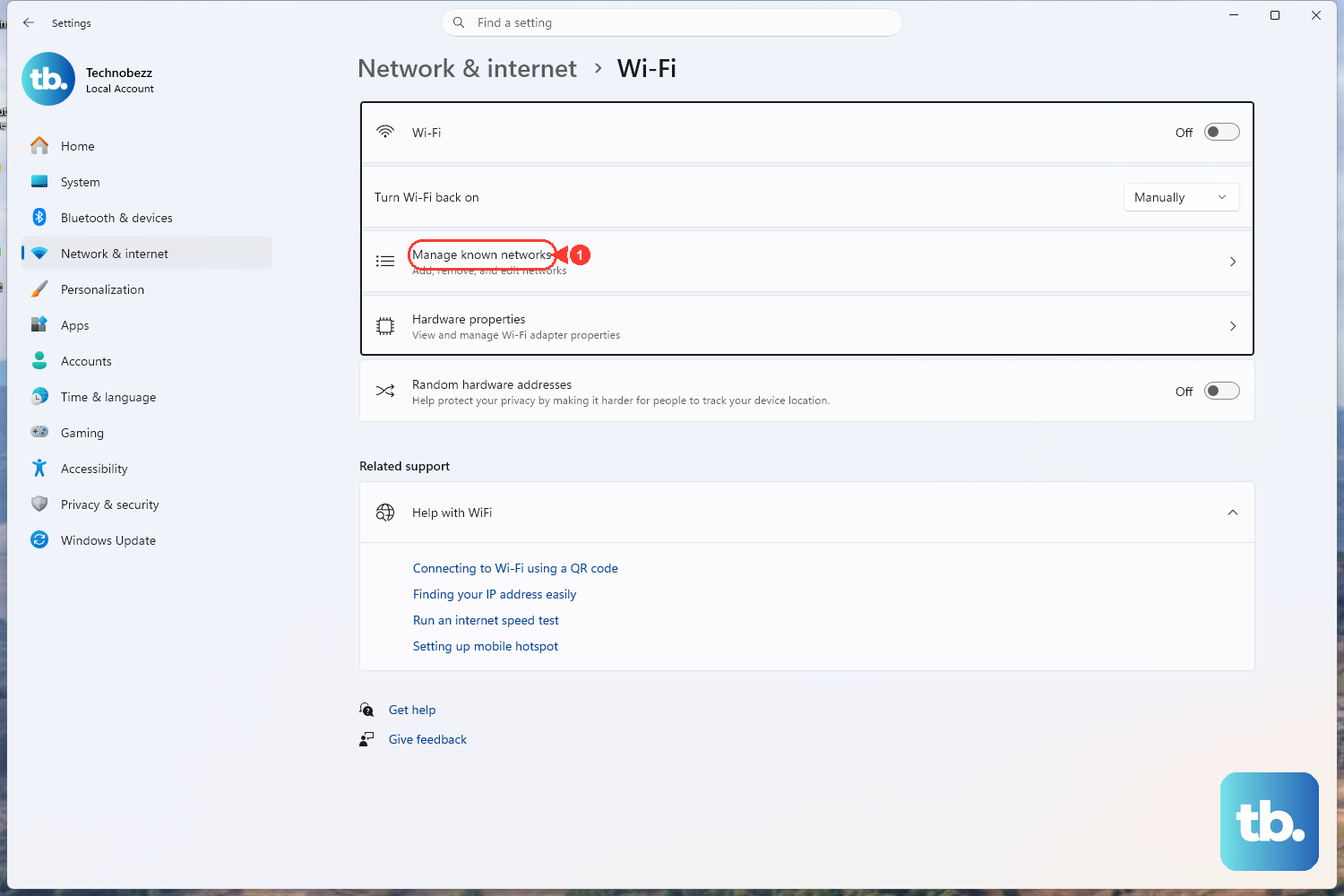
There is also a network troubleshooter worth trying. Go to Settings > System > Troubleshoot > Other troubleshooters and run the Network and Internet troubleshooter (on current Windows 11 it opens in the Get Help app, since Microsoft retired the legacy Control Panel troubleshooters). This tool disables and re-enables the adapter and attempts common repairs on its own.
Fix 4: Forget the Network and Reconnect
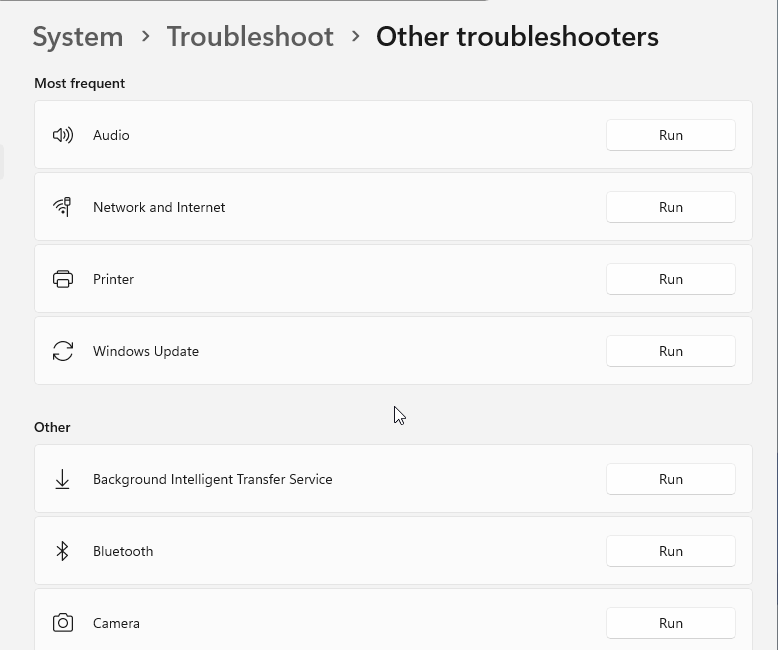
A corrupted saved network profile can keep your PC "connected" to a configuration that no longer works. Removing the saved profile forces Windows to build a clean one.
Open Settings > Network & internet > Wi-Fi > Manage known networks. Select your Wi-Fi network and click Forget, then reconnect by selecting it again and re-entering the password. This clears a bad saved profile on both Windows 11 and Windows 10. Have your network password handy before you do this, since you will need to type it again.
Fix 5: Try the Other Wi-Fi Frequency Band
Many consumer routers broadcast two separate networks, one on 2.4 GHz and one on 5 GHz. Sometimes one band is having trouble while the other works perfectly.
If both networks appear in your list of available networks, try connecting to the other band. The 5 GHz band is usually faster at short range, while 2.4 GHz reaches farther through walls, so switching can both restore the connection and improve it.
Reset the Networking Stack From Command Prompt
When the connection still fails, the underlying TCP/IP stack or Winsock catalog may be corrupted. You can run a precise sequence of commands to rebuild them.
Fix 6: Run the Network Reset Commands
First, open Command Prompt as an administrator. Type cmd at Start, right-click Command Prompt, and select Run as administrator. Then run each command below in this exact order, pressing Enter after each one:
- 1.
netsh winsock reset - 2.
netsh int ip reset - 3.
ipconfig /release - 4.
ipconfig /renew - 5.
ipconfig /flushdns
The first command resets the Winsock catalog and the second resets TCP/IP. The next two release your current IP address and request a new one, and the last clears the DNS resolver cache. If you want a log of the TCP/IP reset, you can use the full form netsh int ip reset c:\resetlog.txt, or netsh int ip reset resetlog.txt if you do not want to specify a directory path.
Restart the PC afterward so the changes take full effect. This sequence works on both Windows 11 and Windows 10.
Repair or Refresh the Network Adapter
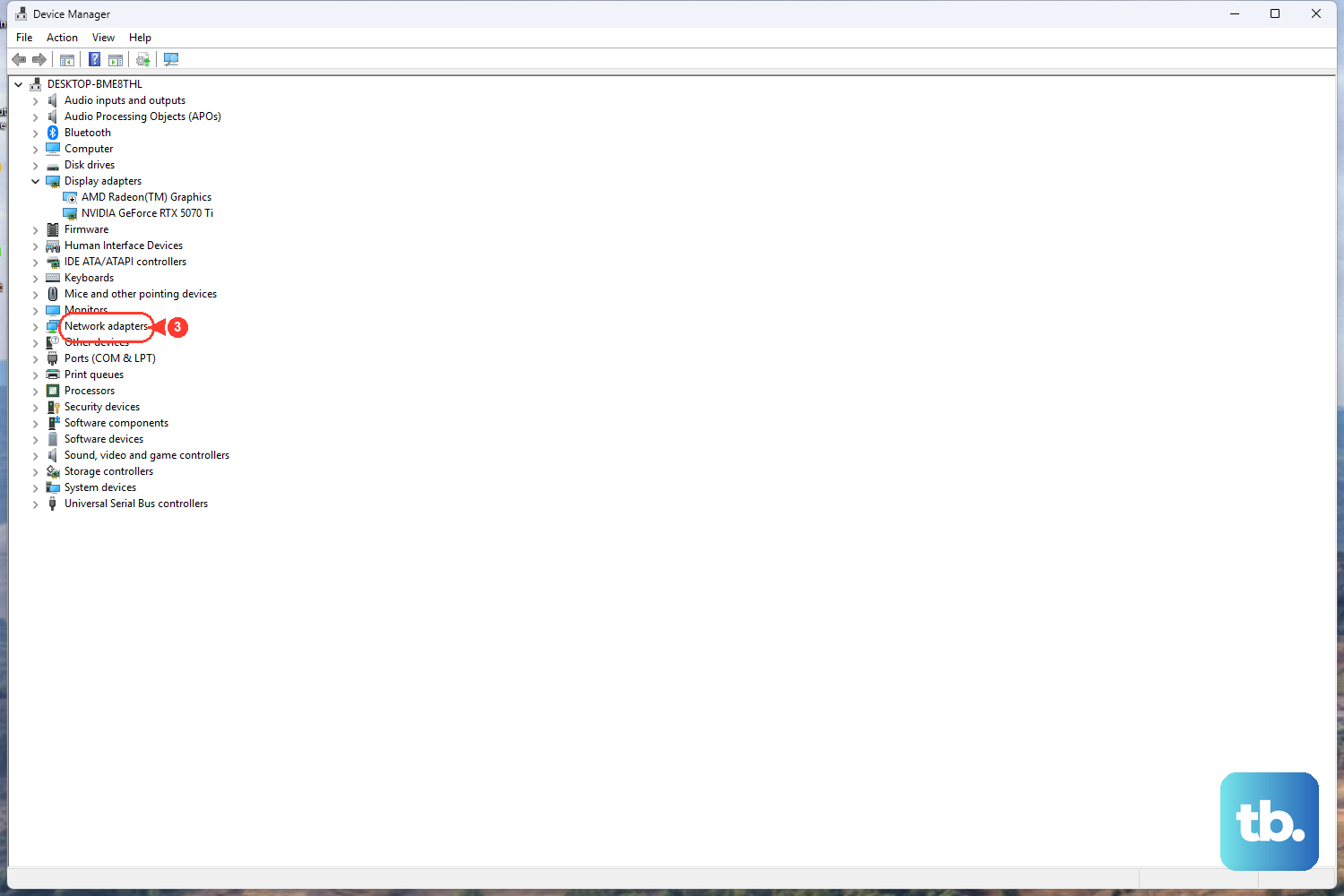
If a stack reset did not fix things, the adapter's driver may be outdated, broken, or sabotaged by a power-saving setting. These three fixes address the adapter itself through Device Manager.
Fix 7: Update the Network Adapter Driver
An outdated or buggy driver can leave you connected without functioning internet. Updating it through Windows is the safest place to start.
Right-click Start > Device Manager, expand Network adapters, right-click your Wi-Fi adapter, select Update driver, then choose Search automatically for updated driver software. If Windows does not find a newer driver, check the hardware manufacturer's official website for the latest driver compatible with your version of Windows. Avoid downloading drivers from any site other than the manufacturer's, since unofficial driver files can introduce new problems.
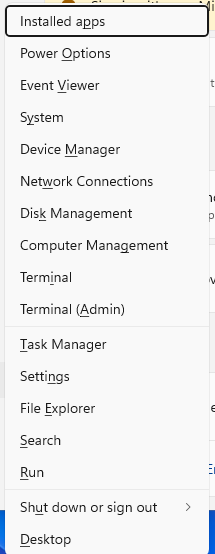
Fix 8: Uninstall the Driver and Let Windows Reinstall It
If updating does not help, a clean reinstall often clears a corrupted driver. Windows attempts to reinstall the adapter driver after a restart.
- 1.In Device Manager, expand Network adapters.
- 2.Right-click your adapter and select Uninstall device.
- 3.Check Attempt to remove the driver for this device.
- 4.Click Uninstall.
- 5.Restart the PC.
On restart, Windows attempts to reinstall the driver for the adapter. If it does not reinstall, use the driver update steps above or download the compatible driver from the manufacturer's official website. This applies to both Windows 11 and Windows 10.
Fix 9: Disable Adapter Power Saving
Windows can power down your Wi-Fi adapter to save energy, which sometimes drops the connection while still showing it as active. Turning that behavior off keeps the radio fully awake.
In Device Manager, expand Network adapters, right-click your Wi-Fi adapter, and choose Properties. Open the Power Management tab and uncheck Allow the computer to turn off this device to save power, then save your change.
Change Your DNS Server
Fix 10: Switch From Automatic to a Manual DNS
If pages load by IP address but names will not resolve, your DNS server may be the weak link. You can let the router assign one automatically or set your own.
Go to Settings > Network & internet > Wi-Fi > Manage known networks and select your network. Next to IP assignment, select Edit. Choosing Automatic (DHCP) lets the router assign your IP address and DNS automatically. If you choose Manual and turn on IPv4, enter your network's IP address, Subnet mask, and Gateway settings, along with a Preferred DNS and an Alternate DNS server.
The Last-Resort Network Reset
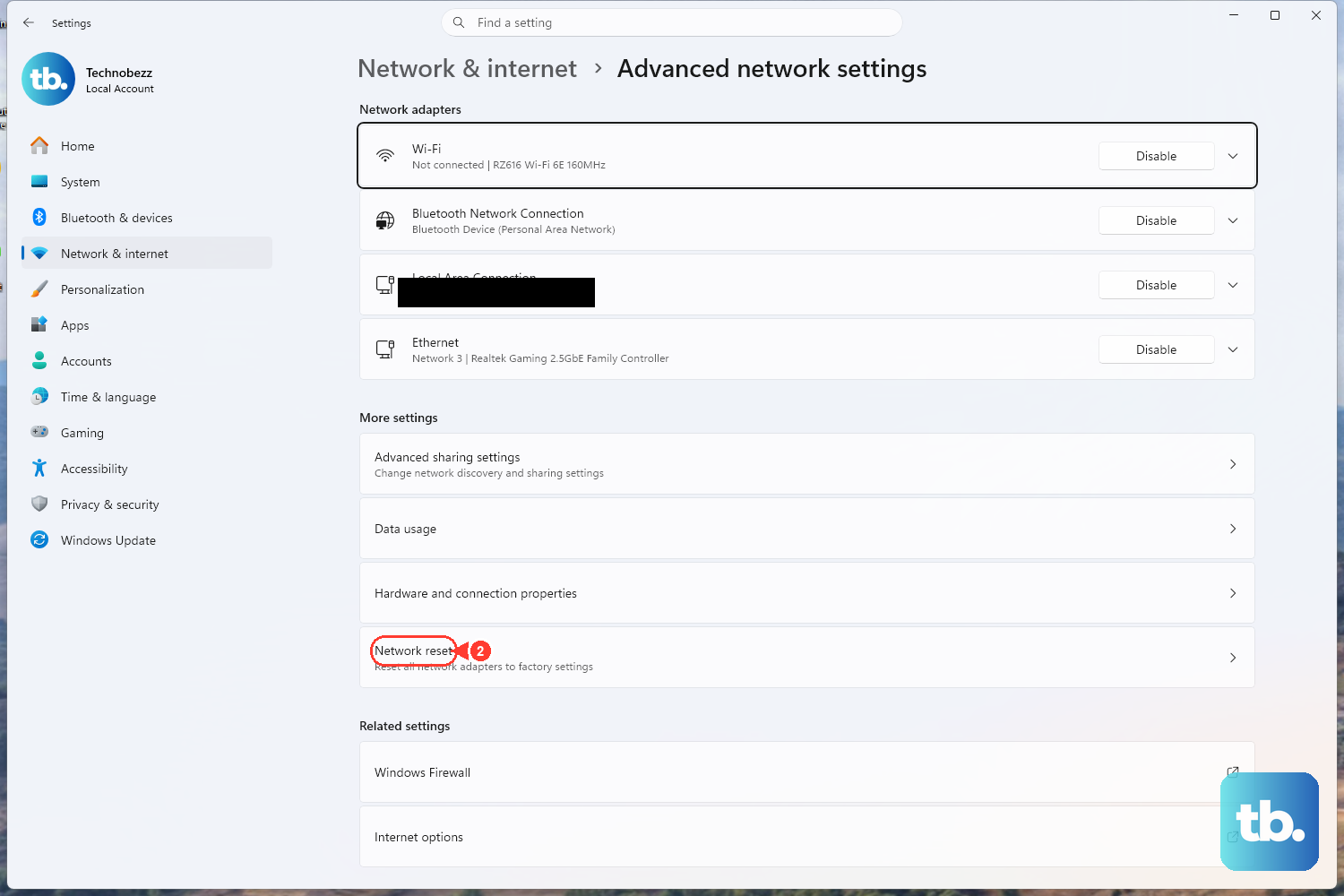
If none of the steps above restore your connection, a full network reset removes and reinstalls all of your network adapters and returns networking settings to their defaults. Use this only when the earlier steps do not help, because it is more disruptive than the targeted fixes.
Important: After a network reset you may need to reinstall VPN client software or set up Hyper-V virtual switches again, so do this only as a last resort. On Windows 11, go to Settings > Network & internet > Advanced network settings > Network reset, then select Reset now > Yes. On Windows 10, go to Start > Settings > Network & internet > Status > Network reset, then select Reset now > Yes.
Frequently Asked Questions
Why does Windows say I am connected to Wi-Fi but there is no internet?
This usually means your PC has joined the local network successfully but cannot reach the wider internet, often because of a router or modem fault, a corrupted saved profile, a broken IP or DNS configuration, or a network adapter driver issue. Working through the fixes above in order, starting with the Wi-Fi and Airplane mode checks, addresses the most common causes.
Which command should I run first to fix Wi-Fi problems?
Open Command Prompt as an administrator and run netsh winsock reset first, then netsh int ip reset, followed by ipconfig /release, ipconfig /renew, and ipconfig /flushdns, pressing Enter after each. Restart your PC once you have run all five.
Do these fixes work on Windows 10 as well as Windows 11?
Yes. The netsh and ipconfig commands, the Device Manager driver steps, and the DNS-change steps are the same on both versions. A few paths differ: the automated troubleshooter is reached through the Get Help app on Windows 11 and through Settings > Network & Internet > Status > Network troubleshooter on Windows 10, and the Network reset location differs between the two versions as noted above.
Is a network reset safe to use?
A network reset is safe but should be your last resort, because it removes and reinstalls all of your network adapters and restores default settings. After running it, you may need to reinstall any VPN client software or recreate Hyper-V virtual switches, so try the targeted fixes first.
What should I do if Windows cannot find a newer adapter driver?
If Search automatically for updated driver software does not find anything newer, check the hardware manufacturer's official website for the latest driver that matches your version of Windows. Only download drivers from the manufacturer's own site, since files from other sources can cause further problems.