Your screen has been stuck on "We couldn't complete the updates. Undoing changes. Don't turn off your computer." for what feels like an eternity, and the only thing you want to know is whether your PC is broken or simply busy. That on-screen message means a Windows update failed to install and the system is rolling itself back to its previous working state. It is frustrating, but it is also a safety mechanism, and in most cases your files and settings are untouched.
The fixes below are arranged from the easiest and safest to the most involved. Work through them in order on Windows 11 or Windows 10, and stop as soon as the update installs cleanly. Most people never need to go past the first few steps.
Let the Rollback Finish, Then Restart and Retry
The single most important rule is to wait. While Windows says "Undoing changes," it is reversing a partial installation, and powering off during that process can corrupt your system. Let it run to completion, even if it sits there for a while, and sign in normally once it returns you to the lock screen.
Once you are back at the desktop, give the update another try. A clean restart and retry resolves many transient update failures on its own.
On Windows 11, go to Start > Settings > Windows Update > Check for updates. On Windows 10, go to Start > Settings > Update & Security > Windows Update > Check for updates. If an update is waiting to be applied, choose Start > Power > Update and restart so it installs cleanly.
Make Room on Your Drive
Updates need free space to stage and install files, and a nearly full drive is a common reason an update fails and rolls back. If your storage is close to full, freeing up room often lets the update complete on the next attempt.
Check how much space you have, then clear out what you do not need. You can delete unneeded files manually or use Storage settings and Disk Cleanup to recover space. Retry the update once you have comfortable headroom.
Unplug Hardware You Do Not Need
A misbehaving peripheral or driver can interrupt an update midway and trigger the rollback. Disconnecting non-essential external hardware removes that variable so the installation has fewer things that can go wrong.
Disconnect external storage, docks, and other extras, leaving only your keyboard, mouse, and display attached. After that, attempt the update again. If the update succeeds, reconnect everything afterward.
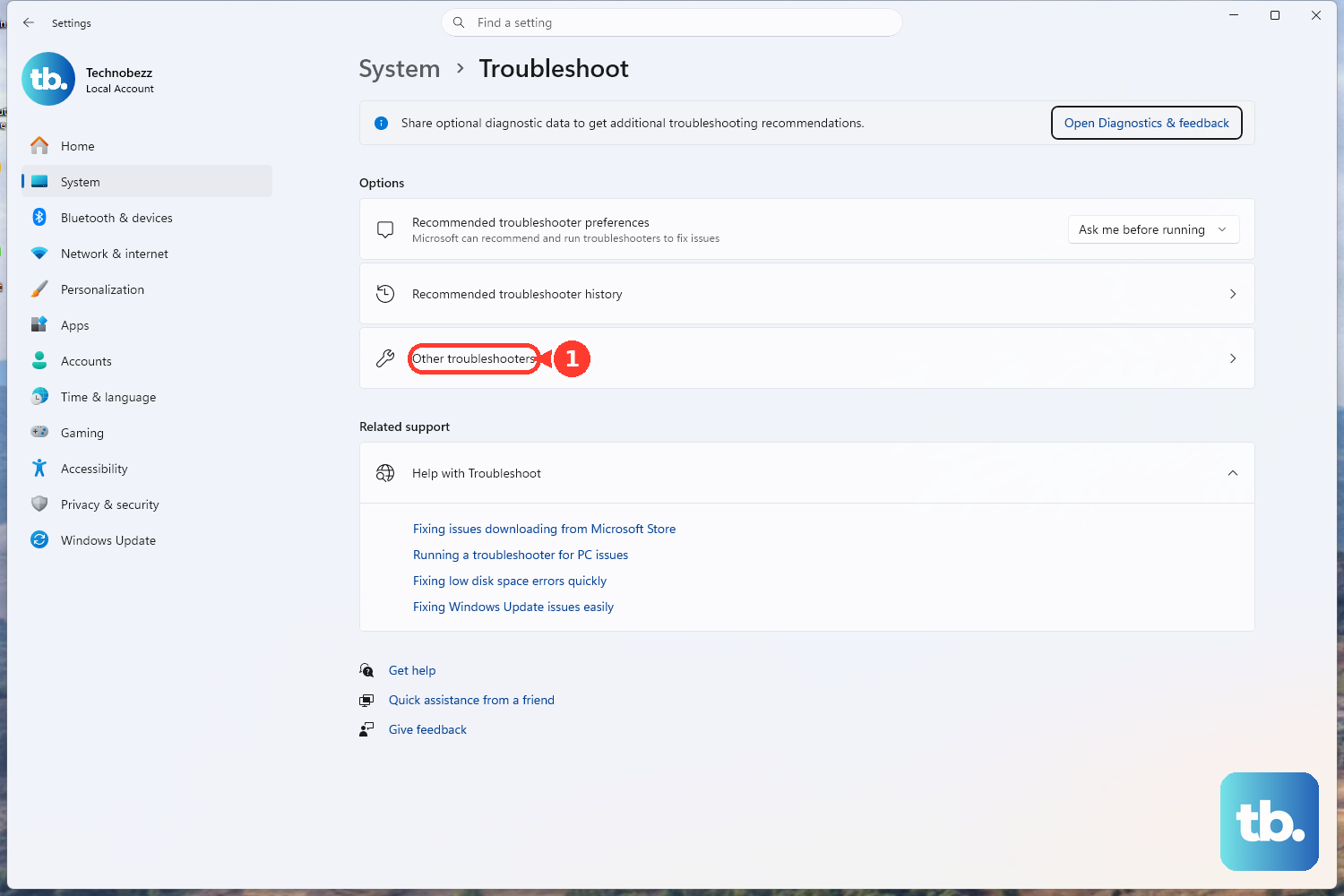
Run the Built-In Windows Update Troubleshooter
Windows includes a troubleshooter that analyzes the situation and resets the components that need it, which is exactly the kind of cleanup a stuck update usually requires. It does this automatically, so it is a low-effort step with a good success rate.
On Windows 11, open Start > Settings > System > Troubleshoot > Other troubleshooters, then select Run next to Windows Update. On Windows 10, open Start > Settings > Update & Security > Troubleshoot > Additional troubleshooters, then under Get up and running select Windows Update and choose Run the troubleshooter.
Restart the device when it finishes, then check for updates again afterward.
Microsoft also offers the same automated troubleshooter inside the Get Help app if you prefer to launch it that way.
Repair System Files With SFC and DISM
Corrupted system files can make updates fail repeatedly no matter how many times you retry. Two built-in command-line tools scan for and repair that damage, and they work together: System File Checker fixes protected system files, while DISM repairs the underlying component store those files come from.
First, open Command Prompt as administrator. Right-click Start and choose Terminal (Admin) or Command Prompt (Admin). Elevation is required for these commands to work.
Run sfc /scannow to scan and repair protected system files, then wait for it to complete. If the problem persists, run DISM.exe /Online /Cleanup-Image /RestoreHealth to repair the Windows component store. Run Windows Update again once both commands have finished.
Clear the Update Cache With a Quick Reset
A corrupted update cache is one of the most common causes of repeated rollbacks. The cached download files live in the SoftwareDistribution folder, and clearing them forces Windows to fetch a fresh, clean copy of the update.
Microsoft provides a quick reset for exactly this. From an elevated Command Prompt, run these three commands in order.
- 1.net stop wuauserv
- 2.rd /s /q %systemroot%\SoftwareDistribution
- 3.net start wuauserv
This stops the Windows Update service, clears the download cache, and restarts the service, after which Windows redownloads the update. Your personal files are not affected; this only removes Windows Update's temporary download data.
When the service is running again, go back to Windows Update and check for updates. Give Windows a moment to rebuild the cache before the new download begins.
Do the Full Manual Reset of Update Components
If the quick reset did not stick, the full manual reset stops every service involved in updating, clears the queued transfer data, and renames the relevant cache folders so Windows recreates them from scratch.
Run all of this from an elevated Command Prompt, and run the commands in the order shown. First, stop the three services: run net stop wuauserv, run net stop bits, and run net stop cryptsvc.
Next, delete the queued transfer data used by the Background Intelligent Transfer Service. Run Del "%ALLUSERSPROFILE%\Application Data\Microsoft\Network\Downloader\qmgr*.dat".
Only if the prior steps did not fix it, rename the cache folders so Windows rebuilds them. Renaming preserves the originals as .bak copies rather than deleting them outright: run Ren %Systemroot%\SoftwareDistribution\DataStore DataStore.bak, run Ren %Systemroot%\SoftwareDistribution\Download Download.bak, and run Ren %Systemroot%\System32\catroot2 catroot2.bak.
Finally, restart the three services: run net start bits, run net start wuauserv, and run net start cryptsvc. Then check for updates again.
For reference, wuauserv is the Windows Update service, bits is the Background Intelligent Transfer Service, and cryptsvc is Cryptographic Services. All three need to be running for updates to download and install.
When the Failure Shows Error 0x80070643
If you see "0x80070643 - ERROR_INSTALL_FAILURE" on the Windows Update settings page after a Windows Recovery Environment (WinRE) update, that message is not accurate and does not impact the update or device functionality. The WinRE update is typically applied successfully after the device restarts.
Windows Update may keep showing it as failed until the next daily scan, at which point the message clears automatically. Microsoft resolved this issue in update KB5063523 and later, so installing the latest cumulative update is the fix. This applies to Windows 10, version 21H2 and 22H2.
When Error 0x643, 0x80070643, or 1603 Hits a .NET Framework Update
For .NET Framework updates specifically, error code 0x643 and the related Windows Installer error 1603 are generic codes that mean the update did not install. They are usually caused by corruption in the .NET Framework installation or by an inconsistency in the MSI database state.
The official remediation is to fix the MSI software update registration corruption, or to use Microsoft's .NET Framework cleanup tool to uninstall the affected .NET Framework versions. Then reinstall them before retrying the update.
Frequently Asked Questions
Is it safe to turn off my computer during "Undoing changes"?
No. The message specifically warns you not to turn off your computer because the system is reversing a partial installation. Powering off during that process can corrupt your system. Let the rollback finish completely, then sign in normally.
Why does the update keep failing and rolling back?
The most common causes are too little free disk space, a corrupted update cache, corrupted system files, or a conflicting peripheral. Work through the fixes in order: free up space, run the Windows Update Troubleshooter, repair files with sfc /scannow and DISM, then clear the update cache with a quick or full reset.
How much free space do I need for a Windows update?
There is no single number that fits every update, since the amount depends on the update itself. The practical answer is to keep your drive from running close to full. If space is tight, use Storage settings or Disk Cleanup to recover room before retrying.
Will resetting Windows Update components delete my personal files?
No. Clearing the SoftwareDistribution cache or renaming the update folders only affects Windows Update's temporary download and queue data. Your documents, photos, and applications are not touched, and Windows simply redownloads the update afterward.
Do these steps work on both Windows 11 and Windows 10?
Yes. The rollback message, the troubleshooter, the SFC and DISM commands, and the update component reset all apply to both. The main difference is the settings menu path: Windows 11 uses Settings > Windows Update, while Windows 10 uses Settings > Update & Security > Windows Update.