
It's a common headache when you tap send on a picture message and it just sits there, stuck on "Sending" or fails with an error. On your Vivo X200 Pro, this is usually a quick fix related to your network or a simple setting. Let's get those photos moving again.
Check Your Mobile Data and Connection First
MMS messages require a cellular data connection, even if you're on Wi-Fi. The first thing to do is swipe down from the top of your screen to open the Quick Settings panel. Make sure the mobile data icon is active. If you have a strong Wi-Fi signal, try turning Wi-Fi off completely for a moment and send the MMS using just your cellular network. Sometimes, the phone gets confused about which connection to use.
If the message still won't go through, check your signal strength. Moving to a different spot or near a window can often provide the boost needed for a successful send. I'd start with this, as it solves the issue more often than not.
Verify Your APN Settings
Incorrect Access Point Name (APN) settings are a frequent culprit for MMS failures on Android phones. These settings tell your phone how to connect to your carrier's multimedia messaging service. To check them, go to Settings > Network & internet > Mobile network > Access Point Names.
You should see a list, with one APN selected (indicated by a filled circle). If the list is empty or looks wrong, you'll need to enter the correct details. You can usually get these by searching "[Your Carrier Name] APN settings 2026" or by contacting your carrier's support. Once you have them, tap the plus icon to add a new APN, enter all the fields carefully, save it, and then select it.
Enable MMS in Your Messaging App
Some messaging apps, especially third-party ones, have their own toggle for MMS. Open your default Messages app (often just called "Messages") and tap the three-dot menu in the top right. Go to Settings > Advanced or Multimedia messages. Look for an option like "Auto-download MMS" or "Enable MMS" and make sure it's turned on.
Also, check if there's a size limit for sending MMS. If your photo is too large, the app might fail silently. You can try lowering the image resolution before sending or see if the app has a "Compress image" option in its settings.
Disable Data Saver or Battery Saver Modes
Funtouch OS's power-saving features can restrict background data to extend that impressive 2-day battery life. This can block MMS from sending. Pull down the notification shade twice and look for icons like "Data Saver" or "Battery Saver." If they're active, tap them to turn them off temporarily.
For a more thorough check, go to Settings > Battery. See if any aggressive power saving mode is enabled and switch it to a normal or balanced mode. Try sending your picture again after disabling these features.
Force Stop and Clear Cache for Messages
A glitch in the messaging app's temporary data can cause send failures. Go to Settings > Apps > Manage apps. Find your messaging app in the list (it might be called "Messages" or "Vivo Messages") and tap on it.
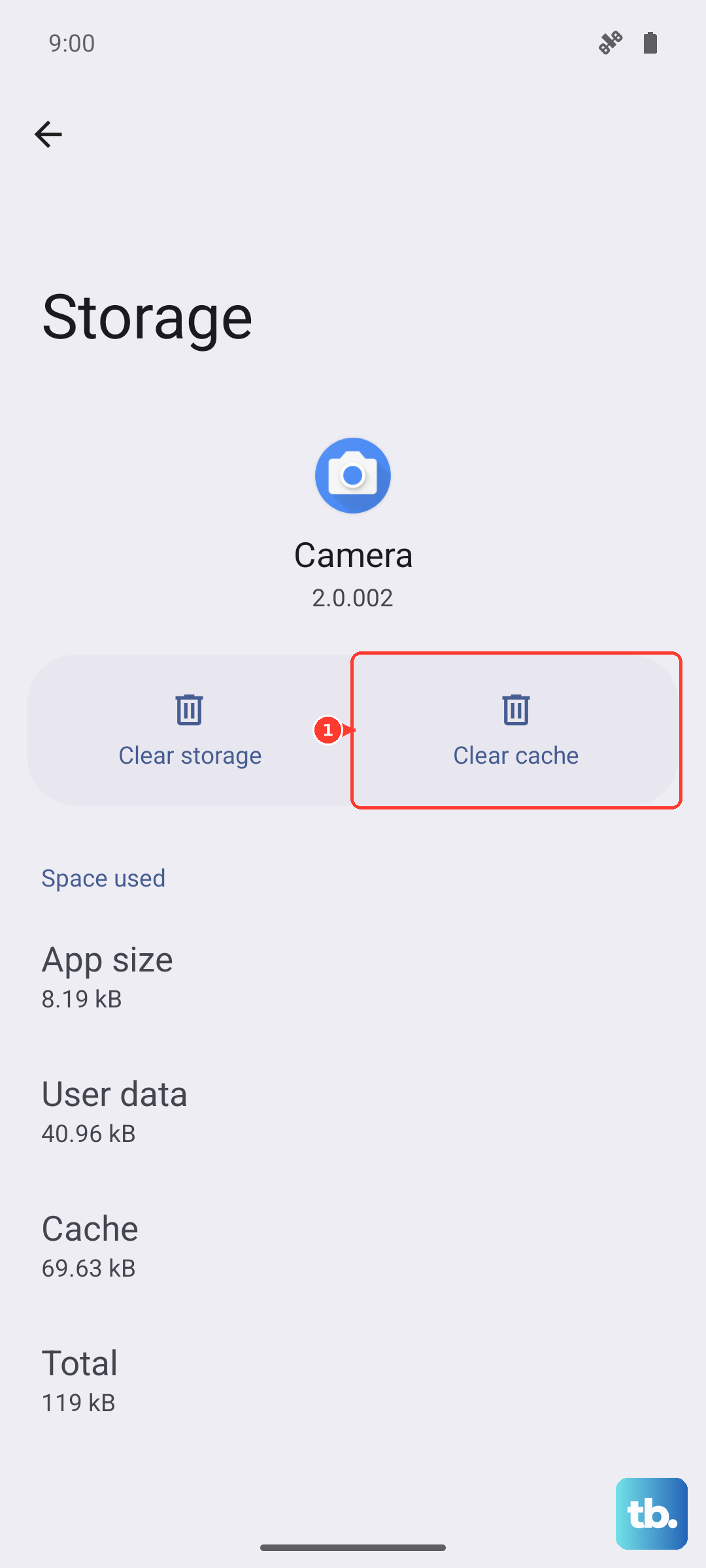
First, tap Force stop. Then, tap on Storage usage below. Here, tap Clear cache. This won't delete your messages, just temporary files. After doing this, reopen the app and try sending your MMS again.
Check the Date and Time
An incorrect system time can sometimes interfere with network authentication. Make sure your phone is set to update the time automatically from the network. Go to Settings > System management > Date & time. Ensure the "Automatic date & time" switch is turned on.
Try a Different Messaging App
This is a great way to figure out if the problem is with the app itself or with the phone's system. Download a popular alternative like Google Messages from the Play Store. Set it as your default app when prompted, and try sending an MMS. If it works, the issue is likely with your previous messaging app's settings or data.
Update Your Software and Carrier Services
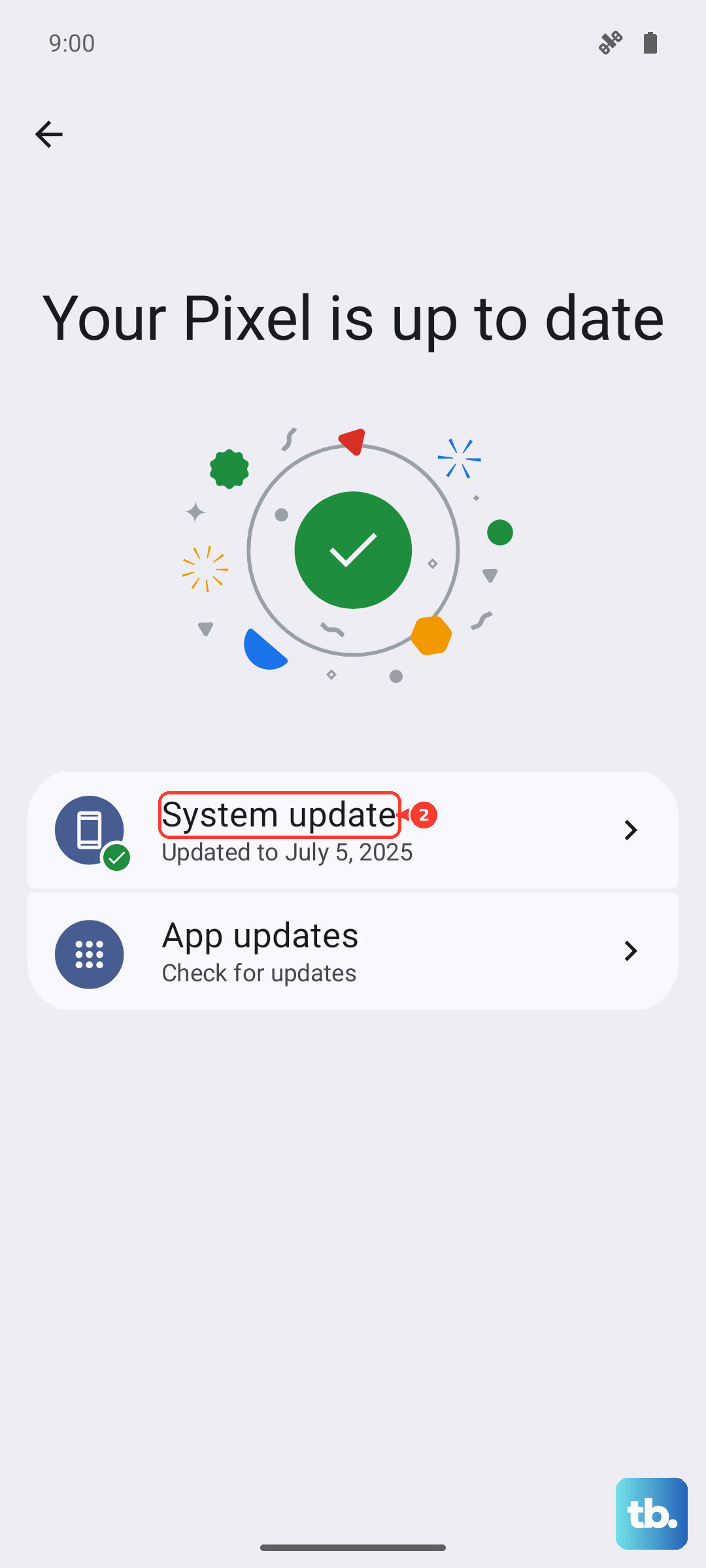
Software updates often include fixes for connectivity bugs. Go to Settings > System management > Software update to check for any available system updates. Also, open the Google Play Store, tap your profile icon, and go to Manage apps & device > Updates available. Look for an update to "Carrier Services" or your messaging app and install it.
Perform a Network Settings Reset
This will wipe all your network-related data back to factory defaults, which can clear up persistent MMS issues. Go to Settings > System management > Backup & reset > Reset phone. Here, tap on Reset network settings.
You'll need to enter your lock screen PIN or password. Confirm the reset. Be aware this will erase all saved Wi-Fi networks and passwords, Bluetooth pairings, and mobile data settings. You'll have to reconnect to Wi-Fi networks afterward.
Force Restart Your Vivo X200 Pro
If you've tried several things and the phone seems sluggish or unresponsive, a force restart can clear out any stuck processes. Simply press and hold the Power button for about 12 seconds. Keep holding it until you see the Vivo logo appear on the screen, then release. The phone will reboot. This is different from a normal restart and can resolve deeper software hiccups.