
When your Vivo X200 Pro's Settings app keeps crashing, it's usually a temporary software hiccup. The error can pop up as "Settings keeps stopping" or the app might just close without warning. I'd start with a simple restart, as that clears out most temporary glitches.
Force Restart Your Vivo X200 Pro
If the Settings app is frozen and you can't navigate, a force restart is your best first move. This is different from a normal restart and can clear deeper system errors.
Just press and hold the Power button on the side of your phone for about 12 seconds. Keep holding it until you see the Vivo logo appear on the screen, then let go. Your phone will boot up fresh, and you can check if Settings is working again.
Clear the Settings App Cache and Data
Corrupted temporary files are a common culprit for app crashes. Clearing the cache is safe and won't delete your personal settings, but clearing the app data will reset Settings to its default state.
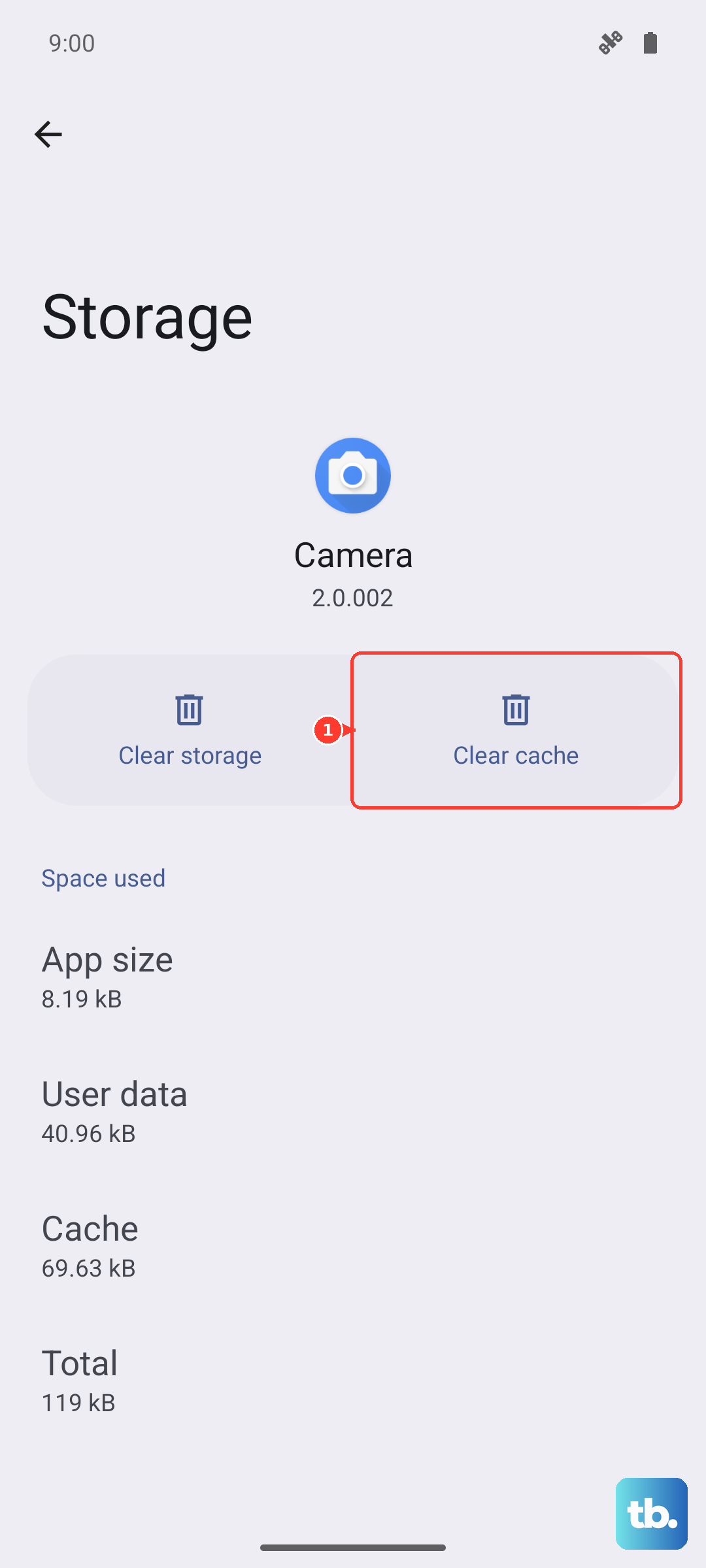
First, open Settings and go to Apps > App Management. Find and tap on the "Settings" app in your list. Then, tap on Storage Usage.
Tap Clear Cache first and see if that fixes the crash. If it doesn't, go back to the same menu and tap Clear Data. You'll need to confirm this action. Don't worry, this resets your app preferences and layout but won't erase things like your Wi-Fi passwords or accounts.
Check for a System Update
Vivo releases updates for Funtouch OS to fix bugs and improve stability. An outdated system can have conflicts that cause core apps like Settings to fail.
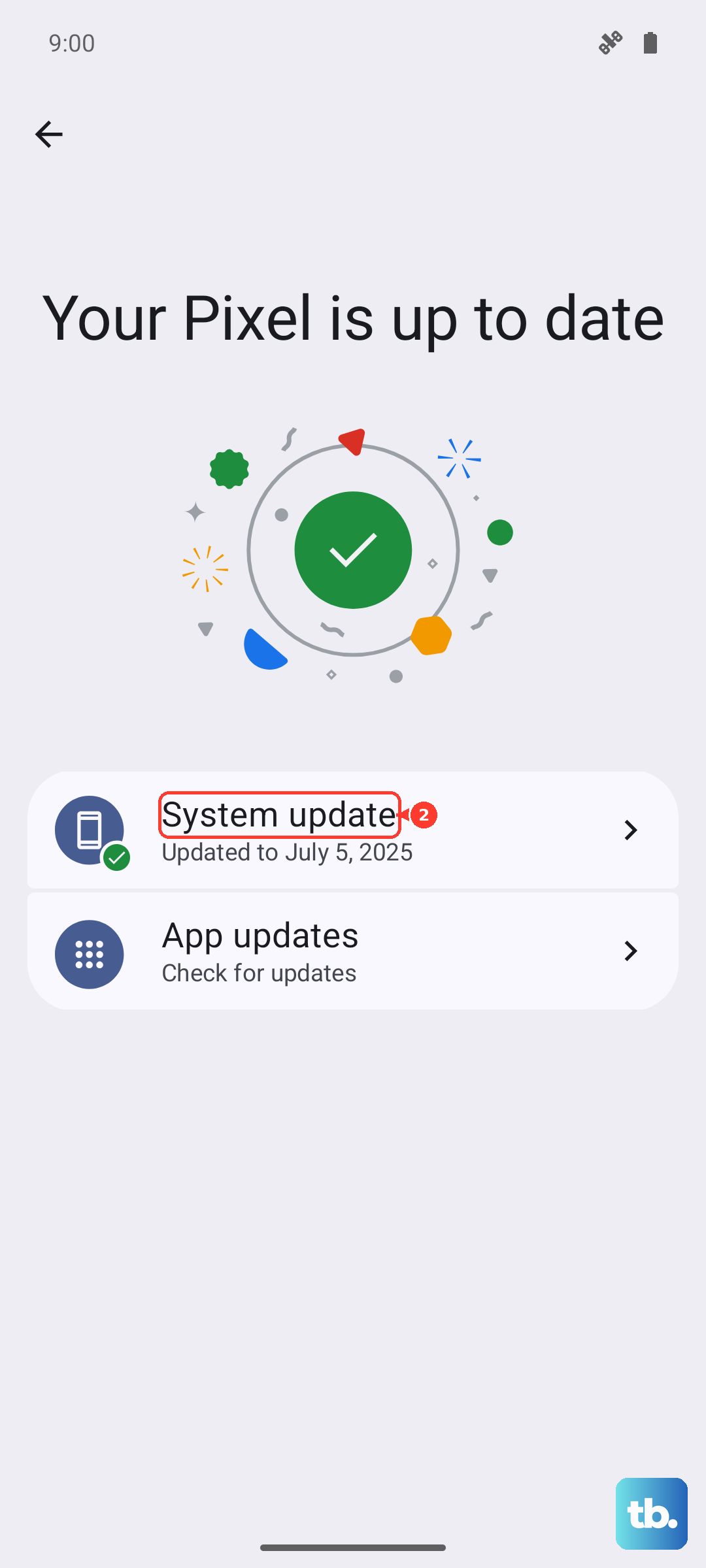
Go to Settings > System Update. Tap "Check for updates." If an update is available, make sure your phone is connected to Wi-Fi and has at least a 50% charge, then install it. The included 90W charger can top you up incredibly fast if needed. After the update, your phone will restart, which often resolves the issue.
Boot Into Safe Mode
This helps you figure out if a recently downloaded third-party app is causing the conflict. Safe mode temporarily disables all apps you installed.
Press and hold the Power button until the power menu appears. Then, press and hold the "Power off" option on your screen. A prompt to reboot into Safe Mode will pop up. Tap "OK."
If the Settings app works perfectly in Safe Mode, you know a third-party app is the problem. Restart your phone normally to exit Safe Mode, then try uninstalling apps you installed just before the crashes started.
Reset All App Preferences
This is a broader fix that resets permissions, default apps, and background restrictions for all applications without deleting any app data. It can clear up conflicts affecting system apps.
Navigate to Settings > System Management > Reset. Tap on "Reset app preferences." Confirm your choice. Your phone will reset the settings and you'll need to re-grant permissions to apps when you use them next, but it's a very effective troubleshooting step.
Repair Apps via Recovery Mode
Funtouch OS has a built-in tool to repair potentially corrupted system applications. This process is more thorough than clearing cache.
First, power off your Vivo X200 Pro completely. Then, press and hold the Power button and the Volume Up button together until the Vivo logo appears, then release. You'll enter Recovery Mode. Use the volume buttons to navigate to "Repair Apps" and press the Power button to select it. The process may take a few minutes. Once it's done, select "Reboot" to restart your phone.
Perform a Factory Reset
If every other fix has failed, a factory reset is the final step. This will erase everything on your phone, so it's crucial to back up your photos, contacts, and files first. You can use Vivo's built-in backup tool or sync your data to Google.
Once backed up, go to Settings > System Management > Reset > Erase all data (factory reset). You may need to enter your screen lock password. Confirm the reset and let the process complete. Your phone will restart as if it were brand new, which should eliminate any deep-seated software corruption.