
Press and hold the power button for at least 12 seconds. Keep holding it until you see the Vivo logo appear on the screen. This force restart is the quickest way to clear a temporary software glitch that's freezing the touchscreen.
Start with a free online touch test to confirm where the screen actually responds. Knowing whether the fault is one region or the whole panel changes which steps below matter.
I'd start with this one, as it works for most unresponsive touch issues on the X200 Pro. It doesn't delete any of your data or settings.
Clean the Screen and Remove Any Protector
Power the phone off using the physical button, then wipe the screen thoroughly with a clean, dry microfiber cloth. Look for any smudges, moisture, or tiny particles that could be interfering with the touch sensors.
If you're using a screen protector, especially a cheap or poorly fitted one, try carefully peeling it off. Some thick or low-quality protectors can severely degrade touch sensitivity on this phone's display.
After cleaning, power the phone back on and test the screen with your bare finger. The X200 Pro's display is quite sensitive, so even a small amount of grease can cause problems.
Boot into Safe Mode
This checks if a recently downloaded app is causing the problem. First, press and hold the power button until the power off menu appears. Then, tap and hold the "Power off" option on your screen.
You'll see a prompt to reboot into Safe Mode. Tap "OK" to confirm. The phone will restart, and you'll see "Safe Mode" in the bottom corner of the screen.
If the touchscreen works perfectly in Safe Mode, a third-party app is the culprit. You'll need to uninstall apps one by one, starting with the most recent downloads, to find the bad one.
Check for Software Updates
Since your X200 Pro runs Funtouch OS 15 on Android 15, a bug fix might already be available. Connect to Wi-Fi and go to Settings > System update.
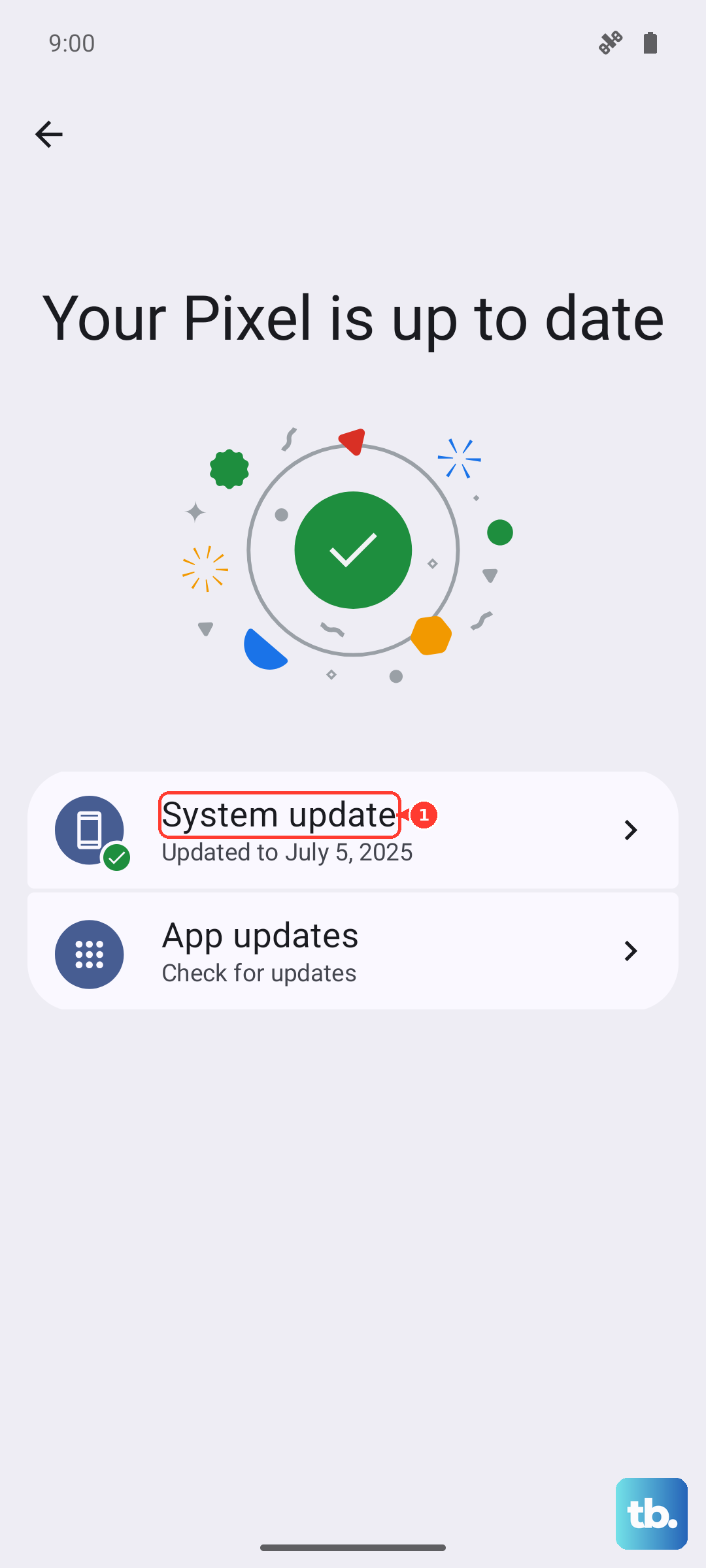
Tap "Check for updates" and install any available firmware. Vivo has been known to push updates that specifically address touchscreen responsiveness, so this is a key step.
After the update installs, the phone will restart. Give it a minute to fully boot up before testing the touchscreen again.
Calibrate the Touchscreen
Funtouch OS has a hidden diagnostic menu for hardware tests. Open your phone dialer and enter the code *#*#64663#*#* to access the engineering test mode.
Navigate using your volume buttons (since the screen isn't working well) to find the "Touchscreen test" or "Touch sensor" option. Select it with the power button.
The test will guide you through tapping various points on the screen to recalibrate it. Follow the on-screen instructions to complete the process, which can often restore normal touch accuracy.
Perform a Factory Reset
Warning: This will erase all data on your phone. Back up everything important first. If the touchscreen is partially working, you can initiate this through Settings > System management > Backup and reset > Erase all data.
If the screen is completely dead, you can use hardware keys. Power off the phone, then press and hold the Power button and Volume Up button together until the Vivo logo appears.
Use the volume buttons to navigate to "Wipe data/factory reset" and select it with the power button. Confirm your choice. This will eliminate any deep-seated software corruption causing the touch failure.
Inspect for Physical or Liquid Damage
Look closely at the screen for any new cracks, even hairline ones, that weren't there before. A cracked digitizer underneath the glass can cause touch zones to die.
Check the USB-C port at the bottom for any lint, debris, or signs of corrosion. While this usually affects charging, it can sometimes interfere with other functions. Use a dry toothpick to gently clean it out.
Think about whether the phone has been exposed to moisture recently. Even high humidity or a small spill can damage the internal touch connectors over time. If you suspect liquid damage, avoid charging it and focus on getting it inspected.