
That constant flicker or flashing on your Vivo X200 Pro's display is incredibly annoying. It can show up as horizontal lines, a pulsing effect, or random flashes that make the phone hard to use. This is often a software hiccup with Funtouch OS, but it can also point to a deeper hardware issue. Let's get it sorted.
Force Restart Your Phone
This is the quickest fix for a temporary software glitch causing the screen to act up. Just press and hold the Power button on the right side for about 12 seconds. Keep holding it until you see the Vivo logo appear, then release. The phone will restart. If the flickering just started, this often clears it right up.
Disable Adaptive Brightness
The auto-brightness sensor on your X200 Pro can sometimes get confused, especially in environments with changing light, and cause the screen to flicker as it tries to adjust. Go to Settings > Display & Brightness and turn off the toggle for Adaptive brightness. After that, manually set your preferred brightness level on the same screen and see if the problem stops.
Turn Off Eye Protection Mode
This feature, which reduces blue light, can sometimes interact poorly with certain apps or system processes and cause a subtle flicker or color shift. Swipe down from the top of your screen to open the Quick Settings panel and look for the "Eye Protection" icon. If it's blue or highlighted, tap it to turn it off. You can also find it in Settings > Display & Brightness > Eye Protection.
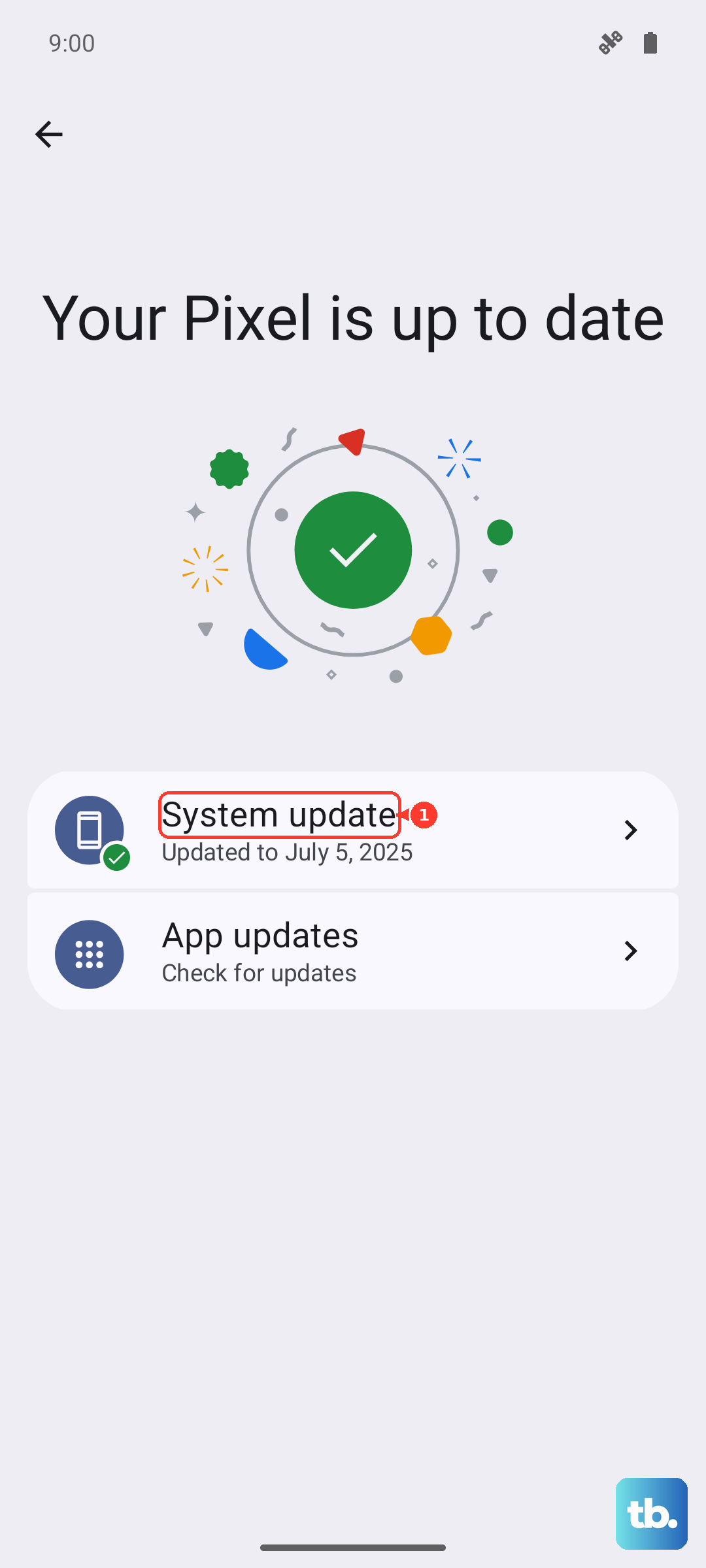
Check for a Software Update
Vivo regularly releases updates for Funtouch OS that include bug fixes, and display issues are a common target. Go to Settings > System update and tap "Check for updates." If an update is available, install it. I've seen updates specifically address screen flickering problems on previous Vivo models, so this is a crucial step.
Close All Running Apps
A poorly coded or buggy app running in the background can definitely cause display corruption. Swipe up from the bottom of the screen and hold for a second to enter the recent apps view. Then, swipe up on each app card to close it. Once all apps are closed, check your home screen or lock screen. If the flickering is gone, you can reopen your apps one by one to try and identify which one was causing the trouble.
Boot Into Safe Mode
Safe mode temporarily disables all third-party apps you've installed. If the flickering stops in safe mode, you know for sure one of your downloaded apps is the culprit. To enter safe mode, press and hold the power button until the power off menu appears. Then, press and hold the "Power off" option on the screen. It will ask if you want to reboot to safe mode. Tap "OK." Your phone will restart with "Safe mode" visible at the bottom of the screen.
Reset All Settings
This will revert all your system settings back to their factory defaults without touching your photos, messages, or apps. It can fix a corrupted display configuration that simpler steps miss. Go to Settings > System management > Backup and reset > Reset phone > Reset all settings. You'll need to re-enter Wi-Fi passwords and reconfigure things like ringtones and notifications, but it's a powerful fix for persistent glitches.
Inspect for Physical Damage
If the flickering began after you dropped the phone or it was exposed to moisture, there could be internal damage. Look closely at the screen for any new cracks, even hairline ones, or dark spots. Gently flexing the phone frame (carefully) while watching the screen can sometimes reveal a loose internal display connector if the flicker changes. Physical damage will require a professional repair.
Perform a Factory Reset
This is the nuclear option for software problems. Make absolutely sure you have a recent backup of your important data first. Then, go to Settings > System management > Backup and reset > Reset phone > Erase all data (factory reset). Follow the prompts. After the phone wipes itself and reboots, set it up as new without restoring your backup immediately. If the flickering is gone on a fresh system, it was a software issue. If it persists, the problem is almost certainly with the display hardware itself.