
Missing important calls on your Vivo X200 Pro is a real headache. You might see the notification pop up, but the phone stays completely silent, even when you're sure the volume is up. The good news is this is almost always a simple setting or a minor software hiccup that you can fix yourself.
I'd start with the quick checks first. The most common reason a phone won't ring is that it's simply set to vibrate or silent mode.
Check Your Sound Profile and Volume
On your X200 Pro, swipe down from the top of the screen to open the Quick Settings panel. Look for an icon that looks like a speaker with a slash through it or a vibration symbol. If you see either, tap it to switch back to the normal ring mode. You can also press the physical volume up button on the side of the phone while it's unlocked to make sure the ringtone volume slider is all the way up.
For more precise control, go into Settings > Sound & vibration. Here, you can adjust the volume for calls, media, and alarms independently. Slide the "Ringtone" volume to the maximum and test with a call from another phone.
Disable Do Not Disturb and Focus Modes
Funtouch OS 15 includes various modes that can silence calls. Do Not Disturb is the main one, but there might also be custom "Focus" profiles for work, sleep, or driving. If any of these are active, your phone won't ring for incoming calls, though you'll still get a missed call notification.
Open the Quick Settings panel again and look for a crescent moon icon. If it's highlighted, tap it to turn Do Not Disturb off. You should also check the schedules. Go to Settings > Sound & vibration > Do Not Disturb. Make sure the main toggle at the top is off, and review any automated schedules below that might be activating it without you realizing.
Review Your Ringtone and Notification Settings
Sometimes the issue is with the ringtone file itself. It's worth switching to a different one to see if that resolves the silence. Head to Settings > Sound & vibration > Ringtone. Choose a different default tone and have someone call you to test it.
Also, check that your notification sound isn't set to "None" for the Phone app. Go to Settings > Apps > Manage apps. Find and tap on "Phone", then go to Notifications. Ensure that "Incoming calls" notifications are enabled and have a sound selected.
Disconnect Bluetooth Accessories
If your X200 Pro is connected to a Bluetooth device like wireless earbuds, a speaker, or your car's audio system, incoming call audio is often routed there instead of the phone's speaker. This can make it seem like the phone isn't ringing at all if the Bluetooth device is out of range or turned off.
The easiest fix is to turn Bluetooth off temporarily. Swipe down for Quick Settings and tap the Bluetooth icon to disable it. You can also go to Settings > Bluetooth and toggle the main switch off. Try a test call after disconnecting.
Check for Blocked Numbers and Call Forwarding
It's possible you've accidentally blocked the number that's trying to reach you. Open your Phone app, tap the three-dot menu in the top right, and go to Settings > Blocked numbers. Review the list to see if the contact is there.
Call forwarding is another setting that can redirect calls before your phone ever gets a chance to ring. To check, open the Phone app, tap the menu, go to Settings > Call settings > Call forwarding. Make sure all forwarding options (like always forward, when busy, etc.) are set to "Turn off" or your carrier's default deactivation code.
Investigate App-Specific Permissions
If you're not getting rings from calling apps like WhatsApp, Facebook Messenger, or Skype, the problem is likely within those apps' permissions. First, make sure the apps are updated through the Google Play Store.
Then, you need to grant them notification and sound permissions. Go to Settings > Apps > Manage apps, select the app in question (e.g., WhatsApp), and tap Notifications. Ensure notifications are enabled, and tap on "Incoming voice calls" or a similar category to verify the sound is not set to "Silent".
Perform a Software Update
Software bugs can occasionally cause sound and notification issues. Vivo releases updates for Funtouch OS that often include stability fixes. Connect to Wi-Fi and plug in your phone with the included 90W charger to ensure it has enough power.
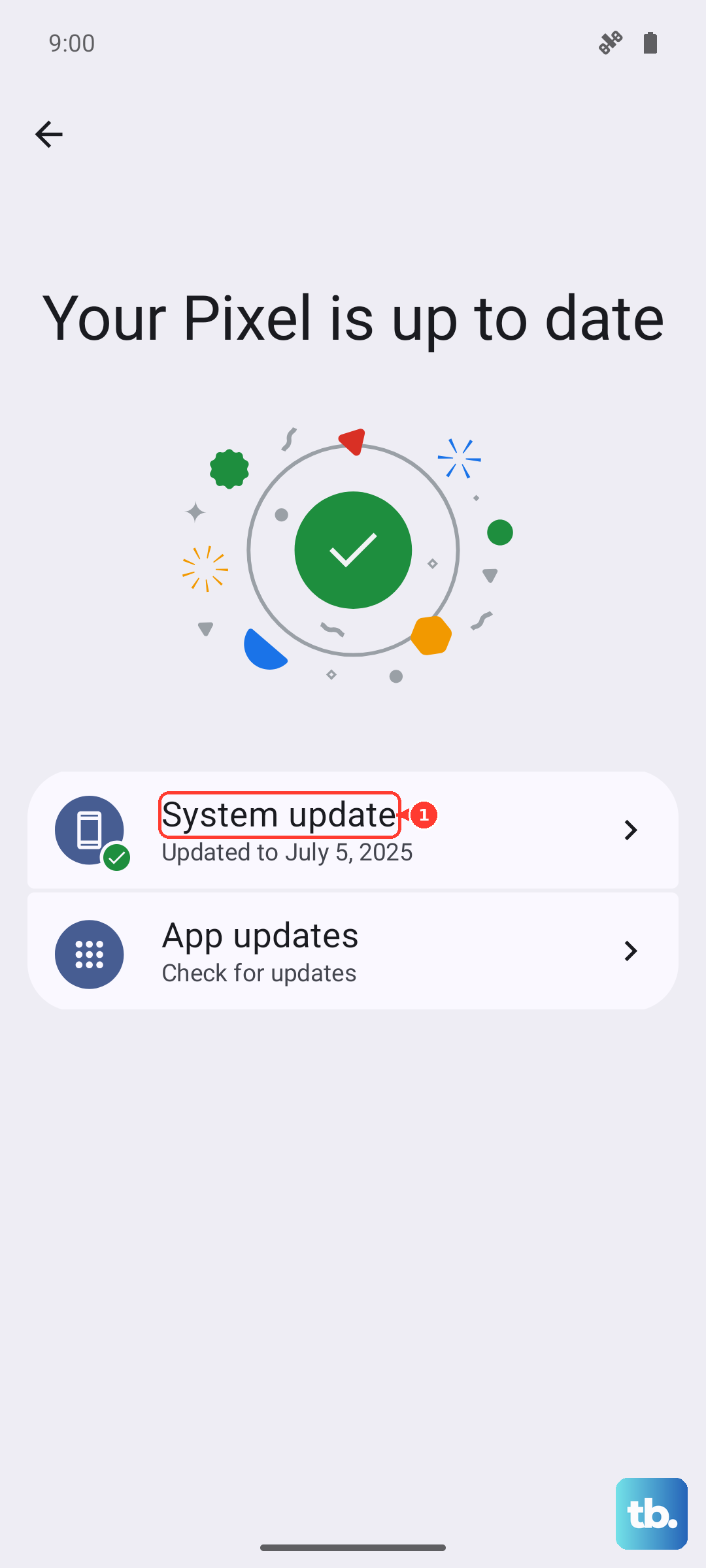
Then, go to Settings > System update. Tap "Check for updates" and install any available update. After the phone restarts, test to see if the ringing issue is resolved.
Restart or Force Restart Your Phone
A simple restart clears out temporary glitches in the system's memory. Just hold the power button until the power menu appears, then tap "Restart". If the phone is completely unresponsive or the restart doesn't help, you can force restart it.
To force restart the Vivo X200 Pro, press and hold the power button for about 12 seconds or until you feel a vibration and see the Vivo logo appear on the screen. This is a safe hardware reset that doesn't erase any data.
Reset App Preferences or Network Settings
If the problem seems linked to specific apps, resetting app preferences can help. This resets permissions, notification settings, and background data restrictions for all apps back to their defaults. Go to Settings > System management > Reset > Reset app preferences. Tap reset and confirm.
For issues that might be network-related, like calls dropping straight to voicemail, try resetting network settings. This will erase all Wi-Fi passwords, Bluetooth pairings, and mobile data settings. Go to Settings > System management > Reset > Reset network settings. Confirm the action and then reconnect to your Wi-Fi and Bluetooth devices.
Check for Conflicting Third-Party Apps
Some apps, particularly battery savers, cleaner apps, or aggressive task killers, can interfere with core phone functions like ringing. If you recently installed a new app before the problem started, try uninstalling it. You can also boot the phone into Safe Mode to see if the ringing works there.
To enter Safe Mode on the X200 Pro, press and hold the power button until the power off menu appears. Then, press and hold the "Power off" option on the screen. A prompt will ask if you want to reboot to Safe Mode. Tap "OK". If the phone rings normally in Safe Mode, a third-party app is likely the culprit.
Factory Reset as a Last Resort
If nothing else has worked, a factory reset will wipe the phone back to its original out-of-the-box state. This will delete all your data, so it's crucial to back up everything important first using Google Drive or Vivo's own backup tool.
Once backed up, go to Settings > System management > Reset > Erase all data (factory reset). Follow the prompts to reset the phone. After it restarts, set it up as new (don't restore a backup immediately) and test with a call to see if the issue is fixed.