
When your Vivo X200 Pro stops ringing for incoming calls, it can leave you feeling completely disconnected. This problem on Funtouch OS 15 can stem from a few different places, from a simple toggle you accidentally switched to a deeper network hiccup. I'd start with the quick fixes below, as they resolve the majority of these silent phone issues.
Before we get into the specifics, let's cover the universal restart for the X200 Pro. If your screen is responsive, press and hold the Power button for about 12 seconds. You'll feel it vibrate and see the Vivo logo as it reboots. This clears temporary glitches and is a great first step.
Check Do Not Disturb and Focus Modes
On the X200 Pro, Funtouch OS has several ways to silence calls. Swipe down from the top of your screen twice to open the full Quick Settings panel. Look for icons like "Do Not Disturb" or "Bedtime Mode" and make sure they aren't active. A blue or highlighted icon means it's on.
For more control, go into Settings > Sound & vibration > Do Not Disturb. Here, you can see the schedule and rules. Make sure "Calls" are not set to "None" under the "Allow exceptions" section. Sometimes a scheduled mode you forgot about is the culprit.
Verify Your Network Connection and SIM
Poor signal is a classic reason for missed calls. Check the signal bars in the top-right corner of your X200 Pro. If they're low or showing an "X," try moving to a different location. You can also try toggling Airplane mode on for 10 seconds, then off again, to force the modem to reconnect to the tower.
It's also worth checking your physical SIM. The X200 Pro uses a nano-SIM. Power the phone off, pop out the SIM tray with the included tool, and carefully reseat the card. Dust or a slightly misaligned SIM can cause intermittent network registration problems.
Review Call Blocking and Spam Settings
Vivo's phone app has built-in spam protection that can sometimes be overzealous. Open your Phone app and tap the three-dot menu in the top right. Go to Settings > Blocked numbers.
See if any numbers you're expecting calls from are listed here. Also, look for a setting called "Harassment call blocking" or "Smart call blocking." You can temporarily disable this feature to test if it's the reason calls aren't coming through.
Disable Call Forwarding
If call forwarding is accidentally enabled, all your calls are being sent to another number before they ever reach your X200 Pro. To check, open the Phone app, tap the three-dot menu, and go to Settings > Call settings > SIM card settings (choose your active SIM).
Look for "Call forwarding" or "Supplementary services." Tap it and ensure all forwarding options (like "Always forward" or "When busy") are set to "Disable" or are not forwarding to a number.
Reset Your Network Settings
This is a more thorough step that clears all your saved network configurations. It will delete your Wi-Fi passwords, paired Bluetooth devices, and mobile data settings, but it often fixes persistent calling issues. Go to Settings > System management > Backup and reset.
Tap Reset phone > Reset network settings. Confirm your selection. Your X200 Pro will restart. Afterward, you'll need to reconnect to Wi-Fi and re-pair Bluetooth devices, but your call function should be freshly configured.
Update Your Software and Apps
Running outdated software can lead to conflicts that affect calling. Vivo releases periodic updates for Funtouch OS that include bug fixes. Go to Settings > System management > Software update and tap "Download and install."
Also, make sure your Phone and Carrier Services apps are updated. Open the Google Play Store, tap your profile icon, and go to "Manage apps & device." Tap "Updates available" and install any updates for system-related apps.
Clear the Phone App's Cache and Data
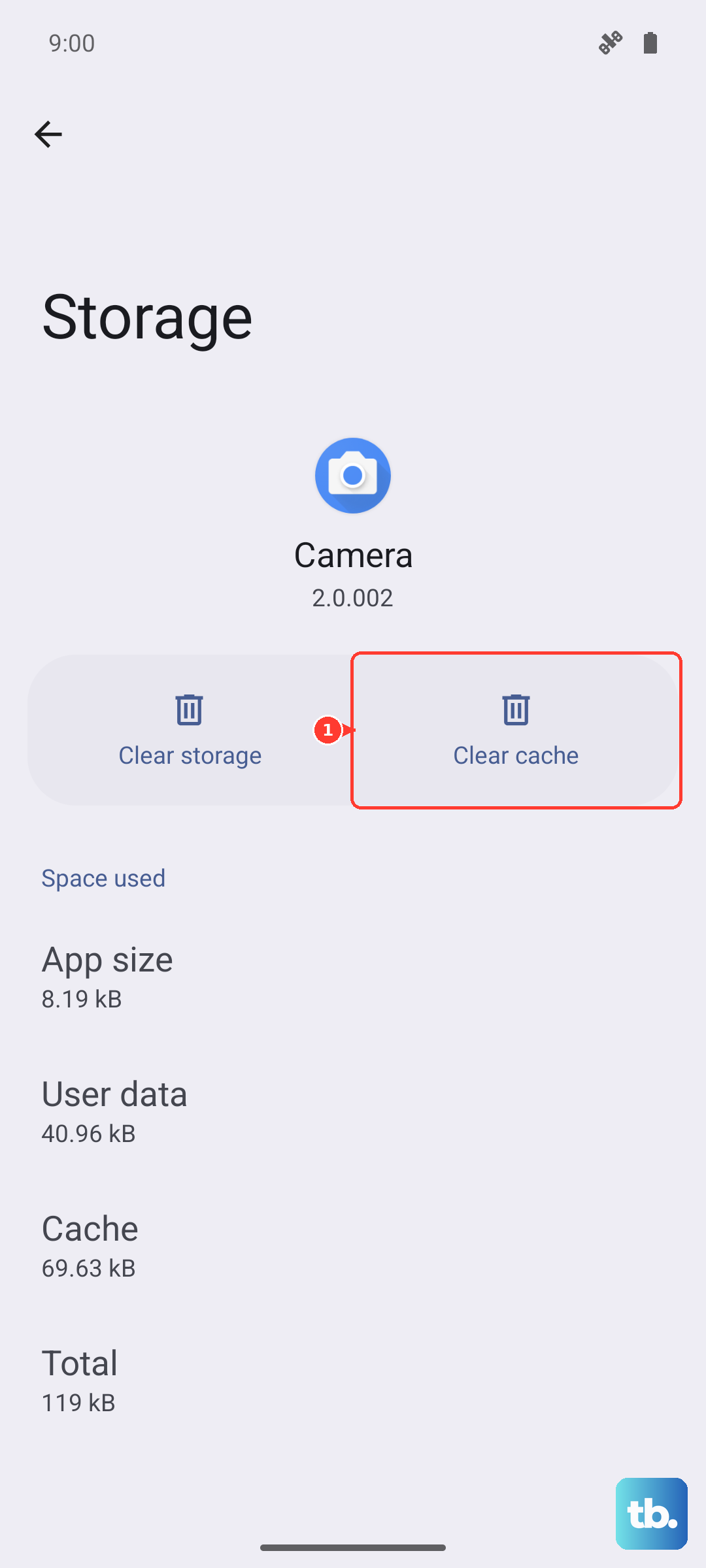
Corrupted data in the Phone app itself can cause it to malfunction. This won't delete your call history or contacts, but it will reset the app's settings. Go to Settings > Apps > App management. Find and tap "Phone" in the list.
Tap Storage usage > Clear cache. If the problem persists, go back and tap "Clear data." Confirm the action. This gives the Phone app a fresh start and often resolves odd behavior.
Check for Problematic Third-Party Apps
Sometimes an app you installed can interfere with telephony services. Think about any call-related apps, dialers, or heavy system tools you added around the time the problem started. Boot your X200 Pro into Safe Mode to test.
Press and hold the Power button until the power menu appears. Then, tap and hold the "Power off" option on your screen. You'll get a prompt to reboot to Safe Mode. Tap "OK." In Safe Mode, if calls work normally, a recently downloaded app is likely the cause. You'll need to uninstall apps one by one to find the offender.
Contact Your Mobile Carrier
The issue might not be with your Vivo X200 Pro at all. There could be a network outage, a problem with your account, or a provisioning error on their end. Use another phone to call your carrier's customer service.
Ask them to check if your line is active and properly provisioned for voice calls. They can also perform a network refresh on their end, which is similar to resetting network settings but from the carrier's side. This has fixed call issues for me when nothing else on the phone seemed to work.
If you've traveled recently, ensure international roaming or long-distance calling isn't accidentally blocked on your account. They can also check if your IMEI number (found in Settings > About phone) is correctly registered on their network.