
Is your Vivo X200 Pro starting to feel sluggish, with apps taking longer to open or animations stuttering? That's a frustrating experience on a 2024 flagship. The lag is usually caused by a few common things that are easy to fix yourself.
I'd start with a simple force restart. Just press and hold the power button for about 12 seconds, until you see the Vivo logo appear on the screen. This clears out the phone's temporary memory and stops any stuck background processes, which often gives you an instant speed boost.
Close Your Recent Apps
Swiping away apps you're not using can free up valuable RAM. On the X200 Pro, swipe up from the bottom of the screen and hold, or use the square navigation button if you have it enabled. You'll see all your recent apps. Swipe each one up to close it.
Don't worry about closing everything constantly, Android manages memory well. But if you have dozens of apps piled up, clearing them out can help performance.
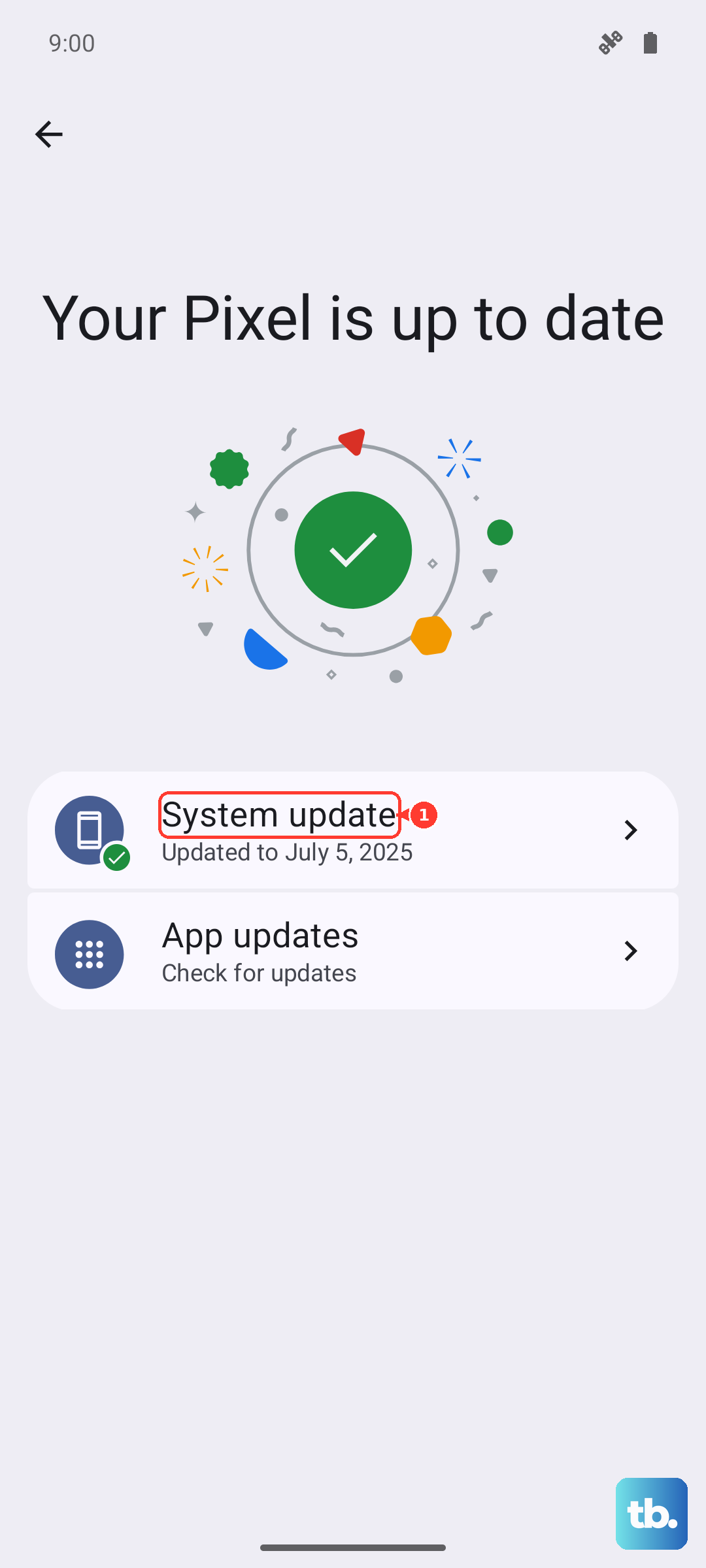
Check for Software Updates
Vivo releases updates for Funtouch OS that include performance optimizations and bug fixes. Keeping your phone updated is one of the best ways to maintain speed.
Go to Settings > System update. Tap "Check for updates" and install anything available. Make sure you're on Wi-Fi and have at least a 50% charge before starting the update.
Free Up Storage Space
When your internal storage gets too full, everything slows down. The X200 Pro has a massive 6000mAh battery, but if the storage is crammed, the phone struggles.
Head to Settings > Storage. Here, you can see what's taking up space. Look for "Large files" or review categories like Apps, Photos, and Videos. Delete old downloads, clear app caches, and consider offloading photos to Google Photos or another cloud service.
Manage or Disable Bloatware
Depending on your region, your X200 Pro may have come with pre-installed apps you don't use. These can sometimes run background services that consume resources.
You can't always uninstall them, but you can often disable them. Go to Settings > Apps > App management. Find an app you don't want, tap on it, and select "Disable". This stops it from running or updating.
Clear App Caches
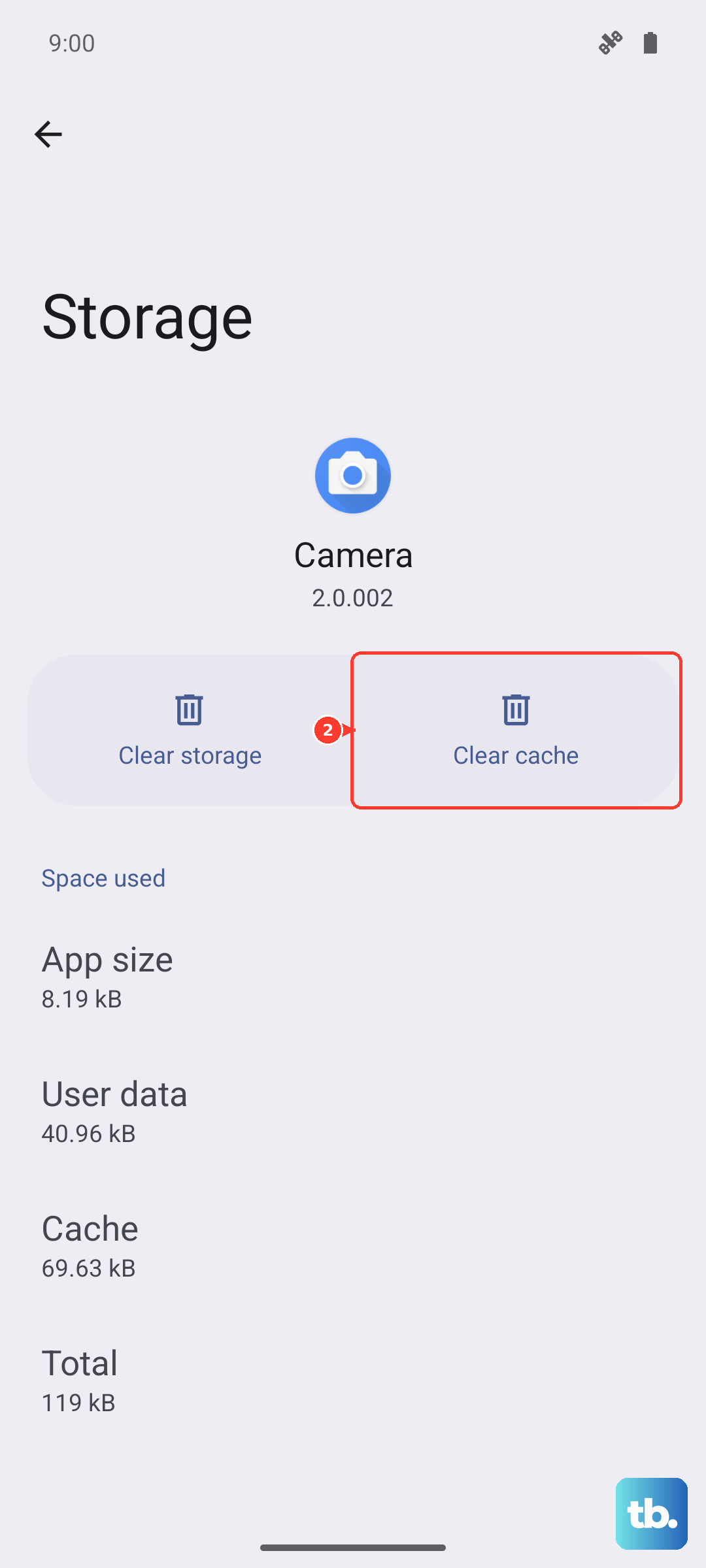
Over time, apps store temporary data (cache) that can become corrupted or bloated, causing lag. Clearing it is safe and won't delete your login info or personal data within the app.
Go to Settings > Apps > App management. Tap on an app that's feeling slow, like your browser or social media apps. Select "Storage usage" and then tap "Clear cache". Do this for a few of your most-used apps.
Review Background App Activity
Some apps are very active in the background, which drains the battery and can slow the system. Funtouch OS lets you control this.
Navigate to Settings > Battery > Background power management (or a similar menu). You can often set restrictions for specific apps, preventing them from running when you're not using them.
Reduce Animations and Visual Effects
The smooth animations on the X200 Pro look great, but they require processing power. Turning them down can make the phone feel snappier, especially if it's really struggling.
You need to enable Developer Options first. Go to Settings > About phone and tap "Software version" 7 times. Then, go back to Settings and find System management > Developer options.
Scroll to the "Drawing" section. Look for "Window animation scale", "Transition animation scale", and "Animator duration scale". Change each one from "1x" to ".5x" or even "Animation off".
Check for Rogue Apps
A single misbehaving app can drag down the entire system. If the slowdown started after installing something new, that's a prime suspect.
Try using the phone in Safe Mode. This boots Android with all third-party apps disabled. Press and hold the power button, then long-press the "Power off" option on your screen until you see the Safe Mode prompt.
If your phone is fast in Safe Mode, a downloaded app is the problem. Restart to exit Safe Mode and start uninstalling recent apps one by one to find the culprit.
Perform a Soft Reset (Reset All Settings)
If you've tried everything and the phone is still slow, this is a strong next step. It will reset all your system settings (like Wi-Fi passwords, Bluetooth pairings, and ringtones) back to default, but it won't touch your personal photos, messages, or apps.
Go to Settings > System management > Backup and reset > Reset phone. Choose "Reset all settings". Enter your lock screen PIN or password to confirm. After the phone reboots, you'll need to reconfigure your preferences, but the performance gain can be significant.