
When the flashlight on your Vivo X200 Pro stops responding, it can be surprisingly inconvenient. The toggle in the Quick Settings panel might not do anything, or the camera flash might fail to fire. Let's get it working again.
Close the Camera App Completely
The flashlight and the camera flash use the same physical LED. If the Camera app is running, even in the background, the system reserves the flash for it. Swipe up from the bottom and hold to enter the recent apps view, then swipe the Camera app away to close it. The flashlight toggle should become available immediately after.
Perform a Force Restart
This is the quickest fix for most temporary software glitches. Simply press and hold the Power button on the side of your X200 Pro for about 12 seconds. Keep holding until you see the Vivo logo appear on the screen, then release. The phone will restart and clear any minor system errors that were blocking the flashlight function.
Check Your Quick Settings Toggle
Swipe down from the top of your screen to open the notification shade, then swipe down again to expand the full Quick Settings panel. Find the flashlight icon. If it's grayed out or unresponsive, try tapping it a couple of times. Sometimes a long press on the icon can also bring up a menu to reset it, depending on your Funtouch OS version.
Let Your Phone Cool Down
The Vivo X200 Pro's powerful chipset and fast charging can generate heat. If the phone gets too hot, the system will automatically disable certain features, including the flashlight, to prevent damage. If the back of your phone feels warm to the touch, stop using it and let it sit for 10-15 minutes in a cooler spot. The function should return once the temperature drops.
Test with the Camera Flash
Open your Camera app and switch to a photo mode like Portrait or Photo. Tap the flash icon (usually a lightning bolt) and set it to "On" or "Auto." Take a picture in a dimly lit area. If the flash doesn't fire during the photo, the issue is likely with the LED hardware itself. If the flash works for photos but the standalone flashlight doesn't, it's a software problem.
Update Funtouch OS
Software bugs can occasionally affect hardware controls. Go to Settings > System update and tap "Check for updates." Install any available update for your Vivo X200 Pro. Vivo has been known to include fixes for system stability and peripheral functions in their updates, though their update commitment can be less frequent than some other brands.
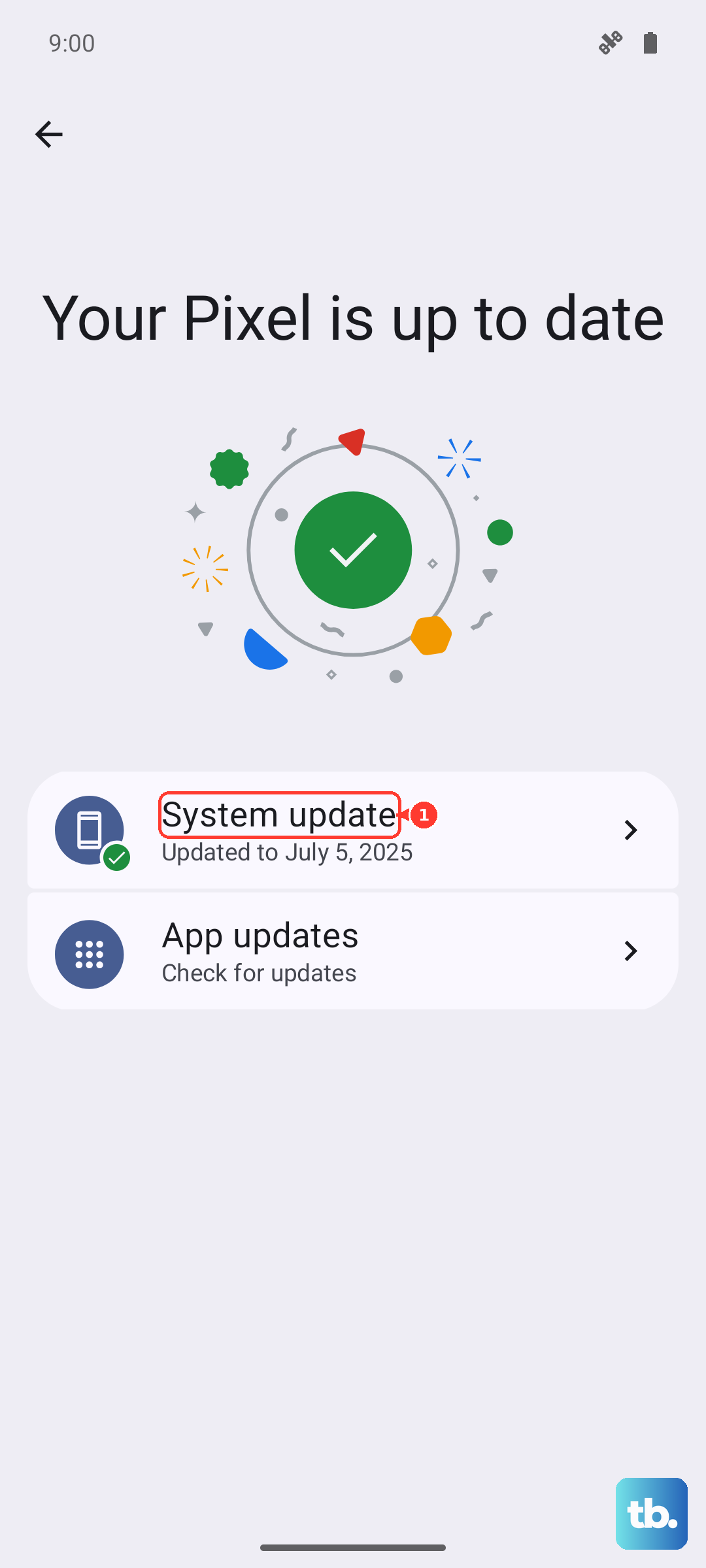
Clear Cache for System UI
Sometimes cached data for the system interface can cause glitches. Go to Settings > Apps > Manage apps. Tap the three-dot menu in the top right and select "Show system processes." Find and select "Android System" or "System UI." Tap on "Storage usage" and then select "Clear cache." This won't delete any personal data but can resolve interface hiccups.
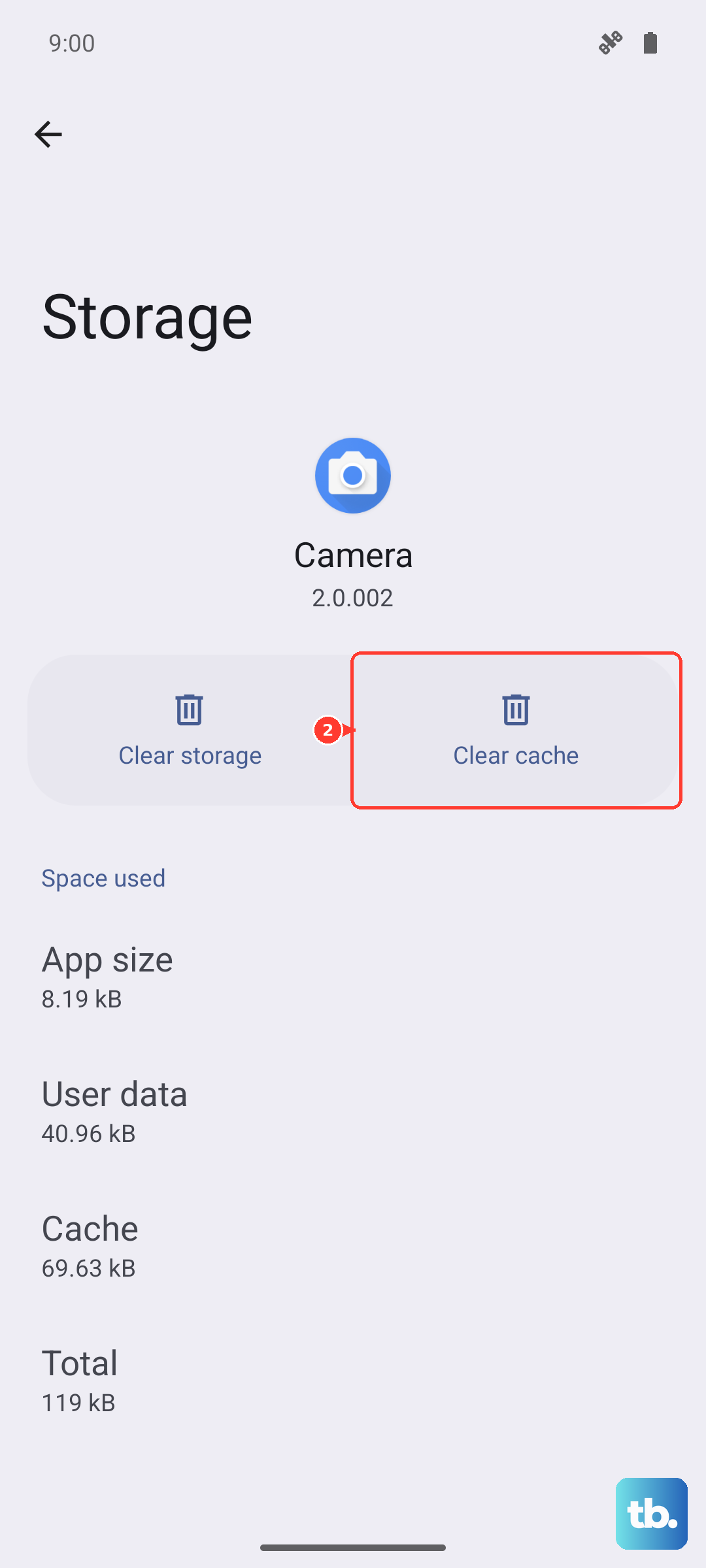
Reset App Preferences
This resets permissions and default app settings without touching your personal files. Navigate to Settings > System > Reset options. Tap on "Reset app preferences" and confirm. This can restore the correct permissions for system functions like the flashlight to operate.
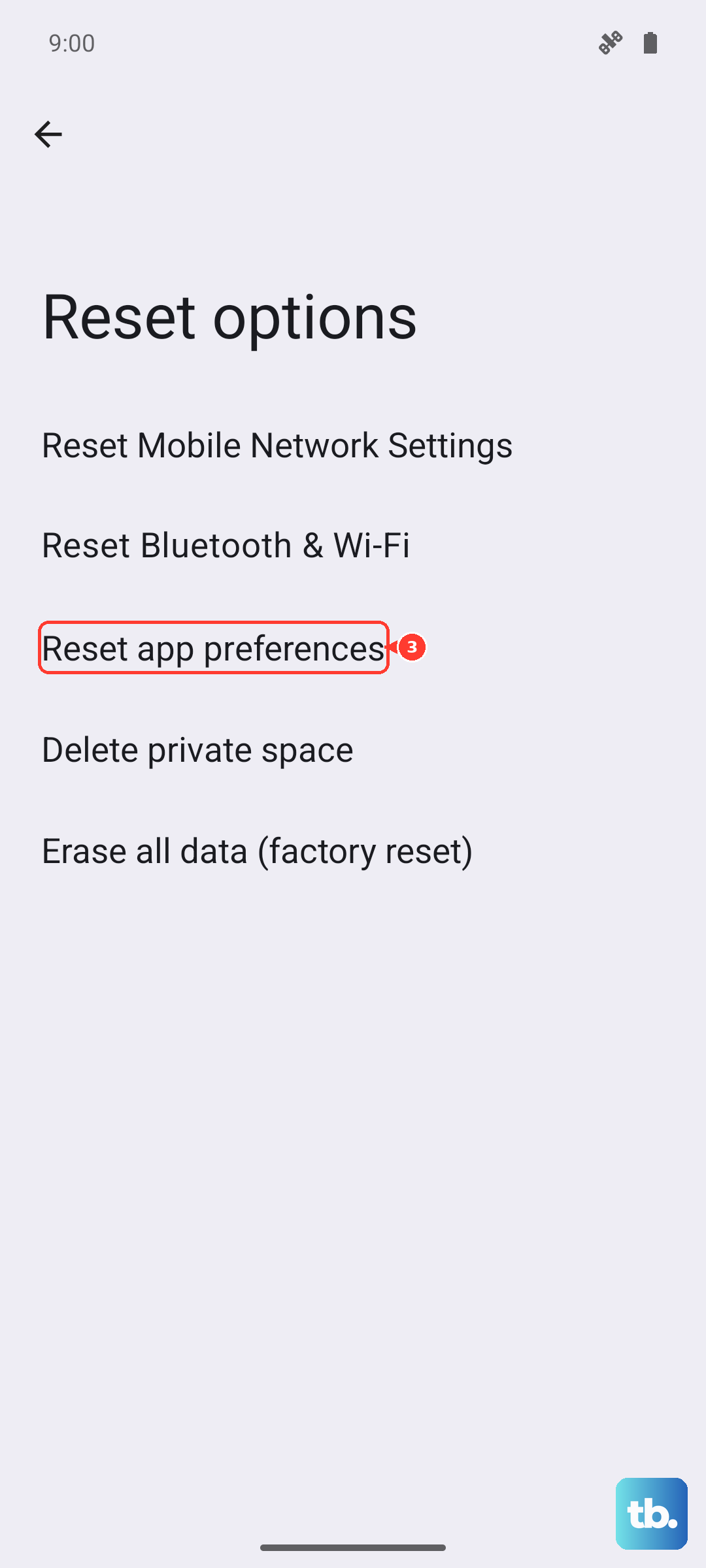
Check for Physical Obstructions
Look at the camera module on the back of your phone. The flash LED is located within that array. Make sure the clear lens covering the flash isn't cracked, dirty, or obstructed by a phone case. A microfiber cloth can gently clean any smudges or dust that might be diffusing the light, making it seem like it's not working.
If the camera flash also fails to work after all these steps, the LED hardware itself may be faulty. Since the Vivo X200 Pro is a 2024 model, it should still be under warranty if purchased new. You would need to contact Vivo support or an authorized repair center for a hardware inspection.