
If your Vivo X200 Pro's fingerprint scanner suddenly stops recognizing you, it can lock you out of your phone and apps. The good news is this is usually a quick software glitch or a simple fix you can handle yourself.
Restart Your Phone
I'd start with this one. A simple restart clears out temporary software bugs that can confuse the in-display fingerprint sensor. Just press and hold the power button for a couple of seconds, then tap 'Restart' on the screen.
If the screen is unresponsive, you can force a restart. Press and hold the power button for about 12 seconds until you feel a vibration and see the Vivo logo appear. This is often the fastest way to get things working again.
Clean Your Screen and Finger
The optical sensor under your screen needs a clear view. Smudges, grease, or even a bit of lotion on your screen or finger can block the scan.
Wipe the entire screen down with a soft, dry microfiber cloth. Make sure your finger is clean and completely dry, too. Moisture is a common culprit for failed readings.
Check Your Screen Protector
A poorly applied or thick screen protector is a frequent cause of fingerprint issues on the X200 Pro. The sensor's light has to shine through it.
If you recently installed a new protector, try removing it temporarily to see if the scanner starts working. Some protectors are marketed as "fingerprint-friendly," but even those can cause problems if there's an air bubble or misalignment.
Re-register Your Fingerprint
Sometimes the stored fingerprint data gets corrupted. Deleting and re-adding your print often solves the problem. Go to Settings > Password & security > Fingerprint.
Enter your PIN or password, tap on the fingerprint you're having trouble with, and select 'Delete'. Then, tap 'Add fingerprint' and follow the prompts. Press your finger down lightly and adjust its position slightly with each tap as instructed.
Update Funtouch OS
An outdated system can have bugs that affect hardware like the fingerprint sensor. Vivo releases updates to fix these kinds of issues.
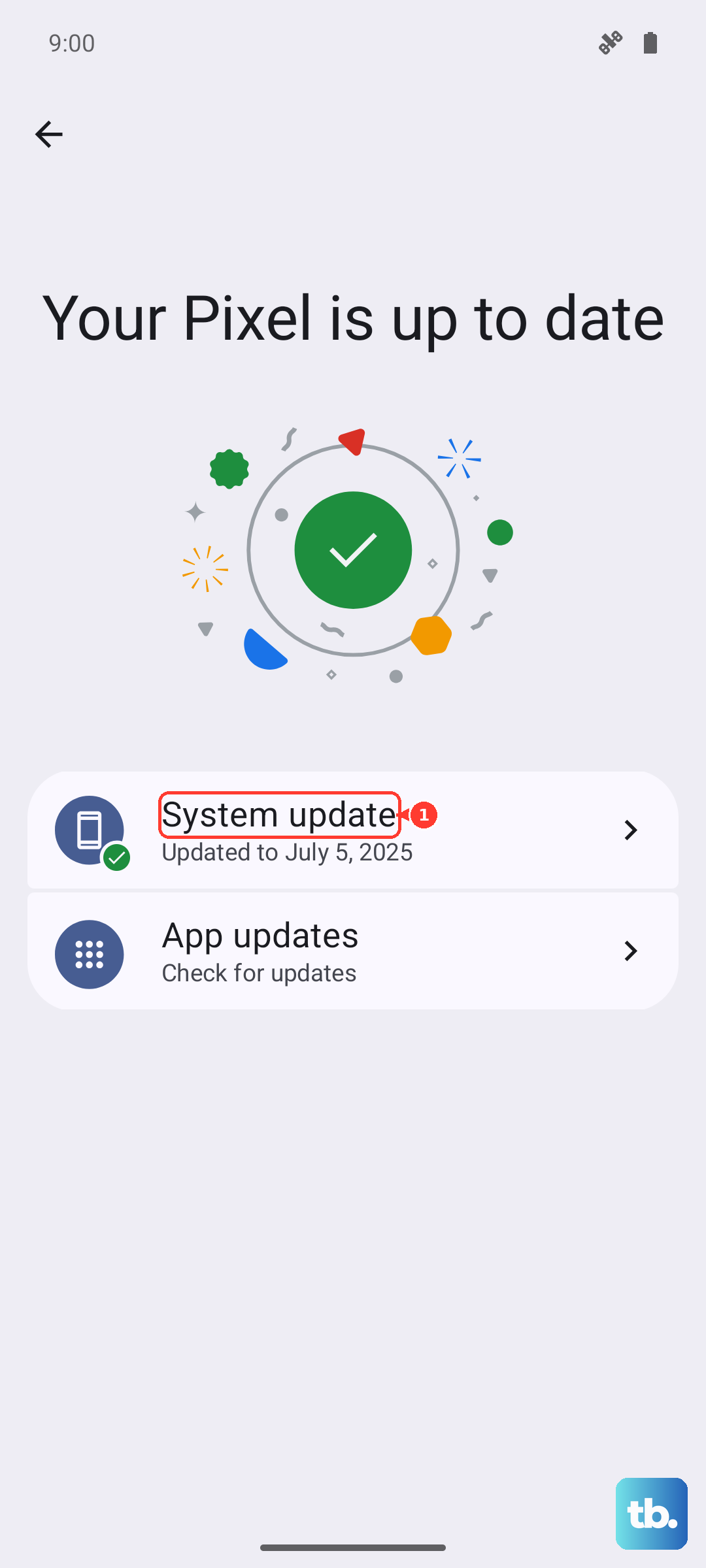
Go to Settings > System update. Tap 'Check for updates' and install any available software. After the update completes, restart your phone and test the scanner again.
Boot Into Safe Mode
This checks if a recently downloaded third-party app is causing a conflict. Press and hold the power button until the power menu appears, then tap and hold the 'Power off' icon on the screen until you see a prompt to reboot to Safe Mode.
In Safe Mode, test the fingerprint sensor. If it works perfectly here, a downloaded app is likely the problem. You'll need to restart to exit Safe Mode and then uninstall apps one by one, starting with the most recent, to find the culprit.
Clear the System Cache
Corrupted cache files can interfere with the sensor's operation. You'll need to boot into the recovery menu. First, power off your X200 Pro completely.
Press and hold the Power button and the Volume Up button together. When you see the Vivo logo, release the buttons. Use the volume keys to navigate to 'Wipe cache partition' and press the power button to select it. Confirm, then select 'Reboot' when it's done.
Check for Charging Interference
This is a less common one, but it can happen. If you're using the 90W wired charger or the 30W wireless charger, try unplugging the phone and testing the fingerprint sensor.
Electrical noise from charging, especially with fast charging, can sometimes temporarily disrupt sensitive components. If the scanner works fine off the charger, you've found the issue.
Reset All Settings
If you're still stuck, this resets all your preferences (like Wi-Fi passwords and wallpapers) to default without deleting your personal data. It can clear out a misconfigured setting causing the problem.
Go to Settings > System management > Backup and reset > Reset phone. Choose 'Reset all settings', enter your lock screen password, and confirm. You'll need to reconfigure things like ringtones and notifications afterward.