
When your Vivo X200 Pro's app store stops working, it can feel like you've hit a wall with your new phone. Whether you're trying to download a new app or update an existing one, a non-functional Google Play Store is a major roadblock. The good news is that most of these issues are temporary glitches with straightforward fixes.
Let's go through the most effective troubleshooting steps to get your Vivo X200 Pro's app downloads working again, starting with the quickest solutions.
Check Your Internet Connection First
This might seem obvious, but it's the most common culprit. The Play Store needs a stable connection, whether you're on Wi-Fi or using your mobile data. Pull down the notification shade on your X200 Pro and make sure the Wi-Fi or mobile data icon is active and showing a strong signal.
If you're on Wi-Fi, try switching to mobile data for a moment. Some public or restricted Wi-Fi networks can block the specific ports the Play Store uses. Simply toggle Wi-Fi off and mobile data on from the quick settings panel, then try your download again.
Restart Your Vivo X200 Pro
A simple restart clears out temporary system glitches that can affect the Play Store and other services. Given that the X200 Pro runs Funtouch OS 15 on top of Android 15, a quick reboot often resolves minor software hiccups without any deeper digging.
Just press and hold the power button, then tap 'Restart' on the screen. If the phone is completely unresponsive, you can perform a force restart by holding the power button for about 12 seconds until you feel it vibrate and the Vivo logo appears.
Clear the Google Play Store Cache and Data
Corrupted cache files are a frequent cause of app store problems. Clearing them forces the Play Store to start fresh. Go to Settings > Apps > Google Play Store. Tap on Storage, then hit Clear Cache.
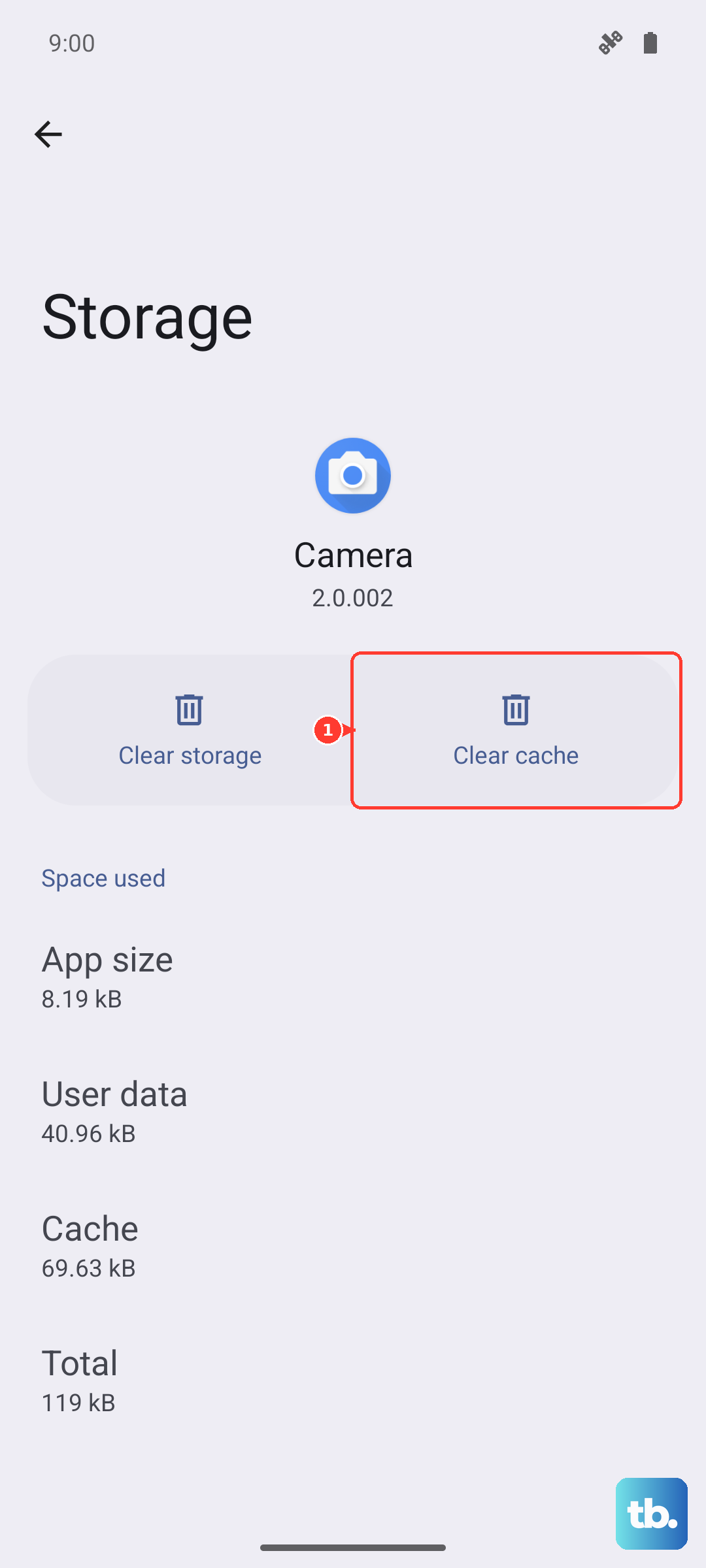
If that doesn't work, go back and tap Clear Data. Don't worry, this won't delete your downloaded apps or account, but it will reset the Play Store's settings. You'll need to sign in again. After clearing, restart your phone and open the Play Store to see if it works.
Update Google Play Services
Google Play Services is the backbone that allows the Play Store and your apps to communicate properly. An outdated version can break downloads. Open the Play Store, tap your profile icon in the top right, and go to Settings > About > Play Store version.
The store will check for updates. More importantly, you should also check for updates to Google Play Services itself. Sometimes these updates happen in the background, but forcing a check can help. You can also find its listing in Settings > Apps to see its current version.
Check Date, Time, and Automatic Sync
Google's servers are very sensitive to incorrect time settings. If your phone's clock is off, downloads will fail. On your X200 Pro, go to Settings > System Settings > Date & Time. Make sure Automatic date & time is switched on.
Also, verify that your Google account is syncing properly. Go to Settings > Accounts & Sync > Google. Tap on your account and make sure all the sync toggles, especially for the Play Store, are enabled. You can tap 'Sync now' to manually refresh everything.
Review App Permissions for Play Services
Google Play Services needs certain permissions to function. Go to Settings > Apps > Google Play Services. Tap on Permissions. Ensure that permissions like Storage are allowed.
While you're there, also check if it has permission to modify system settings. Sometimes this is listed separately under 'Additional permissions' or within the app's info screen. It needs this to install applications properly on your device.
Remove and Re-add Your Google Account
This step refreshes the connection between your phone and Google's servers. First, go to Settings > Accounts & Sync. Select your Google account and tap Remove account. Confirm the action.
Don't worry, this doesn't delete your account or data from Google's servers. After removing it, restart your phone. Then, go back to Accounts & Sync, tap Add Account, and log back into your Google account. This often clears up persistent authentication or sync errors.
Check for System Software Updates
An outdated version of Funtouch OS could have compatibility issues with the latest Play Store services. Vivo releases periodic updates to fix bugs. Go to Settings > System Settings > Software Update and tap Check for updates.
If an update is available, I'd recommend installing it. Make sure your X200 Pro is connected to Wi-Fi and has a good charge, as the 90W wired charger in the box will get you powered up quickly if needed. The update will likely require a restart.
Free Up Storage Space on Your Device
The Vivo X200 Pro has a large 6000mAh battery, but if you've filled the storage, the Play Store will refuse to download new apps. You'll typically see an "Insufficient storage" error. Go to Settings > Storage to see what's using space.
Consider offloading photos and videos to Google Photos or another cloud service. You can also clear app caches for large apps like social media. The Zeiss-tuned camera takes fantastic shots, but those high-quality photos and 4K videos can fill storage fast.
Reset All App Preferences (Non-Destructive)
This is a useful last step before considering a factory reset. It resets all your app permissions, default apps, and background restrictions without deleting any personal data. On your X200 Pro, go to Settings > System Settings > Reset.
Tap on Reset app preferences. Confirm the action. This will mean you'll have to re-grant permissions to apps when you use them next, but it can resolve conflicts where a system setting is preventing the Play Store from installing apps correctly.