
Seeing that "No SIM" message on your Tecno Spark 30 Pro is a real roadblock, especially on a new phone. The good news is it's usually something simple you can fix yourself, whether it's a bit of dust in the tray or a quick software refresh.
Start With a Quick Restart
Before you do anything else, give your phone a fresh start. A simple restart clears out temporary glitches that can confuse the SIM reader. Just press and hold the power button, then tap "Restart" on the screen.
If the phone is completely frozen and won't respond to the normal restart, you'll need to force it. Press and hold the Power button and the Volume Down button together for about 10 seconds. Keep holding until you see the Tecno logo appear, then let go.
Check the Physical SIM and Tray
This is often the culprit. Power your phone off completely first. Use the SIM ejector tool that came in the box to pop out the tray. Carefully remove the SIM card and take a close look at the gold contacts.
If you see any dust, lint, or a faint white corrosion, that's likely the problem. Gently wipe the contacts with a clean, dry microfiber cloth. You can also use a cotton swab with a tiny bit of isopropyl alcohol, but let it dry completely before reinserting.
Make sure the SIM card is seated correctly in the tray, with the notched corner aligned. Push the tray back in until it clicks firmly into place. A loose connection here is a common cause of the error.
Toggle Airplane Mode On and Off
This trick forces your phone's radio to reconnect to the network from scratch. Swipe down from the top of your screen twice to open the full Quick Settings panel. Tap the Airplane Mode icon to turn it on.
Wait about 10 seconds, then tap it again to turn it off. You should see the network signal bars disappear and then reappear as it searches. This can clear up minor software hiccups that prevent SIM detection.
Verify Your SIM is Enabled in Settings
Sometimes, a SIM can get accidentally disabled in the software. Open your Settings app and go to Mobile Network. You should see your SIM listed here.
Make sure the toggle switch next to it is turned on. If you're using dual SIMs, check that the correct one is set as the default for calls and data. The HiOS interface makes this pretty straightforward to check.
Update Your Phone's Software
Software bugs in Android or HiOS can sometimes interfere with the modem. Tecno releases updates to fix these kinds of issues. Go to Settings > About phone > System update.
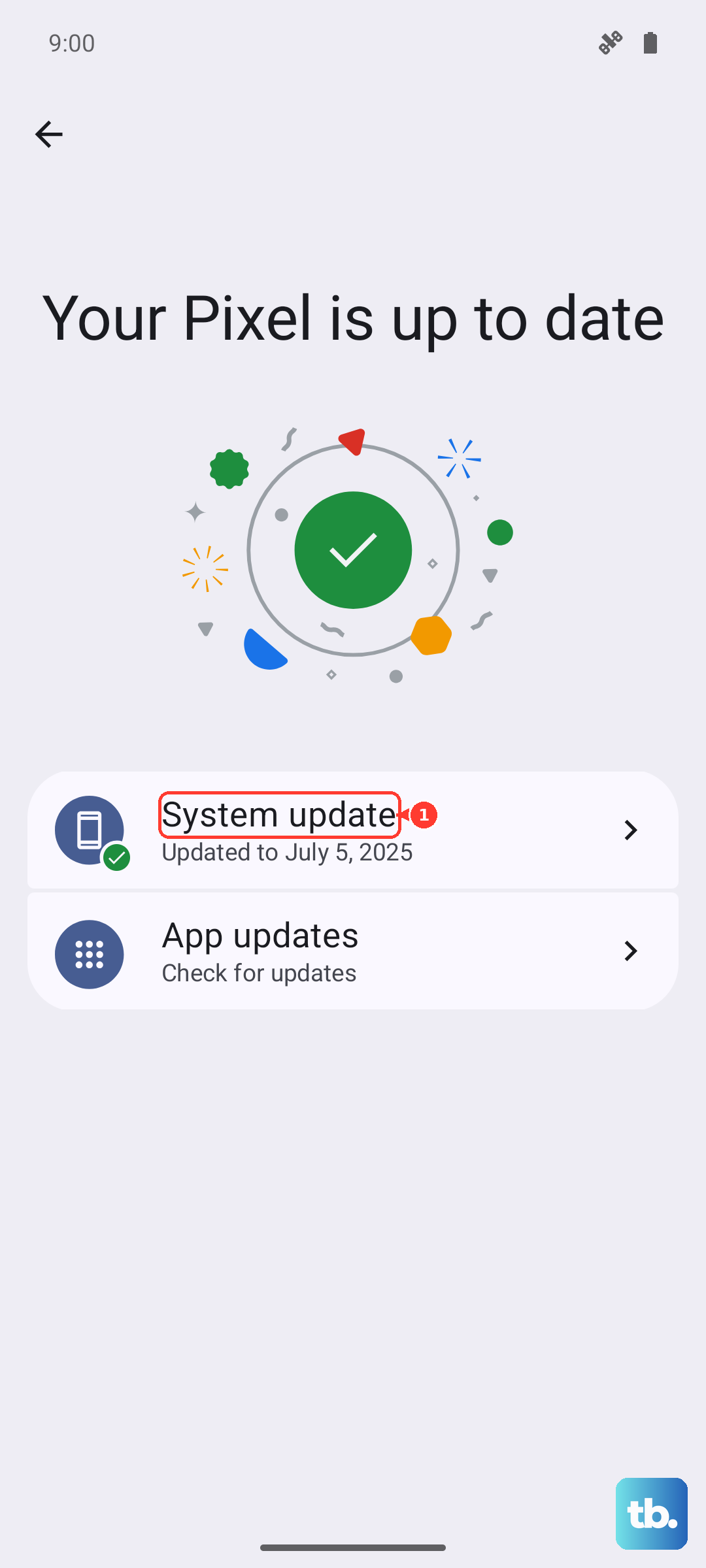
Tap "Check for updates." If an update is available, download and install it. Your phone will restart as part of the process. I've seen updates resolve persistent network problems on other Tecno models, so it's worth a shot.
Reset Your Network Settings
This is a more thorough step that clears all your saved network configurations without touching your personal photos or apps. It will erase your Wi-Fi passwords, Bluetooth pairings, and mobile network settings.
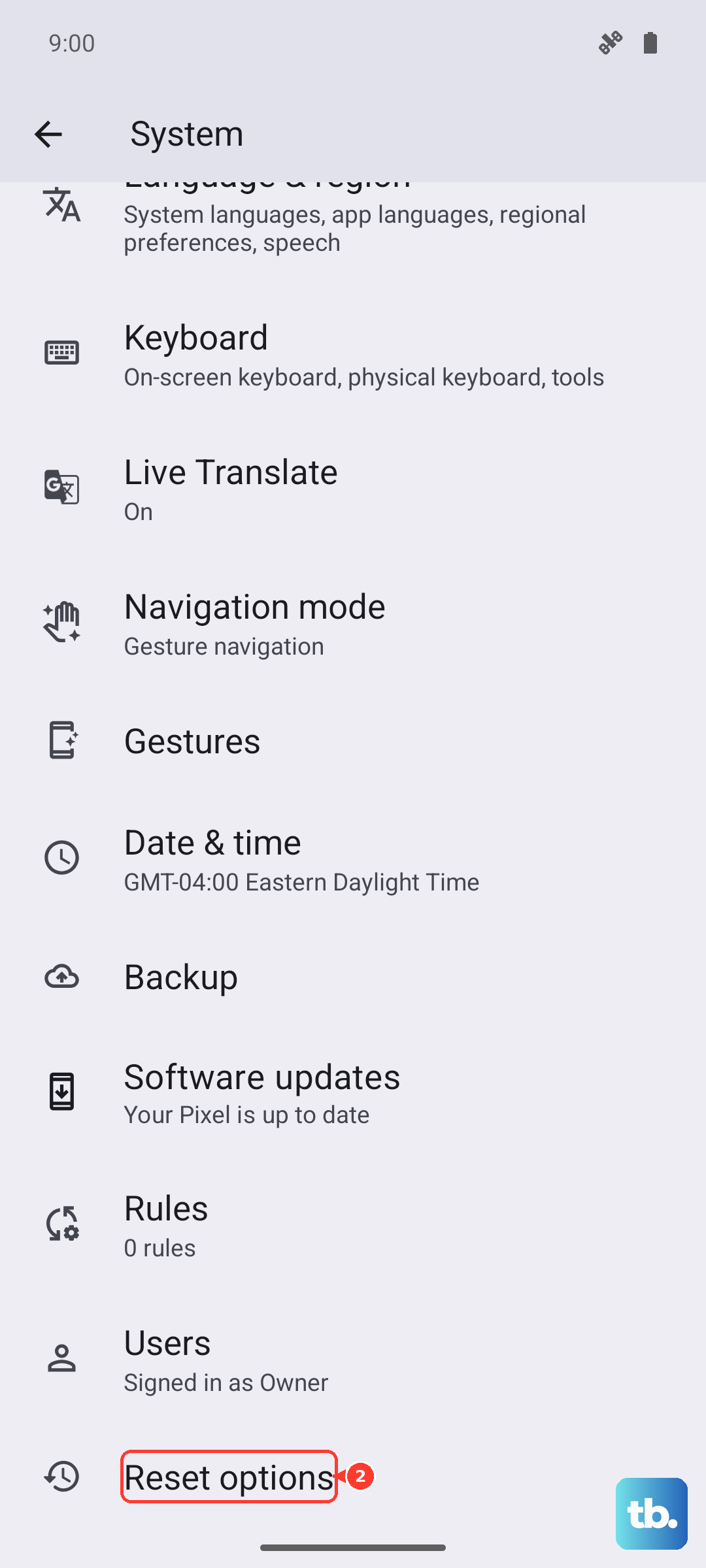
To do this, go to Settings > System > Reset options. Tap on Reset Wi-Fi, mobile & Bluetooth and confirm. After the reset, you'll need to reconnect to Wi-Fi and your phone will re-establish the mobile network connection fresh.
Check and Reset Your APN Settings
Incorrect Access Point Name (APN) settings can make it seem like there's no SIM, even though the card is detected. These settings tell your phone how to connect to your carrier's data network.
Go to Settings > Mobile Network > Access Point Names. If your carrier's correct APN is already listed, tap on it and make sure every field is filled in as per their instructions.
If the settings look wrong or are missing, tap the three-dot menu in the top right and select "Reset to default." You can also manually add a new APN by tapping the "+" icon. You'll need to get the exact settings from your mobile provider's website or customer service.
Try Manual Network Selection
By default, your phone automatically connects to the strongest network. If that process gets stuck, forcing it to connect to your specific carrier can help. Go back to Settings > Mobile Network.
Look for an option called "Network operators" or "Choose network." Tap "Search now" and wait for the list to populate. Select your carrier's name from the list. Your phone will attempt to register on that network only.
Test the SIM in Another Phone
This is the best way to figure out if the problem is with your Tecno Spark 30 Pro or with the SIM card itself. If you have access to another unlocked phone, power it off and insert your SIM.
If the other phone also says "No SIM" or has no signal, then the SIM card itself is likely faulty or deactivated. You'll need to contact your mobile carrier for a replacement. They can usually issue a new one quickly.
Consider a Factory Reset
If you've tried everything else and the SIM works in another phone, a deeper software issue might be at play. A factory reset will wipe your phone back to its original out-of-the-box state.
This is a last resort. Make absolutely sure you've backed up all your important photos, messages, and files first. To perform the reset, go to Settings > System > Reset options > Erase all data (factory reset). Follow the prompts to confirm.