
When people can't hear you on your Tecno Spark 30 Pro, it turns a simple call into a frustrating game of broken telephone. The issue could be anything from a blocked microphone grill to a software setting in HiOS 14. Let's start by figuring out which microphone is acting up.
Test Your Spark 30 Pro's Microphones
Your phone has a few different microphones. The main one for calls is usually at the bottom near the USB-C port. There's often another one up top for noise cancellation. A quick test in the Voice Recorder app can tell you a lot.
Open the Voice Recorder app, tap the record button, and speak normally for about 10 seconds. Play it back. If your voice sounds muffled or isn't there at all, you've confirmed the problem. You can also try making a quick video with the camera app to test the audio.
Check for Physical Blockages First
This is the most common fix I'd start with. The Tecno Spark 30 Pro's microphone holes are tiny and can easily get clogged with pocket lint, dust, or even crumbs if you eat near your phone.
Take a close look at the small pinhole at the bottom edge of the phone. Use a dry, soft-bristled toothbrush or a can of compressed air to gently dislodge any debris. Be very careful not to push anything further inside.
Remove Your Phone Case
Some cases, especially thicker or poorly designed ones, can partially cover the microphone openings. Take the case off completely and make a test call or recording.
If the microphone works without the case, you've found the culprit. Consider using the included case that comes with the phone, as it's designed to leave the necessary ports and holes clear.
Disconnect Any Bluetooth Devices
If you have wireless earbuds or a Bluetooth headset connected, your phone will route all audio, including the microphone, through that device. Even if the headphones aren't in your ears, the connection can override the built-in mics.
Swipe down from the top of your screen to open the Quick Settings panel and tap the Bluetooth icon to turn it off. Then try your call again using the phone's own speaker and microphone.
Force Restart Your Phone
A simple reboot can clear out temporary software glitches that might be affecting the audio system. On the Tecno Spark 30 Pro, you force restart by pressing and holding the Power button and the Volume Down button together for about 10 seconds.
Keep holding until you see the Tecno logo appear on the screen, then let go. This is different from just turning it off and on and can resolve deeper hiccups.
Check App Microphone Permissions
If the problem only happens in specific apps like WhatsApp, Facebook Messenger, or Zoom, it's likely a permission issue. Each app on Android 14 needs explicit permission to use your microphone.
Go to Settings > Apps, select the problematic app, then tap Permissions. Find the Microphone permission and make sure it's set to "Allow" instead of "Deny." Some apps might have a "Ask every time" option you can try.
Close and Reopen the Problem App
Sometimes an app just gets stuck. If you've confirmed the microphone works in other apps, force closing the troublesome one can reset its audio connection. Swipe up from the bottom and hold to enter the recent apps view.
Find the app (like your phone dialer or WhatsApp) and swipe it all the way up off the screen to close it. Then tap its icon again to launch it fresh and test the microphone.
Update Your Phone's Software
Tecno occasionally releases updates for HiOS that fix bugs, including audio issues. It's worth checking, especially since the Spark 30 Pro is a 2024 model and might still be getting early optimizations.
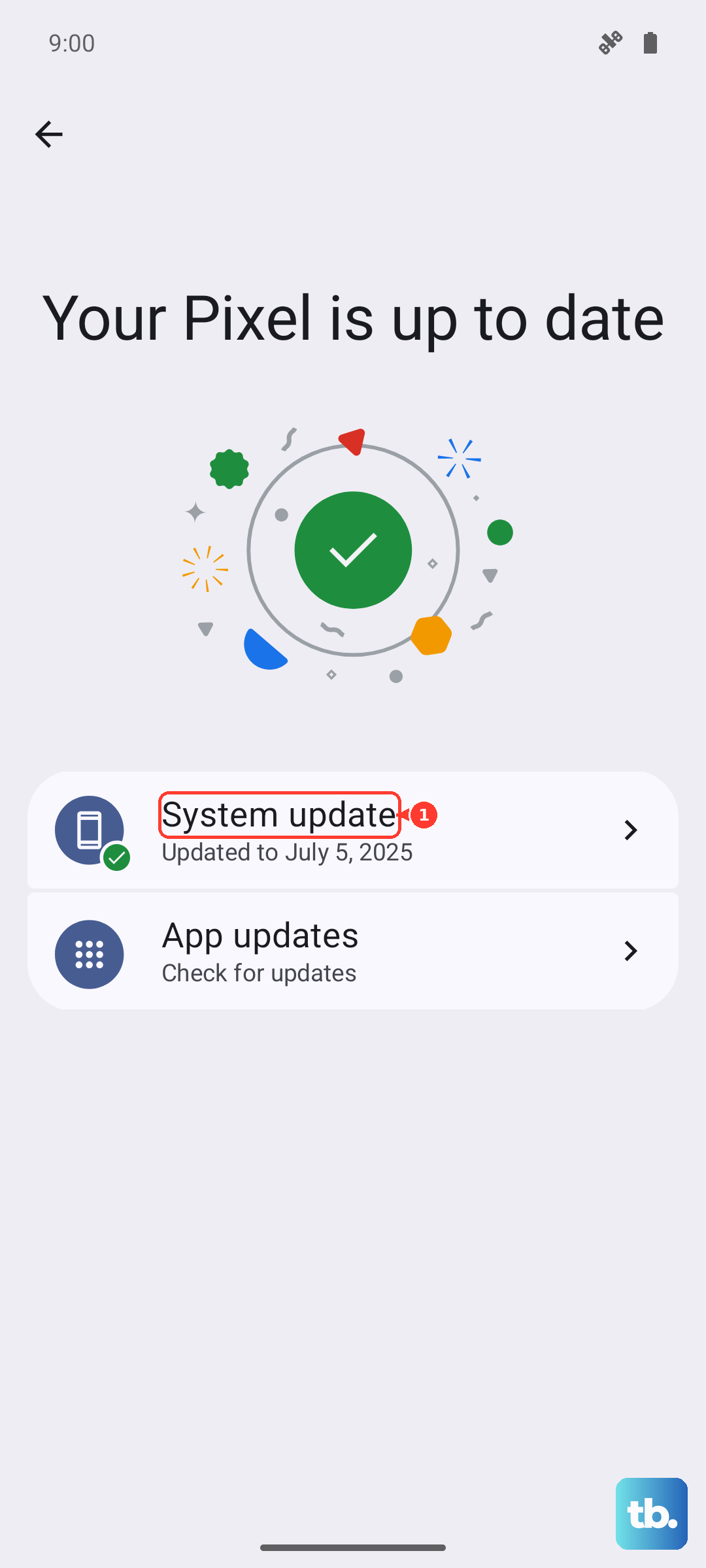
Go to Settings > System > System update and tap "Check for updates." If an update is available, download and install it. Make sure your phone is connected to Wi-Fi and has at least a 50% charge first.
Clear the Cache for the Phone App
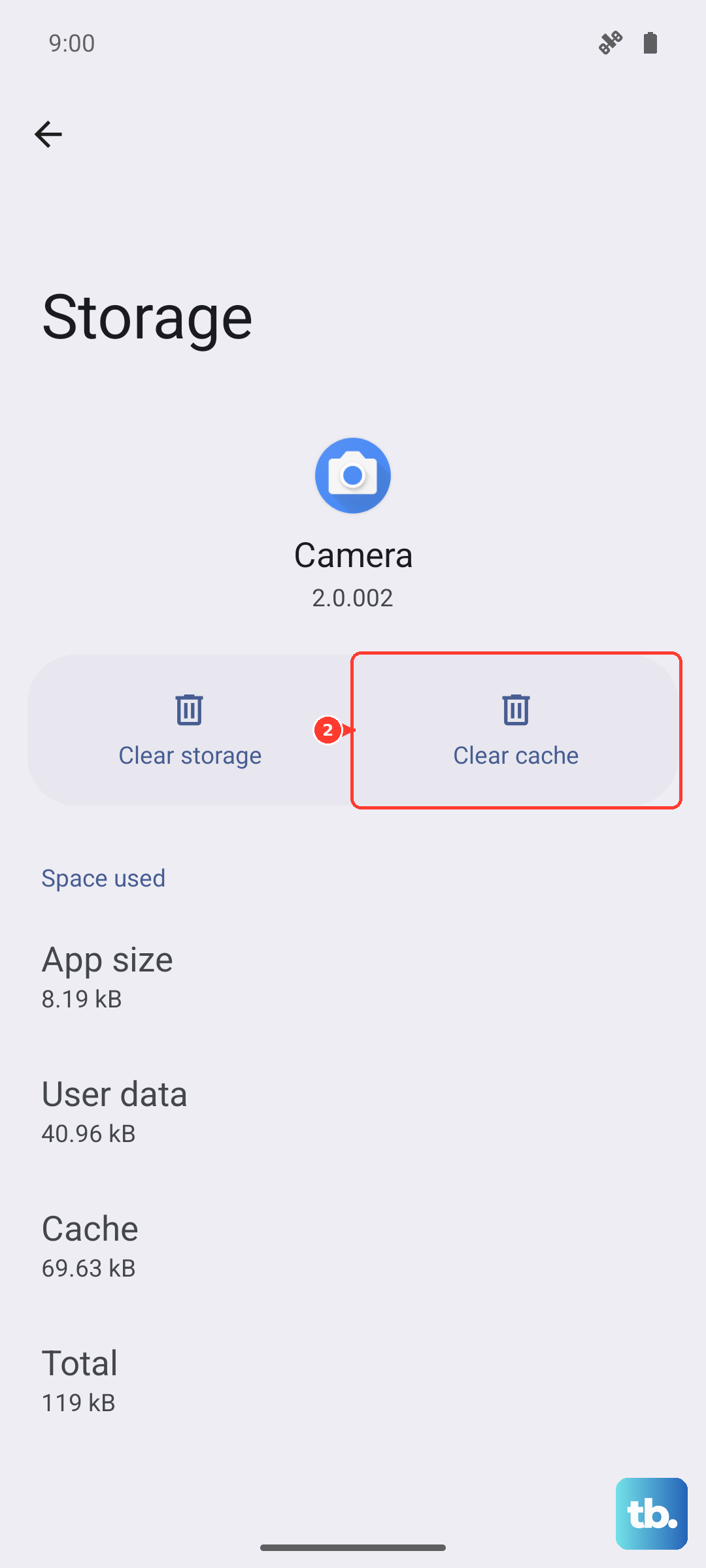
Corrupted temporary data in the system Phone app can cause microphone problems. Clearing its cache is safe and won't delete your call history or contacts. Head to Settings > Apps and find the "Phone" app in your list.
Tap on it, then go to Storage. You'll see options to "Clear cache" and "Clear data." Tap "Clear cache" first. If the problem persists, you can try "Clear data," but be aware this will reset the Phone app's settings to default.
Reset All Network Settings
This can help if the issue is related to your cellular connection or VoLTE settings, which can affect call quality. This reset will erase all Wi-Fi passwords, Bluetooth pairings, and mobile data settings, so you'll need to reconnect to networks afterward.
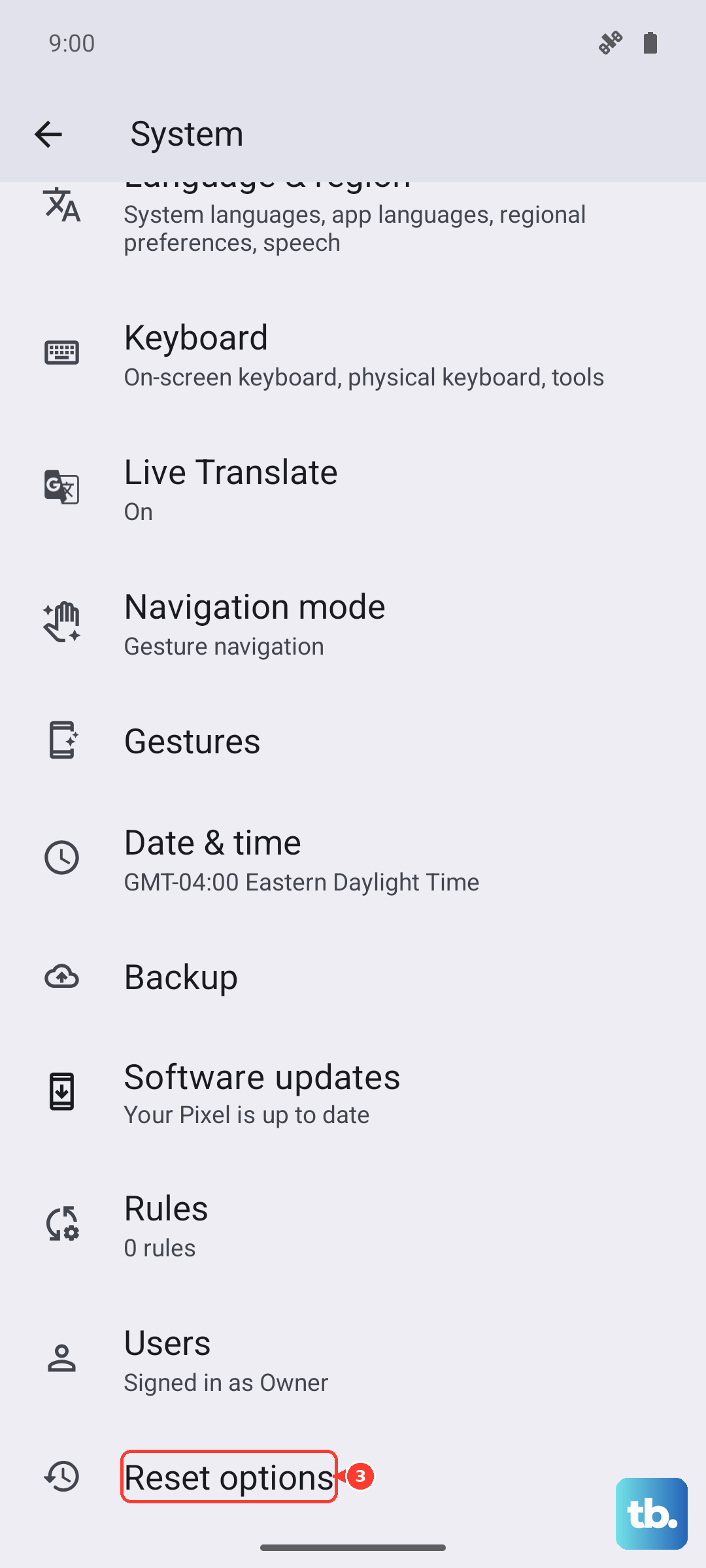
Navigate to Settings > System > Reset options. Tap "Reset Wi-Fi, mobile & Bluetooth." Confirm the reset and let your phone reboot. After it starts up, test your microphone with a call before reconnecting to Wi-Fi.
Perform a Factory Reset
This is your last resort before considering a hardware problem. A factory reset will wipe your phone back to its original out-of-the-box state. You must back up everything important first, photos, contacts, messages, to Google Drive or an SD card.
Once backed up, go to Settings > System > Reset options > Erase all data (factory reset). Follow the prompts. After the reset is complete, set up the phone as new (don't restore a backup immediately) and test the microphone in a call right away to see if the issue is gone.