
When the flashlight on your Tecno Spark 30 Pro stops working, it's a real inconvenience. You might tap the flashlight toggle in the Quick Settings panel and nothing happens, or the camera flash might fail to fire when you take a picture. Here's how to get your LED flash working again.
Close the Camera App
The flashlight and camera flash use the same physical LED. If your camera app is open, even in the background, it will lock the flash hardware. Swipe up from the bottom and hold to see your recent apps, then swipe the Camera app away to close it. Your flashlight toggle should become responsive again right away.
Force Restart Your Phone
This is the quickest fix for most glitches on the Spark 30 Pro. Press and hold the Power button and the Volume Down button together for about 10 seconds. Keep holding until you see the Tecno logo appear, then let go. This forces a full reboot and clears any temporary software state that's blocking the flash.
Check Your Power Saving Mode
While power saving modes don't usually disable the flashlight, they can sometimes make system features less responsive. Swipe down twice from the top of your screen to open the full Quick Settings panel and look for a battery saver icon. If it's active, tap it to turn it off. Then try using your flashlight again.
Let Your Phone Cool Down
The Helio G100 processor in the Spark 30 Pro can get warm during heavy use. If the phone overheats, the system will automatically disable certain features, including the flash, to prevent damage. If your phone feels hot to the touch, turn it off and let it sit in a cool spot for 10-15 minutes. The flash should work again once the temperature drops.
Use Google Assistant to Toggle It
Say "Hey Google, turn on the flashlight" or hold the power button to activate Google Assistant and give the same command. If Assistant can turn the light on and off but the physical toggle still doesn't work, it points to a minor software bug. The force restart method I mentioned earlier is the best fix for that specific issue.
Clean the Flash LED Area
Take a close look at the camera module on the back of your phone. The small LED for the flash is right next to the lenses. Sometimes pocket lint, dust, or even the residue from a poorly applied screen protector case can cover it. Use a dry, soft-bristled brush or a microfiber cloth to gently clean the entire camera bump.
Check for App Conflicts
Some third-party flashlight or camera apps from the Play Store can interfere with the system's control of the LED. Try booting your phone into Safe Mode. Press and hold the power button, then tap and hold the "Power off" option on your screen until you see a prompt to reboot to Safe Mode. If the flashlight works fine here, a recently downloaded app is likely the culprit.
Update Your Software
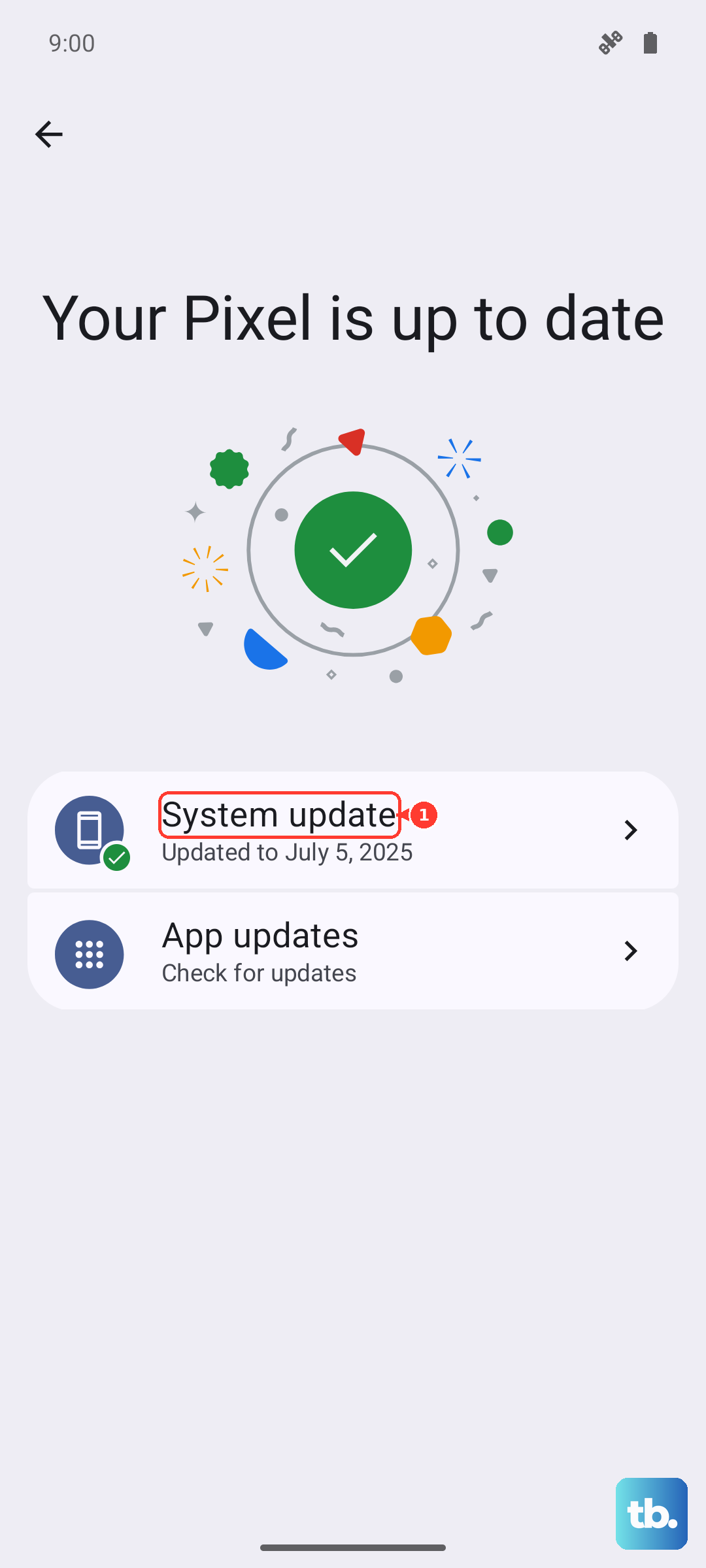
Go to Settings > System > System update and tap "Check for updates." Install any available update. Tecno releases updates for HiOS that can fix bugs, including ones related to hardware control like the flash. Since the Spark 30 Pro runs Android 14, ensuring you have the latest security patch is a good practice anyway.
Test the Flash in Camera Mode
Open your Camera app and look for the flash icon, which is usually a lightning bolt symbol. Tap it to cycle through the options: Auto, On, and Off. Set it to "On" and take a picture of your hand or a nearby wall. If the flash doesn't fire during the photo, even after all the software steps, the LED hardware itself may have failed. This would require a repair service to fix.