When your Tecno Spark 30 Pro keeps kicking you out of apps, it's usually a sign the software is tripping over itself. The Helio G100 processor inside is a budget chip, and while it handles everyday tasks, it can get overwhelmed if too much is happening at once. I'd start with a simple restart to clear out any temporary glitches.
Press and hold the power button until the shutdown menu pops up, then tap restart. If the screen is frozen and you can't get to that menu, you'll need to force restart it. Hold down the power button and the volume down button together for about ten seconds, until you feel the phone vibrate and see the Tecno logo appear.
Update Everything You Can
Outdated software is a prime suspect for app instability. First, head to the Google Play Store, tap your profile icon, and go to Manage apps & devices. Check for any pending updates and install them all. App developers constantly push out fixes for crashes.
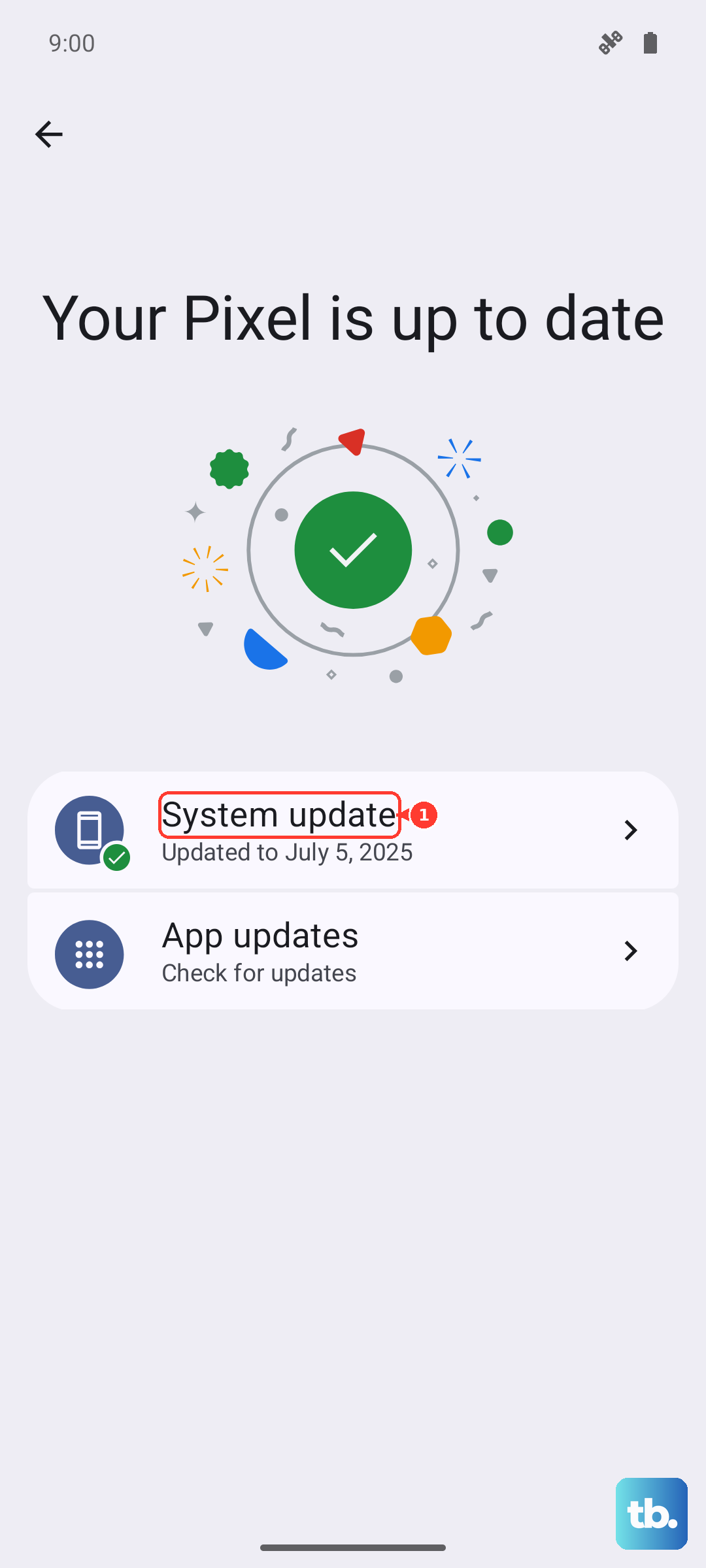
Next, check if your phone's operating system needs an update. Go to Settings > System > System update. Since the Spark 30 Pro launched with Android 14, getting the latest security patches and HiOS tweaks from Tecno can resolve underlying compatibility issues that cause apps to fail.
Free Up Memory and Storage
That 8GB of RAM can fill up fast, especially with HiOS and its pre-installed apps running in the background. If you notice crashes when switching between apps or opening something heavy, close apps you aren't using. Swipe up from the bottom and hold, then swipe away the app windows.
Low storage space is another common culprit. The phone needs free space to operate smoothly. Go to your Settings and check your storage. Uninstall apps you never use, clear out old downloads, and consider moving photos to Google Photos or another cloud service to free up room.
Clear an App's Cache and Data
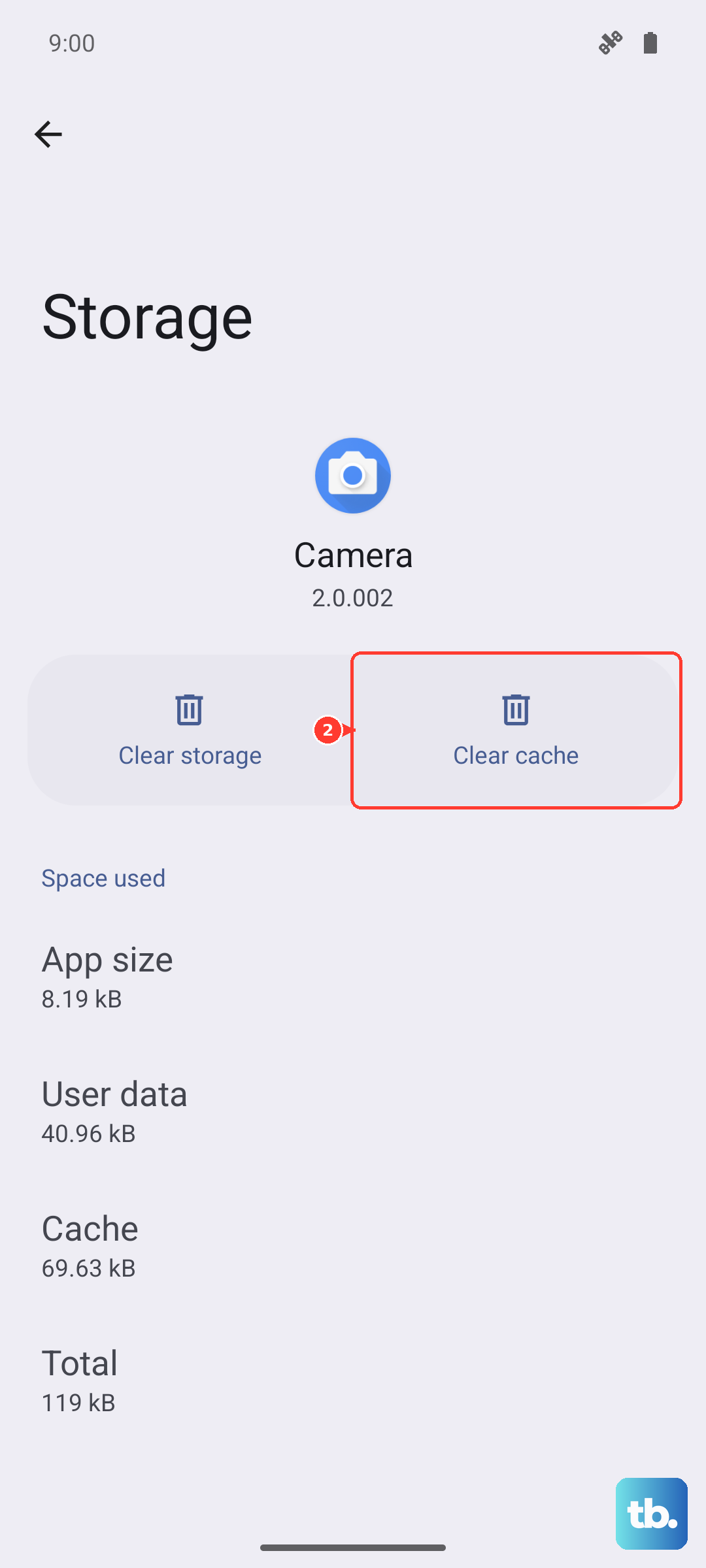
When a specific app, like Facebook or WhatsApp, keeps crashing, its temporary files might be corrupted. Clearing the cache often fixes this without deleting your login info or personal data within the app. Go to Settings > Apps, find the troublesome app, and tap on it.
Tap Storage & cache, then hit Clear cache. Try the app again. If it still crashes, you can go back and choose Clear storage or Clear data. Just be warned, this will reset the app completely, so you'll need to log back in and may lose some saved preferences.
Check Your Internet Connection
Apps that rely on a constant data feed, like streaming services or social media, can freeze or crash if your connection is spotty. If you're on WiFi, try turning it off and using your mobile data for a moment to see if the app stabilizes. You can also try restarting your router.
For mobile data issues, ensure you have a strong signal. Sometimes toggling Airplane mode on and off can force the phone to reconnect to the network more cleanly. Swipe down from the top of your screen twice to access the quick settings panel and tap the airplane icon.
Manage or Remove Pre-installed Apps
The Spark 30 Pro comes with several apps already installed that you may not want. Some of these can run processes in the background, consuming RAM and potentially causing conflicts. You can't always uninstall them, but you can often disable them.
Go to Settings > Apps, find an app like Palm Store or BoomPlay, and tap on it. If the option is available, tap Disable. This prevents it from running and frees up resources. Be careful not to disable critical system apps, but feel free to disable any obvious promotional or third-party apps.
Reinstall the Problem App
If one app is the consistent problem, a fresh install can work wonders. This replaces all the app's files with a clean version from the Play Store. Press and hold the app's icon on your home screen, then tap Uninstall.
After it's removed, open the Google Play Store, search for the app, and install it again. This is a very effective fix for app-specific bugs and corrupted installations that clearing the cache couldn't resolve.
Perform a Factory Reset
If every app is crashing and nothing else has helped, a factory reset is the nuclear option. This will wipe your phone back to its out-of-the-box state, so it's absolutely critical to back up your photos, contacts, and important files first. Use Google Drive or transfer files to a computer.
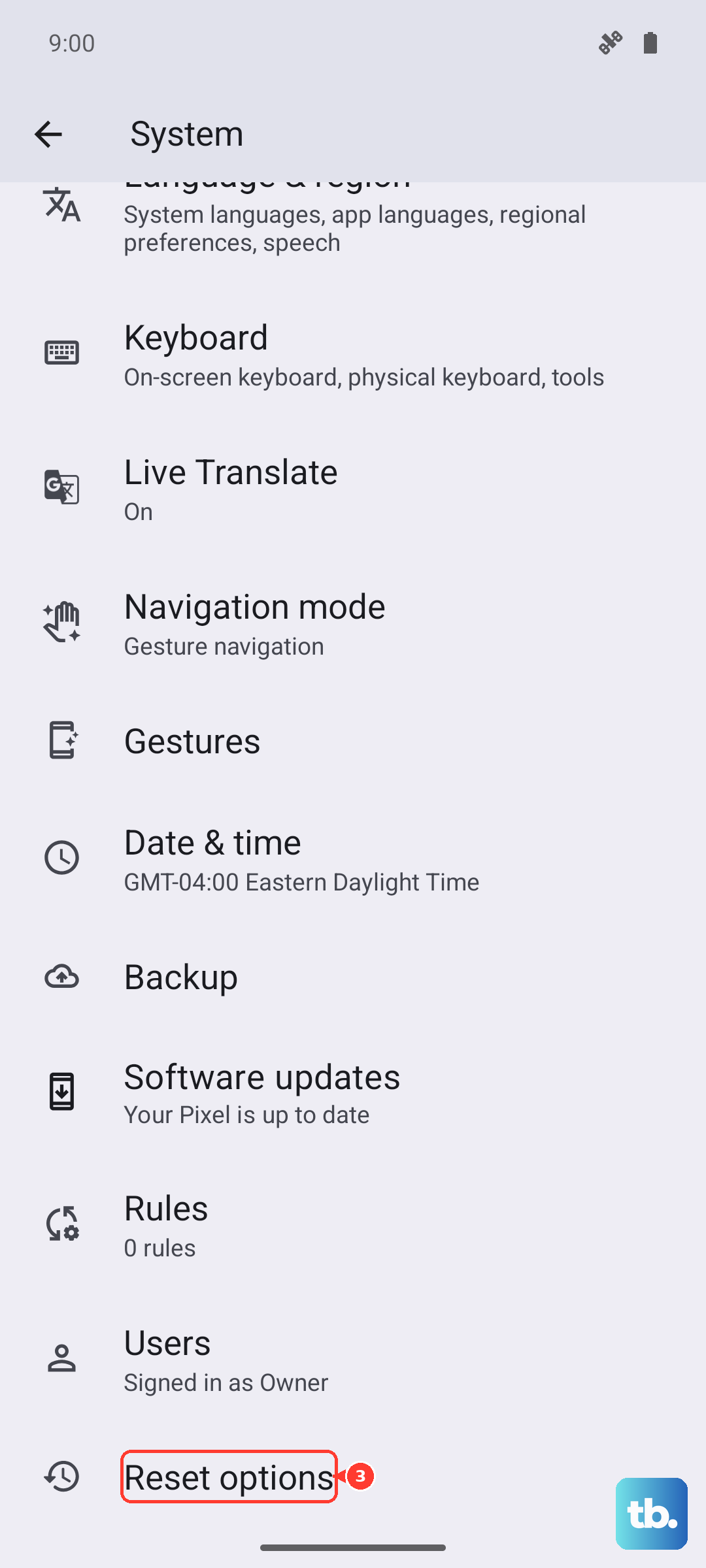
Once you're backed up, go to Settings > System > Reset options. Select Erase all data (factory reset) and follow the prompts. After the phone restarts, you can set it up as new or restore your backup, though setting up as new avoids potentially restoring the problem.