

Your printer hums along fine, pages come out clean, but the moment you try to scan, nothing happens. It is one of the more confusing situations on a Windows PC because an all-in-one shares one body yet runs print and scan through completely separate software paths.
The good news is that this split is also why it is fixable: the scan side usually just needs the right service running or the device properly recognized. Work through the fixes below in order, starting with the safest and easiest, and stop once your scanner responds.
Why printing can work while scanning does not
On an all-in-one, the print engine and the scan engine talk to Windows through different components. Printing relies on the Print Spooler service, while scanning relies on a separate service called Windows Image Acquisition (WIA). If the scanner half was never added to Windows, or its service is stopped, you can print all day and still get nothing from the scanner.
That is why a few of the steps here focus specifically on the scanner being added and on the WIA service. Even when the printer is already installed and happy, Windows may still need the scanner recognized as its own device.
1. Run the built-in Windows printer troubleshooter
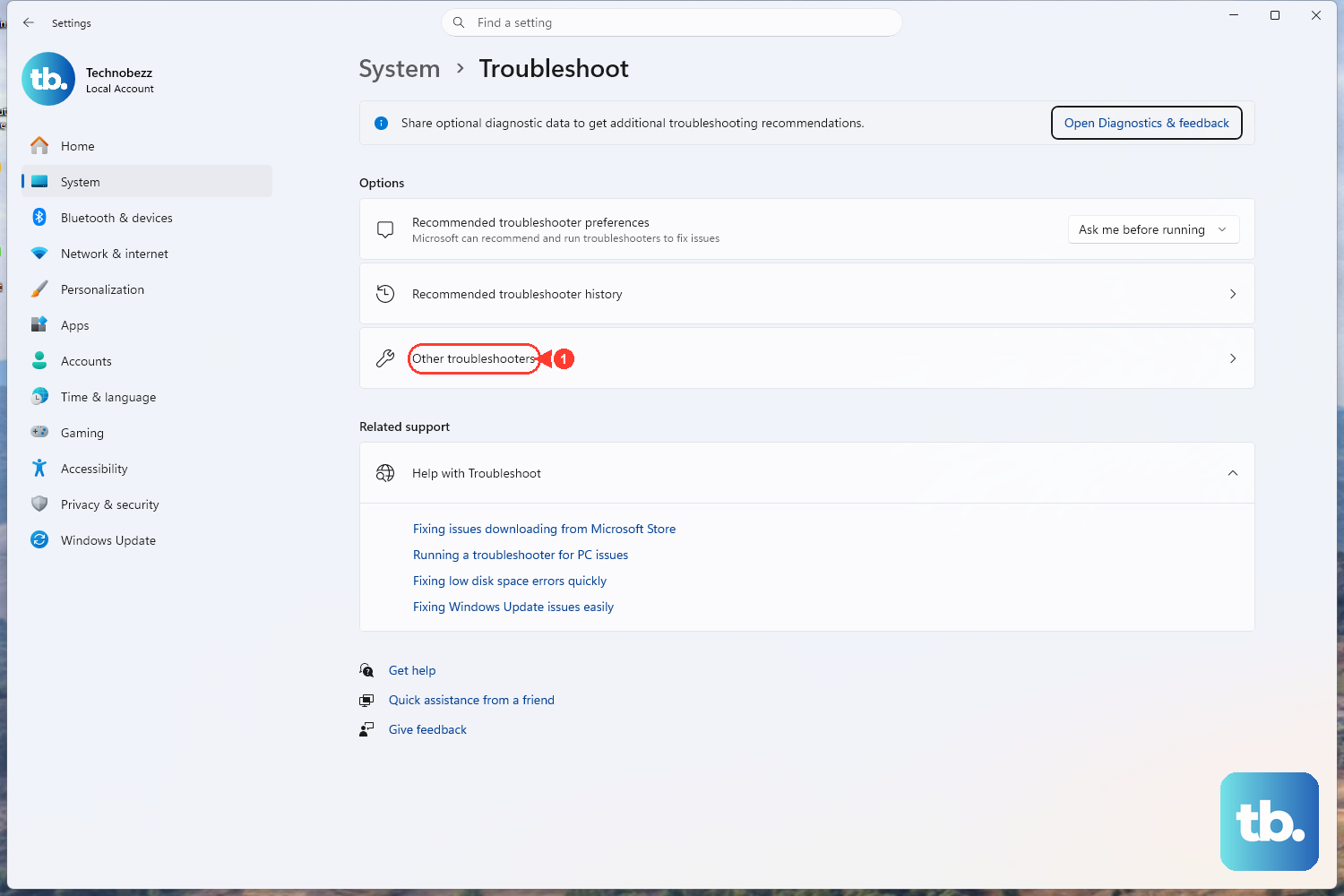
This is the easiest first move and it is fully automated. Both Windows 11 and Windows 10 include a printer troubleshooter inside the Get Help app that runs diagnostics and tries to fix most printer and connection problems for you.
You can launch it from Microsoft's printer-problems page or go directly to aka.ms/PrinterConnection. Let it run its checks and apply any fix it offers, then test a scan before moving on.
2. Confirm the scanner is added, then test with Windows Scan
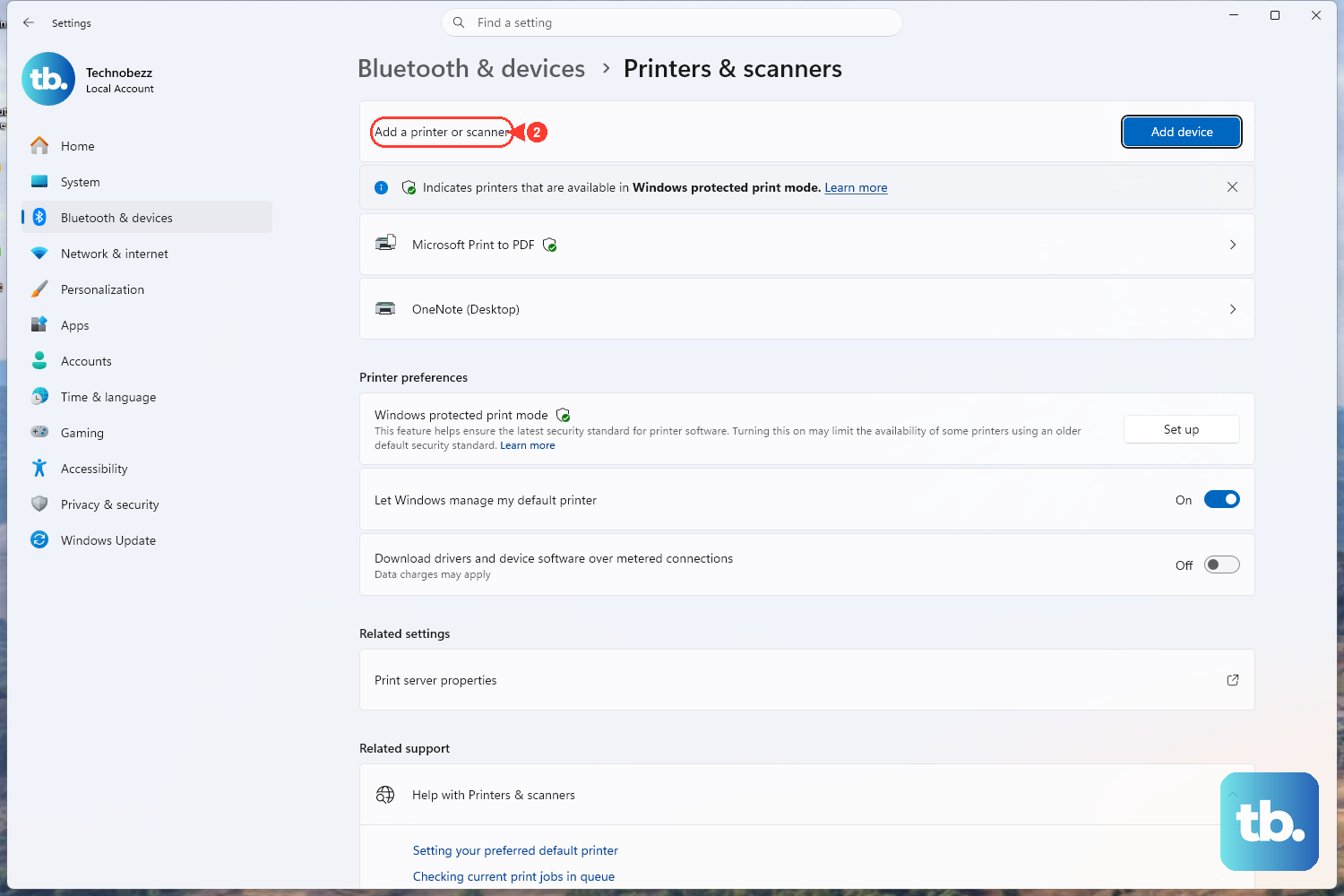
Open your printers and scanners list and check whether the scanner appears as its own recognized device. On an all-in-one, the scanner sometimes needs to be added separately even though printing already works.
Open Printers & scanners. On Windows 11: Settings > Bluetooth & devices > Printers & scanners. On Windows 10: Settings > Devices > Printers & scanners.
If the scanner is not listed, on Windows 11 select the Add device button next to Add a printer or scanner; on Windows 10 select Add a printer or scanner.
Search for Windows Scan, open the Windows Scan app, and select Scan to run a test.
If the test page comes through here, you are done. If not, keep going.
3. Power cycle the printer and scanner together
A full power cycle clears temporary glitches, and on an all-in-one it resets the scanner side as well as the print side. Microsoft lists this as a basic fix for printer connection and printing problems on both Windows 10 and 11.
Turn off your printer and unplug it.
Wait a few seconds.
Plug your printer back in.
Turn the printer back on and try scanning again.
4. Check and start the Windows Image Acquisition (WIA) service
WIA is the Windows service that lets your computer communicate with the scanner. If it is turned off, scans fail even though printing continues to work normally. This step applies to both Windows 10 and 11.
- 1.Press Windows key + R, type services.msc, and press Enter to open the Services console.
- 2.Find Windows Image Acquisition (WIA) in the list and check its Status and Startup type.
- 3.If it is not running, right-click Windows Image Acquisition (WIA) > Properties.
- 4.On the General tab, set Startup type to Automatic.
- 5.Under Service status, click Start, then apply and close.
With WIA running and set to start automatically, try a scan again from the Windows Scan app.
5. Restart the Print Spooler service
If the print queue is jammed, it can affect how the whole device responds. Restarting the Print Spooler is a quick reset for the printing half. This applies to both Windows 10 and 11.
Press Windows key + R, type services.msc, and press Enter.
Scroll down and locate Print Spooler.
Right-click it and select Restart.
To clear stuck jobs instead, you can select Stop, clear the queue (see the next step), then select Start.
6. Clear the print queue and the spool folder
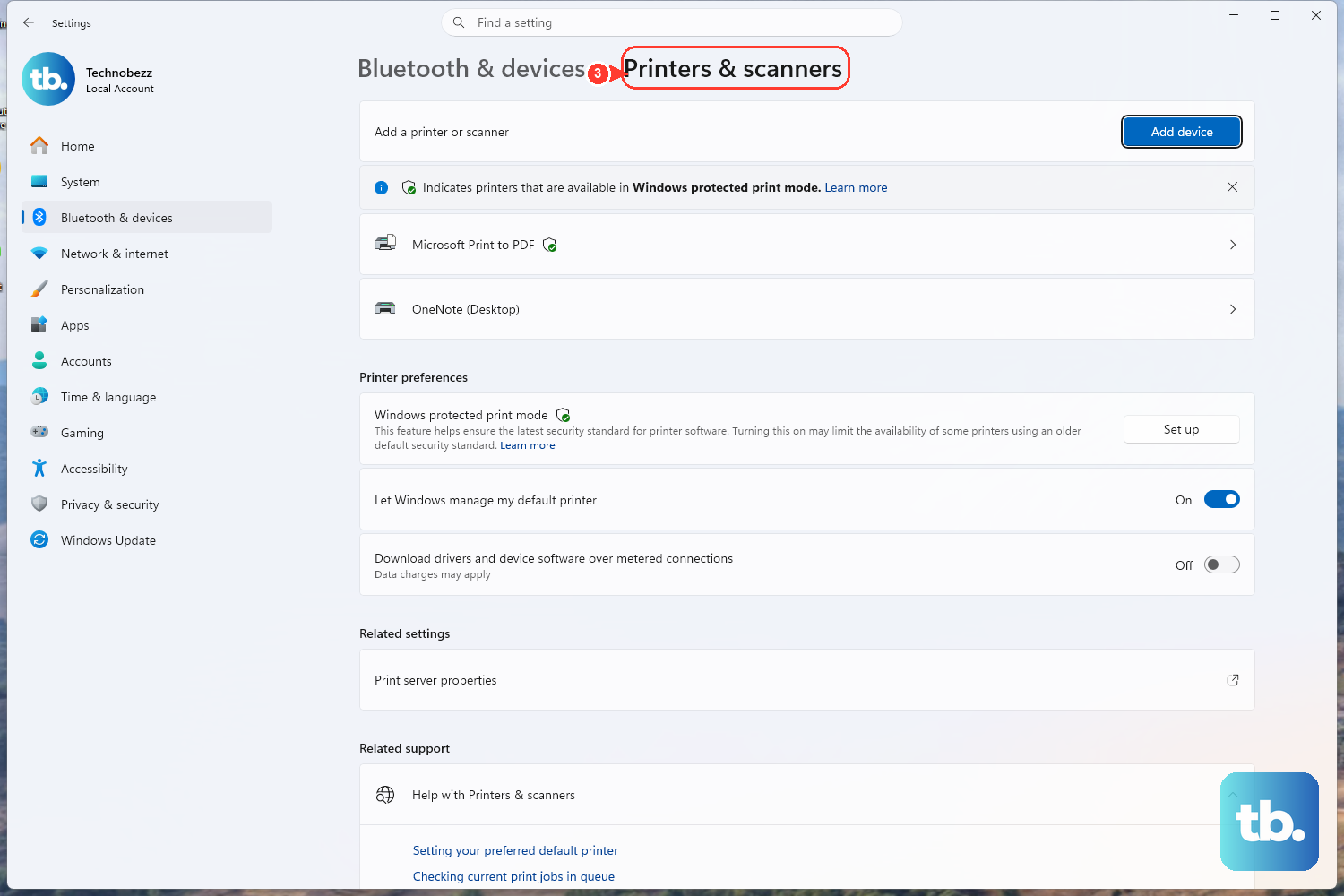
Stuck print jobs can hold up the device. Cancel them first, and if they refuse to clear, empty the spool folder manually. This works on both Windows 10 and 11.
Open the print queue. Windows 11: Settings > Bluetooth & devices > Printers & scanners > select your printer > open the print queue. Windows 10: Settings > Devices > Printers & scanners > select your printer > open the queue.
Right-click each print job and select Cancel.
If jobs are still stuck, clear the spool folder. Important: stop the Print Spooler before deleting anything in this folder, and start it again afterward, or new jobs will not process.
Stop the Print Spooler: services.msc > Print Spooler > Stop.
Open File Explorer and go to C:\Windows\System32\spool\PRINTERS.
Delete all files in this folder.
Go back to the Services console and start Print Spooler again.
7. Bring the device back online (Windows 10) or re-add it (Windows 11)
If the printer is flagged as offline, communication can break down, and on an all-in-one that can take the scanner with it. The fix differs by version.
On Windows 10: go to Settings > Devices > Printers & scanners > select your printer > open the queue, then in the Printer menu uncheck Use Printer Offline if it is selected. Bringing the all-in-one back online can restore scanner communication too.
On Windows 11: Microsoft's offline-printer guidance does not include this toggle. Instead, remove the printer and add it again from Settings > Bluetooth & devices > Printers & scanners.
8. Set the correct device as the default printer
If the wrong device is selected as default, scans and prints can target the wrong unit entirely. Pinning the right one as default removes that ambiguity.
On Windows 11: go to Settings > Bluetooth & devices > Printers & scanners. Make sure Let Windows manage my default printer is turned Off, then select your printer and choose Set as default.
On Windows 10: go to Settings > Devices > Printers & scanners. Make sure Let Windows manage my default printer is not selected, then select the printer > Manage and choose Set as default.
9. Reinstall the device and update drivers from the maker
Most printers need the latest driver to work properly, and a partial or outdated driver can leave the scan half broken while printing still works. A clean reinstall with the full driver package usually restores both. Note: removing the device clears its current setup, so be ready to add it back and reinstall the maker's full software afterward.
Go to Settings > Printers & scanners, select the device, and choose Remove device.
Reinstall it with Add device / Add a printer or scanner.
Download the latest full driver and software from the manufacturer's website.
For HP all-in-ones, download the latest driver from 123.hp.com (or hp.com) and run the guided install, which restores both the print and scan components. This applies to both Windows 10 and 11.
10. Run the maker's official print and scan diagnostic
Brand tools are built specifically to diagnose and repair scanning problems, so they are a strong final step when the scanner alone is still failing.
For HP all-in-ones, use the HP app's Diagnose & Fix tool instead. Open the HP app, select your printer, click Diagnose and Fix, then Start. HP Print and Scan Doctor was retired in 2025, so do not download old copies from third-party sites.
If you own a different brand, use the equivalent official tool from that maker's support site, such as the Canon, Epson, or Brother scanning utilities, downloaded from the brand's own website.
Frequently Asked Questions
Why does my printer work but the scanner does not on Windows 11?
Printing and scanning run through separate components, so one can fail on its own. Printing uses the Print Spooler service while scanning uses Windows Image Acquisition (WIA), and the scanner also has to be added and recognized as its own device. If WIA is stopped or the scanner was never added, you can print normally yet get nothing from the scanner.
What service do I need running for scanning to work?
Scanning depends on the Windows Image Acquisition (WIA) service. Open the Services console by pressing Windows key + R, typing services.msc, and pressing Enter, then find Windows Image Acquisition (WIA), set its Startup type to Automatic, and make sure it is started.
Is it safe to delete files in the spool folder?
Yes, as long as you stop the Print Spooler service first and start it again afterward. Stop it from services.msc, delete the files in C:\Windows\System32\spool\PRINTERS to clear stuck jobs, then start Print Spooler again so new jobs can process.
Which tool should I run if I have an HP all-in-one?
Use the HP app's Diagnose & Fix tool instead: open the HP app, select your printer, click Diagnose and Fix, then Start. HP Print and Scan Doctor was retired in 2025, so use HP's current app workflow or reinstall the latest driver from 123.hp.com or hp.com.
Do these steps work on Windows 10 as well?
Most do. The Print Spooler and WIA service steps, the spool folder path, and the printer troubleshooter all apply to both Windows 10 and 11. The main difference is the Settings location (Windows 10 uses Settings > Devices > Printers & scanners) and the offline fix: Windows 10 has a Use Printer Offline toggle to uncheck, while on Windows 11 you remove and re-add the device instead.