
Your Samsung Galaxy Z Fold 7 won't turn on, and you're staring at a black screen. Before you panic, know that most of the time this is a software glitch or a battery issue you can fix yourself in a few minutes. Here are eight things to try, starting with the quickest fix.
Force Restart Your Galaxy Z Fold 7
If the screen is completely unresponsive, a forced restart is the first thing to try. This isn't the same as a regular restart, it forces the phone to reboot even when the system is frozen or stuck.
Press and hold the Volume down and Side buttons together for about 10 seconds. Keep holding until you see the Samsung logo appear, then release. This should get your Z Fold 7 back to life in most software-related cases.
If it doesn't work on the first try, give it another 10‑second hold. Sometimes it takes a second attempt on the Z Fold 7.
Let the Battery Recover From Deep Discharge
The Galaxy Z Fold 7 has a well‑documented issue with deep discharge. If the battery drained completely, the phone can act completely dead, no lights, no vibration, nothing. This is a calibration problem, not a hardware failure.
Plug your phone into a wall charger using the original Samsung cable and a USB‑C PD PPS charger (preferably 25W or higher). Leave it charging for at least 30 minutes. The screen may stay black for the first 10‑20 minutes while the battery wakes up. Don't interrupt this process.
After 30 minutes, try the force restart again. If it still doesn't respond, leave it charging for another hour. A deeply discharged Z Fold 7 can take up to two hours to show any signs of life on its 25W wired charging.
Clean the USB‑C Charging Port
Dust and lint inside the USB‑C port can prevent proper charging. Since the Z Fold 7 only supports 25W wired charging, even a small obstruction can slow or stop charging entirely, making it seem like the phone is dead.
Turn off the phone (if you can) and inspect the port with a flashlight. If you see any gunk, use a can of compressed air to blow it out. You can also gently use a toothpick or a SIM eject tool to dislodge debris, just be careful not to damage the pins inside.
After cleaning, plug in the charger and see if the phone responds. This fix is especially common for people who carry their phone in a pocket without a case.
Try a Different Charger and Cable
The Z Fold 7 is picky about chargers. It supports USB‑C PD PPS for optimal 25W charging, but many third‑party chargers and cables don't deliver the right voltage. A faulty charger can make the phone appear dead when it's actually just not getting enough power.
Use the charger that came in the box, or a certified Samsung 25W USB‑C charger. Avoid cheap cables, they can cause intermittent connections. If you're using wireless charging, try a different Qi pad. Some pads have compatibility issues with the Z Fold 7's 15W wireless charging, especially if the pad is older.
If the phone starts charging after switching accessories, you've found the problem. Replace the faulty charger or cable.
Boot Into Safe Mode
A third‑party app can sometimes prevent the phone from booting up. Safe mode loads only the system apps, bypassing any problematic downloads.
If you can get the phone to turn on (even if it's stuck on the Samsung logo), try this: press and hold the Power button, then tap and hold Power off on the screen until you see "Safe mode" prompt. Confirm to reboot into safe mode. If that doesn't work, power off the phone, then press and hold the Volume down and Side buttons together until the Samsung logo appears, then release the Side button while keeping Volume down held. Keep holding until you see "Safe mode" at the bottom left.
If the phone boots successfully in safe mode, a recent app install is the culprit. Uninstall suspicious apps, then restart normally.
Wipe the Cache Partition
Corrupted system cache can cause boot loops or a stuck logo screen. Clearing the cache partition doesn't delete your data, only temporary system files.
Power off the phone completely. Then press and hold Volume up and the Side button together. When the Samsung logo appears, release both buttons. You'll enter the Android recovery menu.
Use the volume buttons to scroll to Wipe cache partition and press the Side button to select it. Confirm by scrolling to Yes and pressing Side. Once it's done, select Reboot system now. This usually takes less than a minute and can fix many startup issues.
Factory Reset (But Only as a Last Resort)
If nothing else has worked, a factory reset will erase everything and restore your Z Fold 7 to its out‑of‑box state. This is your final software fix before considering hardware repair.
Warning: This wipes all your data, photos, apps, settings, everything. If you can, back up your phone first. If you can't even turn it on, you'll lose whatever isn't already synced to the cloud.
From the recovery menu (Volume up + Side to enter), navigate to Factory data reset using the volume keys and select it with the Side button. Confirm by choosing Yes. The process takes a few minutes, then select Reboot system now.
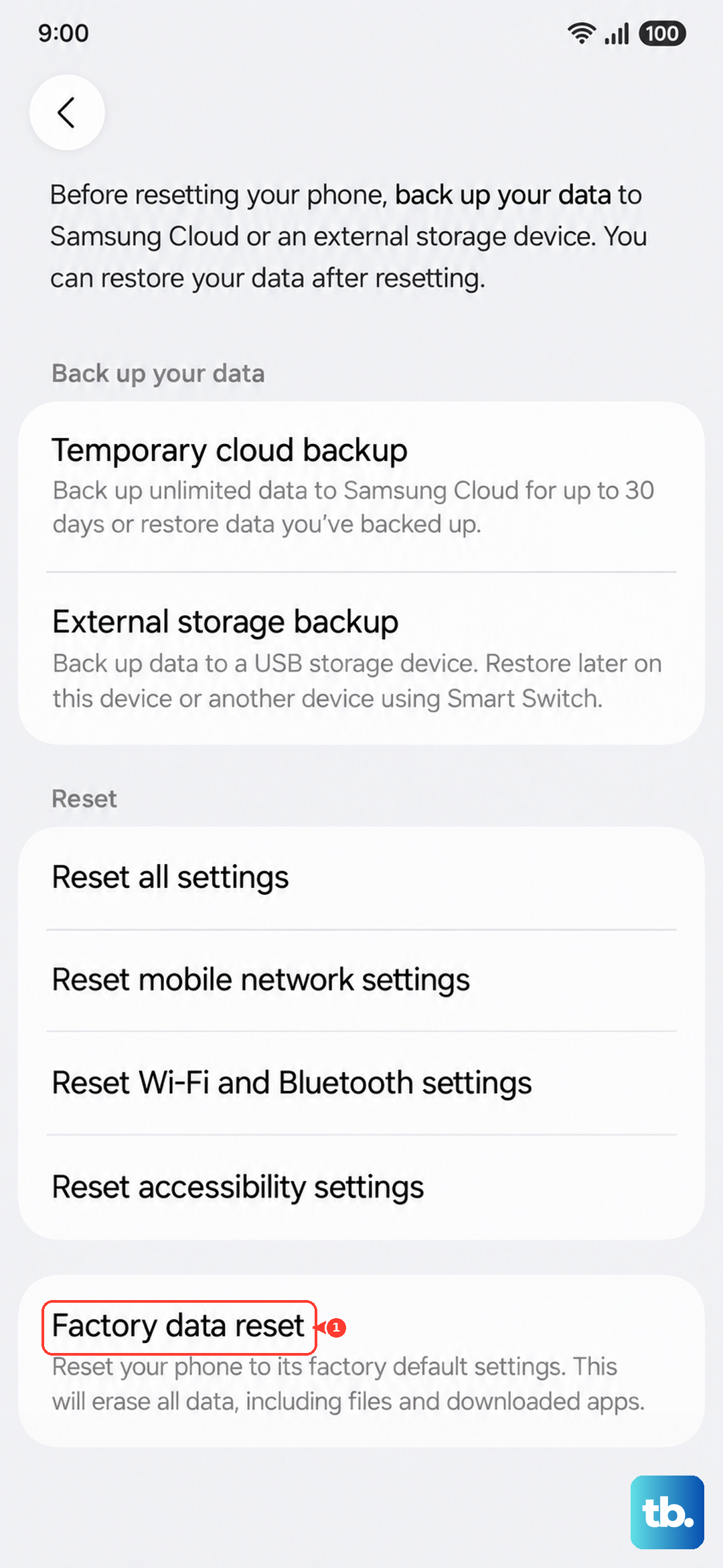
If the phone still won't turn on after a factory reset, the problem is likely hardware, a damaged charging port, a swollen battery, or a motherboard issue. At that point, it's time to take it to a repair shop.
Let the Battery Cycle Fully
Some Z Fold 7 owners have reported that the phone stops charging at around 45%. This is a software calibration glitch, not a battery failure. If you've managed to get the phone turned on but it keeps shutting down at that level, try a full battery cycle.
Let the battery drain completely until the phone turns off by itself. Then charge it to 100% without interruption. Do this a couple of times to reset the battery gauge. For best results, use the 25W wired charger during this process.
This recalibration often fixes the 45% charging stop issue and can help with random shutdowns after a deep discharge.