The Samsung Galaxy Z Fold 7 packs a lot of cutting-edge tech into its folding frame, so it hits harder than usual when the signal drops and you're left staring at "Emergency Calls Only" or a flickering network bar. A device this advanced losing its connection is almost always fixable without a trip to the carrier store. Let's run through the most effective ways to get your signal back.
Force Restart Your Z Fold 7
Before diving into settings menus, try a force restart. The Galaxy Z Fold 7 has a specific method for this that completely reboots the cellular radio. Press and hold the Volume down and Side buttons simultaneously for about 10 seconds. The device will vibrate and restart, clearing up temporary software glitches that can lock up the modem.
Toggle Airplane Mode
This is the oldest trick in the book, but it works on the Z Fold 7 just as well as any other phone. Swipe down twice to open the quick settings panel and tap the Airplane Mode icon. Wait about 15 seconds, then tap it again to turn it off. Your phone will perform a fresh scan for nearby cell towers, which can force it to latch onto a stronger band if you're in a marginal coverage area.
Check Your SIM and eSIM Status
The Z Fold 7 typically uses a physical SIM alongside an eSIM profile. A loose physical SIM or a misconfigured eSIM can cause a complete signal dropout. Head to Settings > Connections > SIM Manager and confirm your preferred line is toggled on for calls and mobile data. If you're using a physical SIM, eject the tray with the SIM tool, inspect the gold contacts for dirt or damage, and reseat it firmly.
Manually Select a Network Operator
Sometimes the automatic network selection gets confused after a software update or when crossing carrier zones. Go to Settings > Connections > Mobile Networks > Network Operators. Tap "Search Networks" and wait for the list to populate. Select your carrier manually. If the search fails, it might indicate a broader coverage issue rather than a phone problem.
Remove the Case and Unfold the Device
This is a fix specific to foldable phones. Some third-party cases contain metal inserts or magnets that interfere with the antenna bands on the Z Fold 7. If you're actively losing signal, take the case off completely. Unfolding the phone also changes your grip on the device and can eliminate the "death grip" signal attenuation that affects phones with metallic frames.
Reset Network Settings
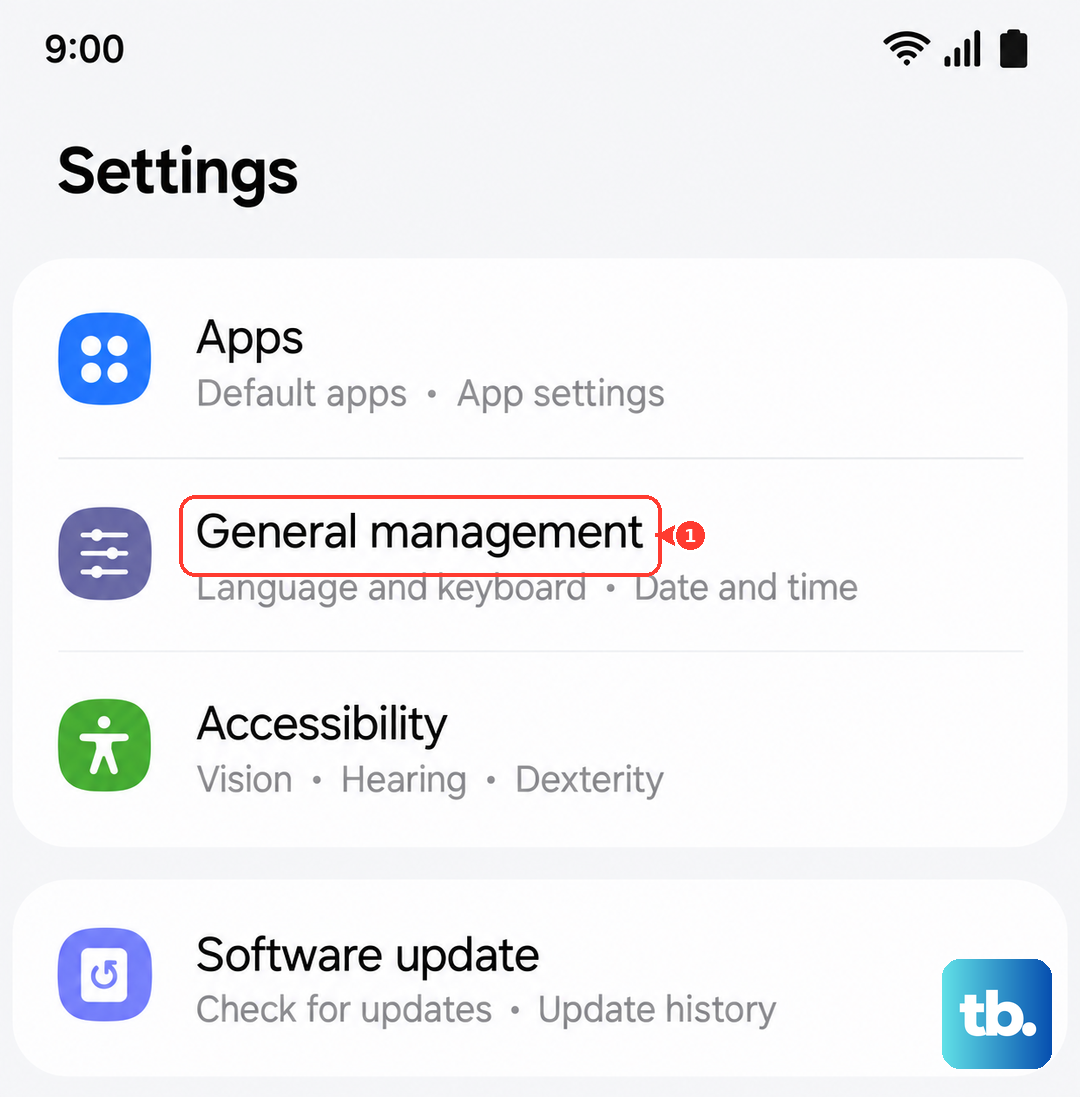
Corrupted network configuration files are a common culprit for signal issues on Android 15. Samsung makes this easy to resolve without losing your personal data. Go to Settings > General Management > Reset > Reset Network Settings. This wipes saved Wi-Fi networks, Bluetooth pairings, and cellular APN settings. You'll need to reconnect to Wi-Fi later, but it provides a completely clean slate for the radio hardware.
Verify Your APN Configuration
Your Access Point Name (APN) settings tell the Z Fold 7 how to route data through your carrier. If these get wiped or corrupted, mobile data stops working and sometimes calls will fail. Go to Settings > Connections > Mobile Networks > Access Point Names. Tap the three-dot menu and select "Reset to default." If that doesn't restore your data connection, contact your carrier for the exact APN values to enter manually.
Turn Off Wi-Fi Calling Temporarily
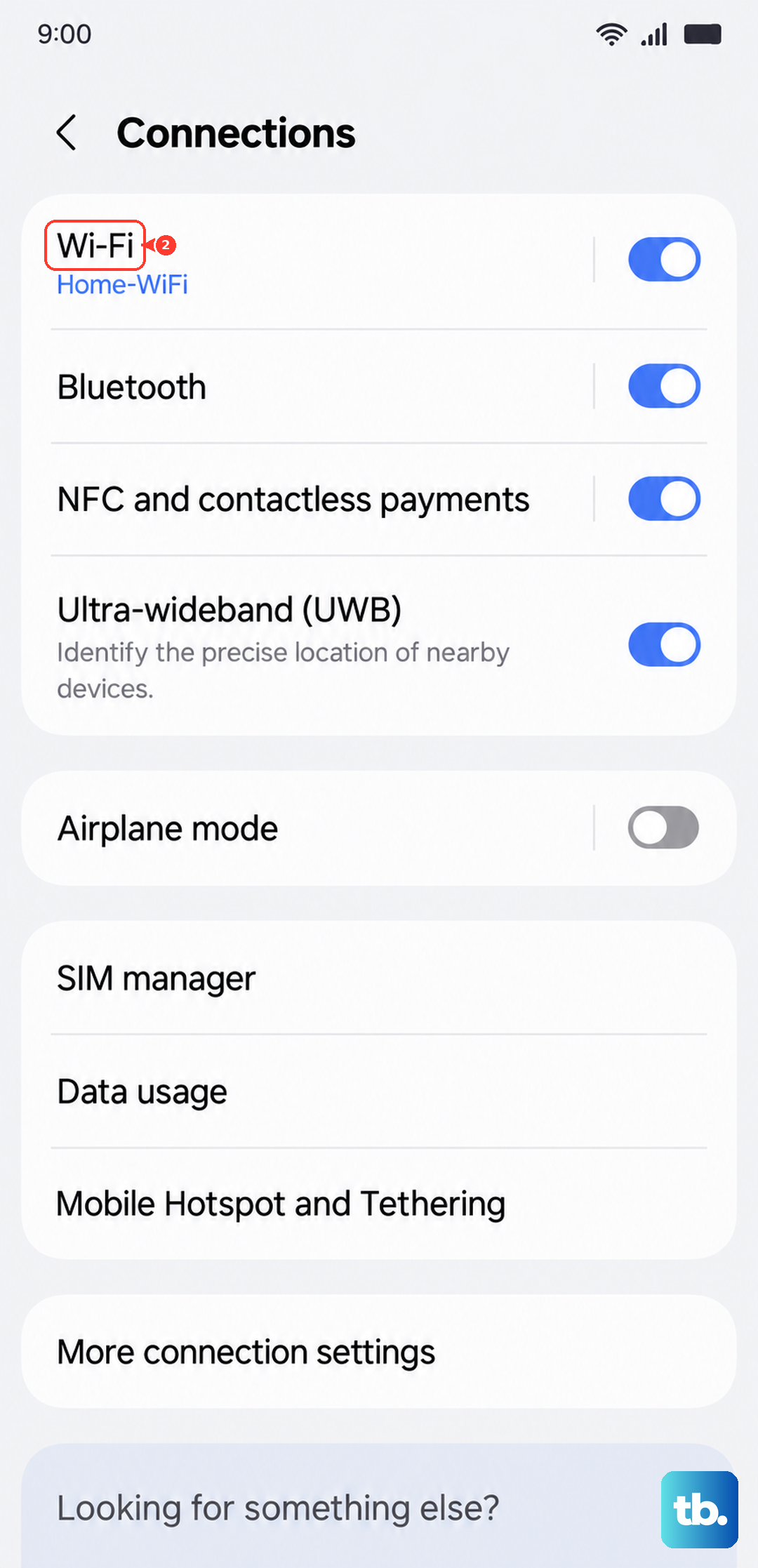
Wi-Fi calling is a fantastic feature on the Z Fold 7, but it can sometimes conflict with the cellular registration process. When the phone tries to route calls through a weak Wi-Fi signal or a misconfigured router, it can drop the cellular connection entirely. Go to Settings > Connections > Wi-Fi Calling and toggle it off. If your signal bars return, the issue is with your Wi-Fi-to-cellular handoff rather than the phone itself.
Use the Secret Testing Menu
Android has a hidden diagnostic menu that gives you direct control over the radio hardware. Open the Phone app and dial *#*#4636#*#*. Tap "Phone Information." From here, you can run a ping test or change the "Set preferred network type" dropdown to force a reconnection. Selecting "NR/LTE" or "LTE/UMTS auto (PRL)" often resolves stubborn registration errors. Just be careful not to change settings you don't understand, and always exit by restarting the device.
Update the Software and Carrier Settings
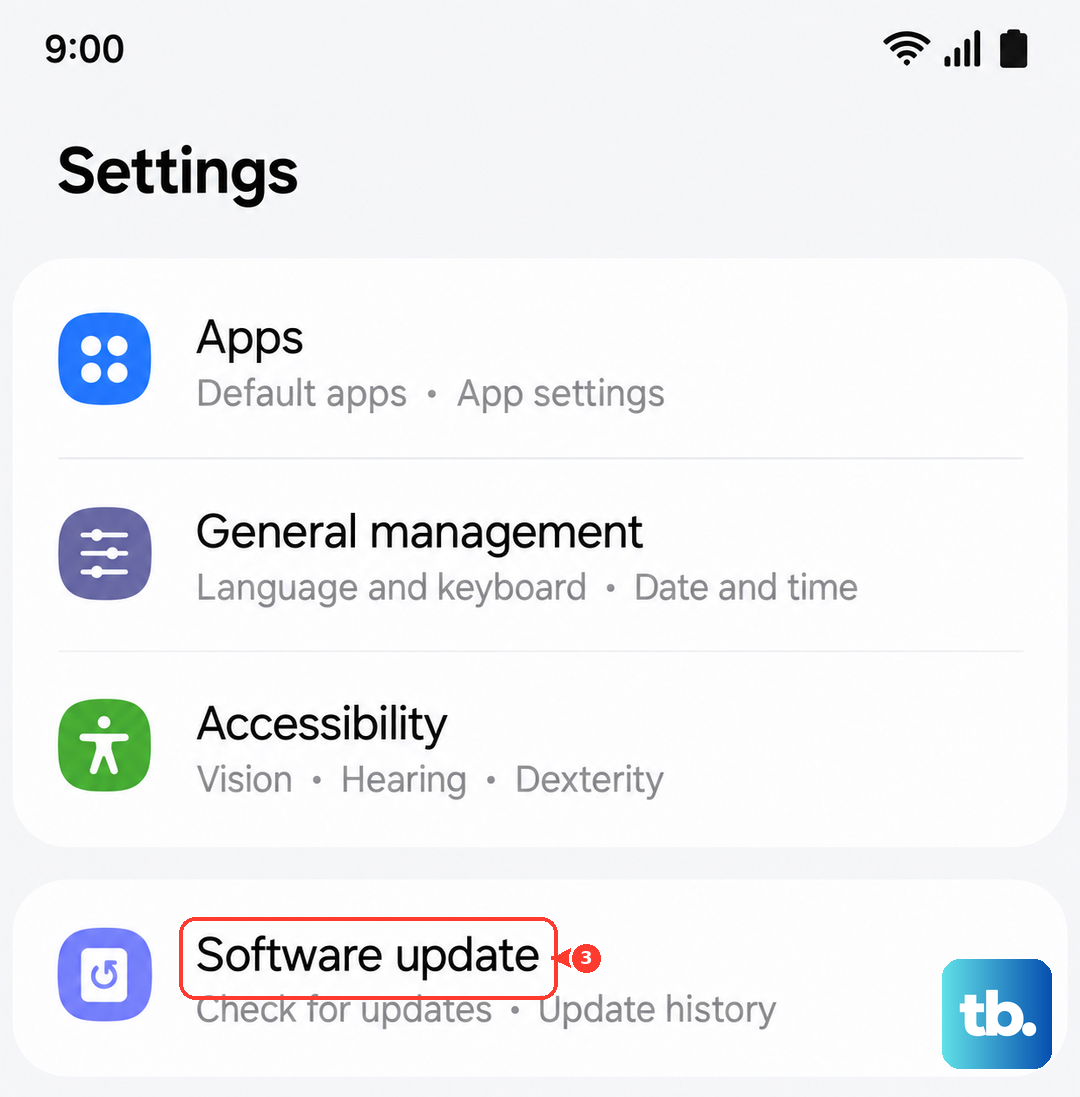
Samsung frequently pushes out updates for the Z Fold 7 that include modem firmware improvements and carrier-specific tweaks. Go to Settings > Software Update and download any available updates. You can also check for carrier updates specifically by going to Settings > Connections > Mobile Networks > Carrier Settings and tapping "Update now." Keeping both the OS and the carrier profile current is one of the most underrated signal fixes.