
When your Samsung Galaxy Z Fold 7 microphone stops working, it affects everything from phone calls and voice recordings to Google Assistant and Bixby. The foldable design adds a twist, there are multiple microphones across the hinge and bezels, so the problem might only show up when the phone is open or closed. Let's start by figuring out what we're dealing with.
Before changing any settings, it helps to know whether the microphone registers anything at all. Run a quick online mic test in your browser, speak normally, and watch the level meter. If it moves, the hardware works and the fixes below will take care of the rest.
Test the Microphones
Open the Voice Recorder app and tap the red button. Talk normally for 30 seconds, then play it back. Try this with the phone unfolded and folded to see if one specific mic is the culprit. You can also open the Camera app, switch to Video mode, and record a short clip to check the audio levels.
Fire up Google Assistant or Bixby by saying the wake word. If it doesn't respond, the top microphone array might be blocked or faulty. Running these tests first tells you exactly where the issue lives.
Check the Microphone Openings
The Z Fold 7 has tiny microphone holes near the USB-C port, on the top edge, and on the inner bezel above the main screen. Pocket lint and dust love these spots. Grab a bright light and look inside.
If you see gunk, use a can of compressed air or a soft, dry toothbrush to gently dislodge it. Be careful, don't poke anything metal into the holes. I've seen a single piece of debris completely block the bottom mic during calls.
Remove Your Case and Check the Hinge
A tight case can muffle the bottom mic or press against the hinge mechanism, affecting the internal flex cables. Take the case off completely. While you're at it, unfold and close the phone a few times firmly. Flex cables inside the hinge can sometimes shift, and a solid open/close cycle reseats them.
Force Restart the Galaxy Z Fold 7
Software hiccups are the most common cause of temporary mic failure. Press and hold the Volume Down and Side buttons together for about 10 seconds. Keep holding until the screen goes black and the Samsung logo appears.
This is a forced restart, it doesn't delete anything, but it clears out any corrupted drivers blocking audio input. Try making a call immediately after the phone boots back up.
Disconnect Bluetooth and USB Accessories
If you're wearing Galaxy Buds or have a headphone plugged into the USB-C port, the phone might route the audio there instead of the built-in mics. Pull down the quick panel and tap the Bluetooth icon to turn it off. Unplug anything from the charging port too.
Check App Permissions in Android 15
Android 15 tightened up privacy settings, which sometimes blocks apps by default. Go to Settings > Apps > Permission manager > Microphone. Make sure the apps you're having trouble with, Phone, Messages, Voice Recorder, are set to "Only while using the app" or "Ask every time."
Toggle it off and on for any app that seems stuck. If the Phone app doesn't have permission, calls will connect but the other person won't hear you.
Update the Phone Software and Samsung Apps
Samsung frequently updates the Phone and Samsung Members apps with bug fixes. Open the Galaxy Store, tap the menu icon, and hit Updates. Install any pending updates. Also check for a system update in Settings > Software Update > Download and install.
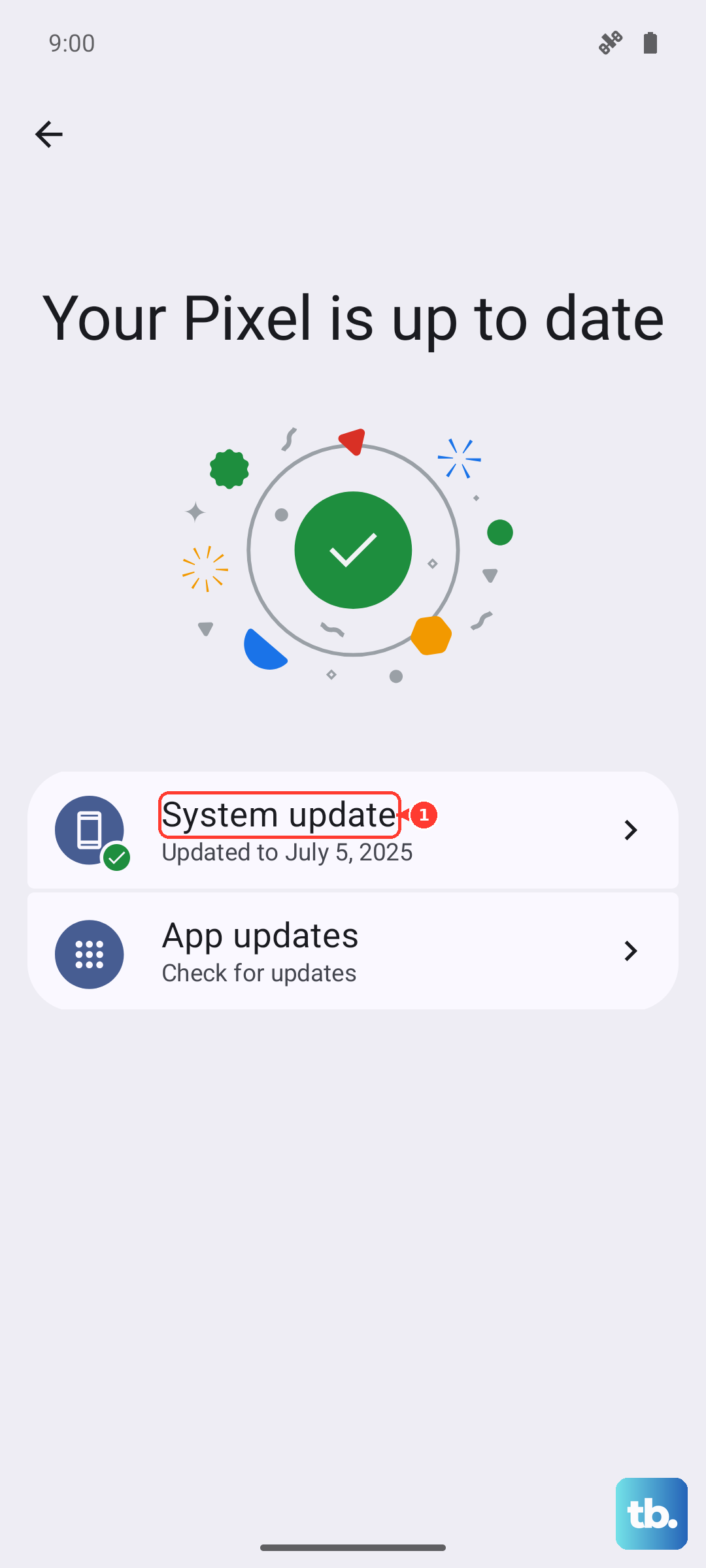
A fresh firmware patch can solve mic issues tied to the latest Android 15 build. Don't skip the Galaxy Store updates, they often contain specific fixes for call audio and noise cancellation.
Clear the Phone App Cache
If your calls are dropping audio but third-party apps like WhatsApp work fine, the Phone app itself might be glitched. Head to Settings > Apps > Phone > Storage > Clear cache. This zaps the temporary data without wiping your call history.
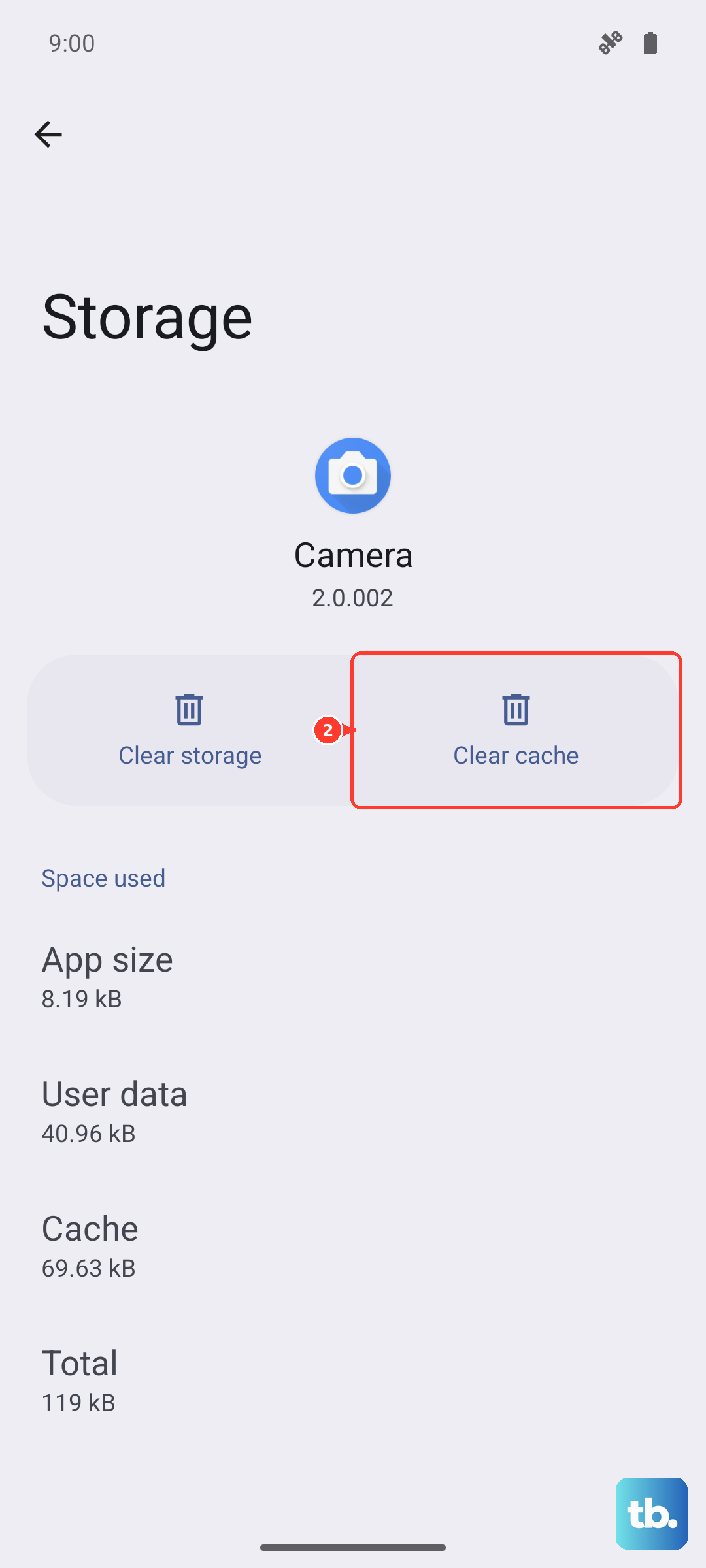
If that doesn't work, open the Phone app, tap the three dots menu, go to Settings > Voice focus and try turning it off. Voice focus can sometimes filter out your voice aggressively if it misreads background noise.
Run the Samsung Members Diagnostic
This is the most direct way to tell if it's a hardware issue. Open the Samsung Members app, go to Support > Interactive checks > Microphone. The app will guide you through testing each mic individually.
If all mics pass the test, your hardware is fine, it's definitely a software or permissions issue. If one fails, it's likely a hardware fault with that specific component.
Reset All Settings
Resetting your settings is a good middle ground before a full factory wipe. Go to Settings > General management > Reset > Reset all settings. This restores network, Bluetooth, and accessibility settings to their defaults.
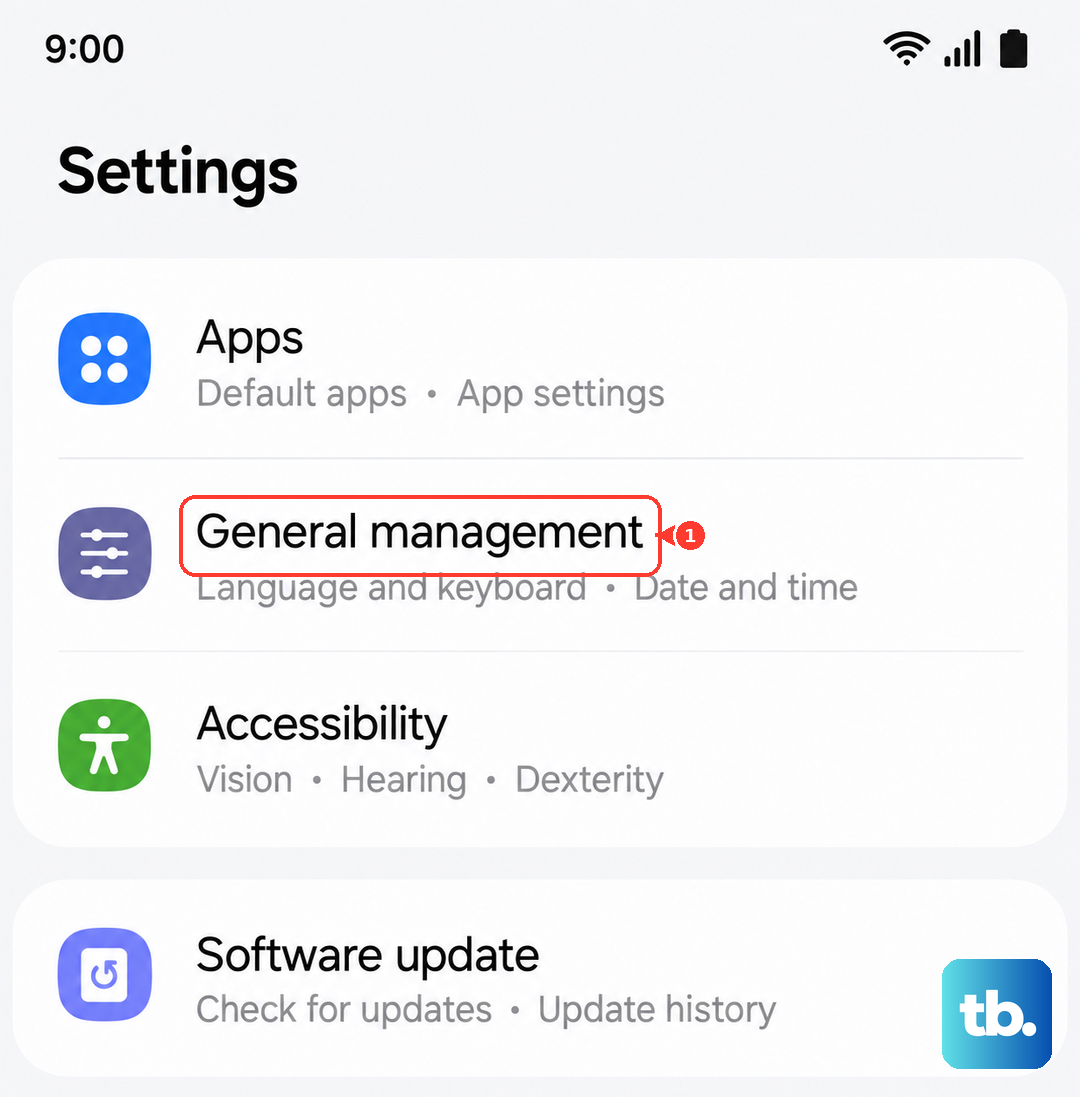
Your photos, apps, and accounts stay put. It often clears up audio routing conflicts that don't have a visible toggle.
Wipe the Cache Partition
If the system cache is corrupted, it can cause weird behavior across the board, including microphone dropouts. Turn off your Z Fold 7. Connect it to a computer via USB-C, this helps the bootloader menu appear cleanly.
Press and hold Volume Up and the Side button. When the Android recovery menu appears, use the volume buttons to highlight "Wipe cache partition" and press the Side button to select. After it finishes, press the Side button to reboot the system.