
When your headphones stop working with your Samsung Galaxy Z Fold 7, it throws off your entire listening experience. Music plays through the phone speaker, calls come through muffled, or your Bluetooth headphones simply won't connect. Here's how to get audio routing back to where it belongs.
Start with a free headphone test that checks left and right channels, stereo order, bass, and treble. Two minutes there tells you whether the hardware needs attention at all.
Force Restart the Phone First
Before diving into settings, do a force restart. Press and hold the Volume down and Side buttons simultaneously for about 10 seconds until the device restarts. This clears temporary software glitches that can disrupt Bluetooth or audio routing. It's quick and painless, and I've seen it fix weird headphone behavior more often than you'd think.
Check the Basics
Make sure your Bluetooth headphones have battery life and are in pairing mode. If you're using wired USB-C headphones, confirm they're fully inserted. Test the headphones with another phone or device to rule out a hardware failure on the headphone side. If they don't work anywhere, they're the problem.
Clean the USB-C Port
The Z Fold 7 uses a USB-C port for wired headphones, and pocket lint loves to collect in there. Grab a can of compressed air and give the port a few short bursts. If you need to dig out stubborn debris, use a wooden toothpick or a soft plastic pry tool. Don't use anything metal or sharp. A clean port makes a solid connection that your phone actually detects.
Volume Check on the Fold 7
With your headphones connected, press the Volume Up button on the left side of the Z Fold 7. Pull down the notification panel twice to open quick settings, then use the media volume slider to make sure it's not at zero. The Fold 7 also has separate volume controls for media, calls, and notifications, so check each one.
Forget and Re-Pair Bluetooth Headphones
Swiping down twice opens your quick settings panel. Long-press the Bluetooth icon to jump into settings. Find your headphones in the paired list, tap the gear icon next to them, and select Unpair. Put your headphones back in pairing mode and tap Scan to reconnect fresh. This wipes out corrupted pairing data that causes dropouts or no sound.
Toggle Bluetooth Off and On
Pull down the notification panel and tap the Bluetooth quick toggle to turn it off. Wait about 10 seconds, then tap it again. This refreshes the Bluetooth radio and clears minor connection hiccups. It's one of those simple fixes that takes five seconds and often works.
Check Audio Output in Media Control
Your Galaxy Z Fold 7 might be routing audio to the wrong place. Open the notification panel fully, and you'll see the media output card near the top. Tap it to see which device is selected. If it shows the phone speaker or a different Bluetooth device, switch it to your headphones. This is especially common if you have multiple Bluetooth devices connected.
Check Developer Options for Bluetooth Settings
If you've enabled Developer Options, some settings can interfere with headphone connections. Go to Settings > Developer Options (you might need to enable it in About Phone > Software Information by tapping Build Number 7 times). Look for Bluetooth-related options like Bluetooth AVRCP Version and make sure it's set to the default. If you've changed anything in here, reset it back.
Update Your Phone's Software
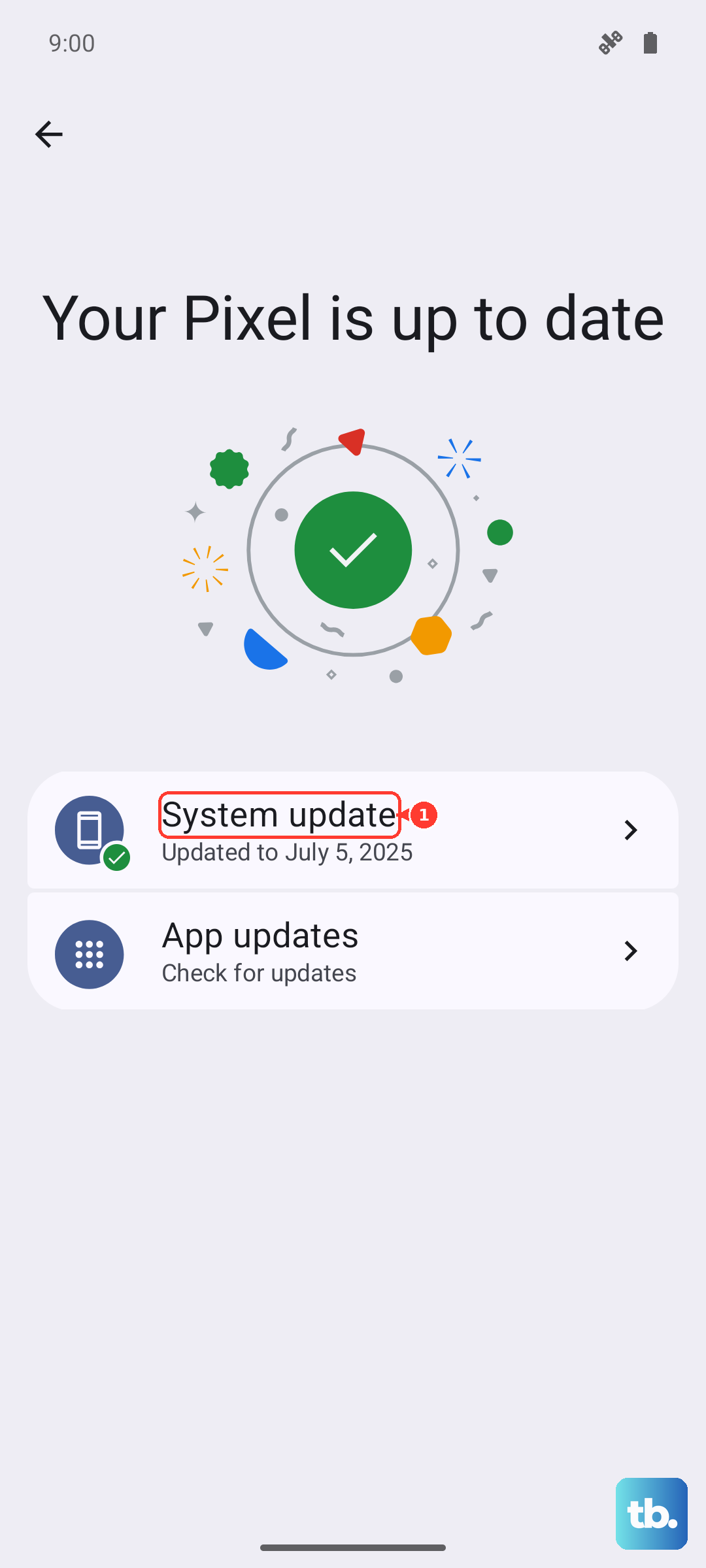
Go to Settings > Software Update > Download and Install. Samsung regularly pushes updates that fix Bluetooth and audio bugs. The Z Fold 7 runs Android 15, and audio-related patches often come through these system updates. If there's a pending update, install it and test your headphones afterward.
Reset Network Settings
If Bluetooth connections keep failing, network settings might be the culprit. Go to Settings > General Management > Reset > Reset Network Settings. This clears all Wi-Fi, Bluetooth, and mobile network data. You'll need to re-pair your headphones and reconnect to Wi-Fi networks, but it can fix deep Bluetooth stack corruption that nothing else touches.