
Nothing kills a conversation faster than hearing "Call Failed" right after you hit dial. On the Samsung Galaxy Z Fold 7, this usually comes down to a network hiccup, a software glitch, or something simple you overlooked in the settings. Let's walk through the fixes, starting with the fastest ones.
Toggle Airplane Mode and Try Again
This is the quickest way to reset your phone's connection to the cellular network. Swipe down twice from the top of the screen to open the Quick Settings panel. Tap the Airplane Mode icon to turn it on, wait about 10 seconds, then tap it again to turn it off.
The Z Fold 7 will re-register on the network as it reconnects. Try your call again right after the signal bars come back.
Check Your Signal Strength
Low signal is the most common cause of call failures. Look at the signal bars in the top-right corner of the display. If you only have one bar or you're seeing Emergency Calls Only at the top, you're in a weak zone.
Move closer to a window, step outside, or change rooms. The Z Fold 7 has a solid antenna setup, but building materials like concrete and metal can still block the signal. If you're indoors, try turning off Wi-Fi temporarily to force the phone to prioritize cellular.
Force Restart the Galaxy Z Fold 7
If Airplane Mode didn't help, a forced restart can clear temporary software problems that might be interfering with calls. On the Z Fold 7, press and hold the Volume down button and the Side button together for about 10 seconds. Keep holding until you see the Samsung logo appear, then release.
This is different from a normal restart and won't delete any of your data. It's just a hard reboot that flushes out minor glitches.
Reinsert the SIM Card
A loose or slightly misaligned SIM card can cause intermittent call failures. Locate the SIM tray on the lower edge of the Z Fold 7. Use the ejector tool that came with the phone or a small paperclip to pop the tray out.
Remove the SIM card, check the metal contacts for any dirt or smudges, and seat it back firmly. Slide the tray back into the phone and make sure it sits flush. If your carrier supports eSIM, you can also check that the eSIM profile is active under Settings > Connections > SIM card manager.
Update Carrier Settings
Carriers occasionally push out small updates that optimize how your phone connects to their network. To check for one, make sure your Z Fold 7 is connected to Wi-Fi, then go to Settings > Connections > Mobile networks. Look for an option that says Update carrier settings or a similar prompt.
If your carrier sends these updates automatically, you might see a notification. Installing it takes just a few seconds and can fix underlying network compatibility issues.
Turn Off Wi-Fi Calling Temporarily
Wi-Fi Calling is great when it works, but it can sometimes create a routing conflict that prevents calls from going through. Go to Settings > Connections > Wi-Fi Calling and toggle it off.
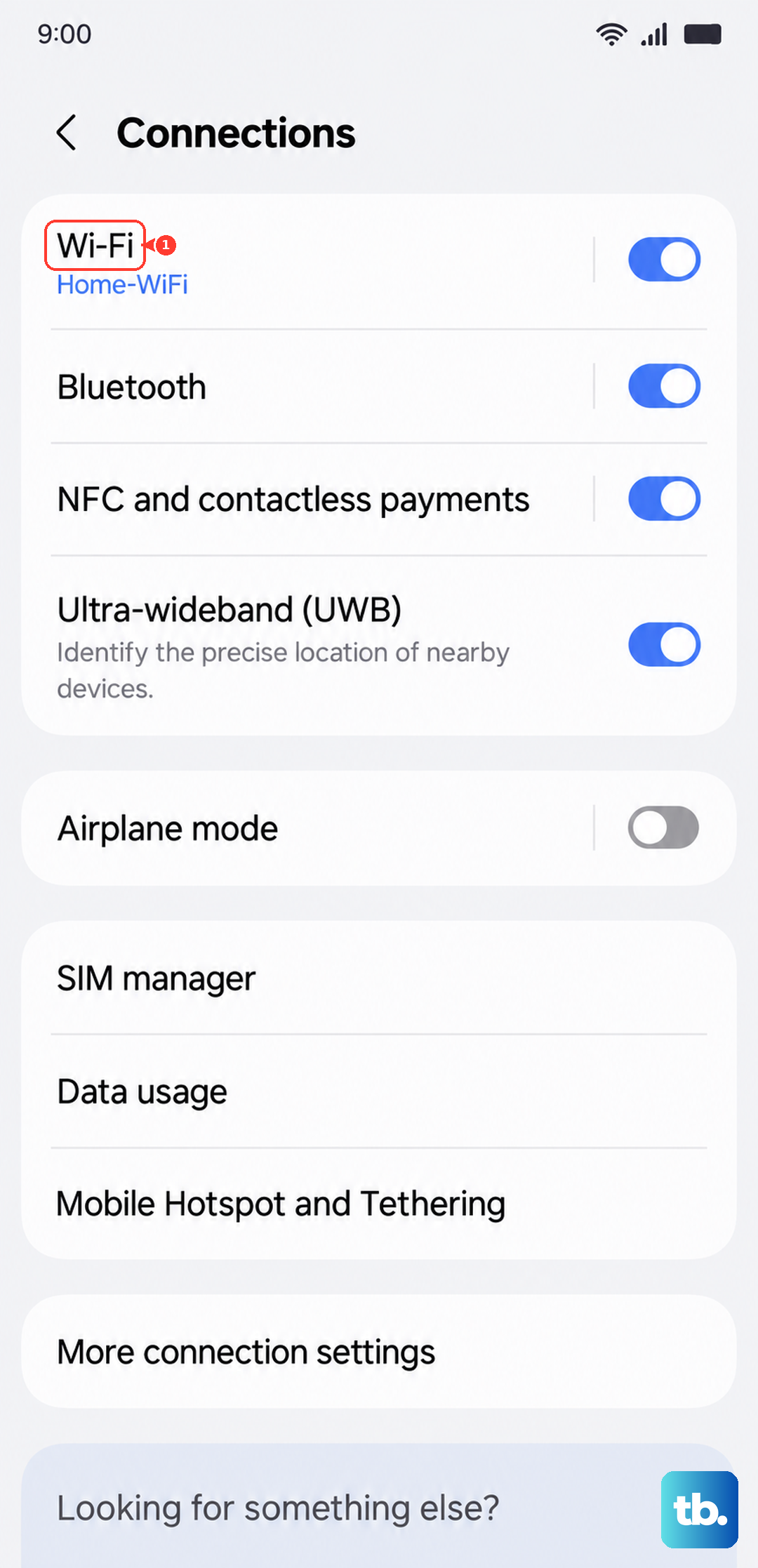
Once it's off, try making a call over the cellular network. If it goes through, you've identified the culprit. You can turn Wi-Fi Calling back on later, or keep it off if you're in an area with strong cellular coverage.
Reset Network Settings
This is a more thorough fix that clears out saved Wi-Fi networks, Bluetooth pairings, and cellular configurations. It won't remove any of your photos, apps, or accounts, so it's safe to run.
Go to Settings > General Management > Reset > Reset network settings. You'll need to enter your PIN or password to confirm. The phone will restart on its own.
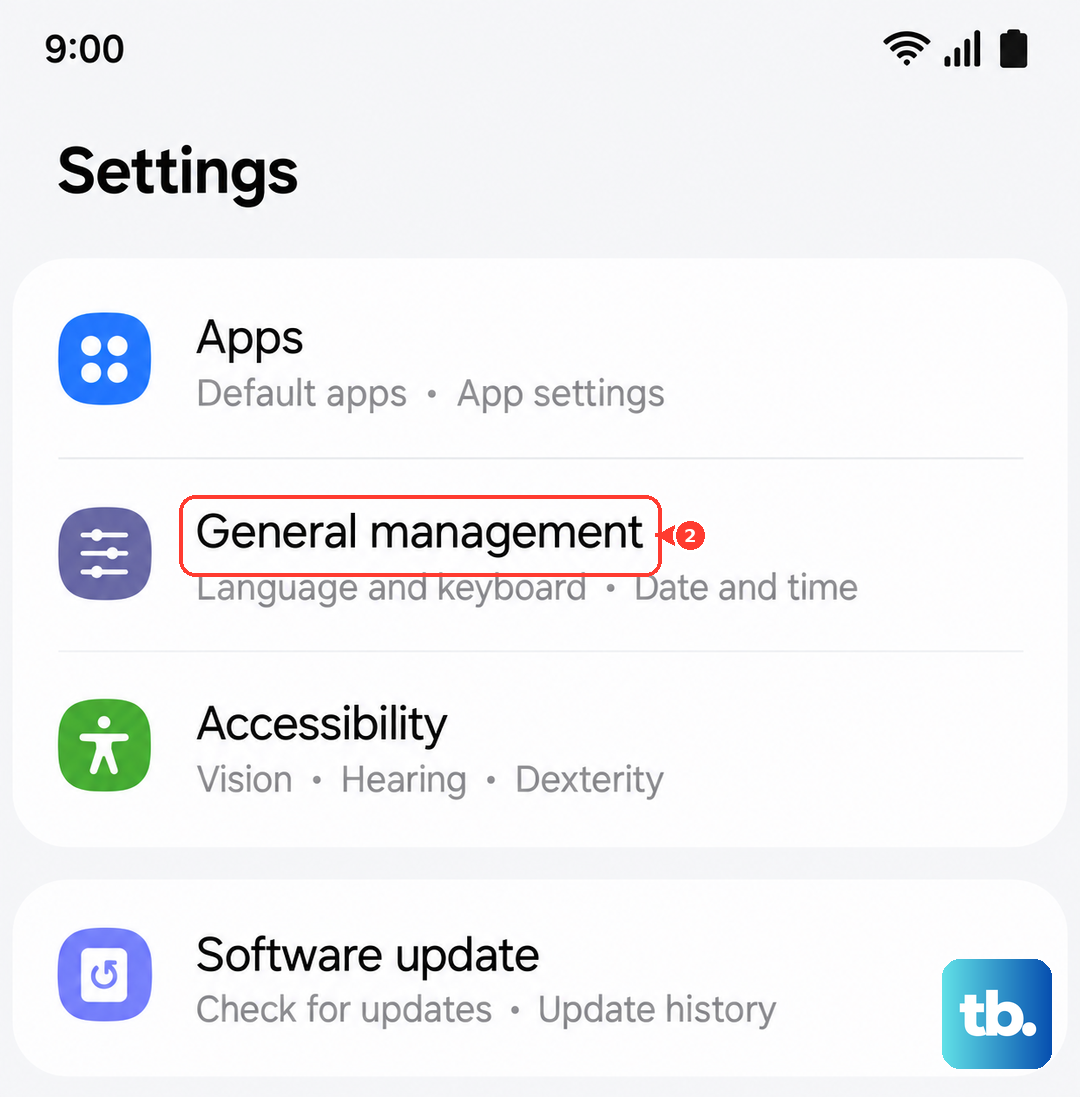
After the reset, you'll have to reconnect to Wi-Fi networks and re-pair Bluetooth devices. Test a call once you've got your cellular connection back.
Check Date and Time Settings
Believe it or not, the wrong date or time can mess with network authentication. Go to Settings > General Management > Date and time and make sure Automatic date and time is turned on. If it's already on but the time looks off, toggle it off, wait a few seconds, and toggle it back on to force a sync.
The same network that routes your calls uses timestamps to verify your connection. A mismatch can cause it to reject the call outright.
Verify That You Haven't Blocked the Number
It's easy to accidentally block someone, especially if you were dealing with spam calls. Open the Phone app, tap the three-dot menu in the top-right corner, and select Settings > Block numbers. Check the list to see if the number you're calling is there.
If it is, tap the minus sign next to it to unblock. This one's quick to rule out but easy to miss.
Update the Phone's Software
Samsung regularly pushes software updates to the Galaxy Z Fold 7 that include bug fixes for network and calling issues. Go to Settings > Software update > Download and install. If an update is available, make sure you're on Wi-Fi and have at least 50% battery before you start.
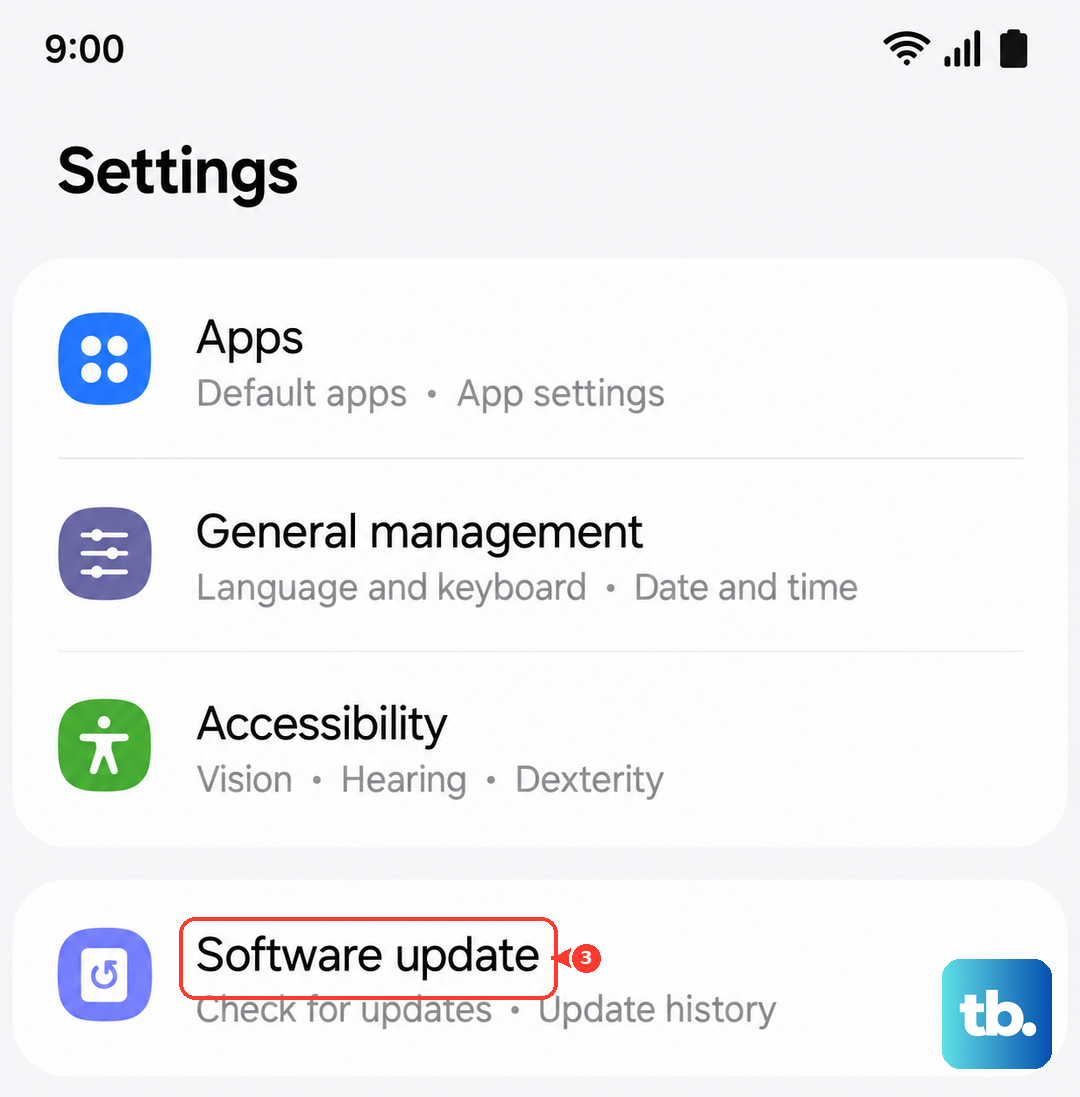
After the update finishes and the phone restarts, test a call. The fix might have been baked into that latest patch.
Check for Network Outages
Sometimes it's not your phone at all. Carriers experience regional outages that can make calls fail across an entire area. A quick search for your carrier's name plus "outage" on another device will tell you if others are reporting the same problem.
You can also check the carrier's official status page or give their customer service line a call from a different phone. If there's an outage, the only fix is waiting it out.
Contact Your Carrier
If none of these steps have worked, the problem might be on your carrier's side specifically tied to your account or line. Call them and ask them to refresh your connection to the tower, or check if there's a provisioning issue with your number.
They might also send a new SIM card or reprovision your eSIM. In my experience, this step resolves the handful of cases that don't respond to anything else.