
Auto-rotate suddenly stopped working on your Samsung Galaxy Z Fold 7? It's a common annoyance, especially on a foldable where you expect the screen to flip effortlessly between portrait and landscape. Let's get it working again.
Double-check the Quick Settings toggle
The most obvious culprit is that auto-rotate was accidentally turned off. Pull down the notification panel twice to see the full Quick Settings menu. Look for an icon that says "Portrait" or "Auto rotate."
Tap it until it changes to blue and reads "Auto rotate." That's all it takes most of the time. If it's already blue but rotation still isn't working, continue reading.
Enable home screen rotation separately
By default, Samsung's One UI doesn't rotate the home screen even when auto-rotate is on. If you're testing rotation from your home screen, it won't work unless you flip this extra setting.
Tap the text under the auto-rotate icon (not just the icon itself) to open a menu. Toggle on "Home Screen and Voice call screen." Now try tilting your Z Fold 7, both the cover and inner screens should rotate.
Force restart the phone
A simple restart clears temporary glitches that can mess with the gyroscope. On the Z Fold 7, press and hold the Volume down and Side buttons simultaneously for about 10 seconds. The phone will reboot regardless of what's on screen.
Wait for it to fully restart, then test auto-rotate again. This is the same method Samsung recommends for any unresponsive behavior, and it won't erase your data.
Check if the issue is app-specific
Not every app supports landscape mode. If auto-rotate works in your settings menu or the camera but not in a game or video player, that app is the problem, not your phone.
Some third-party apps can also override rotation settings. Think back, did the issue start after installing a new app? Try uninstalling recently added apps one at a time to see if that fixes it.
Update your software
Samsung often pushes fixes for sensor bugs through software updates. Go to Settings > Software Update > Download and Install. If an update is available, install it and restart your phone.
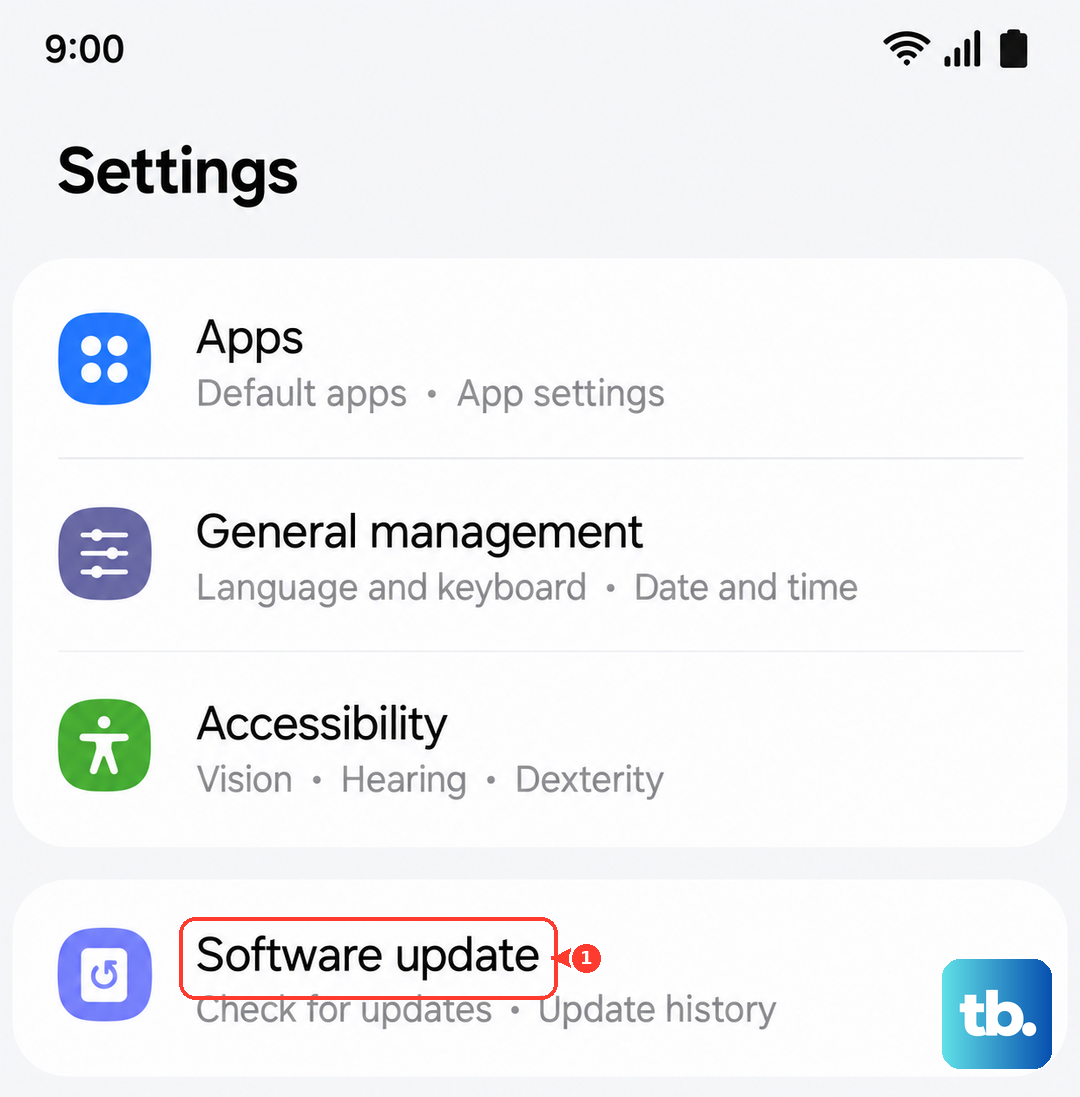
Running Android 15 on the Z Fold 7, a minor update might be all you need. Make sure you're on the latest version before diving deeper.
Test the sensors with the hidden diagnostics
Auto-rotate relies on your accelerometer and gyroscope. You can test them using Samsung's built-in diagnostic menu. Open the Phone app and dial *#0*#. Then tap Sensor.
Place the phone flat on a table and rotate it. You should see the x, y, and z angle values change. If they stay static, the sensors might be faulty. If they change but the screen still doesn't rotate, it's a software issue.
Also try the Image Test option in that same menu. Tilt your phone and the test image should rotate. If it doesn't move despite sensor values updating, the issue is likely with the display orientation logic.
Avoid touching the screen while rotating
This one trips up a lot of people. The Galaxy Z Fold 7's touchscreen interprets a finger resting on the screen as intentional input, so it won't auto-rotate. Hold the phone by the edges or keep your fingers off the display when you tilt it.
Reset app preferences or clear system cache
If nothing else works, you can reset all app preferences without losing data. Go to Settings > Apps > tap the three dots in the top right > Reset app preferences. This restores default settings for disabled apps and notifications, which can sometimes re-enable rotation-related system apps.
Alternatively, boot into recovery mode and wipe the cache partition. Turn off the phone, then press and hold Volume Up and Side buttons (not Volume Down) to enter recovery. Navigate to "Wipe cache partition" and confirm. This clears temporary system files that might be corrupted.
One of these steps will almost certainly get your Z Fold 7's auto-rotate back in action. Start with the simplest fix, the Quick Settings toggle, and work your way down.