You tap into Settings on your Galaxy Z Fold6 expecting a quick software update, and instead the download stalls, throws an error, or the phone insists you are already up to date when you know a newer version exists. A foldable this capable should not get stuck on stale firmware, and the good news is that update failures on the Z Fold6 almost always trace back to a handful of fixable causes such as a weak connection, a low battery, crowded storage, a temporary glitch, or a misbehaving third-party app.
The Z Fold6 (model SM-F956, with the SM-F956U US variant) runs One UI on Android and receives its updates over the air through Settings, with Samsung's Smart Switch desktop app available as a backup route. Work through the fixes below in order, since they start with the safest, easiest checks and only reach a full reset at the very end. Most owners never need to get that far.
Start With the Two Things Samsung Checks First
Before anything else, give the update what it needs to complete safely, which means a steady connection and enough power. Samsung software updates require a stable network and sufficient battery, and a drop in either one mid-install is one of the most common reasons a download dies partway through.
Connect the Z Fold6 to a stable Wi-Fi network. Some carriers require Wi-Fi specifically to check for and install updates, so switching off mobile data and onto a reliable connection is worth doing even if cellular seems fine. Then, per Samsung, charge the phone battery above 50% before you try again.
One important warning is that during an update the phone cannot be used, and you cannot make calls, including to emergency services. Plan the install for a window when you will not need the device for a stretch, and leave it on the charger throughout.
Check for the Update Manually
An automatic prompt does not always appear on schedule, so trigger the check yourself.
- 1.Open Settings and go to Software update. On some carrier devices this option reads System updates instead.
- 2.Tap Download and install. Depending on your carrier, this may instead read Check for system updates or Check for software updates.
- 3.On some devices you may need to tap Download now, then follow the on-screen instructions to install.
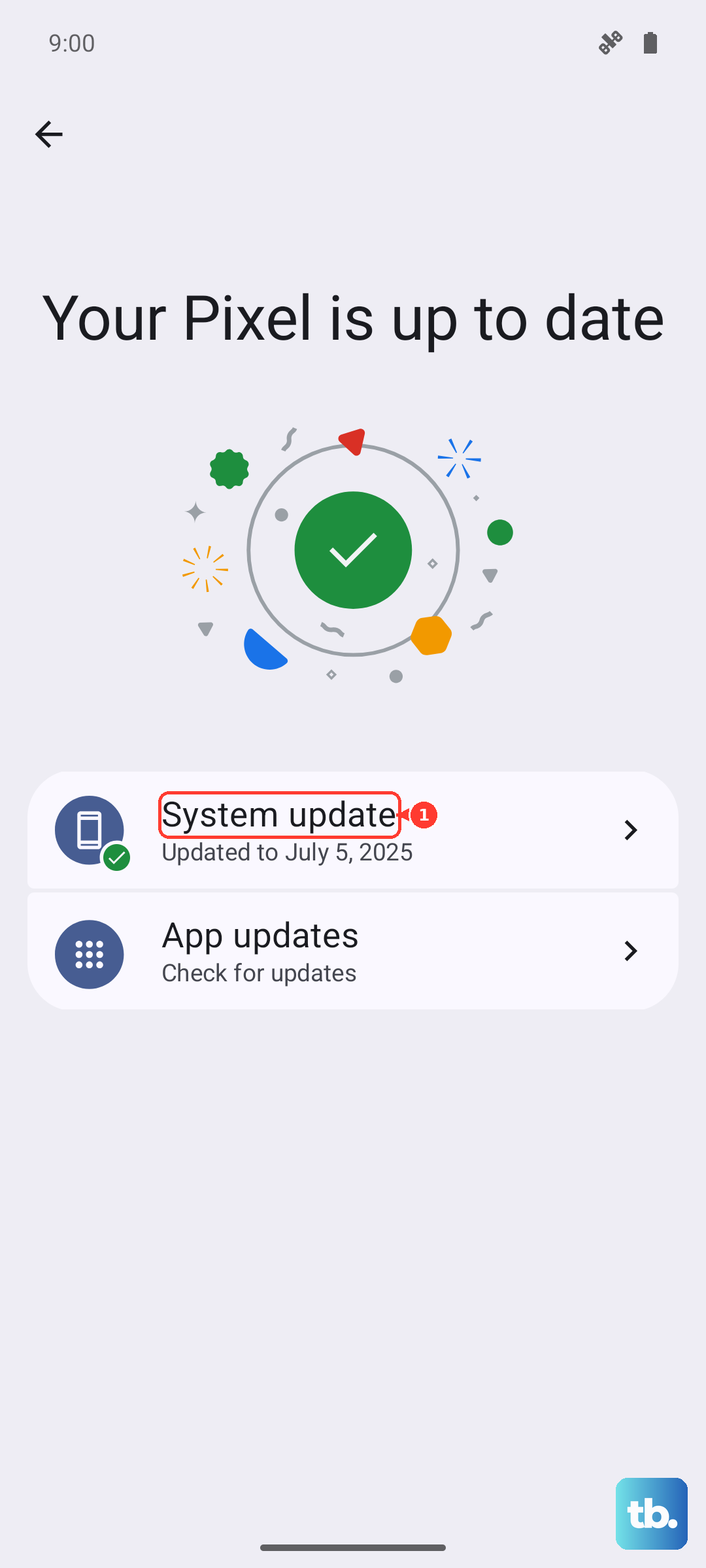
If nothing appears the first time, do not assume there is no update. It may be necessary to repeat this process more than once before the phone surfaces the available version.
Restart the Phone and Try Once More
A plain restart is the quietest fix here, and Samsung specifically recommends restarting before you attempt the update again. Powering the phone down and back up clears the temporary glitches and stuck background processes that can quietly block a download or an install.
After the Z Fold6 comes back to the lock screen, return to Settings, then Software update, then Download and install, and check again. Surprisingly often, the version that refused to budge a minute ago will now download cleanly.
When the Screen Is Frozen, Force a Restart
Sometimes an update attempt leaves the display frozen or completely unresponsive, and the normal power menu will not appear. In that case you need a hardware-level force restart.
Press and hold the Volume down button and the Side button (or Power button) simultaneously until the device turns off and turns back on. The screen will turn black when the device turns off, and then the Samsung logo will appear.
Release the buttons once you see the logo and let the phone finish booting. With the freeze cleared, head back into Software update and retry the download.
Make Room in Internal Storage
The Z Fold6 may refuse to install an update when there is not enough free internal storage to unpack and apply the new files. Clearing out unused apps and excess data is one of the most effective fixes when the download finishes but the install will not begin.
To remove an app you no longer use, open Settings, then Apps, select the app, tap Uninstall, then tap OK. To clear out bulk data, use the storage tools and tap Trash, Unused apps, Duplicate files, or Large files to delete what you do not need.
For a faster, hands-off pass, open Settings, tap Device care, then tap Optimize now. This one-tap optimization frees up resources automatically, which can be enough to let a previously blocked update proceed.
Rule Out a Rogue App With Safe Mode
If you have confirmed there is plenty of storage and the update still will not install, a third-party app may be interfering. Safe mode boots the Z Fold6 with only its built-in software active, so you can update without that interference.
To enter Safe mode, press and hold the Volume down key and Side key. Tap Power off. After the screen turns off, press and hold the Volume down key and Side key again. Release the Side key when the Samsung logo appears. Continue holding the Volume down key until Safe mode appears.
Once you are in Safe mode, retry the check under Settings, then Software update. If the update installs cleanly here, a downloaded app was the culprit, so restart normally afterward to leave Safe mode, and consider removing recently added apps that may have been responsible.
Update From a Computer Using Smart Switch
When on-device updates keep failing no matter what you try, Samsung's official Smart Switch desktop app can push the new software from a computer instead. This is the same tool Samsung provides for managing the phone's software over USB.
- 1.Install Smart Switch on your Windows PC or Mac, downloading it from Samsung's official site.
- 2.Connect the Z Fold6 to the computer with a USB cable.
- 3.Open Smart Switch and wait for it to detect the device.
- 4.Click Update if a new software version is available.
Throughout the process, do not disconnect the USB cable or use the phone. Interrupting a desktop update can leave the software in a half-finished state, so let it run start to finish.
Reset Settings Without Erasing Your Data
If updates are still blocked, you can clear out a misconfigured setting without touching your apps or files. This is the gentler step to try before any full wipe.
Go to Settings, then General management, then Reset, then Reset all settings. This restores default settings but does not erase your apps, personal data, accounts, or downloaded-app settings. Afterward, reconnect to Wi-Fi if needed and try the update one more time.
Back Up and Factory Reset as a Last Resort
A full factory data reset is the final option, reserved for when nothing above has worked. Because it wipes the phone, back up everything you care about first. Samsung warns, "Please save any information you need prior to the factory reset because your personal information may not be recovered."
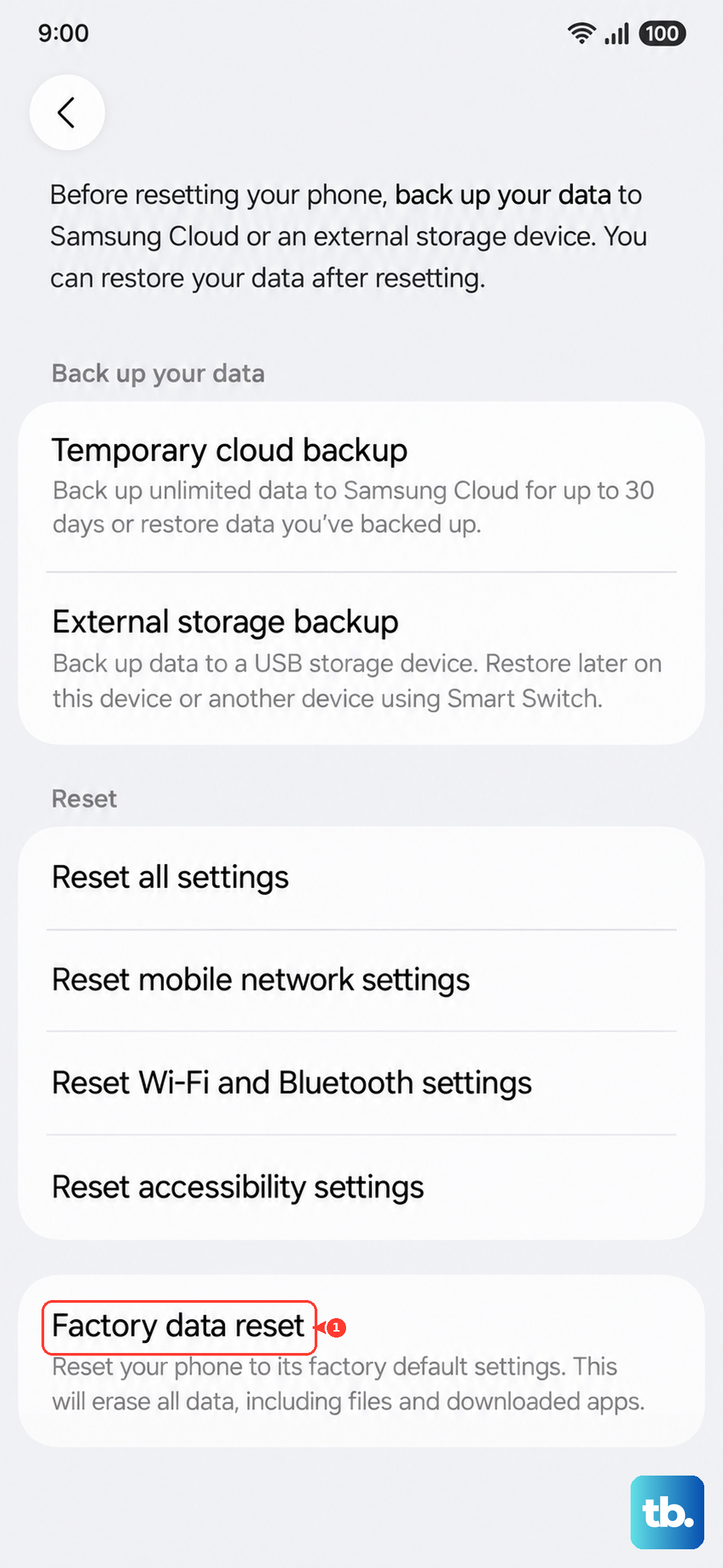
Once your backup is safe, follow Samsung's procedure exactly.
- 1.Open Settings, then General management, then Reset, then Factory data reset.
- 2.Review the information on screen.
- 3.Tap Reset.
- 4.Tap Delete all, and enter your security lock and Samsung account password if prompted.
After the phone restarts and you sign back in, check Settings, then Software update once more. If the update still will not install even after a clean factory reset, the issue is beyond a do-it-yourself fix, and you should contact Samsung Support for help.
Frequently Asked Questions
Why does my Galaxy Z Fold6 say there is no update available when I know one exists?
Updates roll out in stages and a single check does not always reveal them, so open Settings, then Software update, and tap Download and install (or Check for system updates or Check for software updates, depending on your carrier) more than once. It may be necessary to repeat this process more than once before the available version appears.
How much battery does the Z Fold6 need before it will update?
Samsung requires the battery to be charged above 50% before an update will install. With the phone's 25W wired Super Fast Charging, you can reach that level quickly, but it is safest to keep the Z Fold6 on the charger throughout the update so it does not run low mid-install.
Can I use my phone while it is updating?
No. During an update the phone cannot be used, and you cannot make calls, including to emergency services, so schedule the install for a time when you will not need the device.
Will updating through Smart Switch erase my data?
Updating the software with Smart Switch is a normal software update, not a reset, so it is not designed to wipe your data. Just be sure not to disconnect the USB cable or use the phone during the update, since interrupting it can cause problems.
What should I do if the update still fails after a factory reset?
A factory data reset is the last self-service step. If the Z Fold6 still will not update after you have backed up, reset, and signed back in, contact Samsung Support so they can diagnose a possible hardware or account-level issue.