You pull up a video on your Galaxy Z Fold6, unfold that 7.6-inch inner screen, and instead of buttery 120Hz playback you get stutter, dropped frames, and motion that hitches every few seconds. Maybe it happens while you scroll a feed, maybe only while you record high-resolution clips, or maybe a streaming app turns smooth footage into a slideshow. Whatever the symptom, video lag on a phone this powerful is almost always a software or settings issue rather than a flaw in the panel itself, and the good news is that the fixes are straightforward.
The Z Fold6 pairs a Snapdragon 8 Gen 3 for Galaxy chip with 12GB of RAM and dual adaptive AMOLED displays, so it has plenty of headroom for smooth video. When playback or the interface stutters anyway, the usual culprits are temporary glitches, a full memory or storage drive, an outdated build, a throttled power mode, or a single misbehaving app. The fixes below start with the easiest and safest steps and move toward the official reset and support path only if nothing else works.
Start With a Clean Restart to Clear Temporary Glitches
A simple restart clears the temporary system glitches that often cause choppy or stuttering video. It costs you nothing and resolves a surprising number of lag complaints, so it is the right first move before you touch any deeper settings.
Press and hold the Volume down button and the Side button (or Power button) at the same time.
After a few seconds, different power options will appear.
Tap Restart, and then tap Restart again.
If the screen is completely frozen and will not respond, you can force the phone to restart instead. Press and hold the Volume down button and the Side button (or Power button) simultaneously until the device turns off and turns back on. Hold them until the screen goes dark and the Samsung logo reappears; there is no need to watch a stopwatch.
Install the Latest Software Update
Outdated software is one of the most common causes of lag, glitches, and freezing. Samsung's updates ship bug fixes and performance improvements that frequently address video stutter, so keeping the phone current is one of the highest-value things you can do.
Using two fingers, swipe down from the top right corner of the screen, and then tap the Settings icon.
Next, swipe to and then tap Software update.
Tap Download and install. It may also appear as Check for software updates or Check for system updates.
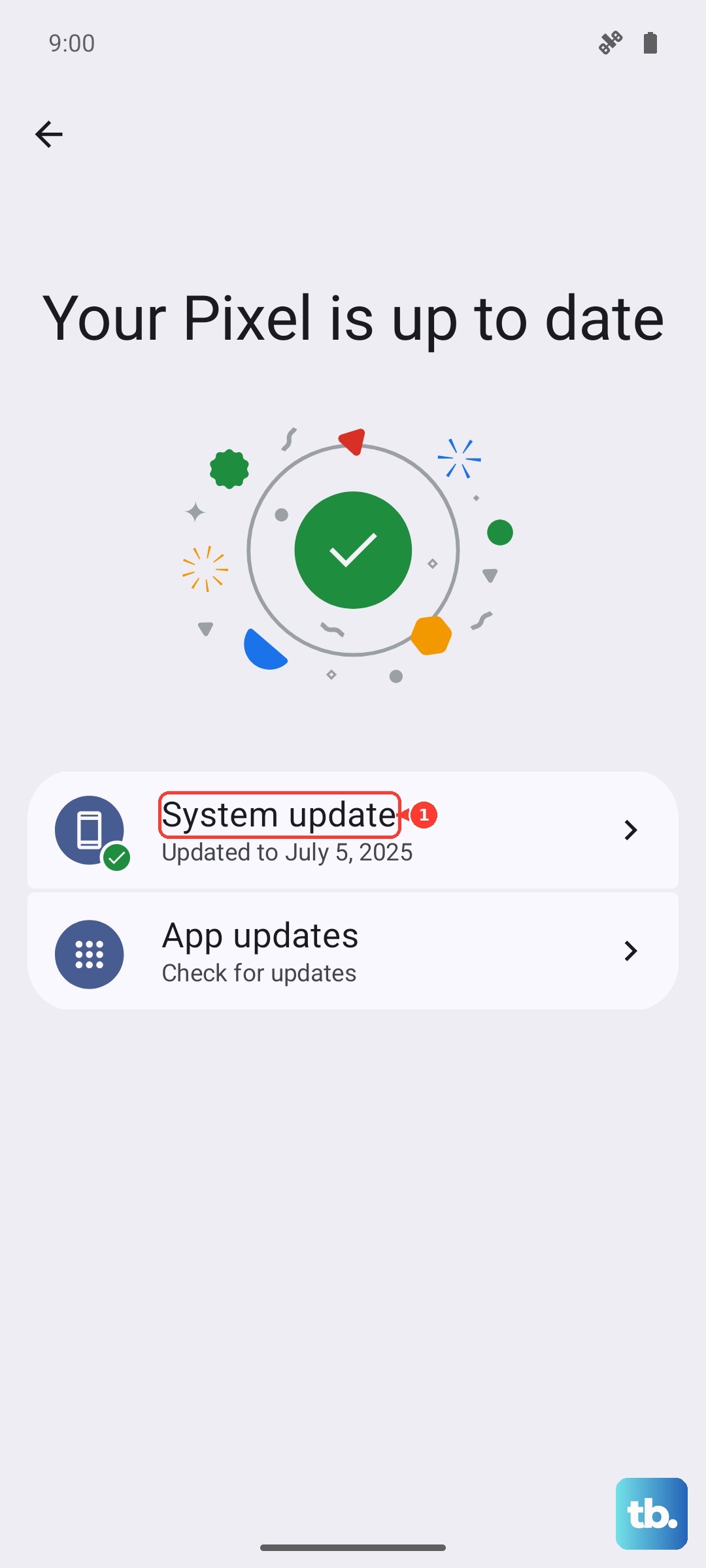
If you would rather update from a computer, Samsung Smart Switch on a Windows PC or Mac can install an available update for your Galaxy device as well.
Let Device Care Optimize Performance and Reclaim Memory
Samsung's built-in Device care tool optimizes the phone and can stop background apps that compete for memory, freeing up the resources your video playback or recording needs.
From Settings, swipe to and tap Device care.
Tap Optimize now, and then tap Done.
To go a step further and free up active memory, stay in Device care and clear out background apps that may be competing for RAM.
While you are there, from Settings, swipe to and tap Device care.
Tap Memory.
Tap Clean now to free up memory by stopping background apps.
Make Room on a Crowded Storage Drive
A nearly full storage drive can cause lag, glitches, freezing, and crashes, and high-resolution video is one of the largest things you can store. Giving the system breathing room often smooths out playback and recording in one move.
Review the files stored on your phone and delete categories you no longer need, such as old images and unnecessary files, so the system has room to run smoothly. Large video files you have already backed up are a good place to start trimming.
Switch Off Power Saving Mode While You Watch or Record
Power saving mode deliberately throttles the phone. It limits performance and lowers the display to a 60Hz refresh rate, which makes video playback and scrolling look noticeably less smooth on a panel built for 120Hz.
Go to Settings, then tap Battery.
Then tap Power saving.
Turn the Power saving switch off.
Turn it off while you are actively watching or recording video and see whether the motion immediately improves. If smoothness returns, the throttling was the cause, and you can decide when battery saving is worth the trade-off.
Check Your Refresh Rate and Motion Smoothness
The Z Fold6 supports up to 120Hz, but if the Motion smoothness setting has slipped to Standard, every animation and video will look choppier than the hardware allows. It is worth confirming this setting is where you want it.
From Settings, search for and select Motion smoothness.
Then tap Motion smoothness again, and then choose your desired option, such as Adaptive or High for smoother motion.
There are two important caveats Samsung documents. Some devices do not support a 120Hz refresh rate on the highest WQHD+ resolution and will automatically switch to Standard when that resolution is chosen, and when Power saving mode is enabled the screen will be set to Standard. If motion still looks rough, disable Power saving mode and check your resolution setting, then revisit Motion smoothness.
Clear the Cache of the App That Is Stuttering
If the lag only shows up in one place, say a particular streaming app, the Camera, or Gallery, corrupted cached files in that app may be the cause. Clearing the cache removes those residual files without deleting your settings or saved data, so it is a safe targeted fix.
Open Settings, and then swipe to and tap Apps.
Select or search for the app you want to clear.
Tap Storage, and then tap Clear cache.
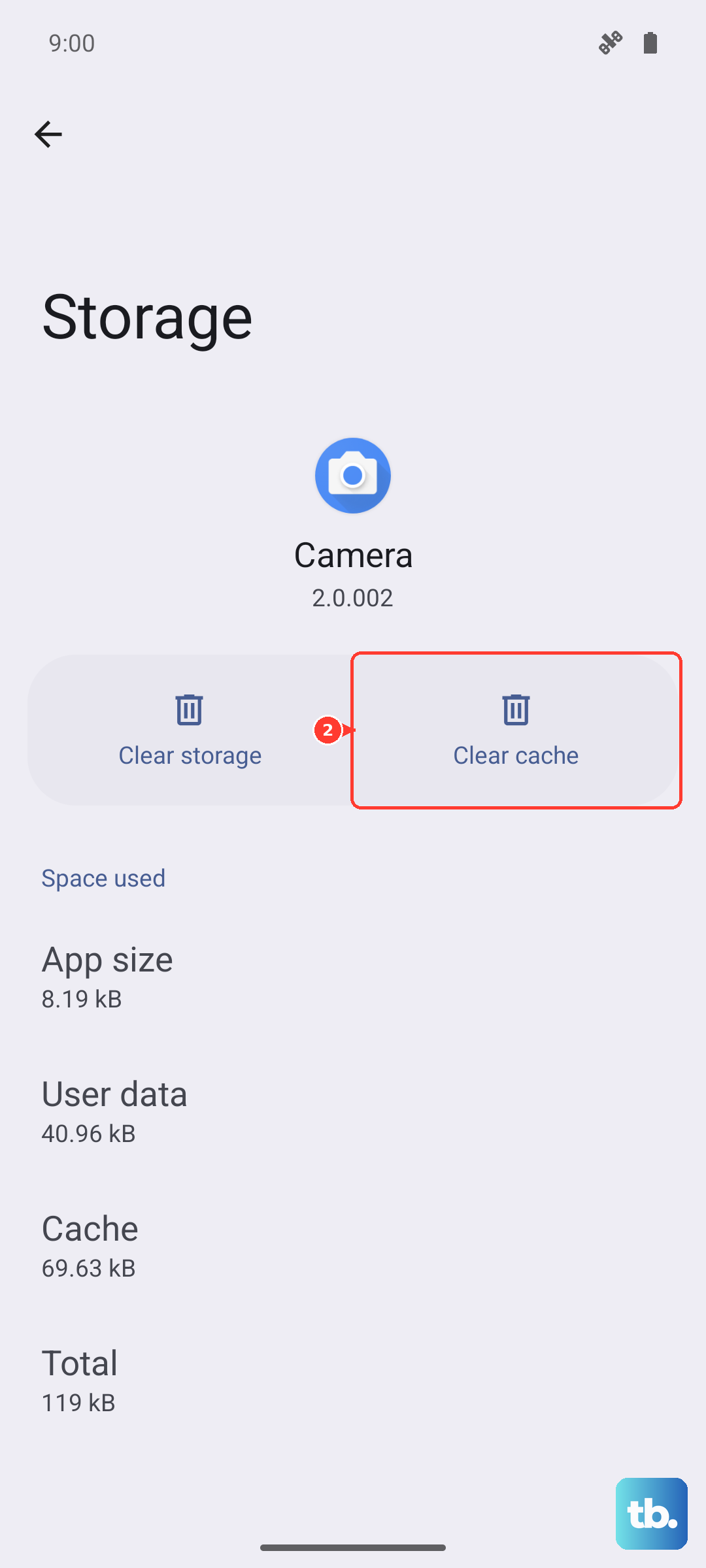
After clearing, reopen the app and play or record video again to see whether the stutter is gone. If lag appears across many different apps rather than just one, the problem is more likely system-wide, and the next step helps you confirm that.
Use Safe Mode to Rule Out a Downloaded App
Safe mode runs only the system's core functions and disables third-party apps, which helps you tell whether something you installed is dragging down video performance. If footage is smooth in Safe mode, a downloaded app is almost certainly the culprit.
Press and hold the Side button and the Volume down button at the same time.
Touch and hold the Power off icon.
Tap the Safe mode icon.
Play or record video in Safe mode and watch the result. If it is smooth, restart the phone to exit Safe mode, then uninstall recently added or updated apps one at a time until the lag disappears. A simple restart is all it takes to leave Safe mode and return to normal operation.
Reset the Phone Only as a Last Resort
If video still lags after every step above, a factory data reset returns the phone to a clean state and clears out whatever software problem survived the earlier fixes. This step erases everything on the device, so treat it as a genuine last resort and back up everything first.
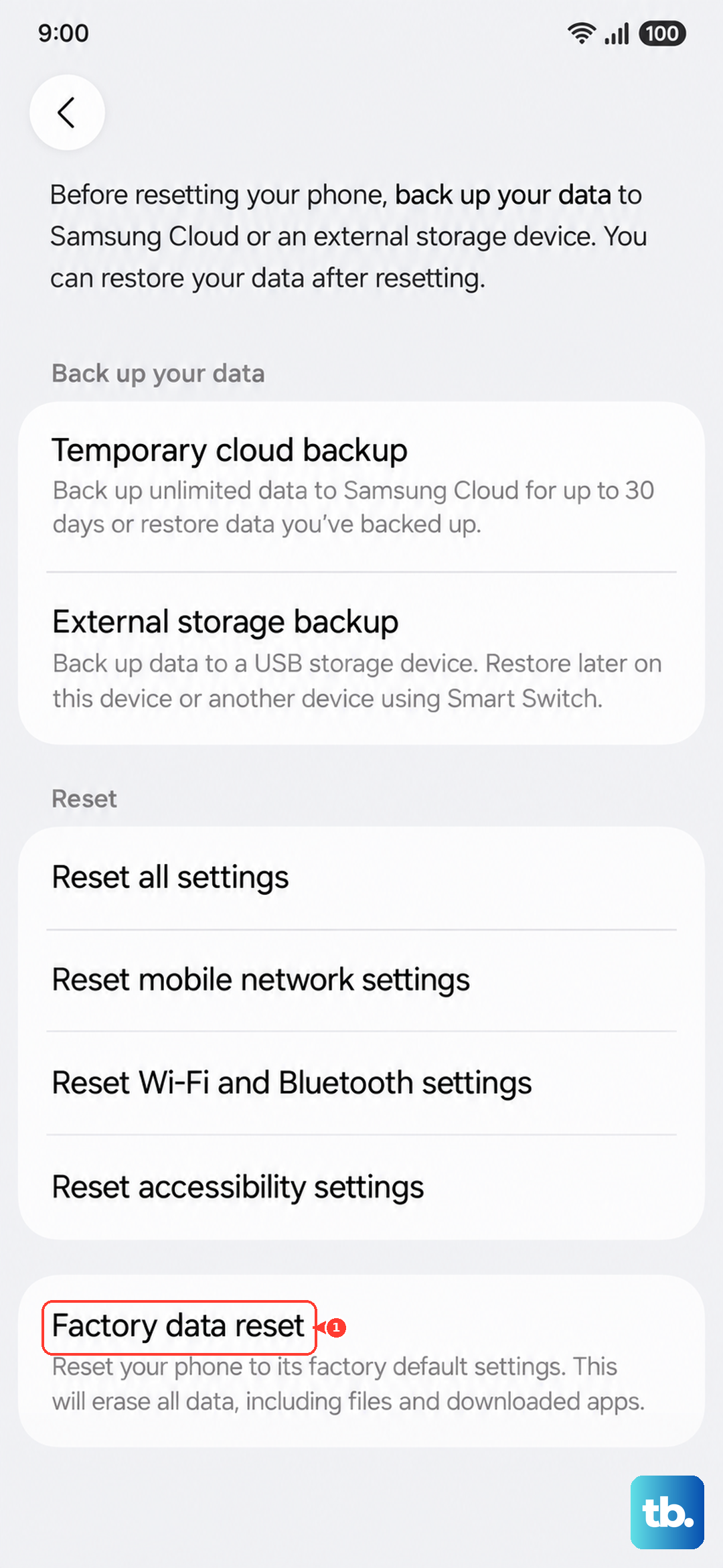
Samsung's warning is explicit. Please save any information you need prior to the factory reset because your personal information may not be recovered. Once you have a complete backup of your photos, videos, and accounts, you can proceed.
- 1.Go to Settings, then tap General management.
- 2.Tap Reset, and then tap Factory data reset.
- 3.Review the information on the screen.
- 4.Tap Reset, and then tap Delete all.
Reach Out to Samsung Support for Hardware Help
If the problem persists even after a factory reset, you have ruled out the common software causes, and it may be a hardware or service issue. At that point the right move is to get the device looked at by people who can run deeper diagnostics.
Use Samsung's official support site to chat, call, or arrange service for your Galaxy Z Fold6. They can confirm whether the panel, the chip, or another component needs attention and walk you through repair or warranty options.
Frequently Asked Questions
Why does my Galaxy Z Fold6 only lag at the highest resolution?
Samsung documents that some devices do not support a 120Hz refresh rate at the highest WQHD+ resolution and will automatically drop to Standard 60Hz when that resolution is chosen. If smooth motion matters more to you than maximum sharpness, check your resolution and Motion smoothness settings together, and make sure Power saving mode is off since it also forces Standard.
Does clearing an app's cache delete my videos or settings?
No. Clearing an app's cache removes residual temporary files without deleting your settings or saved data. It is a safe step to try when a single app, such as a streaming app, the Camera, or Gallery, is stuttering while everything else runs fine.
Will a software update fix video stutter on its own?
It often does, because outdated software is one of the most common causes of lag, glitches, and freezing, and Samsung's updates include bug fixes and performance improvements. Update when you can so you can rule it out as a cause.
How do I force restart a frozen Galaxy Z Fold6?
Press and hold the Volume down button and the Side button (or Power button) simultaneously until the device turns off and turns back on. Use this when the screen is frozen and will not respond to a normal restart; hold the buttons until the screen goes dark and the device powers back up.
Is video lag a sign my Z Fold6 is failing?
Usually not. On a phone with a Snapdragon 8 Gen 3 for Galaxy chip and 12GB of RAM, lag is almost always a software or settings issue that responds to a restart, an update, freeing up memory and storage, turning off Power saving mode, or clearing an app's cache. Only if the stutter survives a factory reset should you suspect hardware and contact Samsung support.