
So your Samsung Galaxy Z Fold 6 won't charge. You've plugged it in, maybe swapped cables, and the battery icon just sits there. It's a frustrating spot to be in, especially with a phone this advanced, but I've found these charging issues are almost always something you can fix yourself.
Whether you're dealing with a stubborn USB-C port, a wireless charger that won't connect, or a phone that shows zero signs of life, we'll go through the fixes from quickest to most involved. The Z Fold 6's unique folding design means we have a few extra things to check, too.
Force Restart Your Galaxy Z Fold 6
This is always the first thing I try. A force restart clears out temporary software glitches that can mess with the charging system. For the Z Fold 6, the process is straightforward.
Press and hold the Volume Down button and the Side/Power button simultaneously. Keep holding them for about 10 seconds or until you see the Samsung logo appear on the screen. Once it boots back up, plug it in and see if the charging indicator shows up.
Clean the USB-C Charging Port
This is the single most common fix for any phone that won't charge, and the Z Fold 6 is no exception. Lint, dust, and pocket debris love to pack into that USB-C port. Over time, it builds up enough to block the cable from making a proper connection.
Grab a flashlight and take a close look inside the port. If you see any gunk, turn the phone off first for safety. Then, use a wooden or plastic toothpick to gently scrape out the debris. Avoid metal tools, as they can scratch the delicate gold contacts inside.
You can also try a quick blast of compressed air, holding the can upright and a few inches away. Give the phone a gentle tap with the port facing down to dislodge anything stubborn. I've seen this simple clean fix the problem more times than I can count.
Try a Different Cable and Power Source
You need to isolate the problem. Is it your cable, your wall adapter, or the phone itself? The best way is to swap each component one by one.
Start with a different USB-C cable, preferably one you know works. Then, try a different wall adapter. Plug it into a different outlet in your house, too. Sometimes the issue is as simple as a faulty power strip.
Also, remove your phone case. Thick cases, especially ones with kickstands or magnetic plates, can sometimes prevent the USB-C plug from seating fully. If your Z Fold 6 charges with a different setup, you've found your culprit.
Check for Software Updates
Software bugs can occasionally interfere with charging. Samsung releases updates that often include patches for power management and battery issues. It's worth checking if you're running the latest version of One UI.
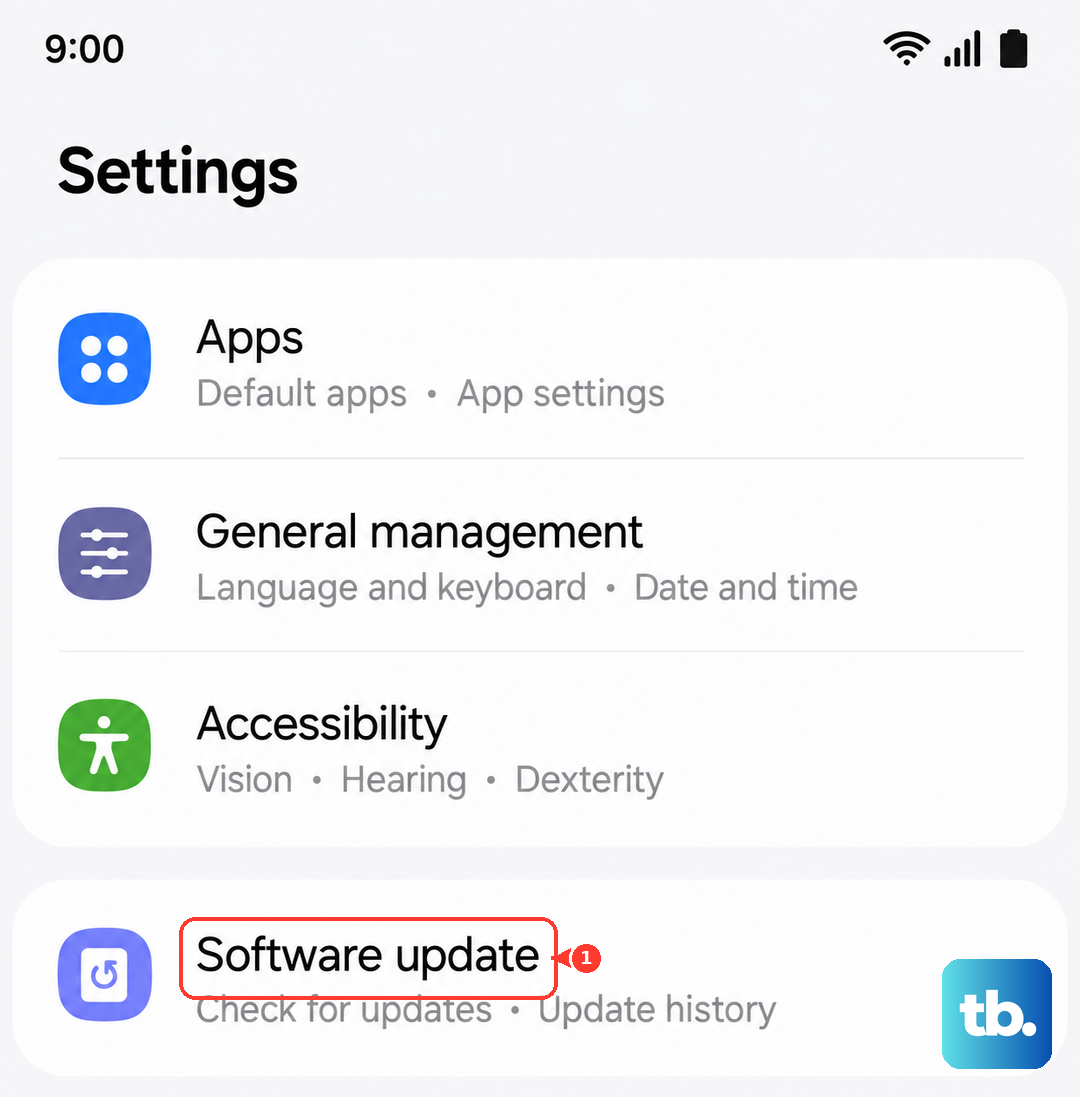
Go to Settings > Software update and tap on Download and install. Make sure your phone is connected to Wi-Fi and has some battery life left. If an update is available, installing it could resolve the charging glitch.
Try Wireless Charging
The Galaxy Z Fold 6 supports both standard Qi and faster 15W wireless charging. If your wired port isn't working, trying a wireless pad can tell you if the problem is specific to the USB-C port or something deeper.
Place your phone centered on a Qi wireless charger. Make sure you remove any thick cases or accessories that might block the connection. If the phone charges wirelessly but not via cable, that strongly points to an issue with the physical USB-C port.
Keep in mind that wireless charging is slower and can make the phone warm, which is normal. If it gets too hot, it might slow down or pause charging to protect the battery.
Wait If the Battery Is Fully Drained
If your Z Fold 6's battery has hit absolute zero, it might not show any sign of life immediately when you plug it in. This is a safety feature. Leave it connected to a wall charger (not a computer or low-power USB port) for at least 30 minutes.
After a while, you should see a battery icon or a charging indicator on the always-on display. If you see nothing after a half-hour, try the force restart method again while it's still plugged into the wall.
Inspect the Hinge and Folding Mechanism
This is a Z Fold-specific tip. The hinge mechanism can attract dust and debris over time. While it's less common, significant buildup could potentially interfere with internal connections, including the battery.
Gently open and close the phone a few times. Listen for any gritty sounds or feel for resistance. You can use a can of compressed air to blow gently into the hinge area to dislodge any loose particles. Avoid using liquids or forcing anything into the hinge.
Boot into Safe Mode
Sometimes a recently downloaded app can cause system conflicts that affect charging. Booting into Safe Mode temporarily disables all third-party apps, letting you see if one of them is the problem.
To enter Safe Mode, press and hold the Side/Power button until the power off menu appears. Then, tap and hold the "Power off" option on your screen. You'll see a prompt to reboot into Safe Mode. Tap OK.
If your phone charges normally in Safe Mode, a third-party app is likely to blame. You'll need to uninstall apps one by one (starting with the most recently installed) to find the culprit.
Consider a Factory Reset (Last Resort)
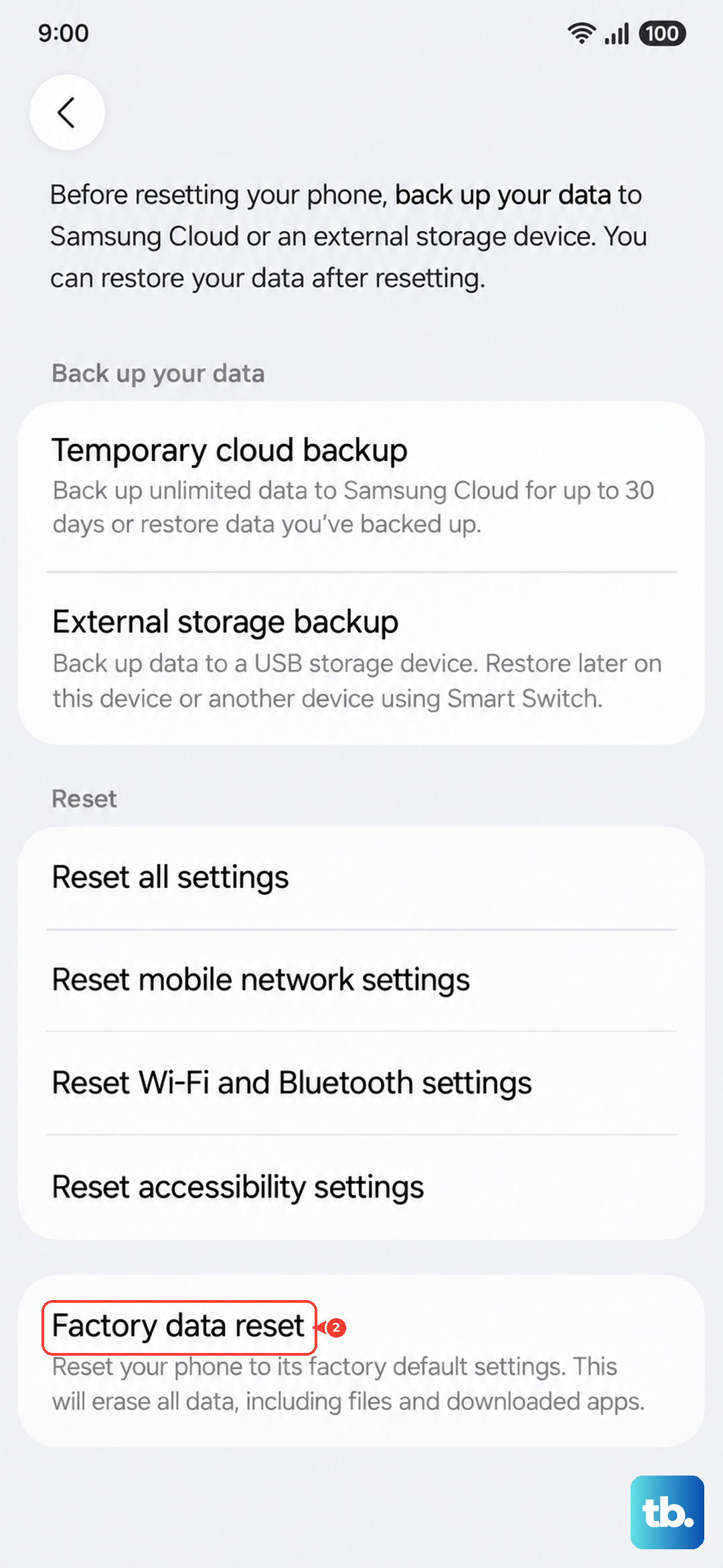
If all else fails, a factory reset can eliminate deep-seated software corruption. This will erase all data on your phone, so it's crucial to have a recent backup via Samsung Cloud or Google Drive before you begin.
You can initiate a reset through the settings. Go to Settings > General management > Reset and select "Factory data reset." Follow the prompts to erase everything. After the phone restores itself to factory conditions, set it up as new and immediately test the charging.
If the phone still won't charge after a factory reset, the issue is almost certainly hardware-related. At that point, contacting Samsung Support or visiting an authorized repair center would be the next step, especially since the Z Fold 6 is a complex device with a unique internal design.