
When your Galaxy Z Fold 6 starts restarting on its own, it's incredibly disruptive, especially when you're trying to use that expansive inner screen. This can happen for a bunch of reasons, from a simple software hiccup to a more stubborn app conflict. I'd start with a force restart, as it clears out temporary glitches without touching your data.
Before you dive into any fixes that might erase data, it's a good idea to make sure your stuff is backed up. You can use Samsung Cloud or just plug your phone into a computer and manually copy over your important photos and files.
Perform a Force Restart
This is your first and fastest step. It's like giving your phone a fresh cup of coffee. For the Galaxy Z Fold 6, press and hold the Volume Down button and the Side key (power button) at the same time. Keep holding them for about 10 seconds until you see the Samsung logo appear on the screen, then let go. Your phone will boot up normally.
Check for App Problems in Safe Mode
If a third-party app is causing the trouble, booting into Safe Mode will tell you. This temporarily disables all apps you've downloaded. To get into Safe Mode, press and hold the Side key until the power menu appears. Then, tap and hold the "Power off" option on your screen. You'll get a prompt to reboot into Safe Mode, tap it.
If your phone stops restarting while in Safe Mode, you know a downloaded app is the culprit. The trick is figuring out which one. Think about any apps you installed just before the problems began. You can start uninstalling recent apps one by one, testing after each, until the restarts stop.
Update Your Apps and Software
Outdated apps can clash with Android 14 and One UI 6.1.1. Open the Galaxy Store and Google Play Store to check for updates. In the Play Store, tap your profile icon in the top right, then go to Manage apps & device. Look under "Updates available" and tap "Update all."
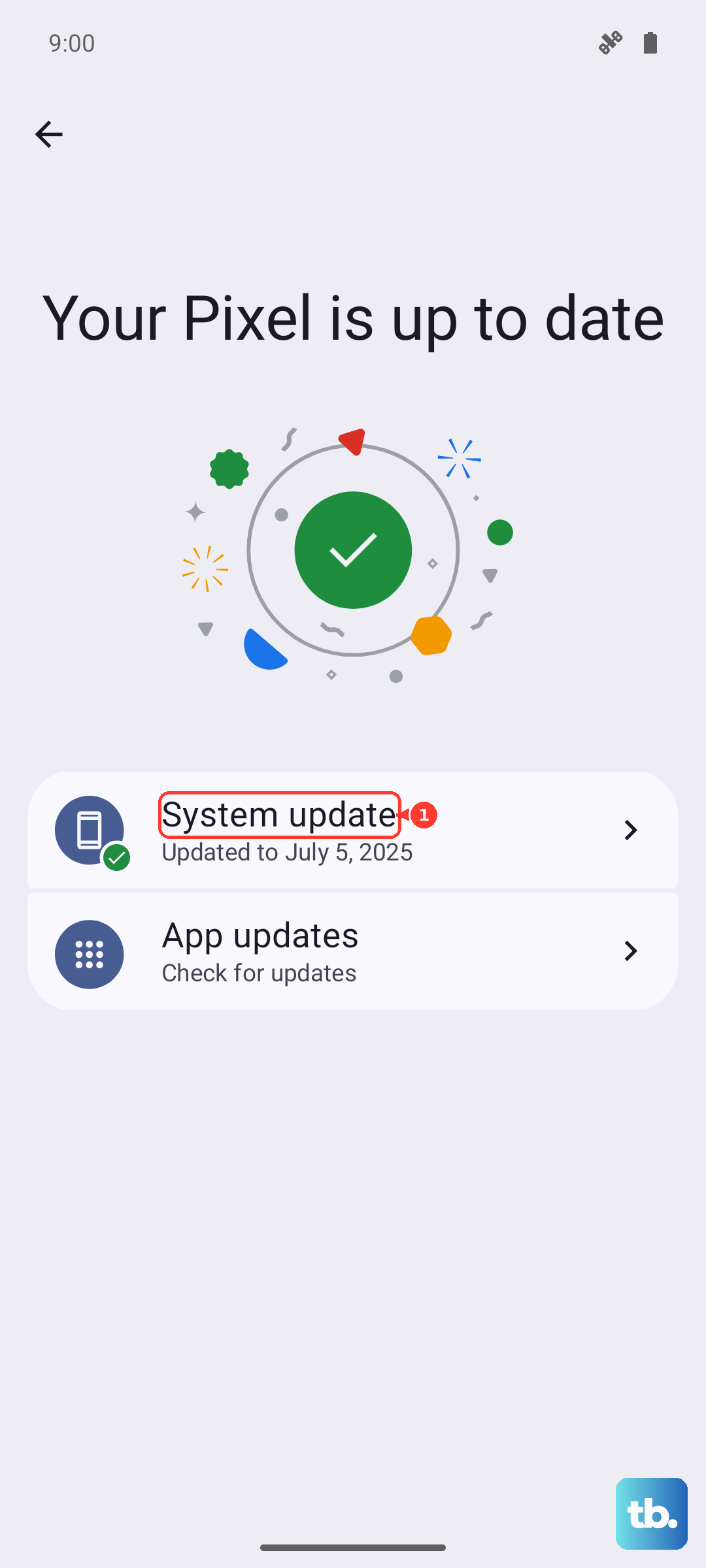
Next, check for a system update. Go to Settings > Software update and tap "Download and install." Samsung frequently releases patches that fix stability issues, so this is a crucial step. Make sure your phone is connected to Wi-Fi and has a good battery charge before starting.
Clear the System Cache
Corrupted cache data from apps or the system can lead to random reboots. Clearing it is safe and won't delete your personal data. You'll need to boot into the recovery menu. First, turn off your phone completely.
Then, connect it to a computer with a USB-C cable. Immediately press and hold the Volume Up and Side keys together. When you see the Android recovery screen, let go. Use the volume buttons to navigate to "Wipe cache partition" and press the Side key to select it. Confirm, and when it's done, select "Reboot system now."
Review Device Care and Battery Health
Go to Settings > Battery to review battery usage and power-related warnings. An aging or faulty battery can sometimes cause unexpected shutdowns that look like restarts, and battery usage can also show apps consuming excessive power in the background.
For maintenance tools, go to Settings > Device care. Check Memory and run any optimization suggestions Samsung offers there.
Reset All Settings
This resets things like your network settings, display preferences, and sounds back to factory defaults, but it leaves all your personal files, photos, and apps intact. It's a strong step for weird software behavior. Go to Settings > General management > Reset > Reset all settings.
You'll need to enter your PIN or password. After confirming, your phone will reboot. You'll have to reconnect to Wi-Fi networks and redo some customizations, but it often resolves deep-seated configuration conflicts.
Consider Physical Factors and Accessories
The Z Fold 6's unique hinge can be a factor. Over time, dust and debris can get inside, potentially interfering with internal sensors. Try gently cleaning the hinge area with a can of compressed air, holding the phone at an angle so the debris falls out.
Also, try removing any cases, especially third-party ones that might not be perfectly aligned. A poorly fitting case could be pressing buttons or sensors. Similarly, test without a screen protector on the inner display, as non-approved films can interfere with the touch sensor and cause system stress.
Perform a Factory Reset
If nothing else has worked, a factory reset is your last software resort. This will erase everything on your phone, so double-check your backups. Go to Settings > General management > Reset > Factory data reset. Scroll down and tap "Reset."
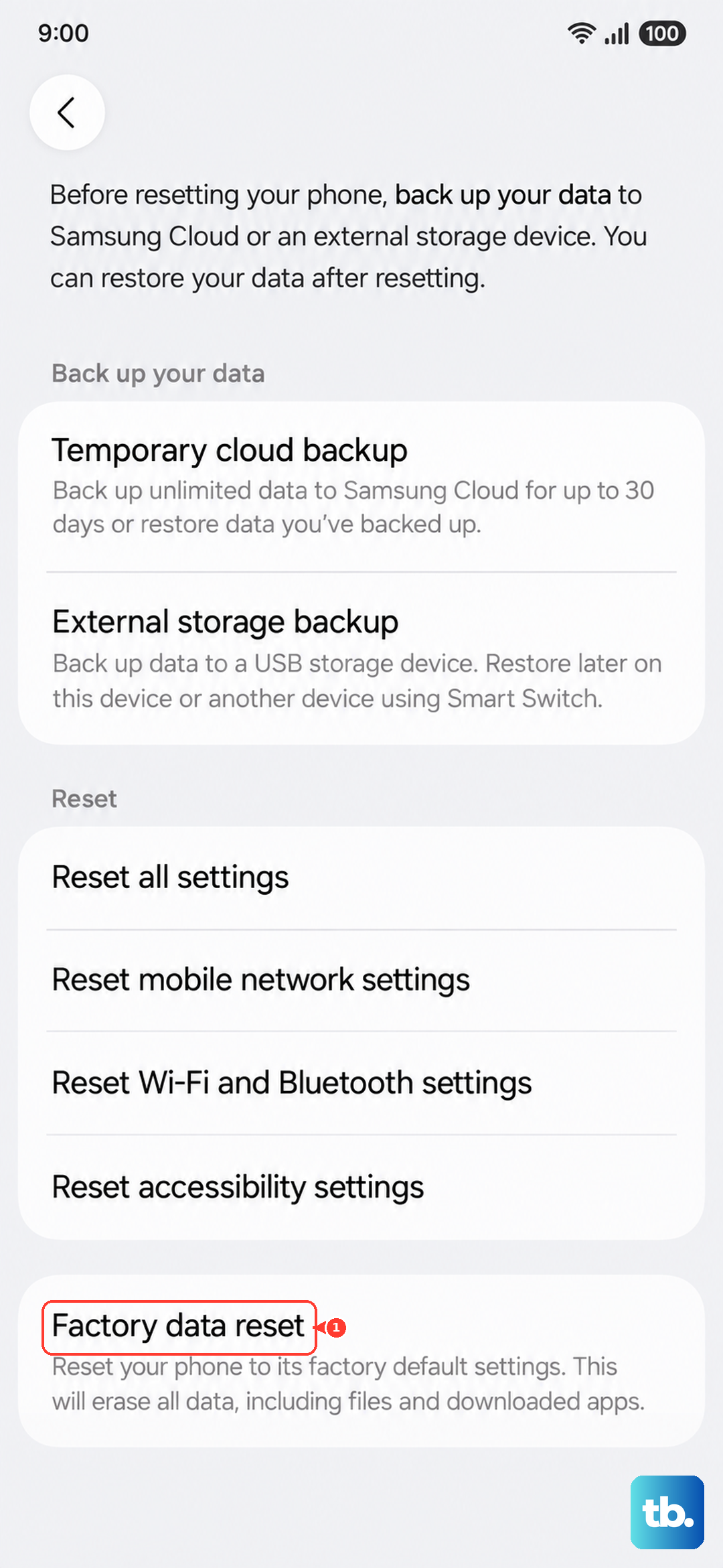
After entering your credentials, the phone will wipe itself and reboot. You'll be greeted with the initial setup screen. If the random restarts are gone on a fresh system, it confirms it was a software issue. You can then restore your data from your backup.