You hit play on your Galaxy Z Fold6, expecting music or a call to come through your earbuds, and instead you get nothing, audio from the phone speaker, or sound that keeps cutting out. Because the Z Fold6 has no 3.5mm headphone jack, every set of headphones connects either over Bluetooth or through the USB-C port, which means the cause could be the headphones, an adapter, a settings switch, or the port itself. The good news is that most of these problems clear up with a few ordered checks, and the steps below start with the easiest, safest fixes before moving to a reset or service. Work through them in order and you will usually find your sound again without losing any data.
To rule out the headphones themselves, try a quick headphone test in the browser. If every tone plays cleanly, focus on the device settings covered next.
Prove Whether the Phone or the Headphones Are at Fault
Before changing any settings, find out which piece of gear is actually broken. Try a different set of headphones or earbuds on your Galaxy Z Fold6, or connect your current headphones to another device such as a tablet or laptop. This simple swap is the fastest way to narrow down the cause.
If the second pair works on the phone, the original headphones or their adapter are the problem. If your headphones work on another device but not the phone, the issue is on the Z Fold6 side. Doing this isolation test first saves you from chasing the wrong fix, and it tells you early whether you are dealing with a headphone fault, an adapter fault, or a phone setting.
Confirm the Media Volume Is Up and Not Muted
It sounds obvious, but a silenced or zeroed media slider is one of the most common reasons headphones seem dead. Start playing audio in a music or video app while the headphones are connected, so you are adjusting the media channel rather than the ringtone or alarm channel.
Press the volume up button while that audio is playing, then open the volume panel and confirm the media volume is raised and not muted. Watch for a grayed-out or zeroed media slider, which means media is silenced even when ringtones or alarms still play. The Z Fold6 keeps separate volume levels for media, calls, ringtones, and alarms, so a quiet media slider can leave you with no sound in headphones while the rest of the phone seems fine.
Clear the USB-C Port, Then Restart the Phone
Cases, charms, and skins can sit over the USB-C port or interfere with how an adapter seats. Remove any case, charm, or skin that could block the port or get in the way, then give the phone a clean restart to clear temporary audio routing glitches.
To restart normally, press and hold the Volume down button and the Side button, then tap Restart, and tap Restart again. If the screen is frozen and a normal restart will not go through, force the phone to reboot instead by pressing and holding the Volume down button and the Side button or Power button at the same time until the device turns off and turns back on. The screen goes black, then the Samsung logo appears, which confirms the force restart worked. Use the force restart only when the phone is unresponsive, since a normal restart is the better choice when the screen still responds.
Turn On the Calls and Audio Switches for Bluetooth Headphones
When Bluetooth headphones connect but you still hear nothing, the output may be paired without being assigned to media. Go to Settings, then Connections, then Bluetooth, tap the settings icon next to your connected headphones, and make sure the Calls and Audio media audio output switches are turned on.
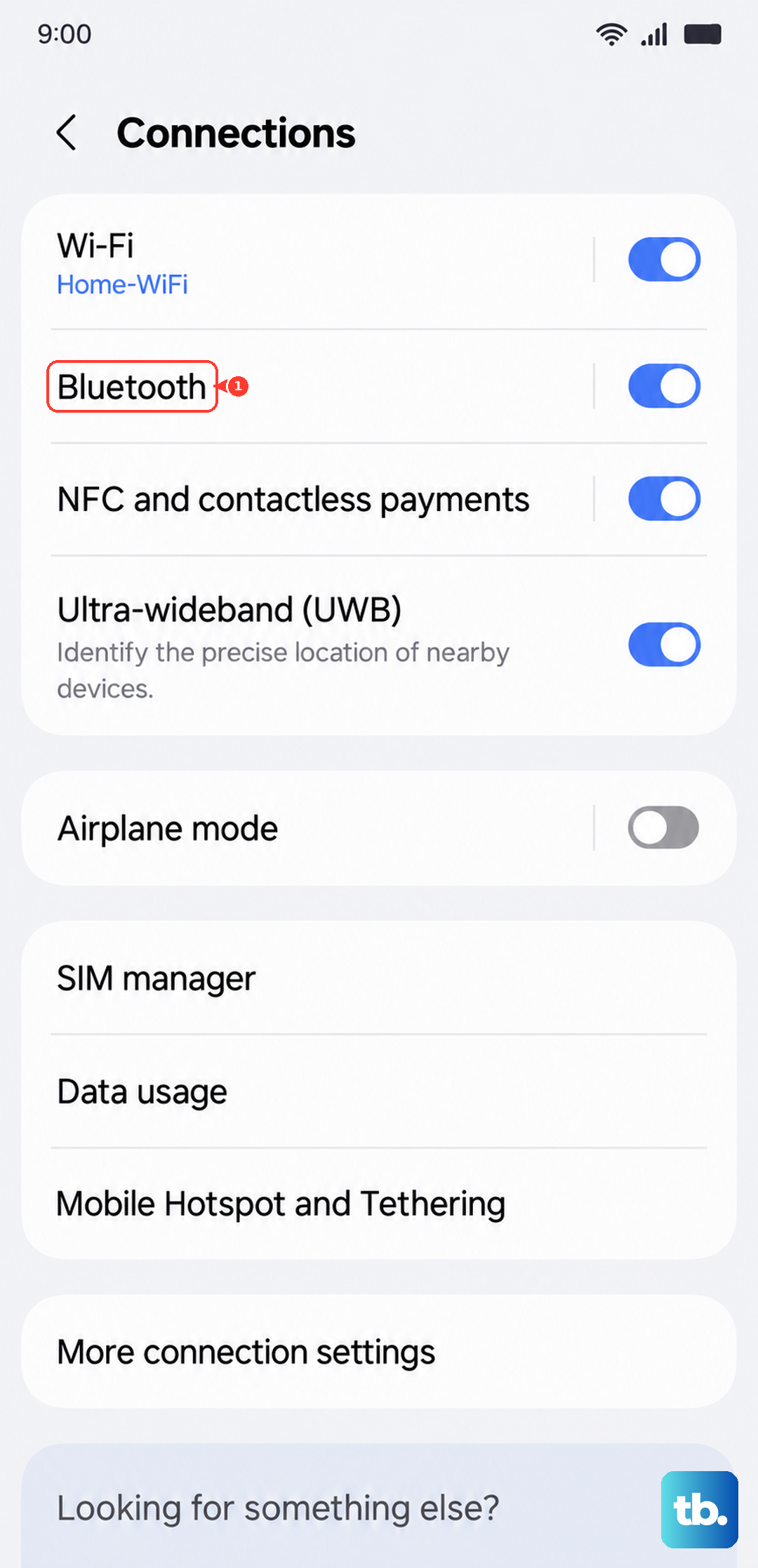
Distance and obstructions matter too. Keep the headphones near the phone and reduce physical barriers between them, since a weak Bluetooth link can break up or silence the sound even when both devices still show as connected. If the audio still drops, unpair and re-pair the headphones to rebuild the connection.
Reset and Update Galaxy Buds Through the Galaxy Wearable App
If you use Samsung earbuds such as Galaxy Buds, Samsung's own companion app handles most connection trouble. Restarting the earbuds, resetting the Bluetooth connection, and updating through the Galaxy Wearable app will normally fix connection and audio issues with Samsung earbuds.
Reset the Bluetooth pairing and reconnect the earbuds, then open the Galaxy Wearable app on the phone to manage and update them. Keeping the earbuds and app current often resolves a stubborn pairing or audio fault on its own, so check for a firmware update in the app before trying anything more drastic.
Inspect a Wired Connector, Cable, and the USB-C Port
For wired headphones, physical damage is a frequent culprit, so check the hardware closely. Examine the headphone connector for bending or breaks, and look over the cable for cuts, kinks, or exposed wires that could interrupt the signal.
Next, inspect the phone's USB-C port with a flashlight and make sure there is no lint, dust, or bent pins inside. Even a small amount of debris can keep a connector or adapter from seating fully. If you use a third-party USB-C adapter, remove it and connect the headphones directly to test whether the adapter is the weak link. If the port pins look bent, the device needs service rather than a settings change.
Use a DAC-Compatible USB-C Adapter for 3.5mm Headphones
The Galaxy Z Fold6 has no headphone jack, and it no longer directly supports DAC, so a plain passive adapter will not produce sound. To run 3.5mm wired headphones, you need a USB Type-C to 3.5mm Headset Jack Convert Adapter with a built-in DAC.
Samsung recommends a genuine Samsung Type-C to 3.5mm Headset Jack Converter for this purpose. If you prefer a third-party adapter, confirm it is DAC compatible before relying on it, because adapters without a built-in DAC will not work on this model. Swapping a passive adapter for a DAC-equipped one is often the single fix that brings wired 3.5mm headphones back to life on this phone.
Install the Latest Software Update
A pending system update can carry fixes for Bluetooth and audio routing, so make sure the phone is current. Go to Settings, then Software update, then Download and install, then tap Install now and follow the prompts. On some phones this is shown as System updates instead of Software update.
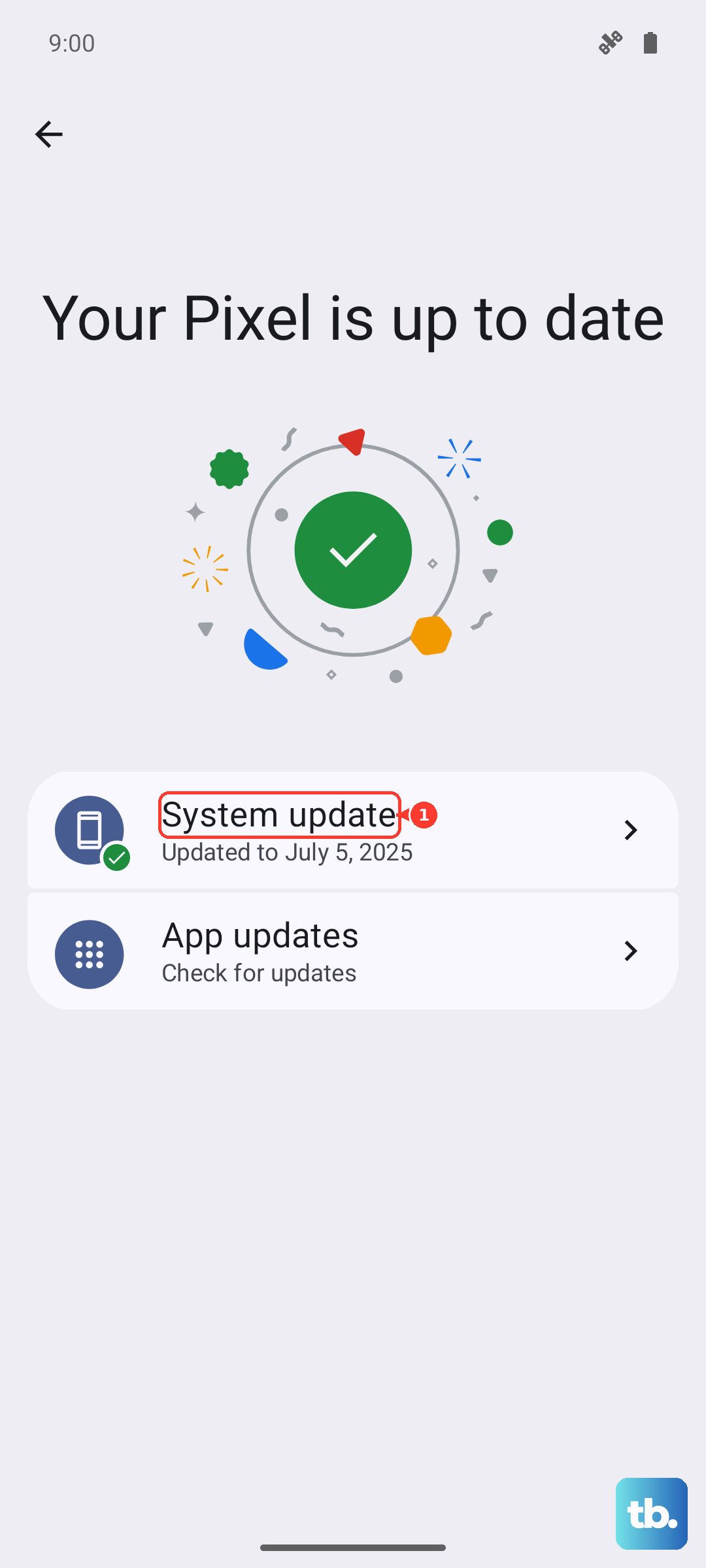
Before you begin, make sure the battery is sufficient and you are connected to Wi-Fi, since the device restarts during the update. Let the update finish completely before testing your headphones again, because audio routing can behave oddly until the new software fully installs.
Boot Into Safe Mode to Rule Out a Rogue App
A downloaded app can hijack audio output or interfere with Bluetooth, and Safe mode tells you whether that is happening. Power off the phone, turn it on, and when the Samsung logo appears press and hold the Volume down button until Safe mode appears in the bottom-left corner.
In Safe mode the device will not run any third-party apps, so test your headphones here. If they work in Safe mode, a downloaded app is the cause, so remove recently installed or updated apps one at a time to track down the offender. Restart the phone normally to exit Safe mode once you finish testing.
Factory Reset as a Last Resort, Then Contact Samsung
If nothing above restores sound, a factory data reset is the final software step. Back up your data first, then go to Settings, then General management, then Reset, then Factory data reset, review the information, tap Reset, then tap Delete all.
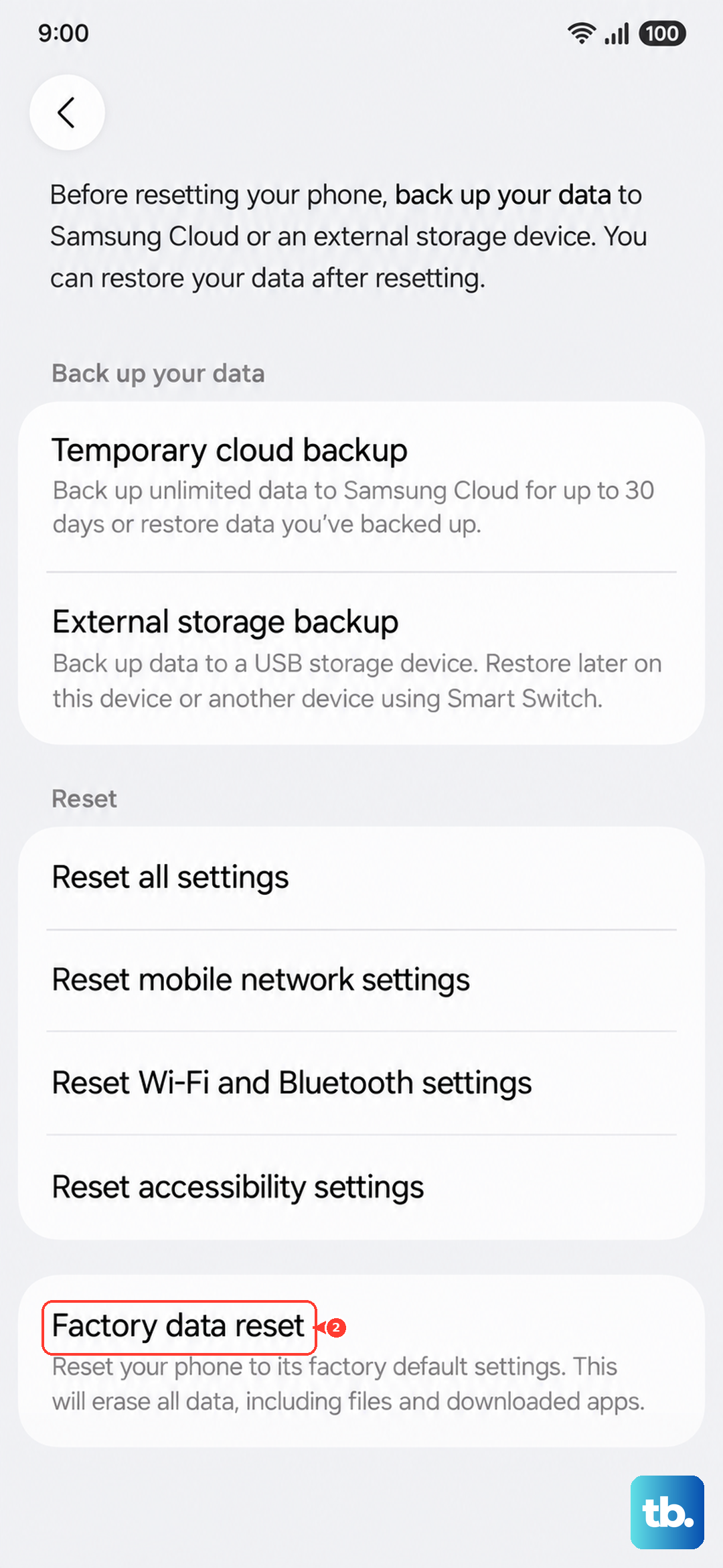
Be aware of the data-loss warning before you proceed. Please save any information you need prior to the factory reset, because your personal information may not be recovered once the reset runs. If the issue persists after a reset, or if the USB-C port or pins are physically damaged, request service from a Samsung service center, since a hardware fault cannot be fixed in software.
Frequently Asked Questions
Does the Galaxy Z Fold6 have a headphone jack?
No. The Galaxy Z Fold6 does not have a 3.5mm headphone jack. Audio comes out over USB Type-C or Bluetooth 5.3, so wired 3.5mm headphones require a USB-C to 3.5mm adapter.
Why do my 3.5mm headphones make no sound through a USB-C adapter?
The Z Fold6 no longer directly supports DAC, so a basic adapter will not work. You need a USB Type-C to 3.5mm Headset Jack Convert Adapter with a built-in DAC. Samsung recommends a genuine Samsung Type-C to 3.5mm Headset Jack Converter, and any third-party option must be DAC compatible.
My Bluetooth headphones connect but I hear nothing. What should I check?
Open Settings, then Connections, then Bluetooth, tap the settings icon next to your connected headphones, and confirm the Calls and Audio media audio output switches are turned on. Also keep the headphones near the phone and reduce barriers between them so the Bluetooth link stays strong.
How do I know if the problem is the headphones or the phone?
Try another set of headphones or earbuds on your Galaxy Z Fold6, or connect your current headphones to another device. This isolates whether the fault is with the headphones, the adapter, or the phone before you change any settings.
How do I update the software on my Galaxy Z Fold6?
Go to Settings, then Software update, then Download and install, then tap Install now and follow the prompts. On some phones this appears as System updates. Make sure the battery is sufficient and you are on Wi-Fi, because the phone restarts during the update.