
When the flashlight on your Samsung Galaxy Z Fold 6 is grayed out in the Quick Settings panel, it's a surprisingly common hiccup. The button is there, but you just can't tap it. Let's get your light back on.
Close the Camera App
The flashlight and camera flash use the same LED hardware. If your camera app is open, even in the background, the system reserves that LED for the camera. Swipe up from the bottom to see your recent apps and swipe the Camera app card away to fully close it. You should see the flashlight icon become available again right away.
Force Restart Your Phone
This is the go-to fix for most weird software glitches on the Z Fold 6. Press and hold the Volume Down button and the Side button together for about 10 seconds. Keep holding until you see the Samsung logo appear on the screen, then let go. This clears the phone's temporary memory and often resolves a stuck flashlight control.
Check Power Saving Modes
While standard Power Saving mode shouldn't disable the flashlight, the more aggressive "Maximum power saving" mode can. Go to Settings > Battery > Power saving. Make sure neither "Power saving" nor "Maximum power saving" is turned on. I've seen the flashlight get disabled under the maximum setting.
Let Your Phone Cool Down
If your Z Fold 6 is overheating, it will automatically disable certain features to protect the hardware, and the flashlight LED is often one of the first to go. This can happen during long gaming sessions, while using the inner display for extended periods, or if it's left in a hot car. If the phone feels warm, give it a break in a cooler spot for 10-15 minutes.
Use Google Assistant or Bixby
Try activating the flashlight with your voice. Say "Hey Google, turn on the flashlight" or "Hi Bixby, turn on the torch." If the voice assistant can turn it on but the Quick Settings button remains grayed out, it confirms a software interface bug. You can then try toggling it off with your voice as well, which sometimes resets the system's control over the LED.
Adjust the Flashlight Brightness
You might not be able to tap the grayed-out icon, but try a long-press on it in your Quick Settings panel. This should open a small pop-up with a brightness slider. If it opens, drag the slider up to the brightest setting. Sometimes the light is technically on but set so dim it's invisible in anything but total darkness.
Reset Your Quick Settings Layout
A corrupted Quick Settings panel can cause individual toggles to malfunction. To reset it, go to Settings > Notifications > Quick panel layout. Tap on Reset. This will restore your toggles to the default arrangement and can clear up any glitches preventing the flashlight button from working properly.
Update Your Software
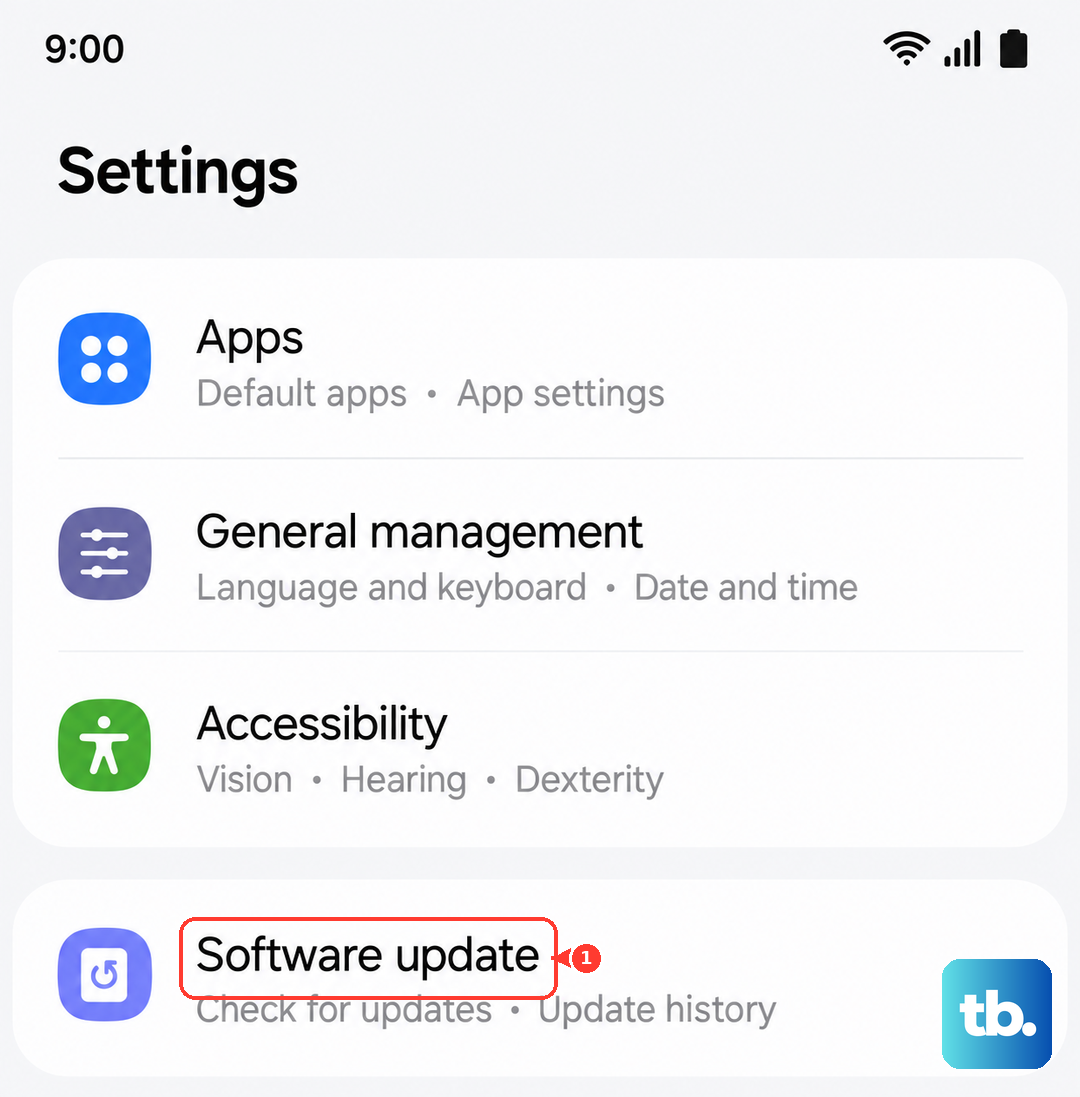
Outdated software can have bugs that affect hardware controls. Samsung regularly releases updates that fix these kinds of issues. Go to Settings > Software update > Download and install. If an update is available, install it. Make sure your phone is connected to Wi-Fi and has at least 50% battery, or is plugged into its 25W charger, before starting.
Test the Camera Flash
If all else fails, you need to check the LED hardware itself. Open your Camera app and switch to a photo mode like "Photo." Take a picture in a dark room, or look for a flash icon (usually a lightning bolt) and try to force it on. If the camera flash also doesn't work, the LED module or a connected component may be damaged. Since the Z Fold 6 is a 2024 model, it should still be under warranty for this type of repair.