You raised the Galaxy Z Fold6, framed a shot, and the photo came out soft when you expected it to be crisp. Whether the blur shows up on the wide lens, the telephoto, or only when you move in close, the cause is usually something simple, a smudged lens, a focus that never locked, or a setting that slipped. The good news is that the Z Fold6 has autofocus, tap-to-focus, Pro mode, and Night mode across its rear array, so a blurry result is almost always fixable. Work through the steps below in order, starting with the quickest and safest, and only reach for a reset or repair if nothing else lands.
Start With the Lens and What Is Touching It
Smudges, dust, and fingerprints on the glass are one of the most common reasons a phone camera refuses to focus. The Z Fold6 carries a 50MP wide lens, a 12MP ultra-wide, and a 10MP telephoto with 3x optical zoom, and every one of them sits behind glass that picks up oil from your hands and pocket.
Samsung's guidance is to clean the lens with a soft, dry, lint-free cloth, and to make sure your phone cover and phone accessories don't cover the edges of the camera lens. Dirt or foreign objects on the lens interfere with autofocus, so even a partial obstruction can soften the whole frame.
Wipe each rear lens gently with a soft, dry, lint-free cloth.
Next, remove any case, screen film, or stick-on lens protector that overlaps the rear camera array.
Then check that no part of a cover or accessory sits over the edges of the camera lenses.
Tap to Focus and Steady Your Hands
The Z Fold6 supports tap-to-focus, which means your camera should focus on a subject when you touch it on the screen. If the camera locked onto the background instead of your subject, a single tap usually fixes the focus point before you press the shutter.
Movement is the other quiet culprit. Hand shake while you shoot, or a moving subject, can easily create blur, so hold the phone as still as possible and give the camera a moment to settle before you press the shutter.
Light matters just as much. Make sure your subject is well lit, because in dim conditions the camera slows its shutter to gather more light, and any small movement then shows up as motion blur.
Back Up if You Are Shooting Too Close
Close-up shots fail for a specific reason. If you are too close, the camera physically cannot focus, and the result looks blurry. The Z Fold6 does not have a dedicated macro mode, so close-up sharpness is governed entirely by each lens's minimum focus distance.
Samsung lists approximate minimum focus distances that you should respect for sharp shots.
Use the standard lens at about 12 inches.
Use the telephoto lens at about 20 inches.
Use 10x hybrid zoom at about 32 inches.
Use the ultra-wide lens at about 4 inches.
If a close-up keeps coming out soft, step back to at least the distance for the lens you are using. The ultra-wide gets you the closest, so it is often the best option for tight subjects.
Switch Off Tracking Auto-Focus When Part of the Scene Is Sharp
Sometimes one person or object is in perfect focus while everything around it goes soft. That is usually Tracking auto-focus doing exactly what it is designed to do. When Tracking auto-focus is on, the camera will be locked to that person or item for 3 seconds, which can leave the rest of the scene looking out of focus.
Samsung says this can be prevented by turning off Tracking AF in the Camera app's settings. Open the Camera app, go into its settings, and disable Tracking auto-focus if you want the camera to refocus freely across the frame.
Restart the Phone to Clear a Temporary Glitch
A restart clears the temporary software hiccups that can make the camera misbehave. On the Z Fold6, a normal restart is quick.
- 1.Press and hold the Volume down and Side buttons at the same time.
- 2.Tap Restart.
- 3.Tap Restart again to confirm.
If the camera or screen is frozen and will not respond, use a force restart instead. Press and hold the Volume down button and the Side button (or Power button) simultaneously until the device turns off and turns back on. A force restart does not erase your data, so it is safe to use when the phone is unresponsive.
Reset the Camera App to Its Defaults
If you (or an app) changed a camera setting and photos turned soft, resetting the Camera app brings everything back to default without touching your saved photos.
Launch the Camera app.
After that, tap the Settings icon.
Swipe to and tap Reset settings.
Tap Reset to confirm.
This is a low-risk step that often clears odd behavior left behind by a setting you do not remember changing.
Install the Latest Software Update
Camera bugs are frequently fixed in software updates, and the Z Fold6 has already moved well beyond its launch software, having officially received One UI 7 (Android 15) starting in April 2025. Keeping the phone current is one of the most reliable ways to clear a camera issue introduced by an older build.
Open Settings.
Tap Software update (it may say System updates on some models).
Tap Download and install (or Check for software updates).
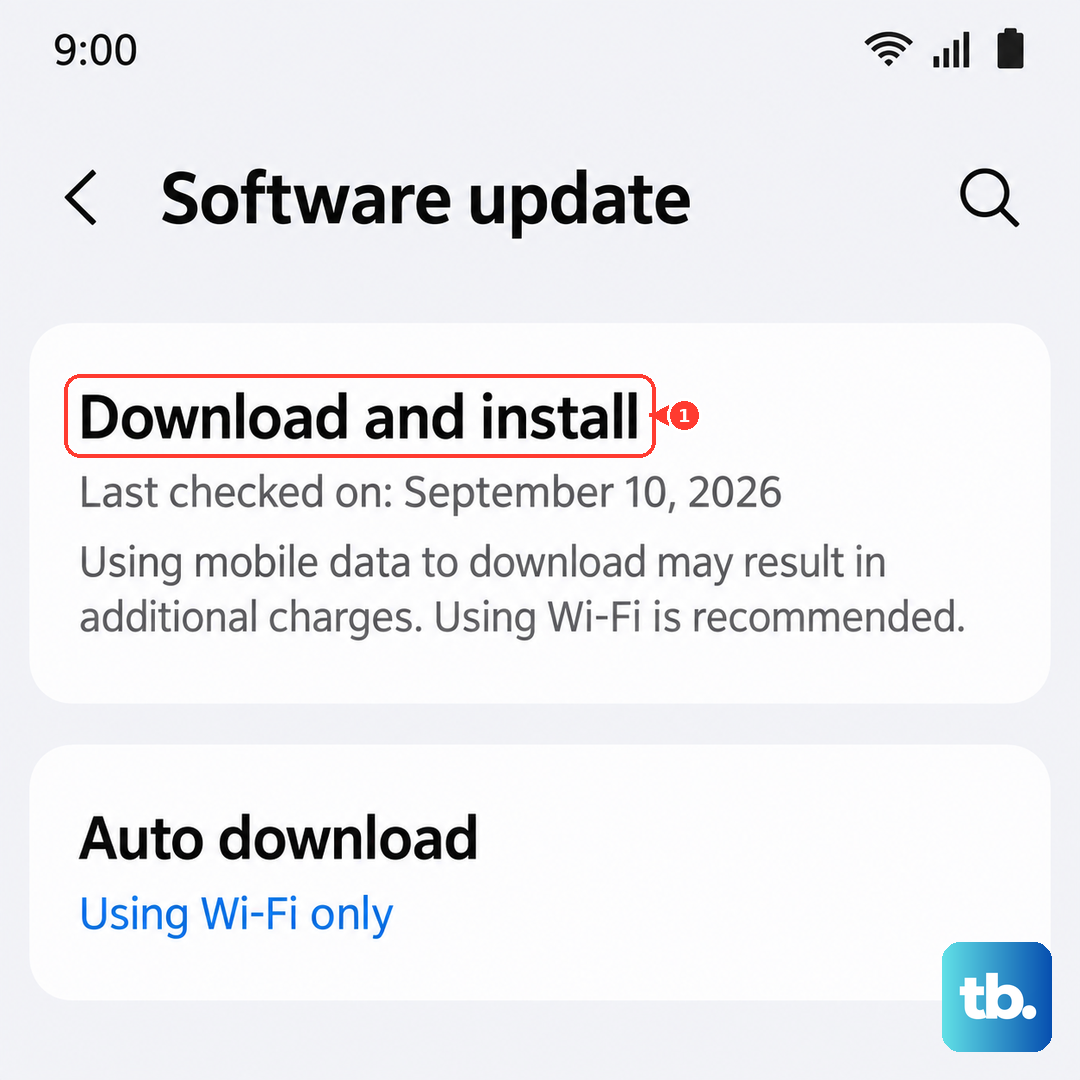
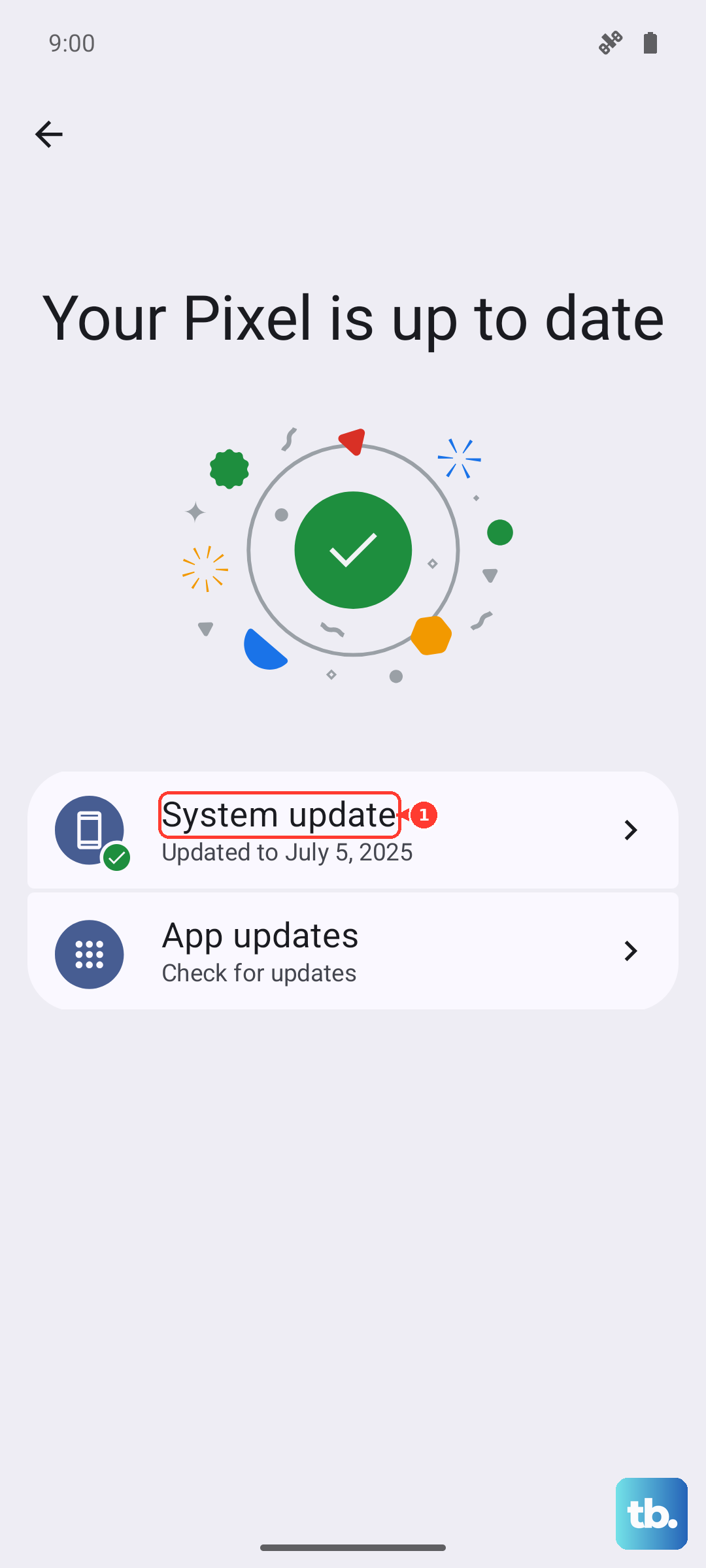
Some carriers require a Wi-Fi connection to download updates, so connect to Wi-Fi first if the download will not start.
Let Internal Condensation Dry Out
If your photos look foggy or hazy, especially after going from a cold environment into a warm one (or the reverse), the lens may have internal condensation. This is moisture, not a hardware fault, and it clears on its own.
Samsung advises avoiding sudden temperature changes, and, if condensation occurs, letting the lens dry naturally at room temperature before using it again. Resist the urge to heat the phone or wipe inside it. Just leave it in a room-temperature spot until the haze disappears.
Test in Safe Mode to Rule Out a Third-Party App
A downloaded camera or photo app can interfere with how shots are captured. Safe mode loads only the original software, which lets you see whether something you installed is to blame.
Press and hold the Power/Side button until the Power menu appears.
Once the menu is open, touch and hold Power off until the Safe mode icon is displayed.
Tap Safe mode.
Take a few photos in Safe mode. If they are sharp, a downloaded app is the cause, and you should uninstall recently added camera or photo apps after you restart normally. If the blur remains in Safe mode, the problem is not a third-party app.
The Last Software Step and When to Contact Samsung
If nothing above worked, a factory data reset is the final software measure. This is a destructive step, so treat it carefully.
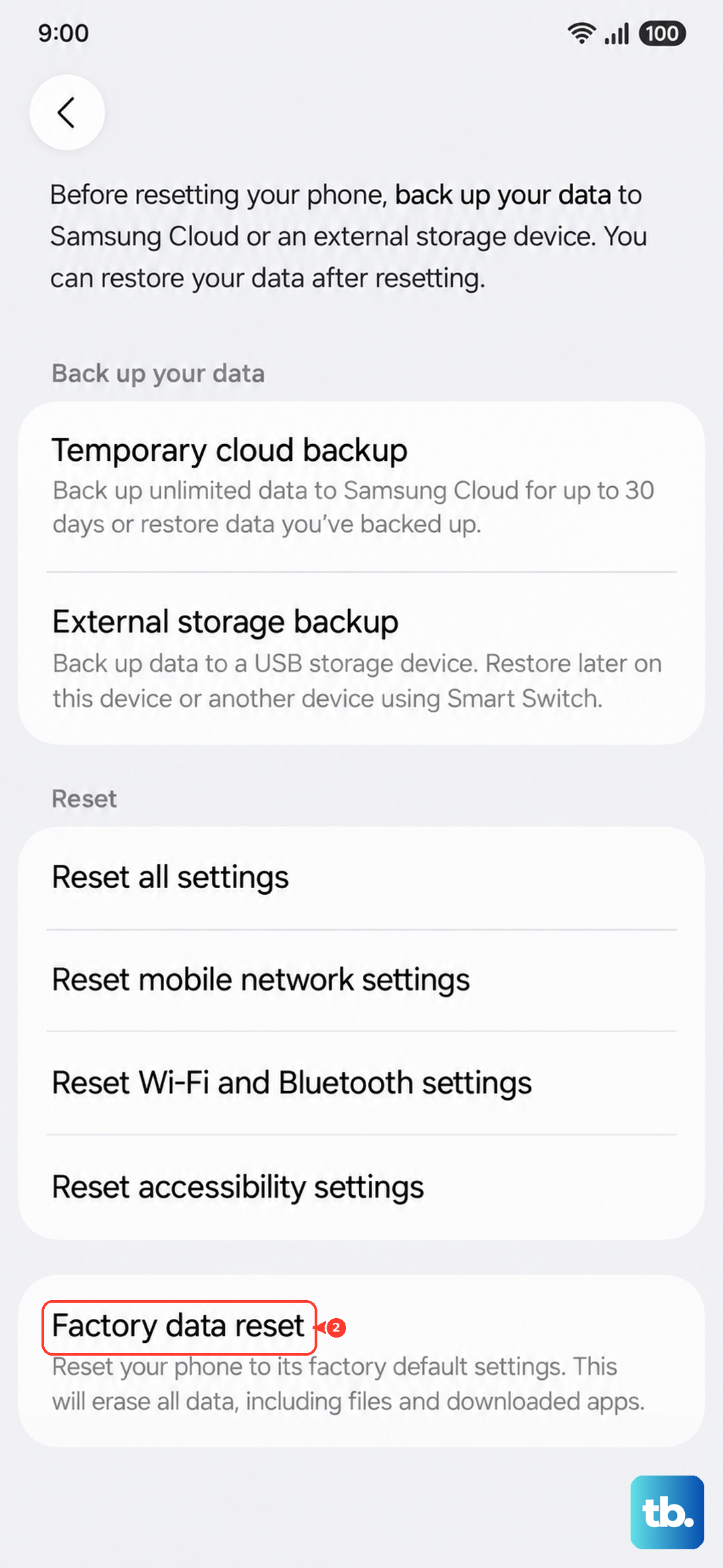
Warning, a factory data reset will erase all data and settings on the phone. Back up your photos, contacts, and anything else important before you begin.
Open Settings.
Then tap Factory data reset.
Tap Factory data reset again.
Tap Reset.
If blur still persists after a reset, it points to a hardware issue rather than software. At that point, contact Samsung support, or use the Samsung Members app for diagnostics and to reach support, for a hardware inspection.
Frequently Asked Questions
Why are only my close-up photos on the Z Fold6 blurry?
You are likely closer than the lens can focus. The Z Fold6 has no dedicated macro mode, so close-up sharpness depends on the minimum focus distance, roughly 12 inches for the standard lens, 20 inches for the telephoto, 32 inches for 10x hybrid zoom, and 4 inches for the ultra-wide. Back up to at least those distances, or switch to the ultra-wide for the tightest shots.
Does a force restart delete my photos?
No. A force restart, done by pressing and holding the Volume down button and the Side button (or Power button) until the device turns off and turns back on, does not erase your data. It simply clears temporary glitches that can affect the camera.
How do I stop only one subject from being in focus while the rest is soft?
That is Tracking auto-focus, which locks onto a person or item for 3 seconds. Turn off Tracking AF in the Camera app's settings so the camera refocuses freely across the whole scene.
My photos look foggy after coming in from the cold. Is the camera broken?
Usually not. A foggy or hazy look after a temperature change often means internal condensation on the lens. Avoid sudden temperature changes and let the lens dry naturally at room temperature before using it again.
What should I do if the blur continues after a factory reset?
If photos are still blurry after a factory data reset, the issue is likely hardware. Contact Samsung support or use the Samsung Members app for a hardware inspection.