
Screen flickering on the Galaxy Z Flip 7 can be jarring, especially on that 6.7-inch main display. It might flash randomly, show lines, or pulse in brightness. Let's narrow down whether it's a software glitch or something more serious.
Force restart the phone first
Don't just tap the power button. Press and hold Volume Down + Side key for 10 15 seconds until device restarts. This cuts power completely and clears out any temporary software hiccups. I'd do this before anything else.
Turn off Adaptive brightness
Samsung's adaptive brightness can sometimes act up, especially if the light sensor is confused by the folding form factor. Drop down the notification panel twice and swipe to find the brightness bar. Tap the arrow next to it and toggle off Adaptive brightness. Set the slider manually to around 60% and see if the flickering stops.
Disable Extra Dim and Eye Comfort Shield
Two settings can mess with the display in ways that look like flickering. Head to Settings > Accessibility > Visibility enhancements and turn off Extra Dim if it's on. Then go to Settings > Display > Eye Comfort Shield and toggle it off. If the issue was a color or brightness override, this clears it.
Use Safe Mode to check for bad apps
A misbehaving app can hijack the display and cause flickering. Restart the phone, and when the Samsung logo appears, press and hold the Volume Down key. Keep holding it until you see the home screen with "Safe Mode" in the bottom corner. If the flickering stops, a third-party app is causing it. Uninstall recently downloaded apps one by one to find the culprit.
Install the latest software update
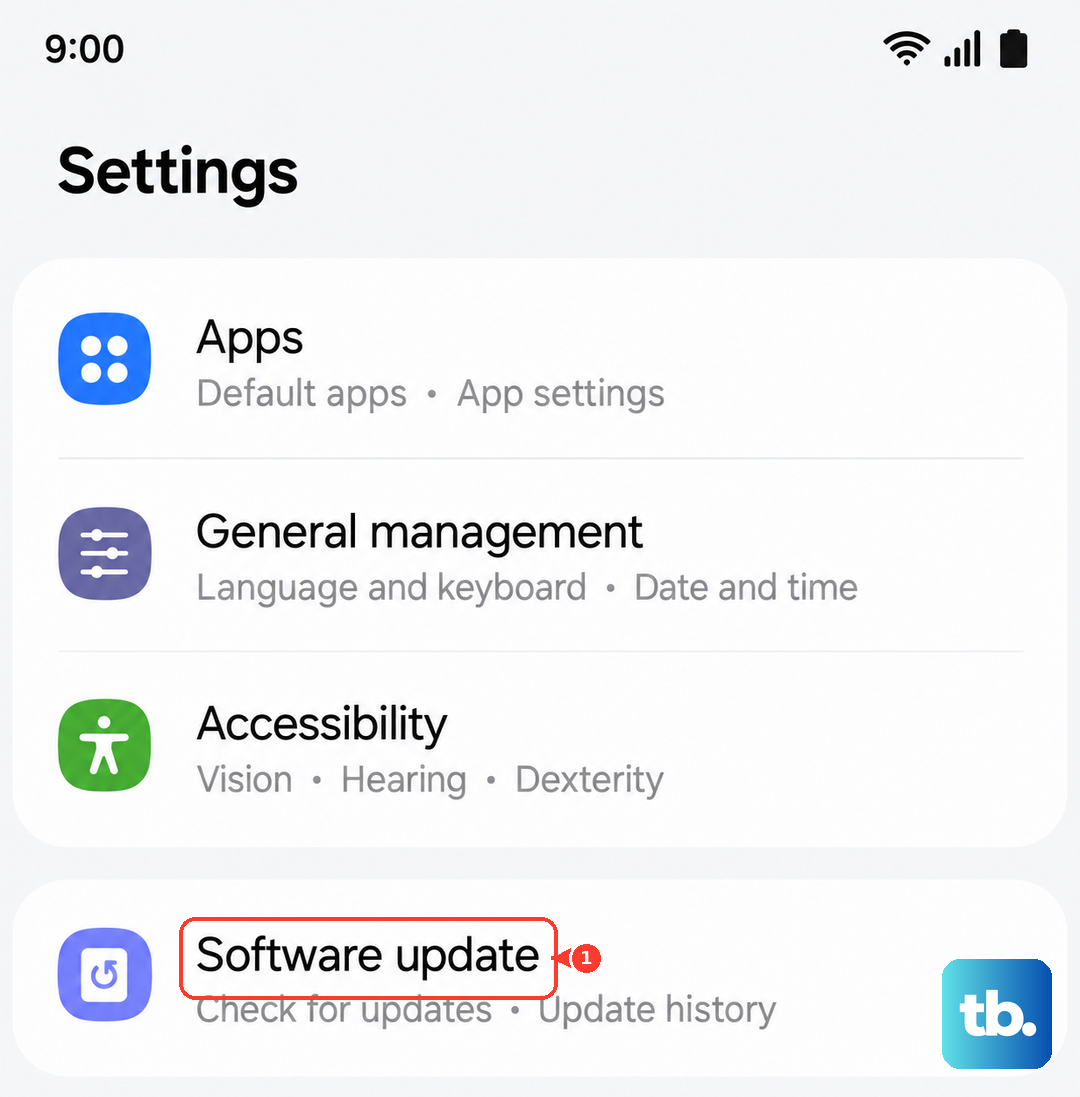
Samsung and Google often patch display bugs in their monthly security updates and major OS drops. Open Settings > Software Update > Download and install. If there's a pending One UI 8 or later update, install it from the Software update screen. I've seen specific flickering issues fixed entirely by a small patch.
Repair apps or wipe the cache partition
If the software is up to date, the system cache might be corrupted. Turn the phone off. Press and hold Volume Up and Side key, release when the Samsung logo appears and you see the Android Recovery menu. Use the volume keys to scroll to Wipe cache partition and press the Side key to select it. This doesn't delete your photos or data.
Factory reset as a last resort
Back up everything first using Smart Switch, either on a PC or in the cloud. Then go to Settings > General Management > Reset > Factory data reset. This erases everything and reinstalls Android 16 and One UI from scratch. If the screen still flickers after a clean boot, you know it's not a software problem.
Check for hinge or screen damage
The Z Flip 7's inner screen is flexible plastic, making it more vulnerable than a standard slab phone. Look closely at the crease and edges of the display. If you see a small crack, a black dot, or the flickering happens mostly when you move the hinge, the display may be physically damaged. Samsung's warranty usually covers screen defects for a year, but physical damage from a drop or pressure is a repair situation.











