You're expecting a message or a call, but your Galaxy Z Flip 7 stays silent and the screen stays dark. Notification problems on the Z Flip 7 can be tricky because they have a few different causes. Let's run through the fixes that work best for this specific phone running Android 16.
Force Restart the Galaxy Z Flip 7
A simple restart clears out temporary glitches that stop notifications from coming through. The Z Flip 7 has a specific way to do this that's different from older Samsung phones.
Press and hold the Volume Down button and the Side key at the same time for about 10 to 15 seconds. Keep holding until you see the Samsung logo appear on the screen. This is a hard reboot, and it won't delete any of your data.
Check Do Not Disturb and Power Saving Modes
Do Not Disturb mode is the most common reason notifications suddenly stop. Swipe down from the top of the screen to open the quick settings panel and check if the DND icon is highlighted.
Power Saving mode on the Z Flip 7 can also restrict background data and notification sync. Tap and hold the Power Saving icon in Quick Settings to see if it's blocking specific apps. If either of these is on, turn it off and test your notifications again.
Review App Notification Settings
It's possible that a specific app, like Messages or WhatsApp, has its notifications toggled off. Go to Settings > Notifications > App notifications and tap on the app you're having trouble with.
Make sure "Show notifications" is enabled. Below that, check that alert styles and sounds are set to your preference. Android 16 introduced some new notification categorization features, so it's worth scrolling through each category for your messaging apps.
Clear Badge Provider Data for False Badges
If the problem is that you're seeing an unread message count on an app when there are no new messages, the Badge Provider system app is usually the culprit. Samsung uses this app to manage those little numbered badges on app icons.
Head to Settings > Apps > tap the three dots in the top right corner > Show system apps. Scroll down and tap BadgeProvider, then tap Storage and select Clear data and cache.
Restart your phone and the badges should reset to their correct numbers.
Update to the Latest Software
Samsung has been actively pushing updates for the Z Flip 7 to fix various bugs, including intermittent charging stops and notification delays. Go to Settings > Software update > Download and install.
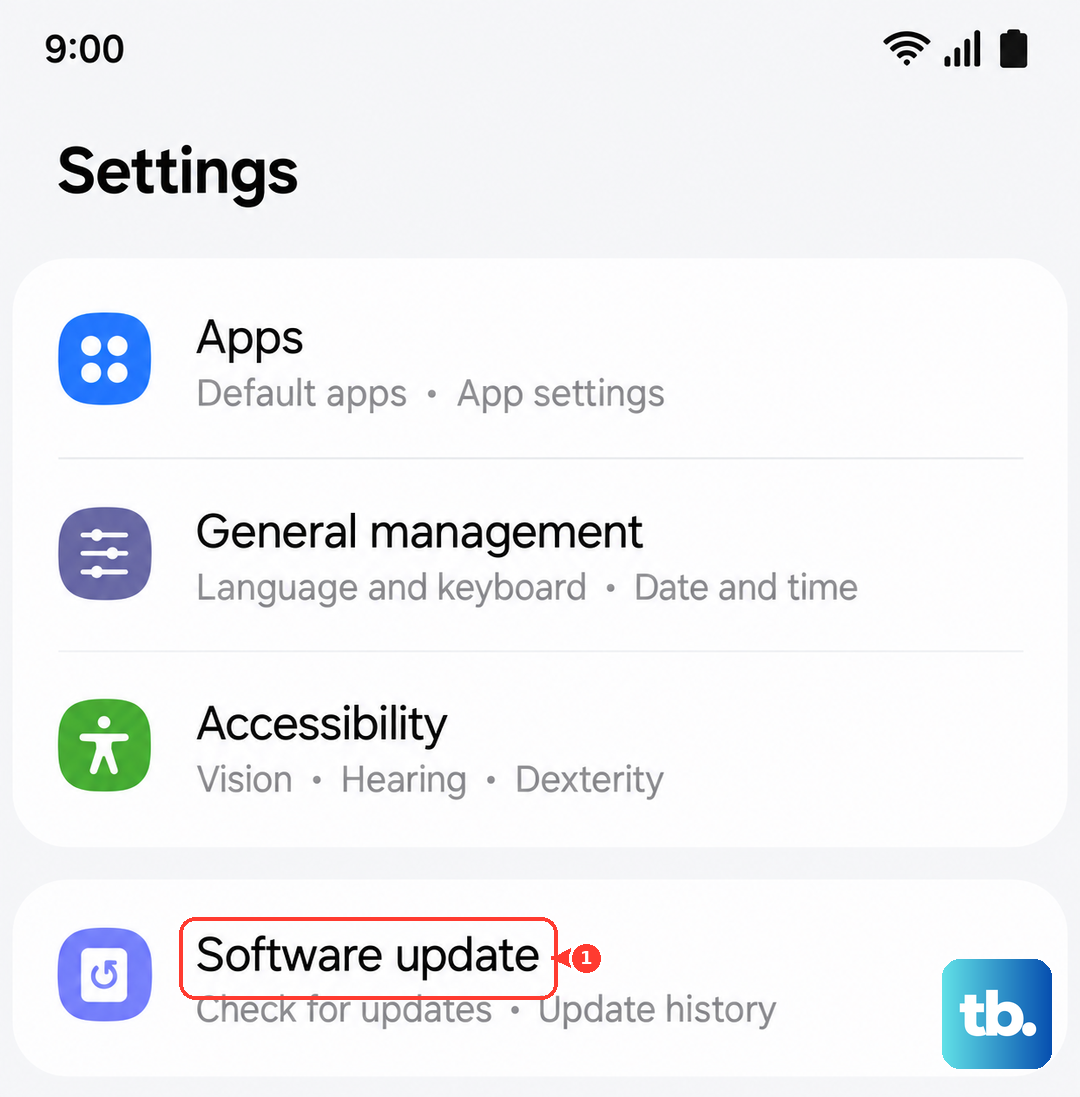
If an update is available, install it while your phone is connected to Wi-Fi and has enough battery. These patches often include fixes for the notification system and background app management.
Allow Notification Background Activity
Android 16 is aggressive with battery optimization on newer devices, and it might be shutting down notification services. Go to Settings > Apps, tap the app you're missing notifications from, then tap Battery.
Select Unrestricted instead of "Optimized" or "Restricted". This allows the app to stay active in the background and push notifications through instantly. You can do the same for the system app called "Notification" by showing system apps in the app list.
Clear the System Cache Partition
Clearing the cache partition gets rid of temporary system files that can sometimes corrupt and cause notification issues. This is a deeper clean than just clearing an app's cache.
Turn off your phone. Press and hold the Volume Up button and the Side key until the Android Recovery menu appears. Use the Volume keys to navigate to "Wipe cache partition" and press the Side key to select it.
Once it's done, select "Reboot system now". This process takes about a minute and doesn't touch your personal data or accounts.
Reset All Settings
If you've tried everything else and notifications are still hit or miss, a settings reset can clear out any conflicting configurations. This won't delete your photos, messages, or accounts, but it will reset Wi-Fi passwords, Bluetooth pairings, and notification preferences.
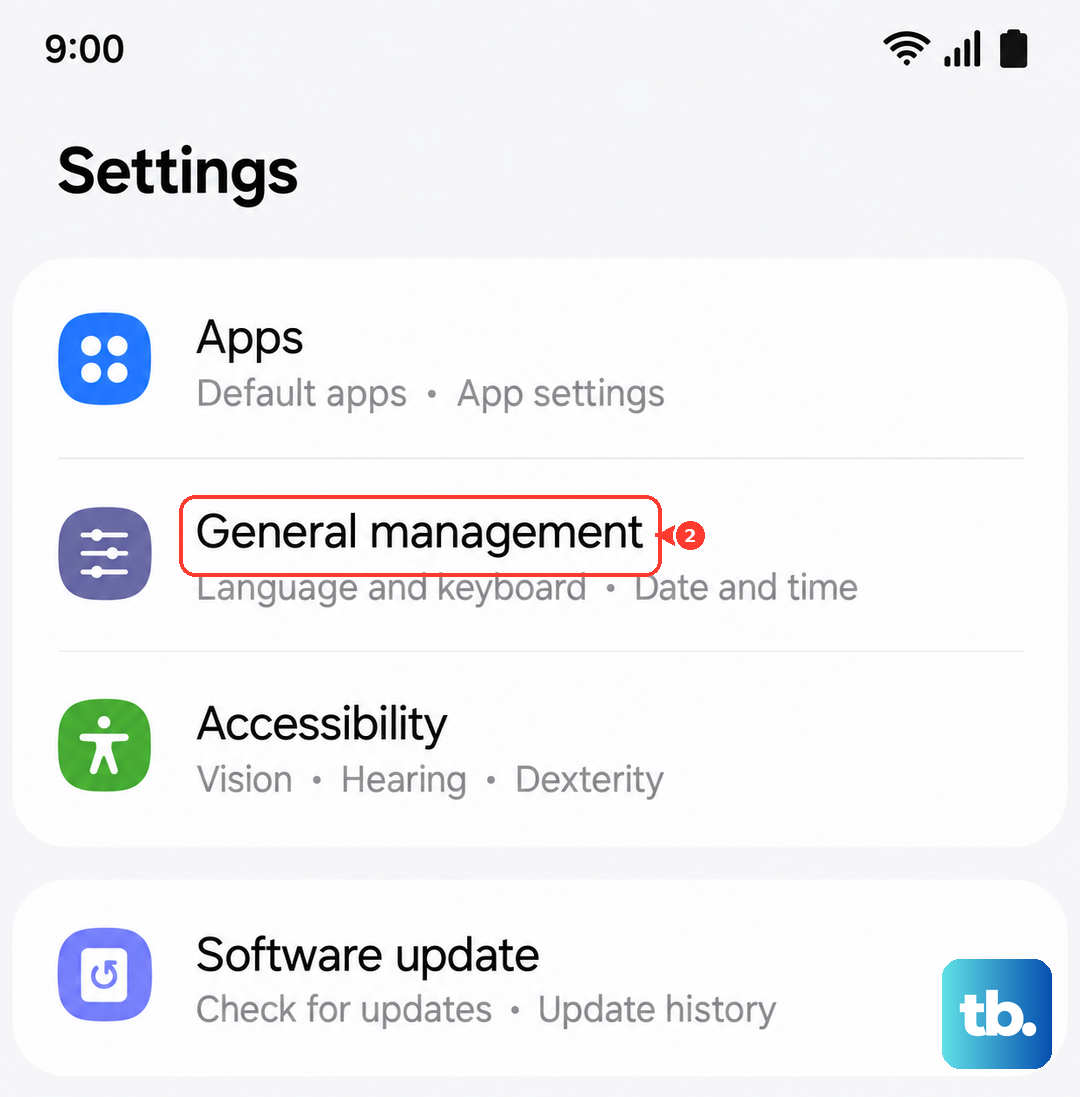
Go to Settings > General management > Reset > Reset all settings. You'll need to enter your screen lock PIN or pattern. After the phone restarts, set up your essential connections and test the notifications.